✨ New: Sell Gifts & Personalized WooCommerce Products with Engraver. Learn more



How to Accept Payments on WordPress Without WooCommerce
For most WordPress websites, WooCommerce is the default solution for accepting payments. It provides a complete eCommerce infrastructure—products, cart, checkout, taxes, shipping, and order management.
However, not every business needs that level of complexity.
If you:
- Offer custom services or variable pricing
- Work with quotes instead of fixed products
- Run a service-based business, agency, or freelance operation
- Only need to collect payments occasionally
- Then a full WooCommerce setup can introduce unnecessary overhead.
In these cases, a simpler, more direct payment flow is often more efficient.

Below are two practical methods to accept payments on WordPress without WooCommerce, using lightweight, purpose-built plugins.
Accepting Payments with Forms
A payment form allows you to collect payments directly from a single page—without a cart or checkout system.
This is ideal for:
- One-time service payments
- Donations or flexible pricing
- Booking or consultation fees
- Custom payment amounts
Direct Payments WP provides a streamlined way to create and embed these forms anywhere on your site.
How It Works
- Create a payment form in your dashboard
- Configure amount (fixed or user-defined)
- Add payment details and fields
- Embed the form using a shortcode
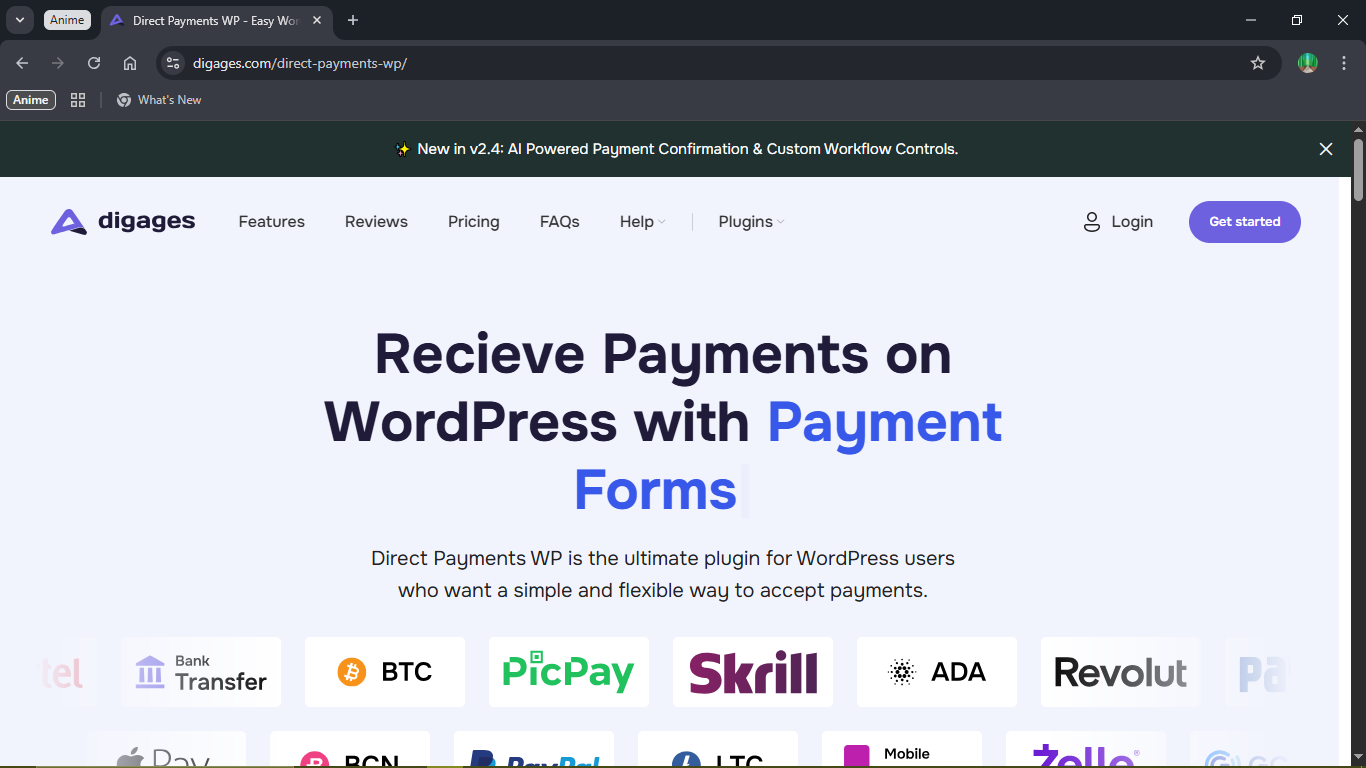
Direct Payment WP Setup
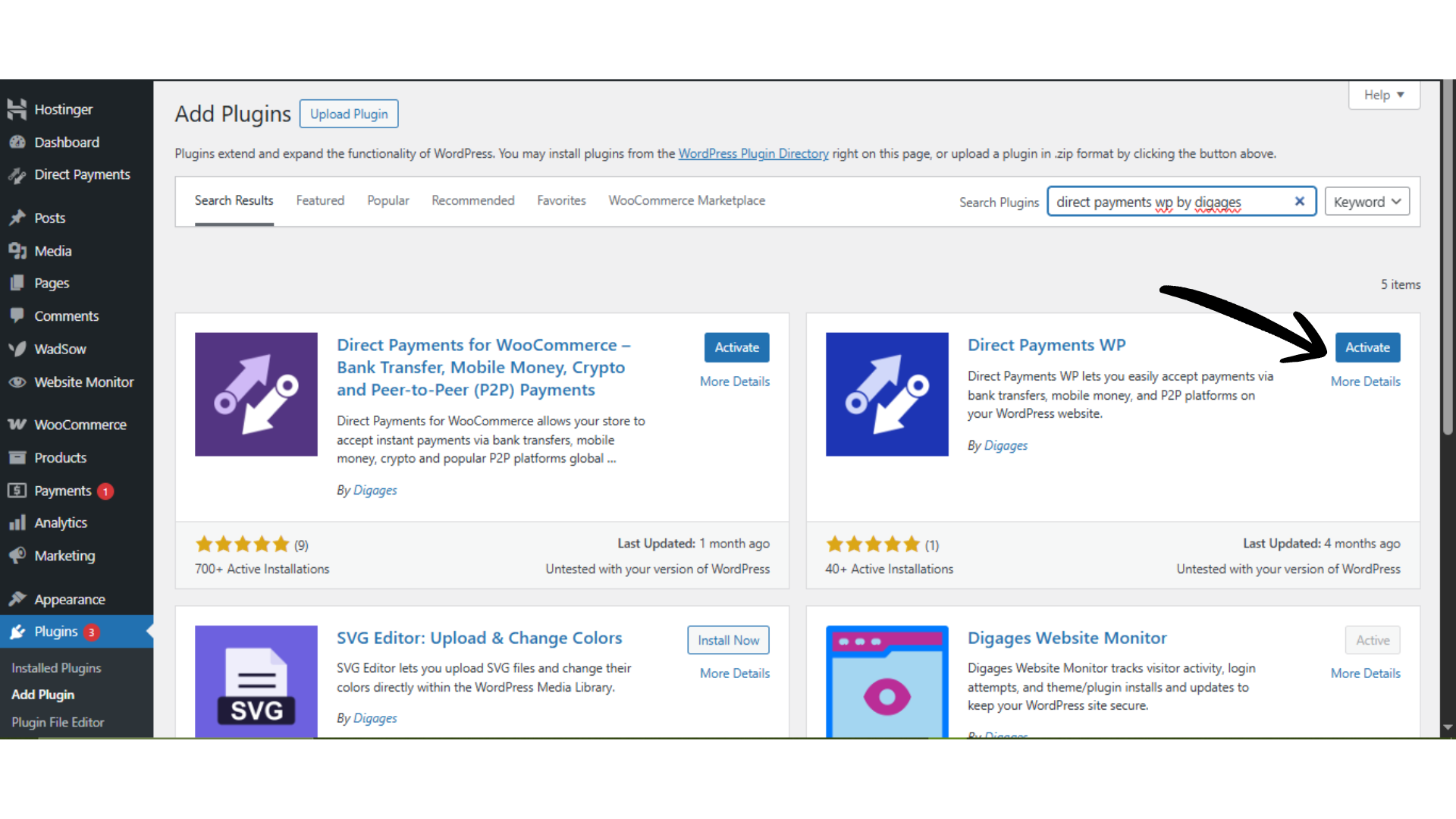
Step 1: Install the Plugin
- Log in to your WordPress dashboard
- Go to Plugins → Add New
- Search for Direct Payments WP by Digages or upload the ZIP file
- Click Install Now → Activate
Step 2: Create a Payment Form
- Go to Direct Payments → Forms
- Click Add New
Step 3: Configure Form Details
Fill in the required fields Form Name – internal reference, Currency – accepted currency, Amount: Set a fixed price, or leave empty to allow customer-defined amounts, Submit Button – e.g., “Pay Now.”, Redirect URL – optional thank-you page, and Phone Number(optional field).
Click Save.
Step 4: Embed the Form
- Go to Direct Payments → Forms
- Copy the shortcode
- Paste it into any page or post
- Publish the page
The form is now live and ready to accept payments.
For full configuration and setup details, visit the Direct Payments WP guide.
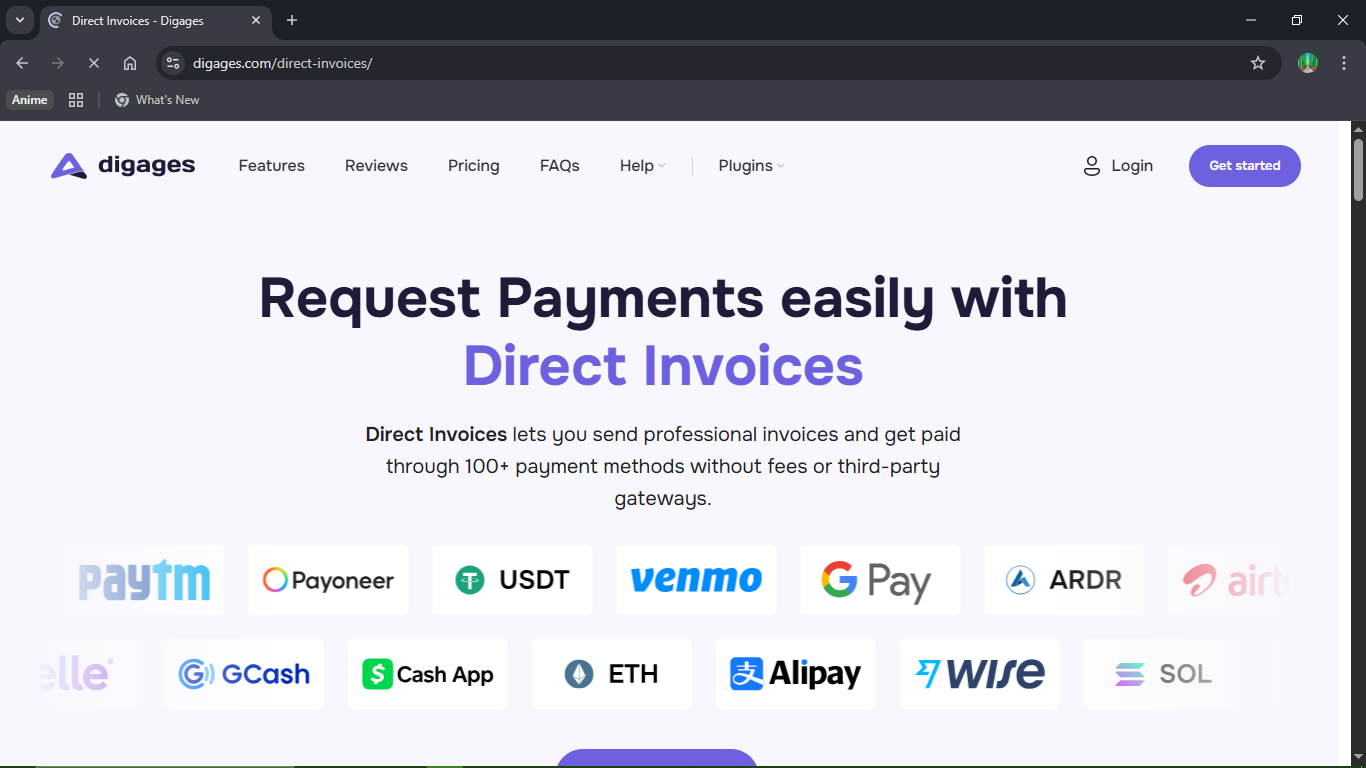
Accepting Payments with Invoices
If your workflow involves billing clients after a service, invoices are more appropriate than payment forms.
This is common for B2B services, Freelancers and agencies, Projects with negotiated pricing, or Retainers or recurring billing
Direct Invoices allows you to generate professional invoices and send them directly to customers.
Key Capabilities;
- Create structured invoices with line items
- Send via Email, WhatsApp, or Telegram
- Automate payment reminders
- Attach Multiple Payment Methods
- Generate a downloadable PDF
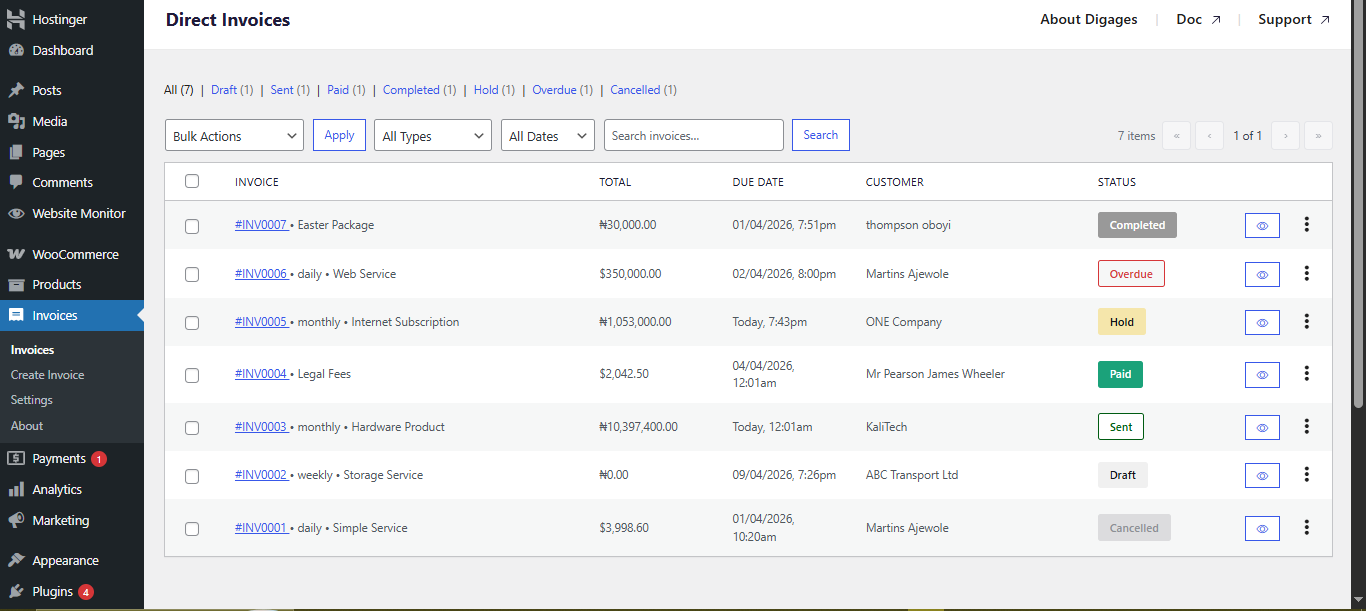
Direct Invoices Setup
Step 1: Install and Activate
- Purchase a plan from the Direct Invoices page
- Download the plugin ZIP file
- Go to Plugins → Add New → Upload Plugin
- Install and activate
- Then go to Plugins → Direct Invoices
- Open the License tab
- Paste your license key and click Activate License
Step 2: Configure Invoice Settings
Go to Invoice → Settings → General
- Then set the Business name and contact details, Currency, Invoice numbering, Logo (for branding), Payment instructions, and Reminder schedule (before/after due date).
- Then go to Invoice → Settings → Payment Methods
- Click Add Account
- Enter payment details (bank, provider, etc.). Then save.
Step 3: Save and Send Invoice
Add Invoice Details/items and options
- Go to Invoice → Create Invoice
- Enter title, customer details, and dates
- Define services/products, quantity, and rate
- Taxes, discounts
- Recurring settings (if needed)
- Select payment accounts (critical step)
Send Invoice
- Click Save Invoice
- Send via Email, WhatsApp, or Telegram
- Optionally download as PDF
For a complete walkthrough, visit the Direct Invoices Guide.
Picking the Right Method
The decision depends on how your business collects payments:
Use payment forms when:
- Customers initiate payment themselves
- Pricing is simple or flexible
- You want a quick, embedded solution
Use invoices when:
- You bill clients after work is defined or completed
- You need structured documentation
- Payment tracking and reminders are important

Final Takeaway
WooCommerce remains a strong solution for full eCommerce operations, but it is not mandatory for accepting payments on WordPress.
If your business model is service-driven or flexible:
Direct Payments WP simplifies on-page payments
Direct Invoices formalizes billing and improves payment collection
Using the right approach reduces setup complexity, improves user experience, and aligns your payment flow with how your business actually operates.








