🎁 New: Build Customer Loyalty & Drive Repeat Purchases with WooCommerce. Learn more



On this page
- Introduction
- Why WooCommerce Staff Management Gets Complicated Fast
- The 5 Types of WooCommerce Staff and What They Actually Need
- Understanding WooCommerce Capabilities
- Building Your WooCommerce Role Structure from Scratch
- How to Onboard New WooCommerce Staff Safely
- WooCommerce Role Templates for Different Store Sizes
- Conclusion
WooCommerce Staff Management Guide for Growing Stores
When your WooCommerce store is a one-person operation, access control is simple: you have full control over everything, because you are everything. But the moment you bring in a second team member, a support rep, a fulfilment coordinator, a product assistant, the access question gets complicated fast.
Who needs to see orders? Who can edit products? Who should be able to touch your payment settings? Who gets access to customer data? The defaults that WordPress and WooCommerce ship with were not designed to answer these questions for a real team. They were designed for simplicity, not for scale.
The result: most growing WooCommerce stores end up with a messy permission structure that either over-grants access to staff (creating security and operational risk) or under-grants it (creating friction and constant back-and-forth). Neither is sustainable as your team grows.

This guide gives you a practical framework for planning, building, and maintaining WooCommerce staff access as your store scales, covering role design, onboarding workflows, capability reference, and the ongoing habits that keep your access structure clean over time.
Why WooCommerce Staff Management Gets Complicated Fast
WooCommerce ships with two built-in roles: Administrator and Shop Manager. Between them, the gap is enormous, and there is nothing in the middle. An Administrator can do everything on your site. A Shop Manager can do almost everything within WooCommerce. If your team member needs something less than that, you have nowhere to go.
This is the structural problem. As stores grow, teams diversify. You end up with people who need:
- Order access but not product editing rights
- Reporting visibility but no ability to touch orders or settings
- Product management capabilities but no access to financial data
- Coupon creation rights but nothing else in WooCommerce at all
None of these profiles maps cleanly to Shop Manager or Administrator. So store owners default to one of two bad patterns: they give everyone Shop Manager and accept the over-permission risk, or they spend time fielding access requests because people can’t do their jobs.
A third option exists: build a proper role structure. This guide shows you how.

Understanding the Default WordPress and WooCommerce Roles
Before creating custom roles, it’s important to understand what the default WordPress and WooCommerce roles already provide and where their limitations begin.
Administrator
The Administrator role has complete control over both WordPress and WooCommerce. Users with this role can manage content, users, plugins, themes, store settings, payment gateways, shipping methods, and every other aspect of the site.
While this level of access is necessary for site owners and trusted administrators, it is usually excessive for staff members, contractors, or clients. A single mistake can affect the entire website.
Shop Manager
The Shop Manager role is WooCommerce’s default store management role. It provides extensive access to products, orders, customers, reports, coupons, and many store management functions.
The main drawback is that it combines operational and administrative permissions into a single role. A user who only needs to manage orders may also gain access to settings and other areas they do not actually need.

Editor
The Editor role is designed for content management. Editors can create, edit, publish, and manage posts and pages across the site, including content created by other users.
However, Editors do not have WooCommerce permissions by default, so they cannot manage products, orders, coupons, or other store-related tasks.
Author
The Author role is intended for individual content creators. Authors can create, edit, publish, and manage their own posts but cannot manage content created by others.
Like Editors, Authors do not have access to WooCommerce functionality unless additional capabilities are manually assigned.

Subscriber
The Subscriber role provides the most basic level of access. Subscribers can log in, manage their profile, and read content available to logged-in users.
They cannot create content, manage store operations, or access administrative features.
Customer
The Customer role is automatically assigned to shoppers who create accounts or place orders in WooCommerce. Customers can view their order history, manage their account details, and update certain account preferences.
This role is designed for frontend users rather than store staff and should not be used for operational or administrative responsibilities.
The 5 Types of WooCommerce Staff and What They Actually Need
Most WooCommerce teams, regardless of size, have staff that fall into five broad operational profiles. Each has a distinct set of access requirements. Understanding these profiles is the first step to building a role structure that works.
1. Order Processors and Customer Support
These are the team members on the front line of customer interaction, handling queries, processing refunds, chasing fulfilment issues, and updating order notes.
What they need: The ability to view and edit orders, issue refunds, and access basic customer contact information. In most setups, view_woocommerce_reports helps them check order context.
What they do not need: Product editing, coupon creation, payment gateway access, shipping configuration, or WooCommerce system settings.
This is the most commonly over-permissioned staff profile. Support staff frequently receive Shop Manager access “because they need WooCommerce access” even though a fraction of that would suffice safely.

2. Product Managers
Product managers own the catalogue: creating listings, managing inventory, updating pricing, setting product attributes, and maintaining category structure.
What they need: The ability to create, edit, publish, and manage products and product categories. If they manage stock, they need inventory access. Upload access for product images.
What they do not need: Order management, customer data, payment settings, coupon creation, or WooCommerce system configuration.
3. Warehouse and Fulfilment Staff
Warehouse staff need visibility into what needs to be picked, packed, and shipped, but they are not responsible for customer communication or store configuration.
What they need: Read access to orders so they can view fulfilment status, update shipping details or tracking numbers, and check stock levels.
What they do not need: The ability to edit orders in any significant way, access customer financial data, touch products, or access any WooCommerce settings.
This is one of the most restricted profiles and often the most under-designed, because warehouse access requirements are straightforward but easily over-provided with a blanket Shop Manager assignment.

4. Marketing and Promotions Staff
Marketing team members may manage coupon campaigns, seasonal promotions, and email marketing integrations. They need access to promotional tools without access to the operational core of your store.
What they need: Coupon creation and management. Depending on your setup, they may also need access to specific plugin pages for SEO tools, social media scheduling, or email platforms.
What they do not need: Order access, customer personal data, product editing (unless they also manage content), or any WooCommerce settings beyond coupons.
5. Analysts and Finance Reviewers
Analysts need to see store performance data: revenue, order volume, product performance, customer trends, without needing to touch any operational area of the store.
What they need: View access to WooCommerce reports and analytics. Depending on your reporting setup, they may need access to specific analytics integrations.
What they do not need: Any ability to edit orders, products, customers, settings, or coupons. Read-only access is the correct profile here.
Understanding WooCommerce Capabilities
WordPress uses a capability system to control what users can do. WooCommerce extends this system with its own set of capabilities, separate from WordPress core permissions. This means that when you’re configuring access for a staff member, you’re potentially working with two distinct layers.
The problem is that WooCommerce doesn’t come with pre-built staff roles out of the box. It relies on WordPress’s default role system, which wasn’t designed with e-commerce workflows in mind. An Administrator gets everything. The built-in Shop Manager role that WooCommerce adds grants very broad access. There’s nothing in between — no “Orders Only” role, no “Products Editor” role, no “Reports Viewer” role — unless you build it yourself.

The Core WooCommerce Capabilities You Need to Know
WooCommerce adds its own set of capabilities on top of WordPress. These capabilities control what users can do within your store, from managing orders to configuring payment gateways.
The most important WooCommerce capabilities include:
- manage_woocommerce – Grants full access to WooCommerce settings and administration areas, including payment gateways, taxes, shipping methods, emails, and other store configurations.
- view_woocommerce_reports – Allows users to access WooCommerce reports and analytics, including sales, order, revenue, and inventory data.
- edit_shop_orders – Enables users to view, process, update, and manage customer orders, including issuing refunds and changing order statuses.
- edit_products – Allows users to create and edit product listings, including descriptions, pricing, images, inventory settings, and product attributes.
- publish_products – Gives users permission to publish products and make them available for purchase on the store.
- delete_products – Allows users to remove products from the store catalogue.
- edit_shop_coupons – Enables users to create, edit, and manage discount coupons and promotional codes.
- manage_product_terms – Allows users to create, edit, and organise product categories, tags, and other product taxonomies.
The manage_woocommerce capability is not a “slightly broader” version of the others — it’s a completely separate super-permission that opens up payment gateways, shipping zones, tax settings, email notifications, and store-wide configuration. It should be reserved exclusively for store owners and senior managers.
Building Your WooCommerce Role Structure from Scratch
If you are starting fresh or restructuring a messy existing setup, here is a practical step-by-step process using Digages Role Manager for designing roles that match your actual team.
Step 1: Map the Client’s Workflow Before You Build
Before opening Digages Role Manager, write down, even informally, what the client will actually do when they log in. What pages will they visit? What actions will they take? What should they never be able to touch? This 60-second exercise prevents you from having to rework the role after it’s been assigned.
Step 2: Create a New Role from the Digages Role Manager Dashboard
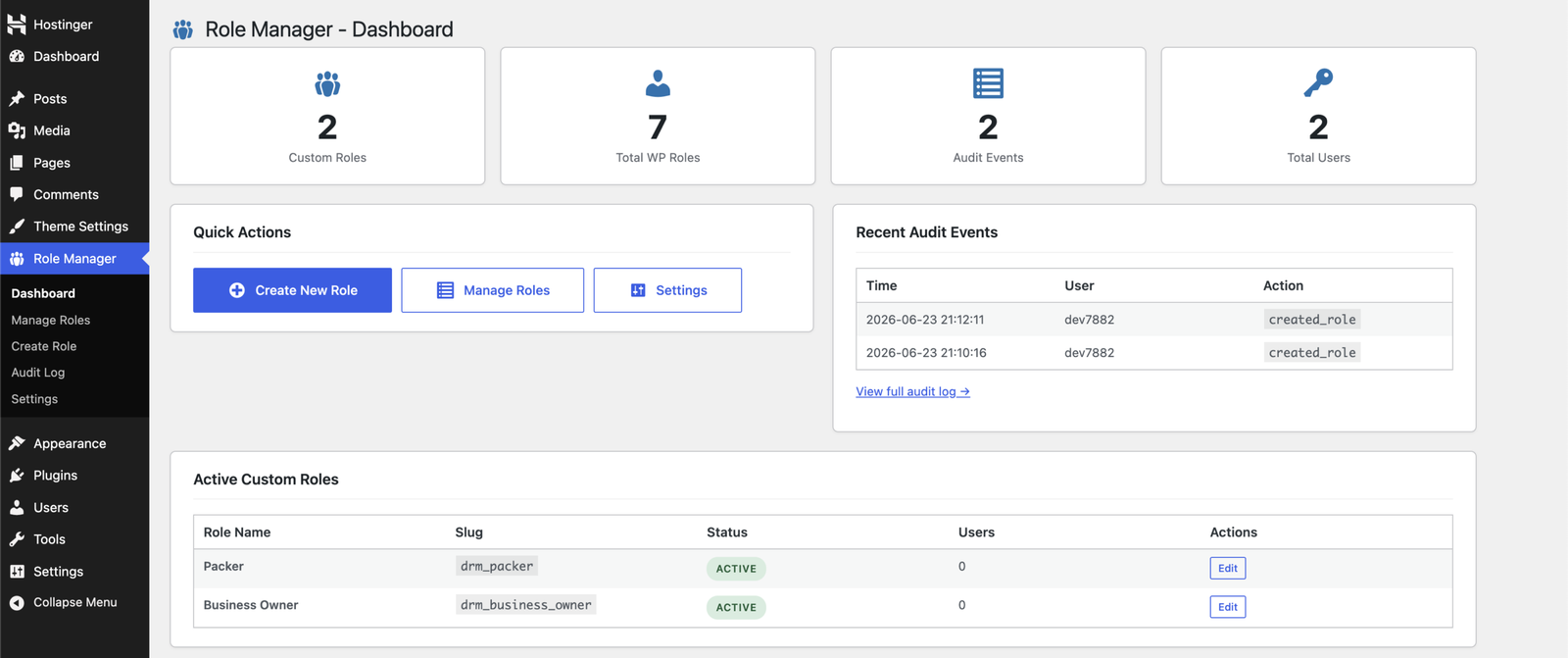
In the WordPress sidebar, navigate to Digages Role Manager and click Create New Role. The creation screen is split into two areas: Basic Information on the left and Allowed Actions on the right.
- Give the role a clear, client-relevant name. “Content Client — Bright Ideas Ltd” or “Orders Access — Store Owner” is far more useful than “Custom Role 3” when you’re managing multiple clients on a multi-site setup.
- Add a description. Even a one-line note — “Client role for blog post updates only; no plugin or settings access” — will save time if you revisit the site in 12 months.
- Choose whether to inherit from an existing role. For most client roles, starting from None gives you the cleanest foundation. If the client needs fairly broad content access, inheriting from Editor and stripping out the capabilities you don’t want can be faster.
Step 3: Set a Login Redirect URL
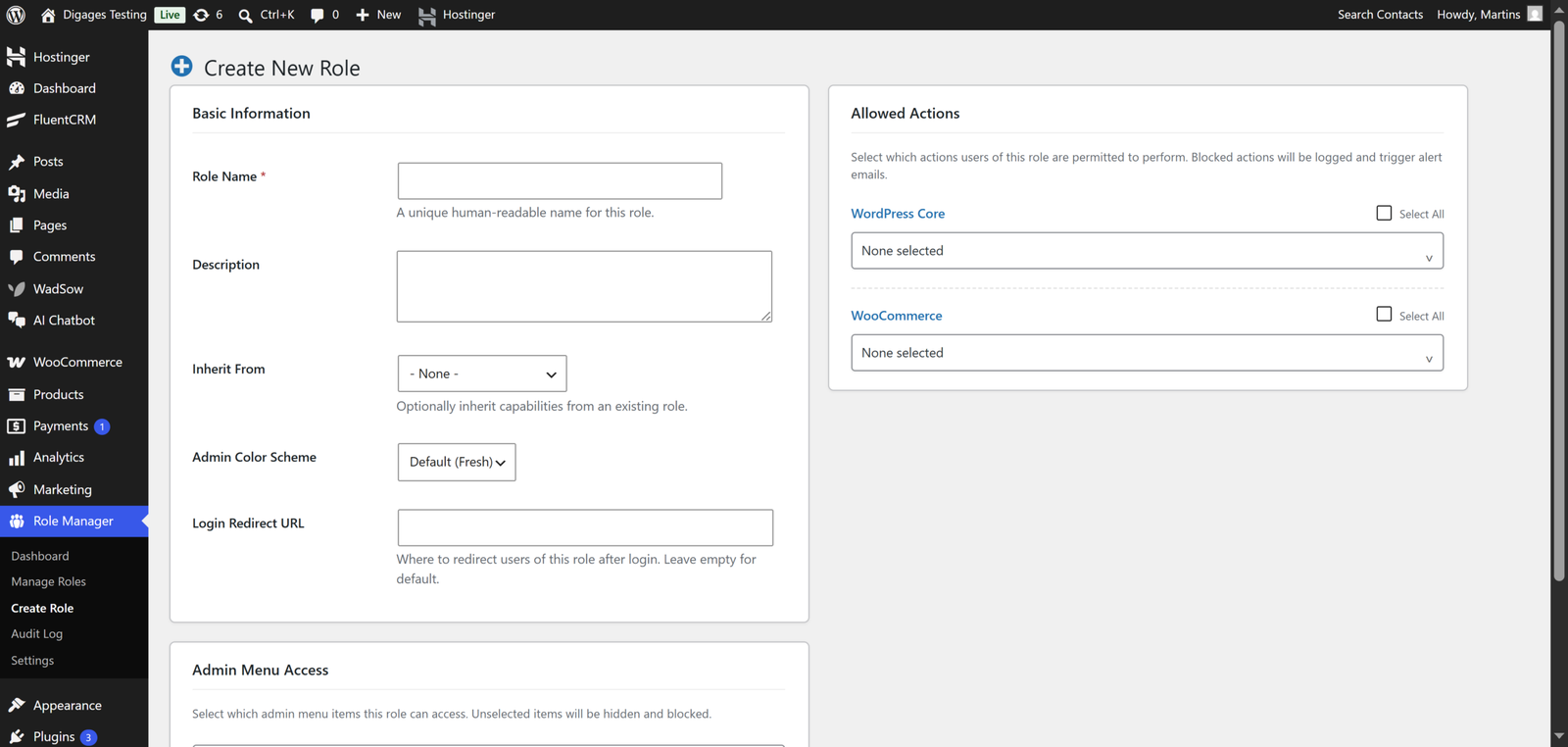
The Login Redirect URL field in Digages Role Manager is one of the most underused features for agency setups. When a client logs in, by default they land on the WordPress admin dashboard — a screen filled with controls they’ll never use and which can cause confusion or accidental clicks.
Set the redirect URL to the exact screen where the client will do their work. For a content client, this might be /wp-admin/edit.php (the Posts list). For a WooCommerce client, /wp-admin/admin.php?page=wc-orders puts them directly on the Orders screen the moment they log in.
A focused login experience reduces client confusion, reduces accidental changes, and reduces the number of support calls you receive. It’s a small configuration that makes a noticeable difference.
Step 4: Assign WordPress Core Capabilities
In the Allowed Actions panel, the WordPress Core Capabilities section lists every standard WordPress permission. For most client roles, you’ll only need a small subset. Here’s what typical client types need:
Content Editor Client; read, edit_posts, edit_published_posts, upload_files, publish_posts
Content Editor (Can Edit Others’ Posts); read, edit_posts, edit_others_posts, edit_published_posts, upload_files
View-Only / Reporting Client; read
WooCommerce Store Client; read. WooCommerce-specific capabilities handle store management permissions
Full Content + Orders Client; read, edit_posts, upload_files, publish_posts. Full WooCommerce capability set for order management and store operations
Resist the urge to check “Select All” for WordPress Core Capabilities. This is equivalent to granting near-administrator access and defeats the purpose of creating a custom role. Start with read and add only what the client’s workflow genuinely requires.
Step 5: Assign WooCommerce Capabilities (If Applicable)
If your client’s site runs WooCommerce, a separate WooCommerce section appears below the WordPress Core section in Digages Role Manager, but only when WooCommerce is active on the site. This section lets you assign e-commerce-specific permissions completely separately from the WordPress core set.
For a store-owner client who manages orders and checks reports, the right capabilities are typically edit_shop_orders and view_woocommerce_reports. These two capabilities give full visibility and processing access for orders and sales data, without touching payment gateway settings, product configuration, or store-wide options.
Step 6: Configure Admin Menu Access
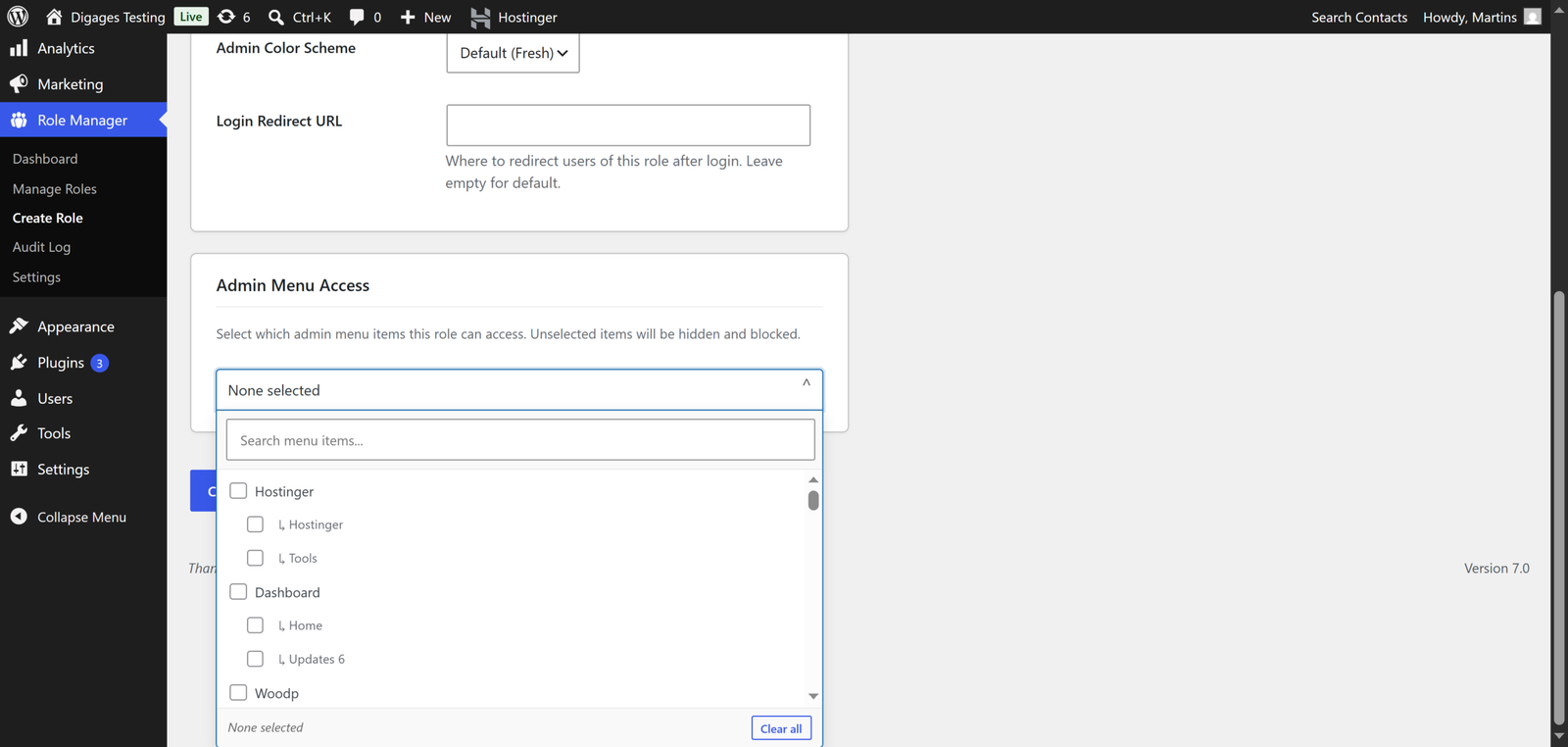
The Admin Menu Access section is the second major layer of protection in Digages Role Manager, and it works independently of the capability settings. Even if a capability is technically assigned, if the corresponding menu item isn’t enabled here, the user won’t see it in their admin panel at all.
For a content client, you might enable only Posts, Pages, and Media. For a WooCommerce client, WooCommerce > Orders and nothing else. For a reporting client, only the analytics or reporting menu items from whatever plugins are installed.
How to Onboard New WooCommerce Staff Safely
How you bring a new team member onto your WordPress site matters as much as which role you assign them. A solid onboarding process reduces risk and sets clear expectations from day one.
Use the Correct Role From Day One
Never onboard new staff with a temporary Administrator or Shop Manager account “to get them set up quickly.” Temporary elevated access has a habit of becoming permanent, and every day someone has broader access than they need is a day that access could cause a problem.
Have the right role built and tested before the new team member’s start date. Assign it on their first day and let them work within it from the beginning.
Set the Login Redirect URL
Digages Role Manager allows you to specify a login redirect URL for each role. Use this to drop staff directly into the area they work in, the Orders list for support staff, the Products page for product managers, the WooCommerce Reports page for analysts.
Starting every session in the right place reduces the chance of accidental navigation into areas they should not be in, and makes the login experience cleaner and more professional for your team.
Walk Through Their Access With Them
Spend ten minutes with each new team member to walk through what they can see, what they cannot, and why. This is not just about preventing mistakes; it sets a professional tone around access control and signals that your store takes security seriously.
It also gives you an early signal if a role is missing a capability they legitimately need. Better to catch that in an onboarding session than two weeks later when it causes a workflow problem.
Enable Audit Logging Before Anyone Logs In
Digages Role Manager’s Audit Log records role-related actions across your site. Enable it in the Digages Role Manager Settings before onboarding any new staff. Once it is active, you have a record of every role-related change from the beginning, which is far more useful than enabling it after the fact.
WooCommerce Role Templates for Different Store Sizes
Small Store (2–5 Staff)
At this size, staff often wear multiple hats. Team members often handle multiple responsibilities. Instead of creating a large number of highly specialised roles, it is usually more practical to create a few well-defined roles that match how work is actually performed.
A simple three-role structure is often sufficient.
Store Operator
The Store Operator role is responsible for day-to-day store management. Users in this role can process orders, manage products, publish new products, and review store performance reports.
Recommended capabilities include:
readedit_shop_ordersview_woocommerce_reportsedit_productspublish_products
Admin menu access should be limited to:
Orders
Products
Reports
This role is ideal for store managers who oversee sales and inventory but do not need access to WooCommerce settings, payment gateways, or other administrative areas.
Support Agent
The Support Agent role focuses on customer service and order management. These users need access to customer orders and basic reporting data but should not be able to modify products or store settings.
Recommended capabilities include:
readedit_shop_ordersview_woocommerce_reports
Admin menu access should be limited to:
Orders
This role works well for customer support staff who handle order inquiries, status updates, cancellations, and refunds.
Content Editor
The Content Editor role is responsible for website content rather than store operations. Users can create and manage blog posts, landing pages, and media assets without accessing WooCommerce.
Recommended capabilities include:
read- edit_posts
- upload_files
Admin menu access should be limited to:
Posts
Pages
Media
This role is suitable for content writers, marketers, SEO specialists, and anyone responsible for maintaining website content.
Medium Store (6–20 Staff)
At this scale, roles need to be more specialised. Support, operations, and marketing are distinct functions with distinct access requirements.
Customer Support Agent
Customer Support Agents focus on helping customers and resolving order-related issues. They need access to order information and performance data but should not be able to modify products or store settings.
Recommended capabilities include:
edit_shop_orders- view_woocommerce_reports
Admin menu access should be limited to:
WooCommerce → Orders
This role is ideal for support representatives handling order inquiries, refunds, returns, and status updates.
Product Manager
Product Managers are responsible for maintaining the store catalog. They need full control over product creation, editing, organisation, and publishing.
Recommended capabilities include:
edit_productspublish_productsedit_product_termsmanage_product_termsupload_files
Admin menu access should be limited to:
WooCommerce → Products
Inventory-related screens
This role is suitable for merchandising teams, catalogue managers, and staff responsible for product content and pricing updates.
Fulfilment Coordinator
Fulfilment Coordinators handle order processing and shipping workflows. Their responsibilities usually involve updating order statuses and tracking fulfilment progress rather than modifying products or store settings.
Recommended capabilities include:
edit_shop_orders (restricted to viewing and updating order statuses where possible)
Admin menu access should be limited to:
WooCommerce → Orders
For larger stores, you may also choose to filter the Orders screen so fulfilment staff only see the orders relevant to their workflow.
Marketing Assistant
Marketing Assistants often need access to promotional tools such as coupons, discounts, and selected marketing plugins without gaining broader administrative control over the store.
Recommended capabilities should focus only on the features they actively use. In some cases, this may require controlled access to WooCommerce functionality combined with strict admin menu restrictions.
Admin menu access should be limited to:
WooCommerce → Coupons
Selected marketing plugin pages
This role is ideal for team members managing promotions, seasonal campaigns, and customer acquisition activities.
Store Analyst
Store Analysts require access to business data rather than operational controls. Their primary responsibility is reviewing store performance and generating reports.
Recommended capabilities include:
view_woocommerce_reports
Admin menu access should be limited to:
WooCommerce → Reports
WooCommerce → Analytics
This role allows analysts and managers to review sales, revenue, customer, and inventory metrics without risking accidental changes to products, orders, or settings.
Large Store (20+ Staff)
Larger teams need senior and junior variants of key roles, plus clear escalation paths. Role names should reflect seniority levels.
- Senior Support Agent: Same as Support Agent plus the ability to view full customer records for escalated cases
- Junior Product Manager: edit_products without publish_products; a senior must approve before listings go live
- Fulfilment Team Lead: Same as Fulfilment Coordinator plus basic order editing for exception handling
- Store Administrator: manage_woocommerce scoped to specific settings areas via menu restrictions, but not full WordPress admin
- Reporting Manager: view_woocommerce_reports plus access to external analytics plugin pages
Conclusion
WooCommerce staff management does not have to be complicated, but it does have to be intentional. The stores that run into access problems are almost always the ones that never paused to think about role design. They assigned a Shop Manager because it was convenient, and they are still cleaning up the consequences months later.
The approach in this guide is not about restricting your team. It is about giving each person exactly the access they need to do their job well, clearly defined, properly tested, and consistently maintained over time. That kind of access structure makes your store more secure, your team more confident, and your administration significantly lighter.
Start with the most common staff function in your current team. Map what they actually need in WooCommerce. Build that role in Digages Role Manager, test it, and roll it out. Then work through the rest of your team. Within a few hours, you will have a role structure that scales with your store, rather than one that fights you every time you bring someone new on board.