🎁 New: Build Customer Loyalty & Drive Repeat Purchases with WooCommerce. Learn more





How to Sell Birthday Gifts with Custom Messages on WooCommerce
Personalized birthday gifts, a name on a mug, a message engraved on a keychain, a photo on a frame, convert better and get returned less often than generic ones. The problem is collecting that personalization cleanly. A checkout note field doesn’t tie a message to a specific item, an email follow-up delays the order, and a contact form means someone on your team has to match submissions back to orders by hand.
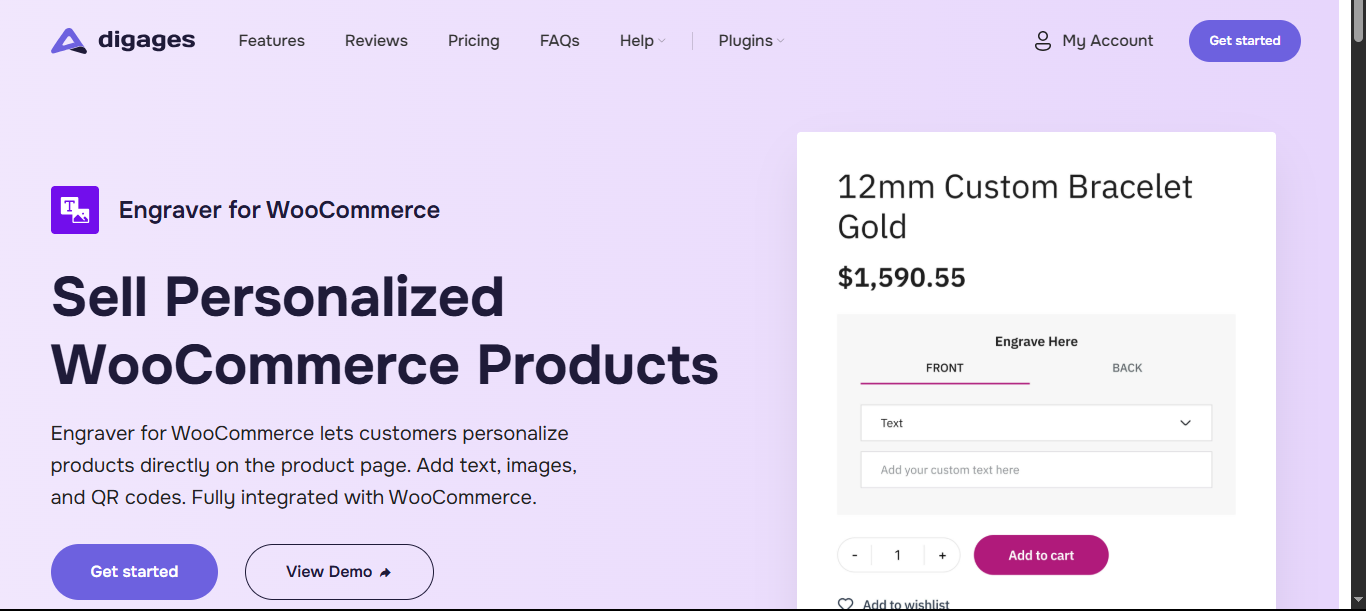
Engraver for WooCommerce solves this by capturing the customer’s message, name, or upload directly on the product page, before the item is added to the cart, so it stays attached to that exact product and order. Here’s how to set it up for a birthday gift store.
Decide What Kind Of Personalization You Are Offering
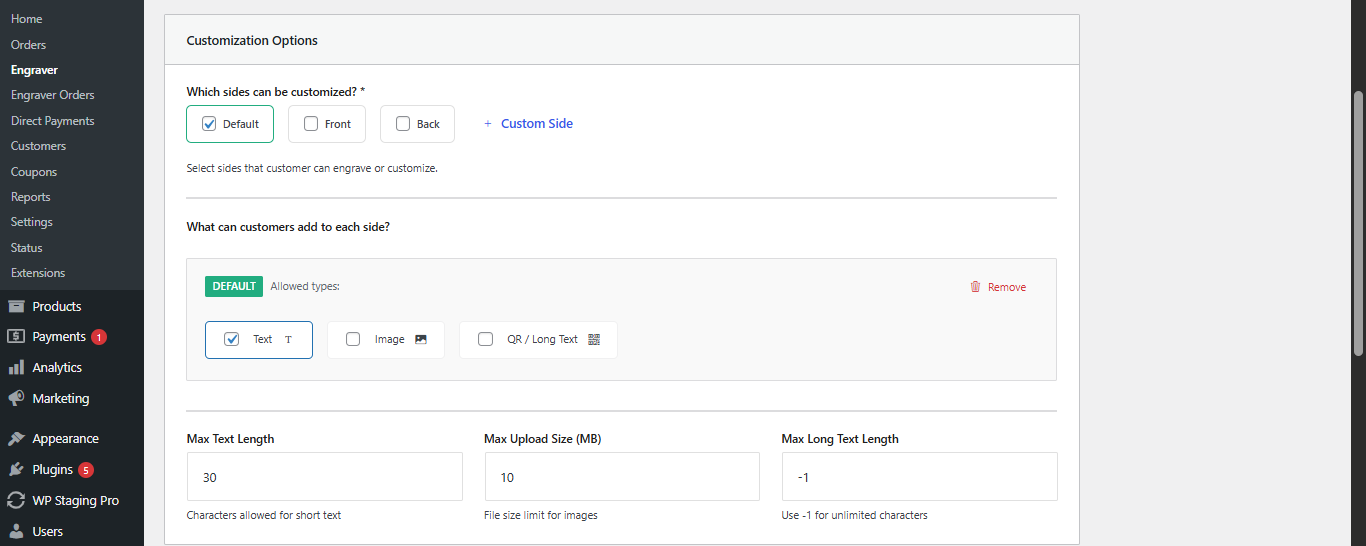
Different gifts need different input types, and Engraver for WooCommerce lets you assign this per product rather than forcing one format on everything:
- Short text — a name, age, or one-line message, for items like mugs or keychains with limited space.
- Long text / message — a fuller birthday note, for cards, canvas prints, or gift box inserts.
- Image — a photo upload for a frame or photo mug, with a maximum file size you set.
Match the input type to the physical space and to what your printer or engraving machine can actually produce. A mug only has room for a short field; a canvas print can carry a longer message plus a photo. Set character limits accordingly; this is what prevents a submitted message from simply not fitting once it reaches production.
Build a Template to Collect It on the Product Page
From WooCommerce → Engraver, create a template that defines the personalization fields for a gift, for example, a short name field for a mug, or a name plus a photo upload for a frame. If a gift has more than one customizable surface, such as the front and back of a mug, for instance, define the fields separately per side.
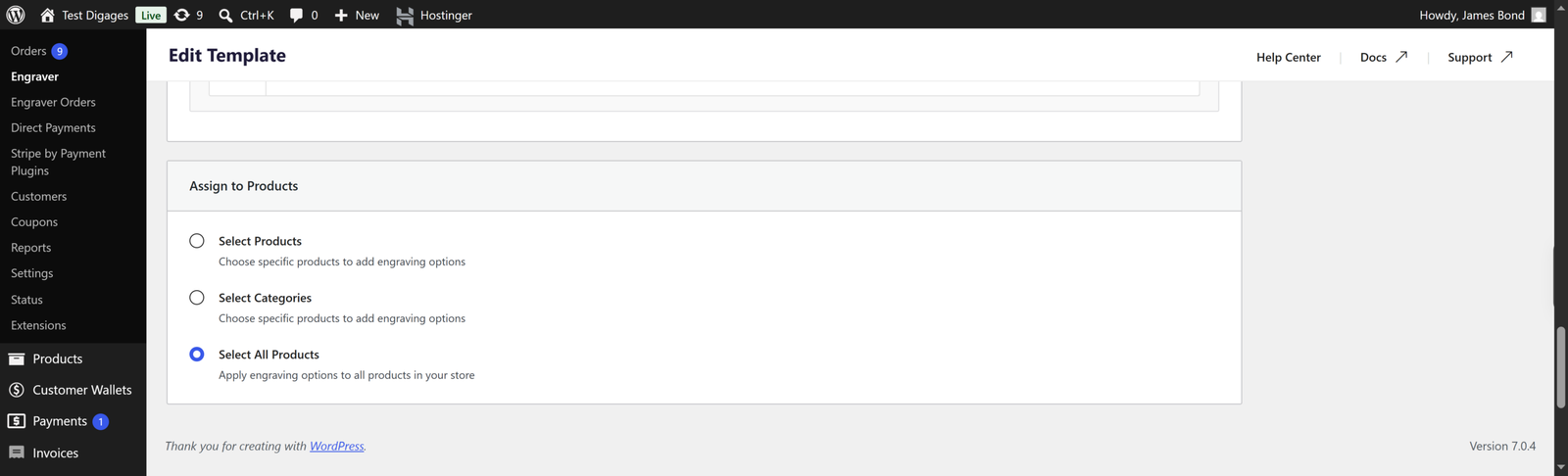
Once built, assign the template to:
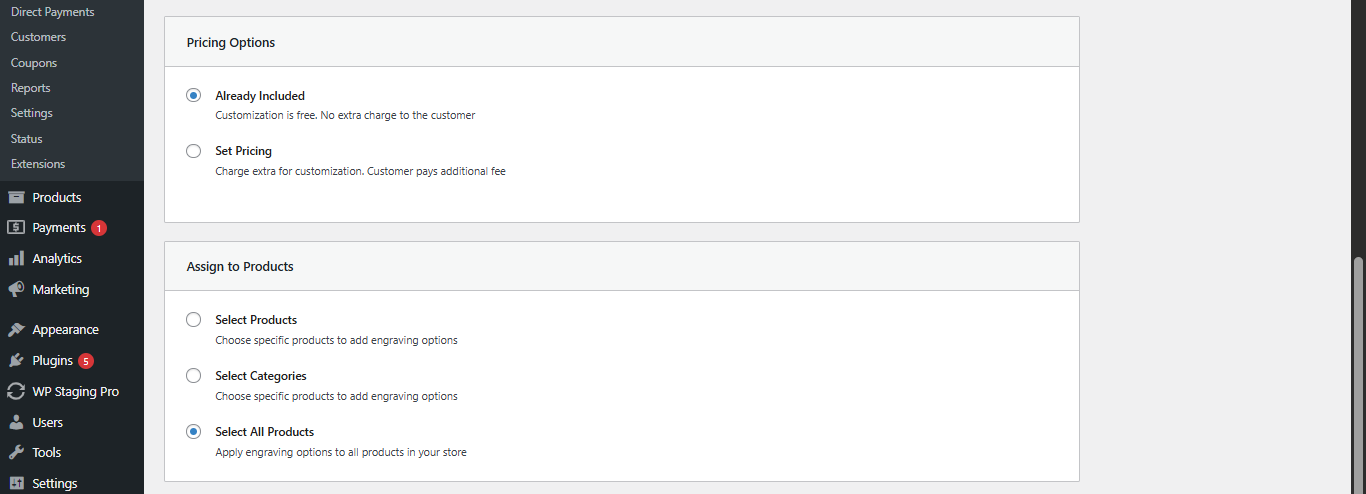
- All products — if most of your catalog is personalizable.
- A category — e.g., “Personalized Birthday Cups,” so any new product added to that category inherits the same fields automatically.
- Individual products — for a single gift with its own rules.
This is what keeps the setup manageable as your catalog grows: build the fields once, apply the template, and every matching product gets the same personalization step without you configuring it product by product.
Setting Up These Products in WooCommerce
Use variable products where a gift comes in multiple sizes, colours, or styles, so customers can pick a variant and personalise it in the same flow. This keeps your catalogue manageable and avoids duplicating near-identical listings.
- Group similar gift types under one product with variants, rather than creating a new listing for every colour or size.
- Use product categories like “Personalised Birthday Gifts” so you can apply the same personalisation setup across the whole group later on.
- Write product titles that describe both the gift and the personalisation; “Engraved Birthday Mug with Custom Name” will outperform a vague title like “Birthday Mug” in search.
Set Pricing for Personalization
Engraver for WooCommerce lets you set personalization as included in the price or charged as an add-on, and pricing can differ by input type, for example, a name included free, but a photo upload or QR code priced separately. Pricing is set once per template and applied consistently across everything it’s assigned to.
Managing and Fulfilling Personalised Birthday Orders
Collecting the message is only half the job, someone still has to turn that data into a finished product without misreading a name or missing an uploaded photo. This is where a dedicated view of personalisation orders, separate from your regular WooCommerce order list, makes a real difference.
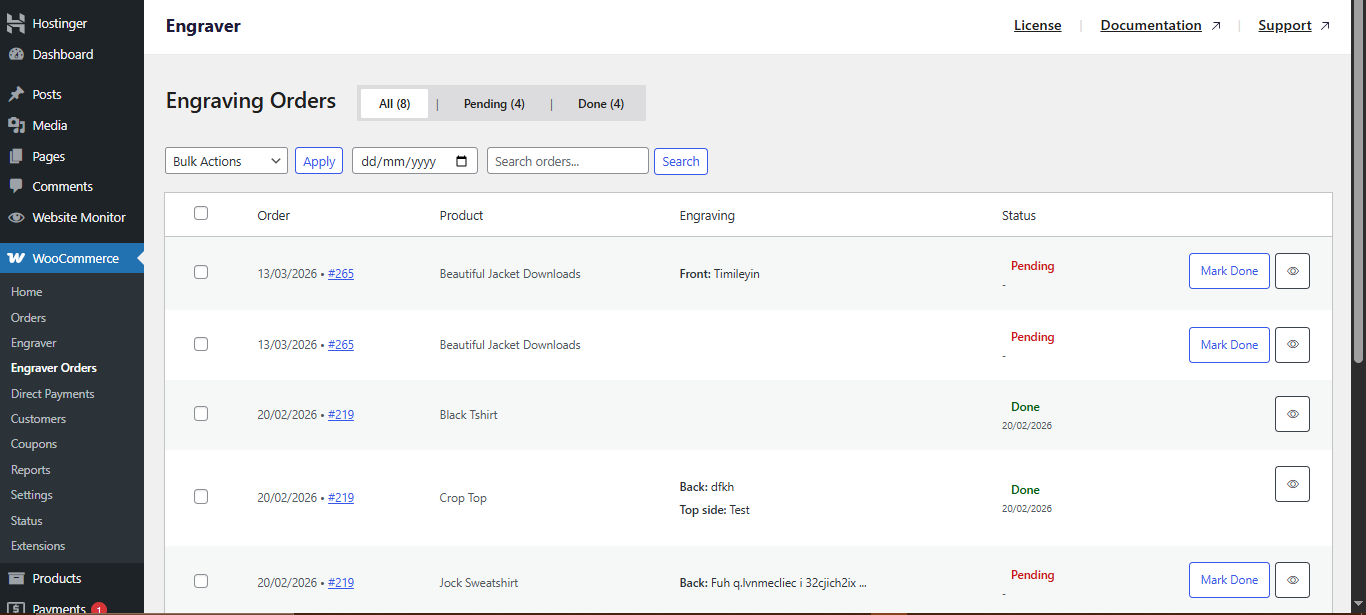
With Engraver for WooCommerce, every order containing a personalisation submission appears in its own dashboard under WooCommerce → Engraver Orders, showing the exact text entered or file uploaded for each item. Your production team can work from that list, download any images, review the message, and mark the item as done once it’s completed, without digging through standard order notes.
A Simple Fulfilment Workflow
- Check the Engraver Orders dashboard daily, or filter by “Pending” during busy periods.
- Review the submitted text or image before sending it to production — catching a typo or a low-resolution photo here saves a reprint later.
- Download any uploaded assets and forward exact specifications to your engraving, printing, or packing team.
- Mark the item as done once it’s completed, so the completion date is recorded automatically.
- Update the main WooCommerce order status once the whole order — personalised items included — is ready to ship
Avoiding Common Fulfilment Mistakes
- Don’t assign overlapping templates to the same product or category — it can produce unpredictable results on the product page.
- Set realistic character limits that match what your printer or engraver can physically produce.
- Always place a test order after publishing a new template, so you can confirm the fields display correctly and the data reaches the order as expected.
Conclusion
Selling birthday gifts with custom messages on WooCommerce isn’t about finding a novel product; it’s about making the personalisation step feel effortless for the customer and manageable for your team. Get the product structure right, decide what kind of personalisation each gift type actually needs, collect it cleanly on the product page, and give your fulfilment team a dedicated place to work from.
Do that consistently, and custom birthday gifts stop being a one-off product line and start becoming one of the most reliable, repeatable categories in your store.
Ready to add personalisation to your own birthday gift products? Take a look at how Engraver for WooCommerce handles text, image, and QR code inputs, and see if it fits the way your store already works.
Follow the complete usage guide to get your first custom birthday product live today.