✨ New in v2.4: AI Powered Payment Confirmation & Custom Workflow Controls.


In this article
- 1. How to get your Latitude and Longitude Coordinates
- 2. Step 1: Open Google Maps
- 3. Step 2: Search for the Exact Location
- 4. Step 3: Right-Click on the Exact Physical Point
- 5. Validation Step
- 6. Turn Your Precise Coordinates into Accurate Pickup Locations
- 7. Why Use Auto-Pickup Locations After Getting Coordinates
- 8. Recommended Next Steps
- 9. Final Takeaway
When configuring pickup points in WooCommerce, accuracy is critical. A small mistake in latitude or longitude can cause customers to select the wrong location or route orders to the wrong pickup hub. This is where precise geolocation becomes essential.
Plugins like Auto-Pickup Locations (APL) for WooCommerce rely on exact decimal coordinates to calculate accurate distances between the customer and the pickup hub and ensure customers arrive at the correct physical entrance, desk, or gate
Google Maps allows you to extract highly precise decimal latitude and longitude values directly from the map canvas. When captured correctly (15 decimal places), these coordinates are accurate enough for production WooCommerce environments and fully compatible with Auto-Pickup Locations.
In this guide, you’ll learn how to obtain long-form, high-precision coordinates from Google Maps so your pickup locations work flawlessly inside Auto-Pickup Locations.
How to get your Latitude and Longitude Coordinates
Step 1: Open Google Maps
Navigate to: Google Maps
Use a desktop browser (Chrome, Firefox, Edge, or Safari). Desktop provides better control for precise pin placement than mobile.
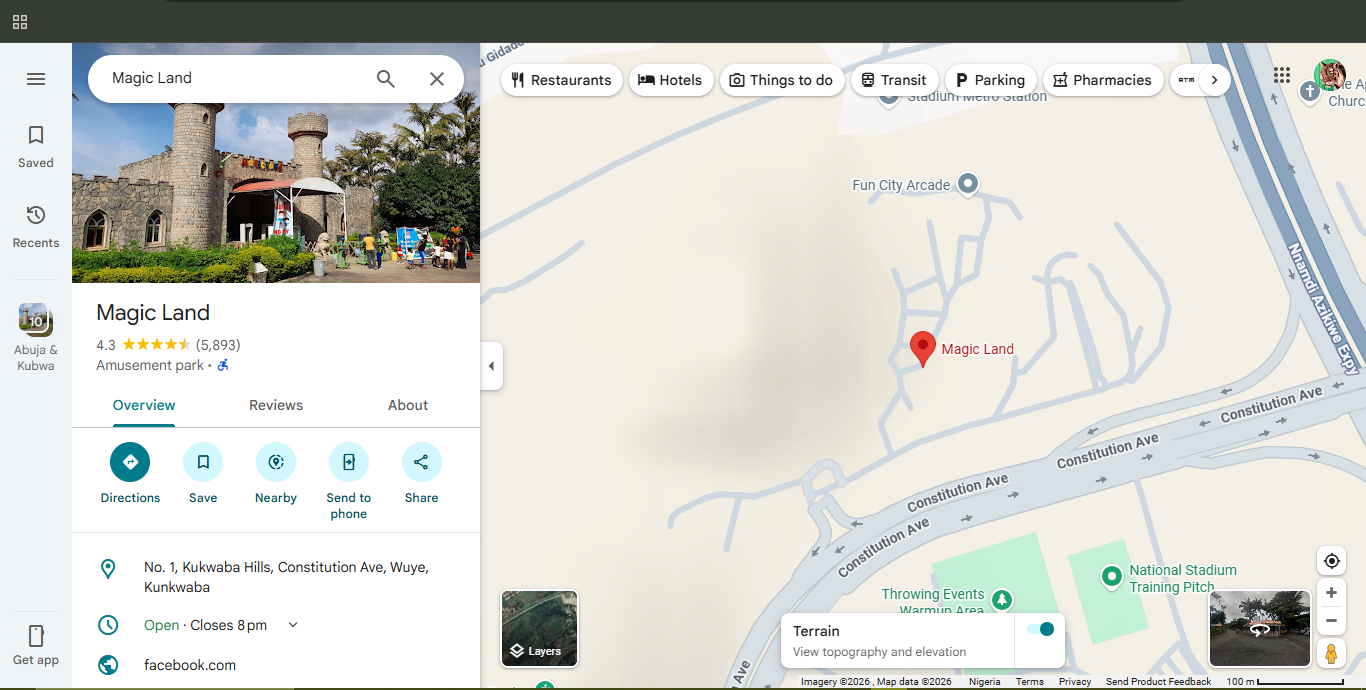
Step 2: Search for the Exact Location
Enter the full address, store name, warehouse name, specific pickup hub location, or identifiable landmark in the search field.
Press Enter and allow Google Maps to load the location.
💡 Tip: You can zoom in.
Step 3: Right-Click on the Exact Physical Point
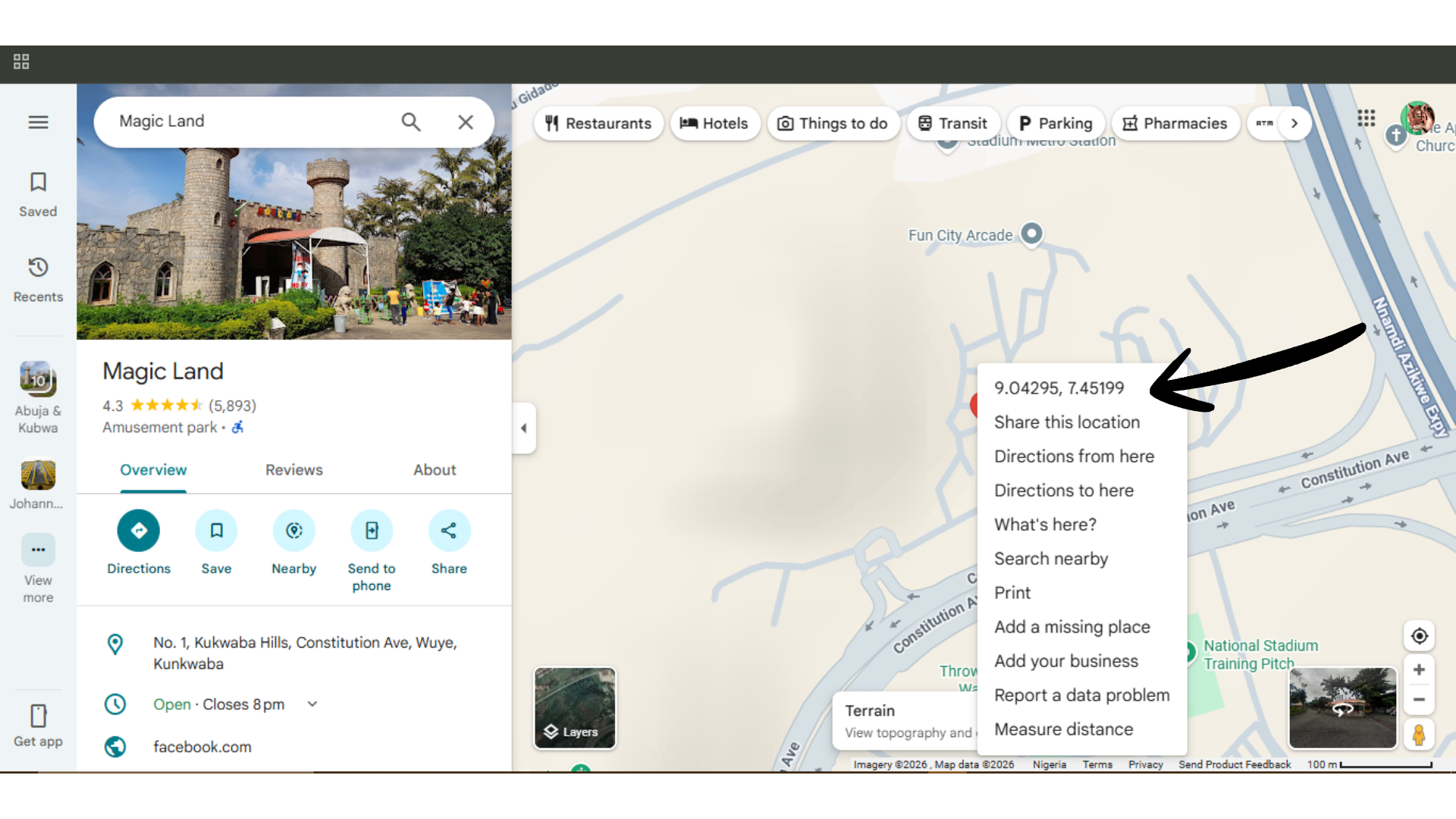
Move your cursor to the precise location where you want the coordinates:
Right-click directly on the red pin drop, and a context menu will appear. At the very top, you will see a coordinate pair in decimal format.
Then click the pair to copy the coordinates exactly as displayed in the search bar.
Example:
6.524379265689329, 3.379205726894217
Validation Step
After copying the coordinates:
- Paste the coordinate pair back into the Google Maps search bar
- Press Enter
- Confirm the pin lands exactly on the intended physical point
If the pin appears slightly offset, repeat the right-click process at a more precise zoom level.
Turn Your Precise Coordinates into Accurate Pickup Locations
Now you know how to extract high-precision latitude and longitude values from Google Maps. The final step is to put those coordinates to work in your WooCommerce store. Precise decimal coordinates ensure that Auto-Pickup Locations get the exact pickup point on the map, calculate accurate distances, and avoid confusion.
Why Use Auto-Pickup Locations After Getting Coordinates
Auto-Pickup Locations (APL) for WooCommerce is built to use long-form decimal coordinates directly. This allows you to prevent missed pickups, support multi-location stores with precise geo-mapping, improve customer trust with clear, verifiable pickup directions, and enable accurate distance-based logic for advanced shipping setups
In short, the more precise your coordinates, the more reliable your pickup experience becomes.
Upgrade to Auto-Pickup Locations Pro today to add unlimited locations and unlock all features.
Recommended Next Steps
Once you’ve validated your coordinates:
-
Create a new pickup location in Auto-Pickup Locations.
-
Paste the exact Latitude and Longitude values.
-
Assign the location name and any relevant pickup instructions.
-
Save the pickup location
-
Place a test order
Final Takeaway
Precise coordinates are the foundation; Auto-Pickup Locations is the system that makes them actionable within WooCommerce. By combining high-accuracy coordinates with Auto-Pickup Locations, you eliminate guesswork, reduce failed pickups, and deliver a smoother in-store collection experience for your customers.

