✨ New in v2.4: AI Powered Payment Confirmation & Custom Workflow Controls.


Peer-to-peer (P2P) platforms like Venmo and CashApp are widely used for fast, direct payments. If you want to allow customers to pay you using these platforms on your WordPress site, you can do so using Direct Payments WP.
This guide walks you through installing the plugin, enabling P2P payments, adding wallet details, and testing the full payment flow.
Step 1: Install Direct Payments WP
You can install Direct Payments WP directly from your WordPress dashboard or by uploading the plugin ZIP file.
-
Log in to your WordPress website.
-
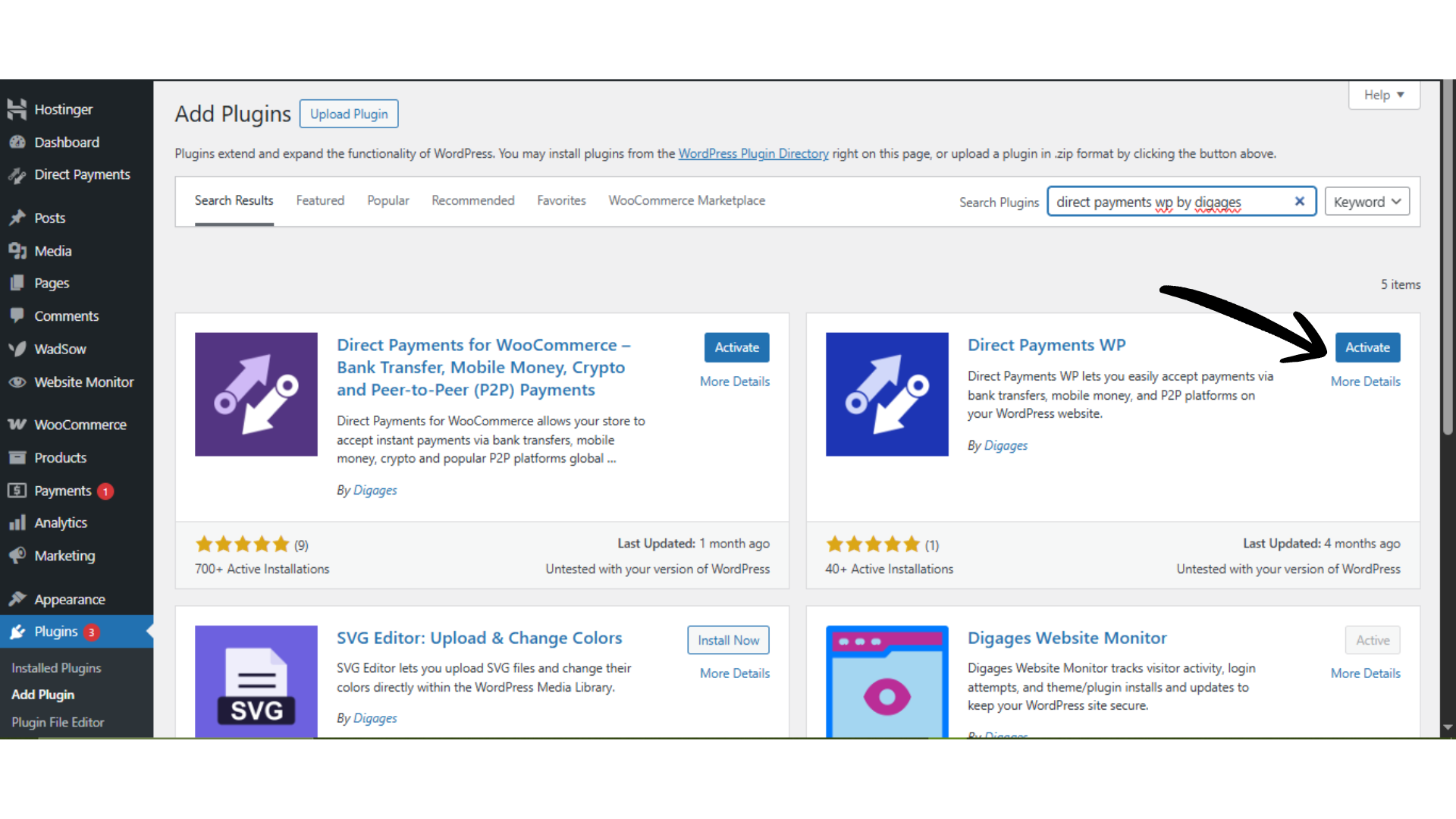
Go to WordPress Admin → Plugins → Add New.
-
Search for “Direct Payments WP by Digages”, or click Upload Plugin to upload the ZIP file.
-
Click Install Now.
-
After installation, click Activate.
Once activated, you can begin configuring payment methods.
 Step 2: Add Your P2P Wallet Details
-
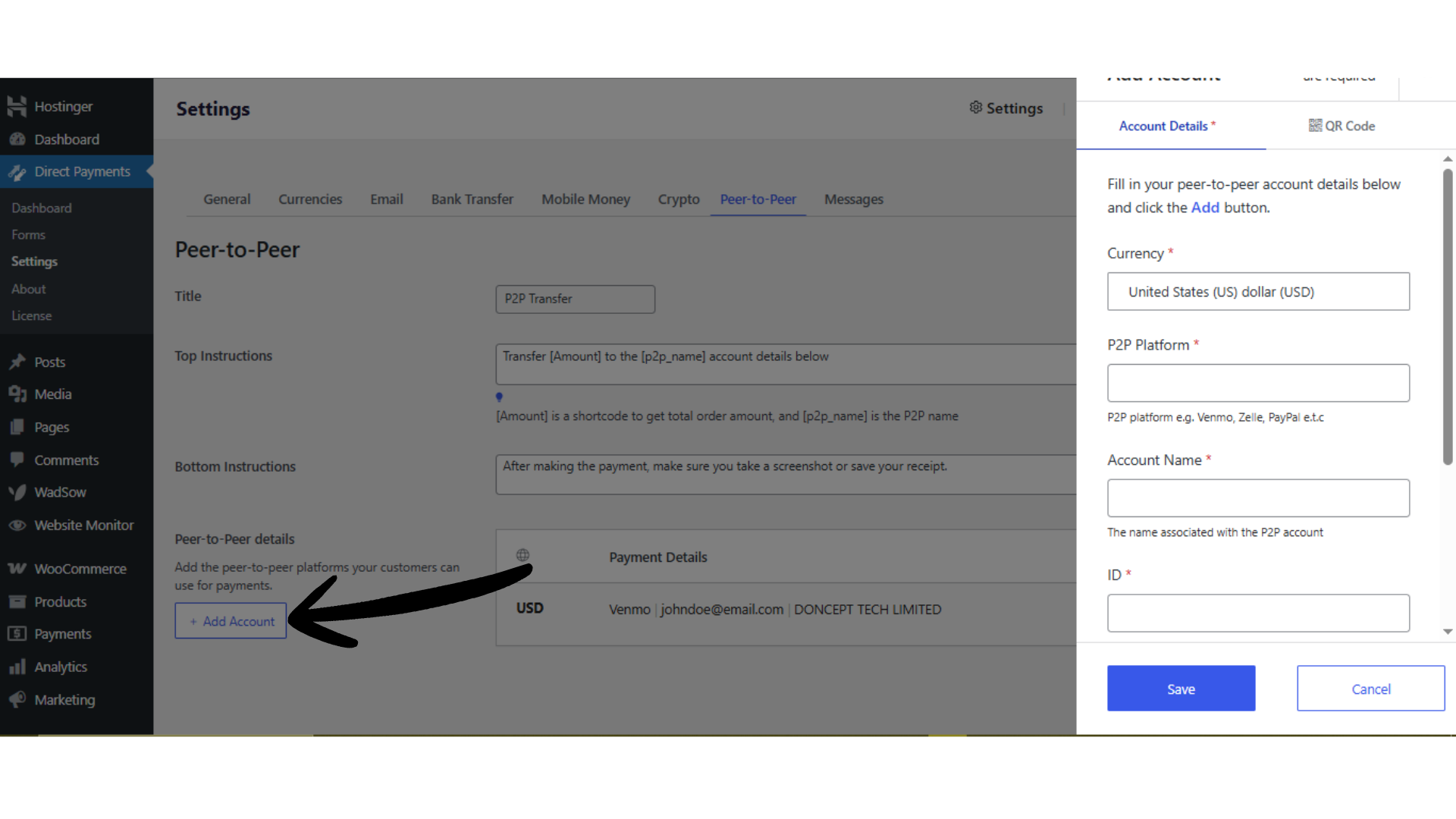
Click Add Account or the (+) icon. This section manages all P2P payment accounts.
-
In the pop-up form, select the peer-to-peer platform you want to receive payments from (e.g., PayPal, Venmo, CashApp).
-
Enter the required payment details for that platform (such as currency, P2P platform, account name, ID, ID type, etc.)
-
Click Save.
Your P2P payment account has been added and is ready to use on your payment forms.
Step 3: Enable Peer-to-Peer (P2P) Payments
-
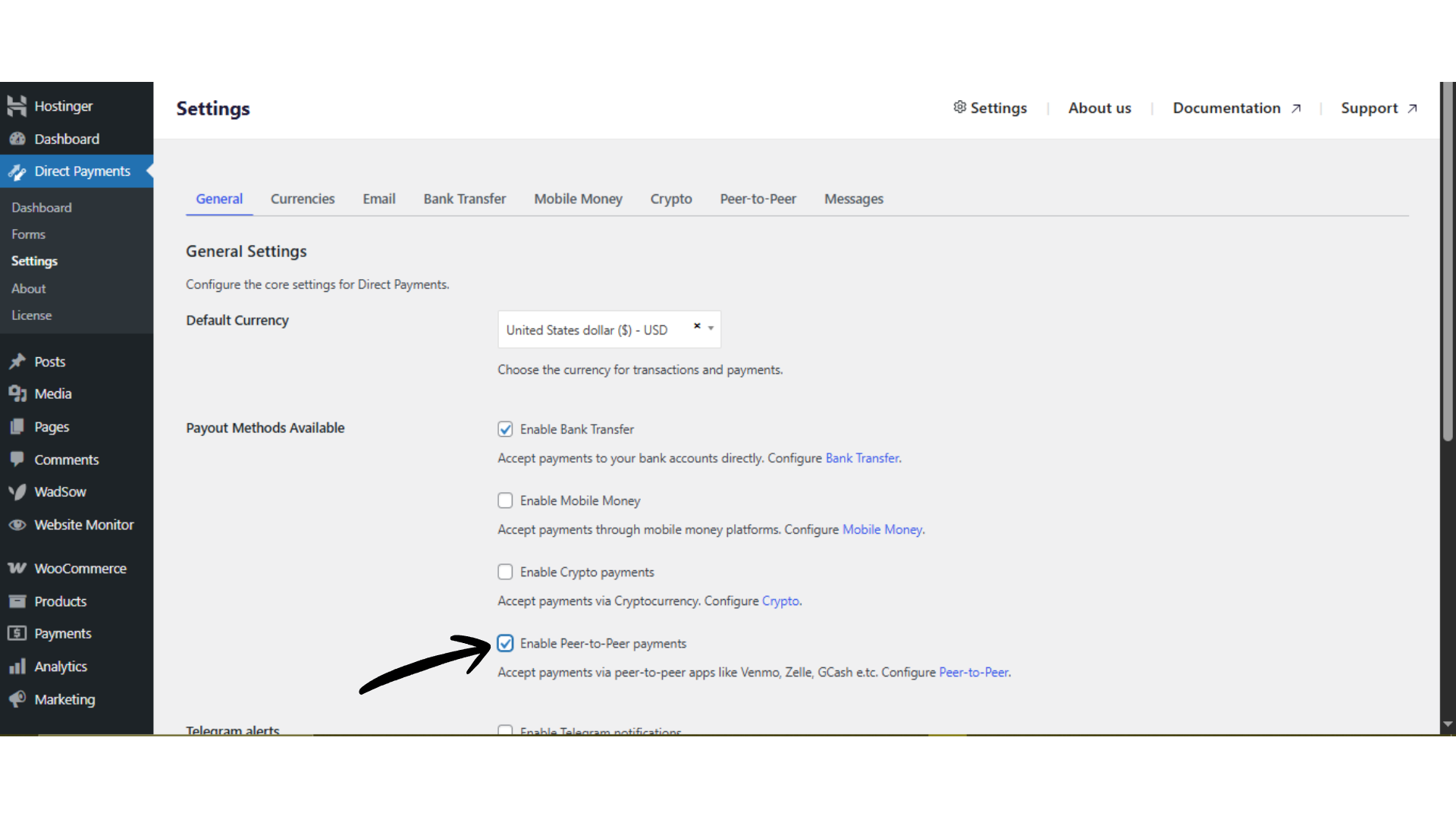
Go to Direct Payments WP → Settings in your WordPress dashboard.
-
Locate the Peer-to-Peer (P2P) Payments option.
-
Toggle it ON, then scroll down and
-
Click Save.
Step 4: Create a Form
After adding wallet details, enable Crypto Payments on your payment form.
-
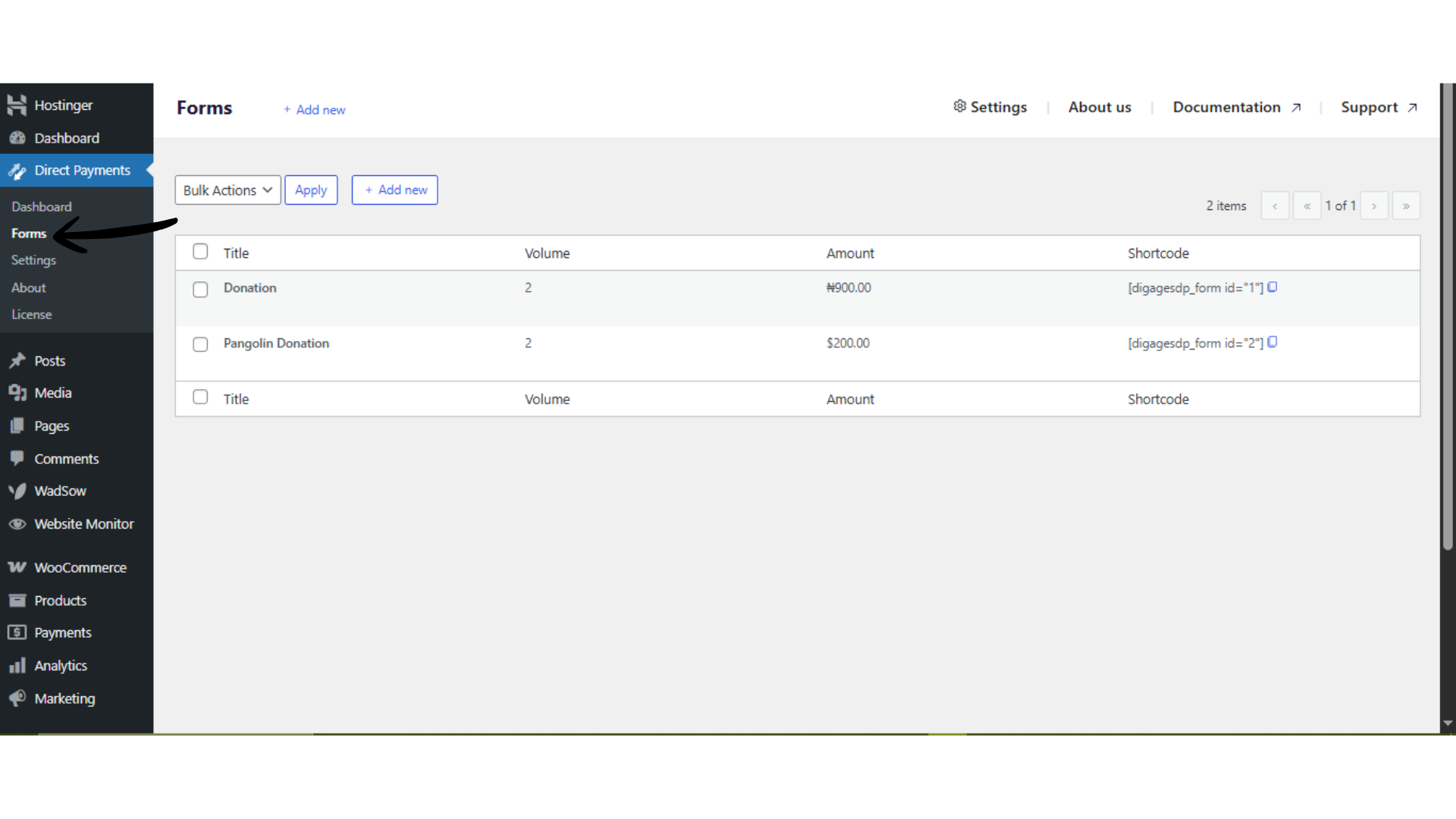
Go to Direct Payments WP → Forms.
-
Edit an existing form or create a new one.
-
Save the form.
-
Copy the form shortcode and place it on the target page or post.
Publish the page to make crypto payment options visible to customers.
 Test the P2P Payment Flow
Before accepting live payments, run a test to confirm everything works correctly:
-
Open the page containing the payment form.
-
Enable Peer-to-Peer (P2P) as a payment method and save.
-
Confirm the wallet address and network instructions display correctly.
-
Perform a small test transaction (if possible) to validate the workflow and notifications.
Testing helps prevent incorrect transfers and ensures customers see accurate payment instructions.
Best Practices for Receiving P2P Payments
-
Clearly label each payment platform to avoid user confusion.
-
Keep account details up to date.
-
Enable admin notifications to track incoming payment submissions.
-
Periodically test each platform to confirm details display correctly.
Troubleshooting Quick Tips
If peer-to-peer payment methods are not showing:
-
Ensure Peer-to-Peer Payments is enabled in settings.
-
Confirm at least one P2P account has been added.
-
Clear site and browser cache.
-
Temporarily disable conflicting plugins or switch themes to test compatibility

