✨ New in v2.4: AI Powered Payment Confirmation & Custom Workflow Controls.


Direct Payments for WooCommerce is the easiest way to receive payments on your WooCommerce store. WadSow AI extends this by verifying payment credit alerts and automatically confirming orders, removing the need for manual checks.
This guide explains how to activate and configure WadSow AI from start to finish, including connecting payment methods and enabling auto-confirmation.
AI Auto-confirmation is a PRO feature. Upgrade to Direct Payments for Woocommerce PRO today to unlock it.
Step 1: Install and Activate WadSow AI
- Download WadSow plugin
- Log in to your WordPress admin dashboard.
- Go to Plugins > Add New
- Upload the WadSow plugin.
- After Installation, then Activate
WadSow AI plugin is free to download. Visit WadSow Downloads today to download it.
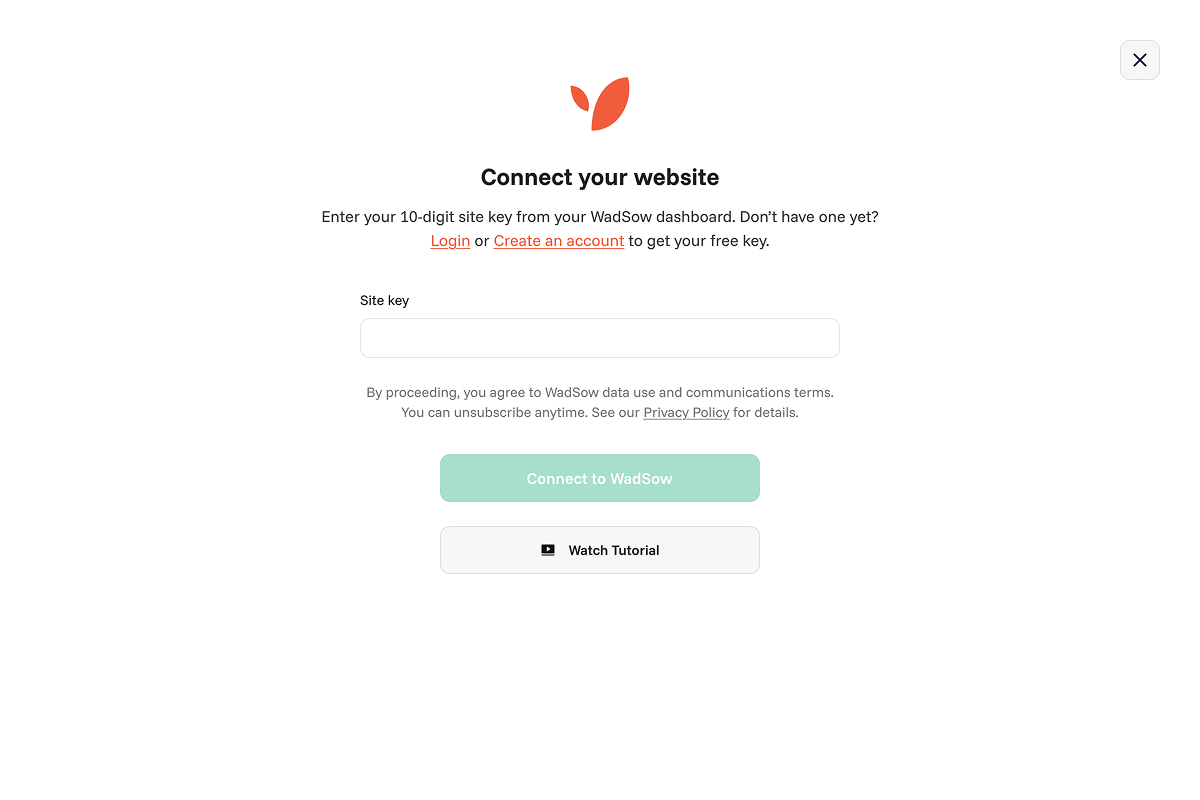
After activation, the WadSow menu will appear in the dashboard sidebar, and you will see a widget prompting you to connect your account.

Copy your key from Account Keys in WadSow Dashboard and paste in the connection page. This connects your WooCommerce store to WadSow AI.
💡 Tip: Having trouble creating your WadSow account key? Email info@digages.com or create a support ticket and our team will help.
Step 2: Sync Payment Methods
WadSow AI needs to know which payment methods it should monitor.
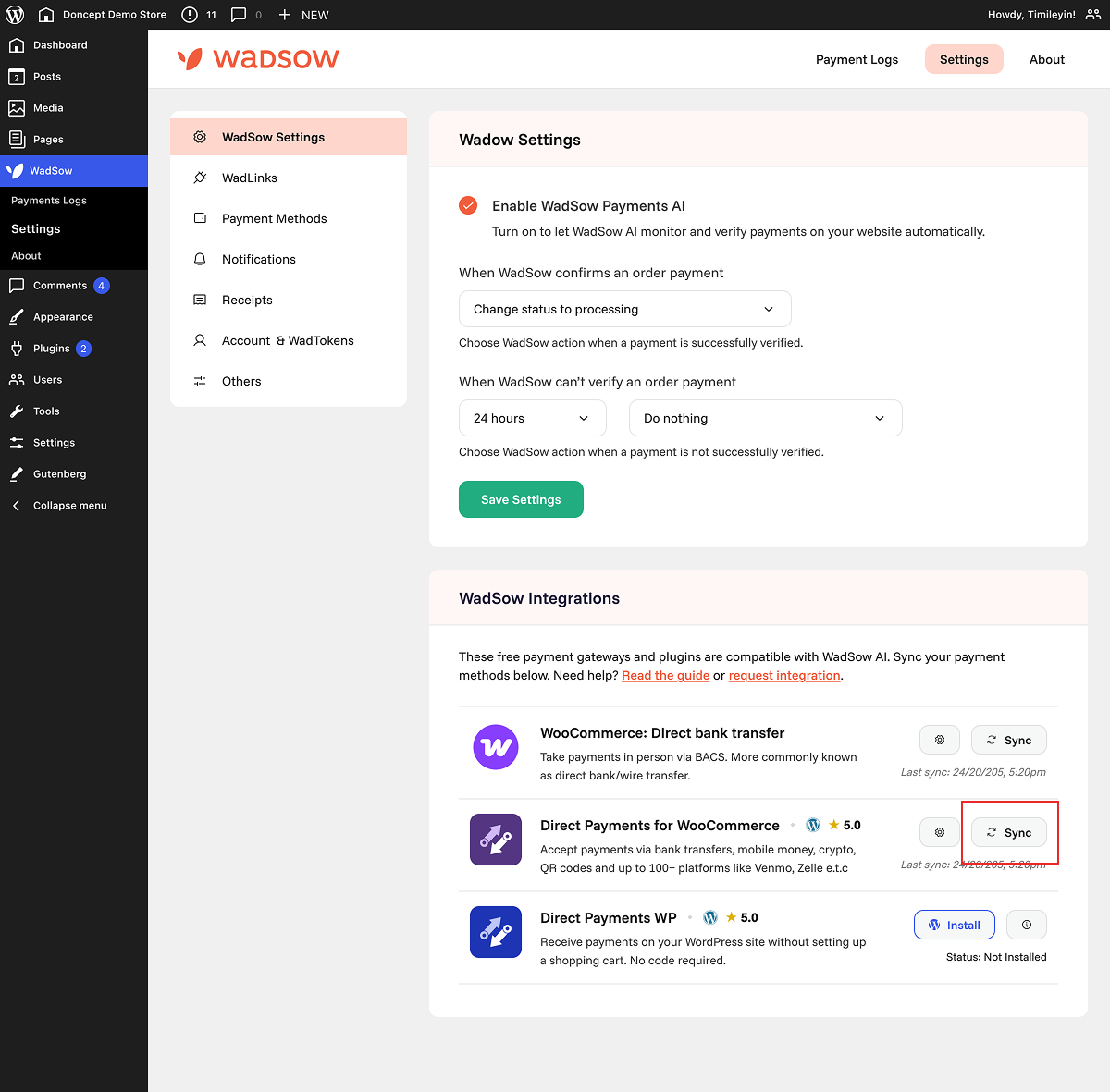
- Go to WadSow > Settings
- Locate the WadSow Integrations section
- Click Sync
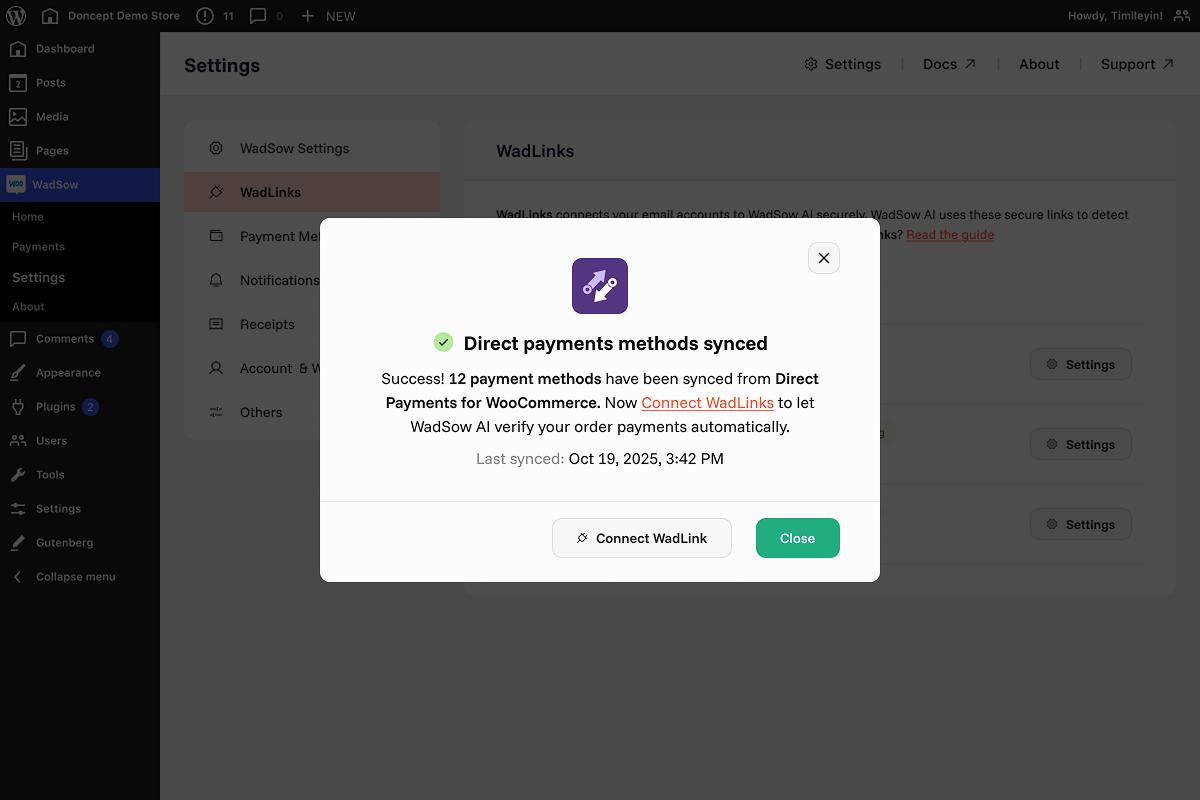
WadSow AI will scan your store and detect all payment methods enabled through Direct Payments for WooCommerce. Once complete, a success popup will confirm how many payment methods were successfully connected.
💡 Tip: WadSow AI supports the default WooCommerce Bank Transfer option, with additional offline payment methods currently in development.
Step 3: Connect WadLinks & Assign to Payment Methods
WadLinks are secure connections WadSow AI uses to verify payments by reading credit alerts.
Currently, the available connection type is email access via the Gmail API. This allows WadSow AI to securely connect to the email address where you receive payment credit alerts from banks, mobile money services, and peer-to-peer payment platforms. WadSow AI only checks for relevant payment notifications from the connected email.
Additional connection types are planned and will be introduced over time, including mobile app access, SMS alerts, and deeper integrations with payment providers.
To connect WadLinks:
- Go to WadSow > Settings > WadLinks
- Click the Add New button
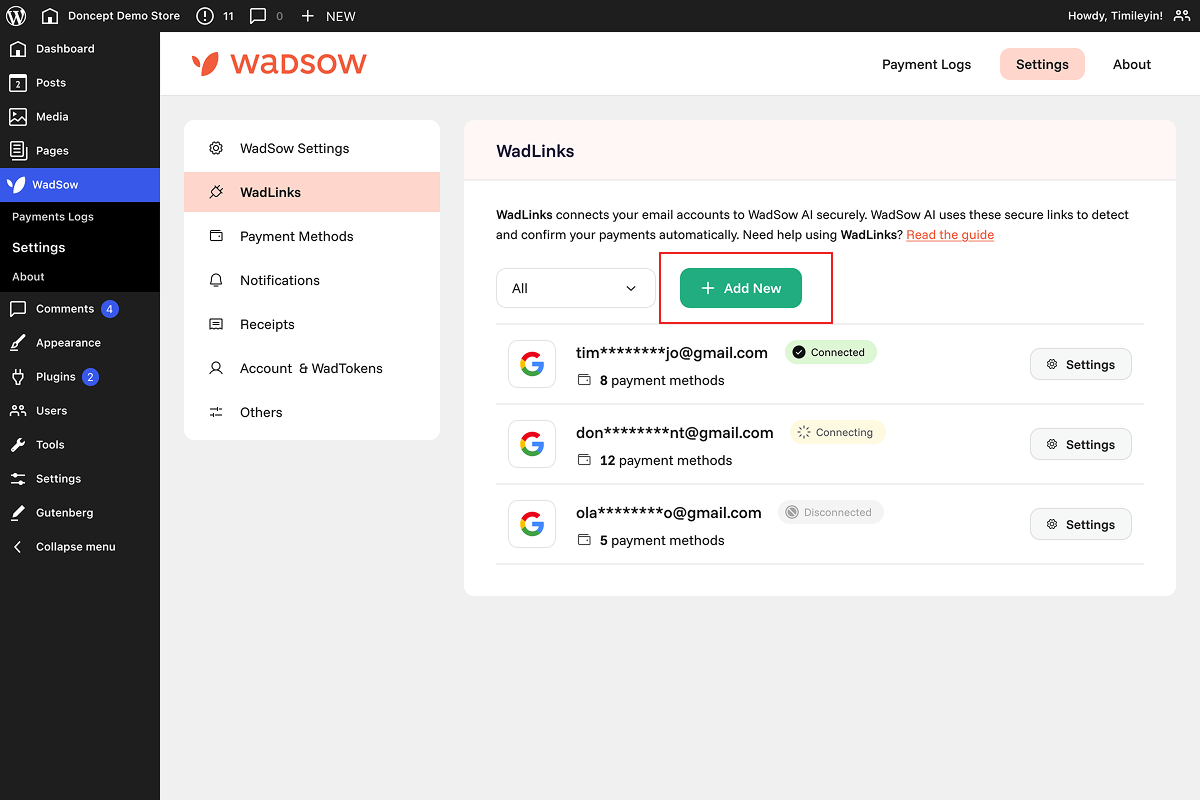
- Select the email address that receives your payment credit alerts.
- Click Continue and complete the connection flow
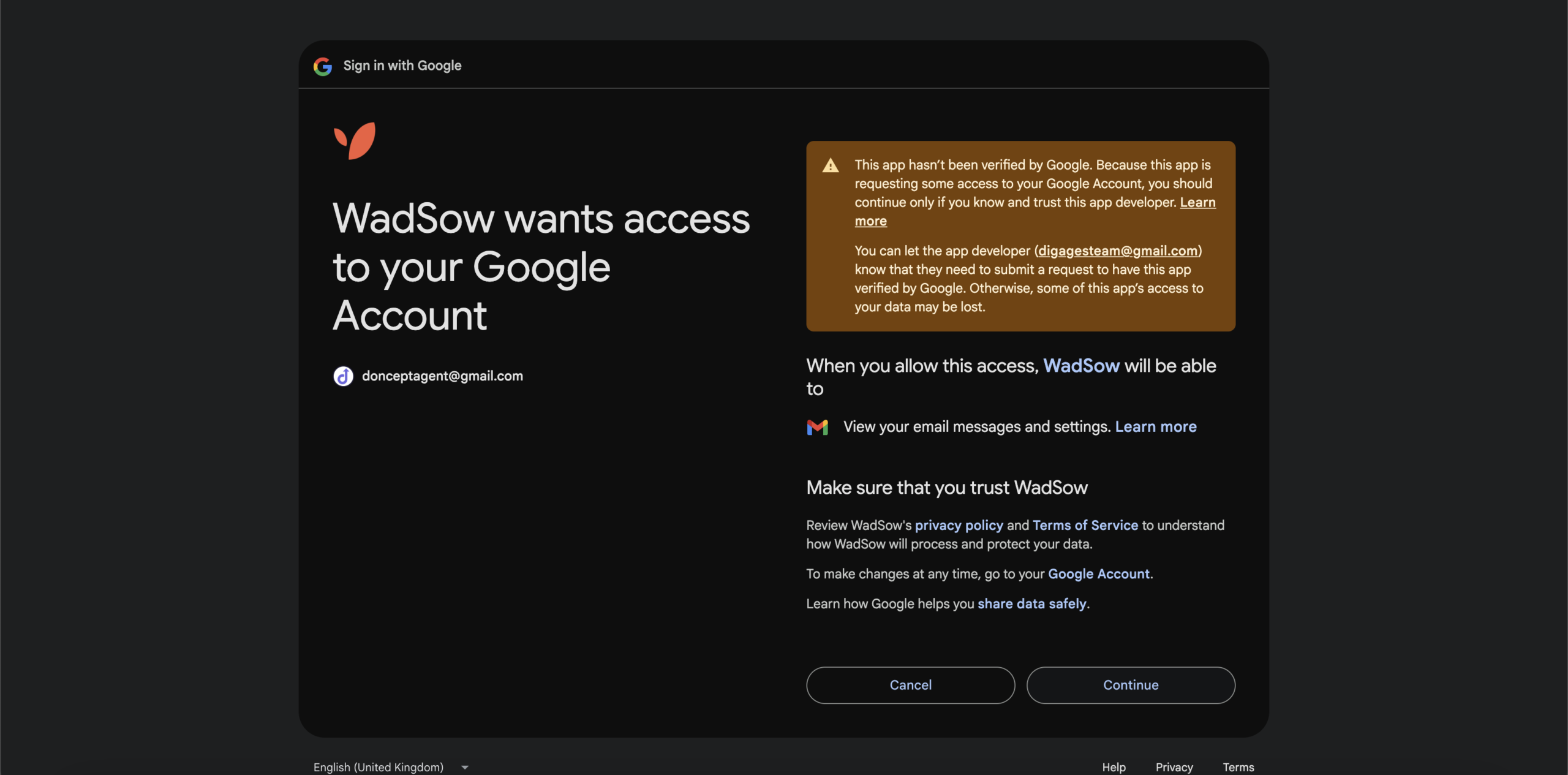
💡 Tip: If you’re seeing a Google warning page while connecting your email, this is expected. Go to the FAQ section about Google verification below to understand why this appears and what to do next.
To Assign to Payment Methods:
After connecting your email, you must specify the email sender that WadSow AI should trust for each payment method.
- Go to WadSow > Settings > Payment Methods
- Locate the payment method you want to configure and click the options (…)
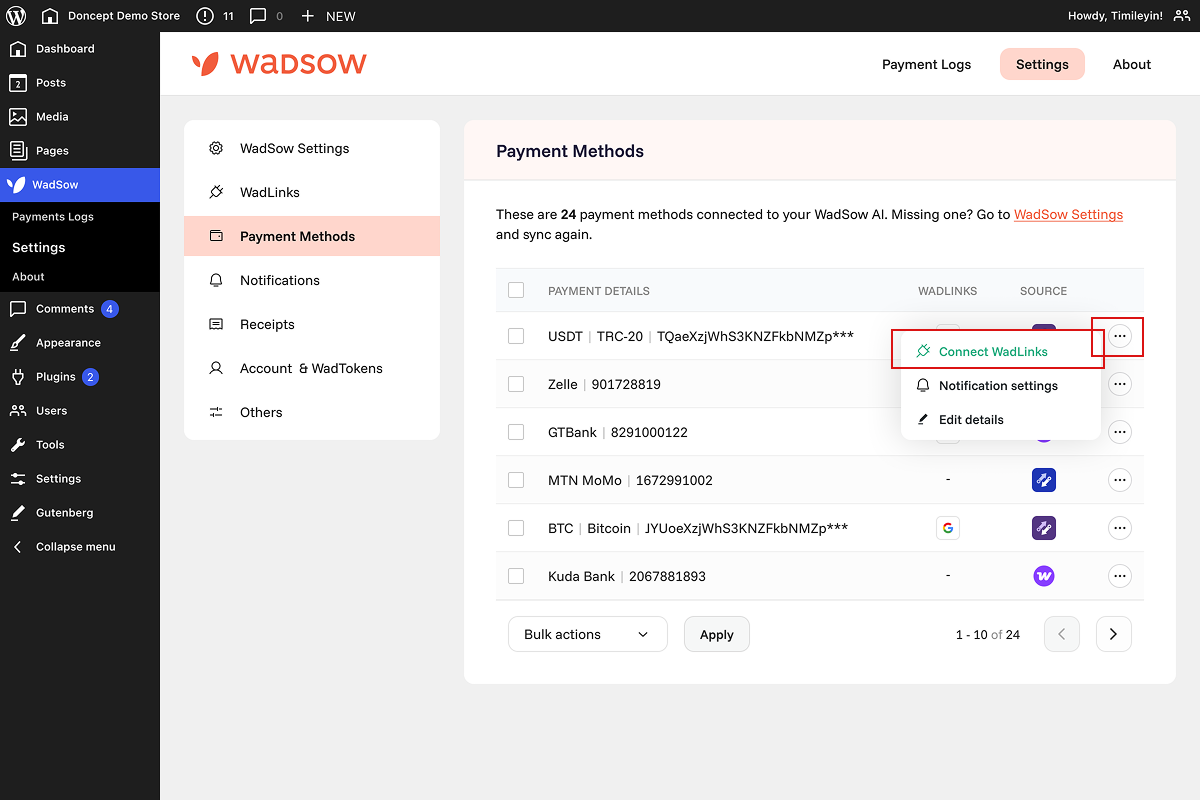
- Click Connect Wadlinks and open the connection popup
- Select the connected email and enter the sender address used in your payment credit alert emails
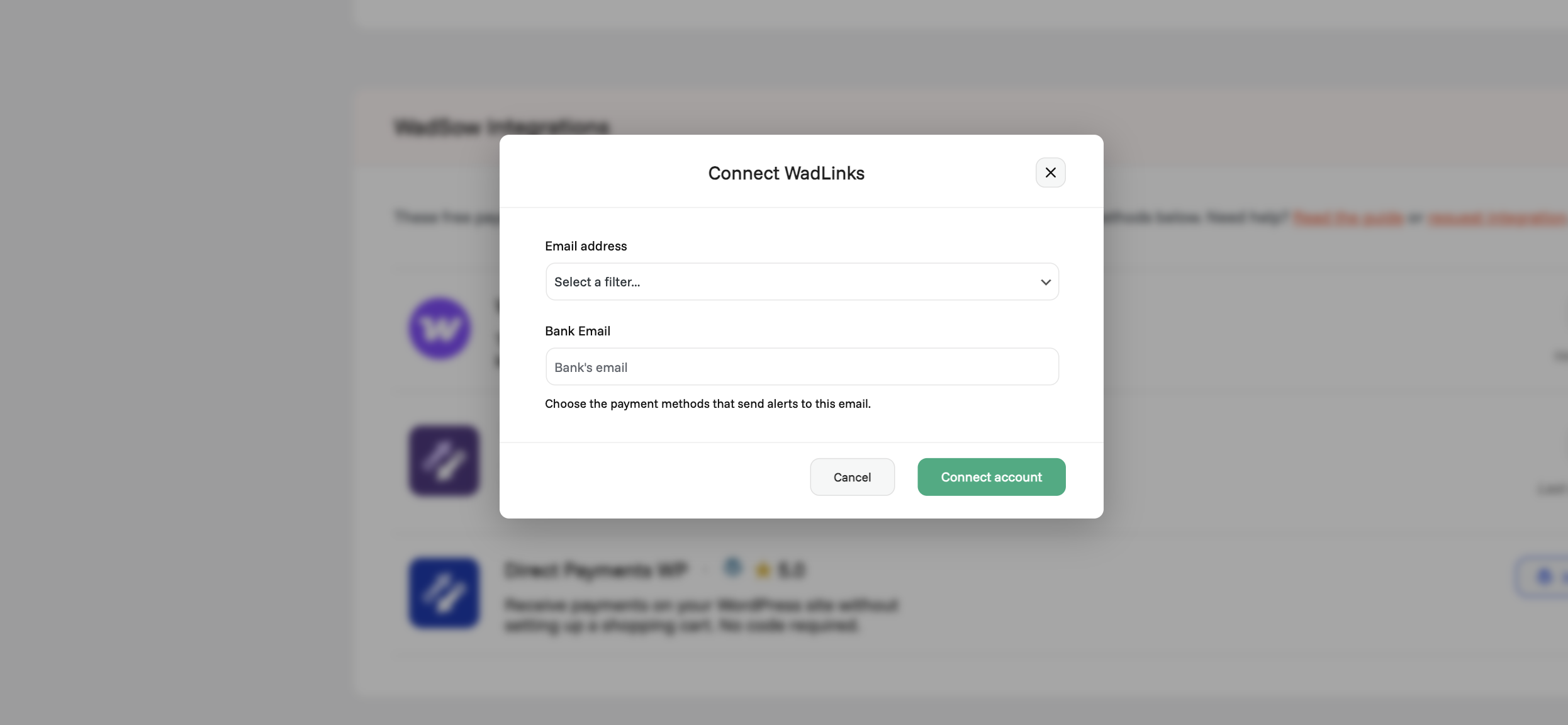
💡 Tip: If you are unsure about the sender address, open a recent credit alert email and check the From field. The sender must match exactly.
Step 4: Enable Auto-confirmation in Direct Payments
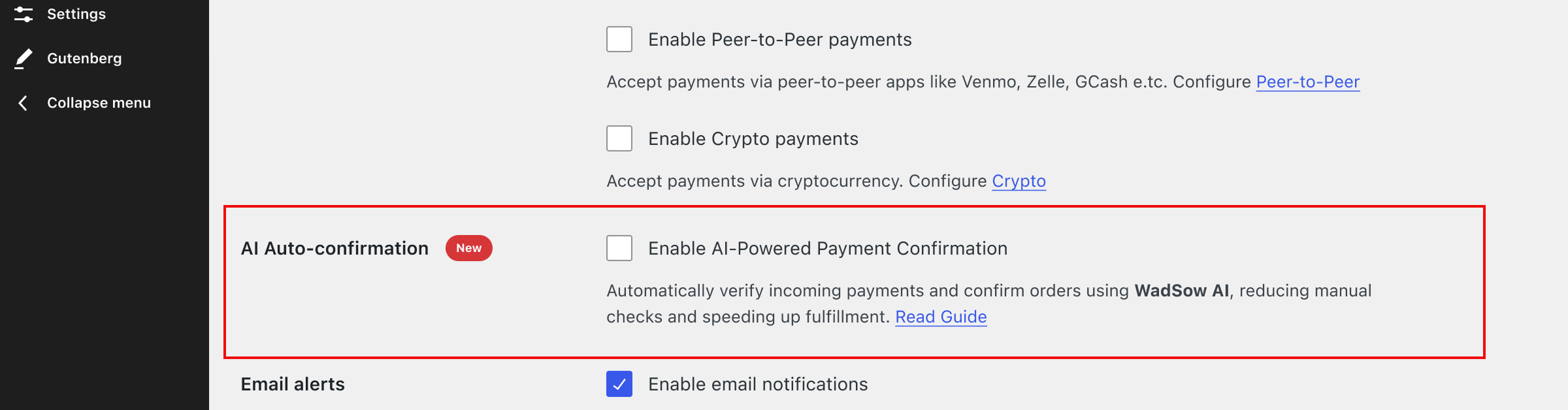
The final step is enabling AI auto-confirmation inside Direct Payments for WooCommerce.
- Go to WooCommerce > Direct Payments > Settings
- Check the AI auto-confirmation box
- Click Save Changes to save your settings
💡 Tip: Place a test order and complete the payment normally. If configured correctly, WadSow AI will detect the credit alert and automatically update the order status.
Frequently Asked Questions
How does WadSow AI work?
WadSow AI has been extensively trained to understand and interpret payment credit alerts from different providers. When a payment alert is received, WadSow AI analyzes key signals such as the payment amount, payer name, and time of payment, and intelligently matches them against recent orders made using Direct Payments for WooCommerce.
Each match is evaluated using three confidence levels: low, medium, and high. Only payments with sufficient confidence are eligible for automatic confirmation, ensuring accuracy and reducing the risk of incorrect order updates. Payments that do not meet the required confidence level remain unchanged and can be reviewed manually.
Does WadSow AI read my entire email inbox?
No. WadSow AI only reads payment credit alerts from the email address you connect. It does not access unrelated emails, attachments, or personal messages.
Which payment methods does WadSow AI support?
WadSow AI works with any payment method that sends payment credit alerts to an email address. As long as a payment provider sends credit notifications via email, WadSow AI can connect to it and verify payments automatically.
What if I don’t have a Gmail account?
If you use another email provider such as Yahoo, Hotmail, or a custom webmail, you can create a Google account and forward your payment alert emails to Gmail. Alternatively, you can create a support ticket and the team will provide a workaround for your setup.
Why am I seeing a Google warning page when connecting my email?
During the email connection process, you may see a Google warning page related to app verification. This is expected. Google’s Gmail API verification process can take between 10–12 weeks and is currently ongoing. WadSow AI has been available since last year, and we did not want to withhold this feature from users who requested it.
WadSow AI only reads payment credit alerts from the connected email address and does not access unrelated emails. Access can be revoked at any time from your Google account.
What to do


How do I identify the correct email sender to filter for my payment methods?
Open a recent payment credit alert email for the payment method you want to configure and check the From address. This value must match exactly so WadSow AI can correctly detect and verify payments.
Common examples include:
-
Zelle:
alerts@zellepay.com -
Cash App:
cash@square.com -
PayPal:
service@paypal.com,paypal@mail.paypal.com -
GCash:
no-reply@gcash.com,alerts@gcash.com.ph -
Wise:
noreply@wise.com -
Venmo:
venmo@venmo.com
If you’re unsure which sender to use, you can create a support ticket and the team will help confirm the correct configuration.
What if I find the setup too complex?
If you find the setup process complex or need additional guidance, you can request a 1:1 live session with a member of our team by creating a support ticket. We’ll walk you through the setup and help ensure everything is configured correctly.





