✨ New in v2.4: AI Powered Payment Confirmation & Custom Workflow Controls.


A payment form allows you to collect payments directly from customers through a dedicated page on your WordPress site. With Direct Payments WP, you can create a payment form, configure payment methods, and embed it anywhere on your WordPress page using a shortcode.
This guide walks you through installing the plugin, creating a form, configuring payment options, and publishing it on your site.
Step 1: Install Direct Payments WP
You can install Direct Payments WP directly from your WordPress dashboard or by uploading the plugin ZIP file.
-
Log in to your WordPress website.
-
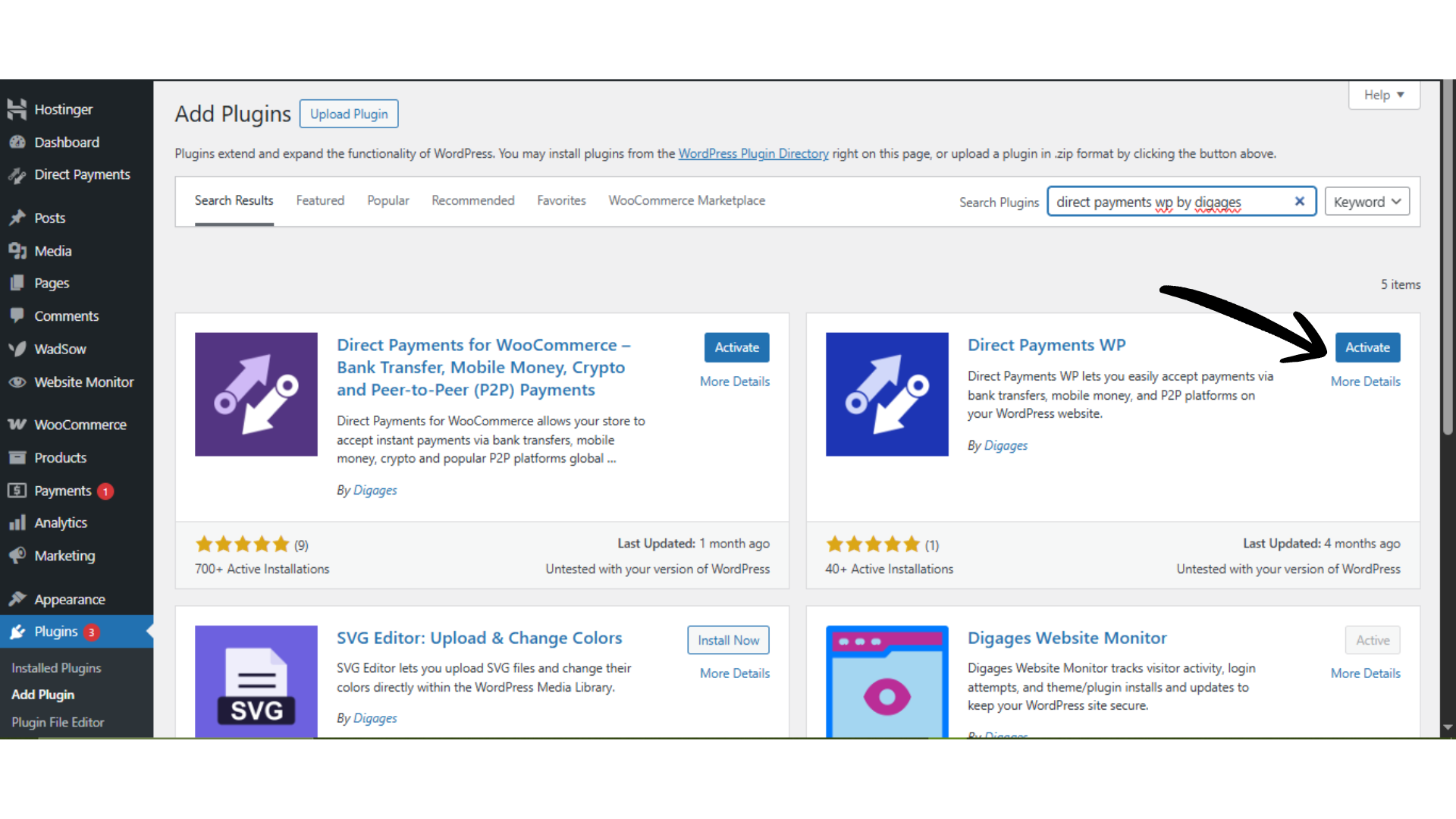
Go to WordPress Admin → Plugins → Add New.
-
Search for “Direct Payments WP by Digages”, or click Upload Plugin to upload the ZIP file.
-
Click Install Now.
-
After installation, click Activate.
Once activated, you can begin configuring payment methods.
Step 2: Create a Payment Form
-
Log in to your WordPress admin dashboard.
-
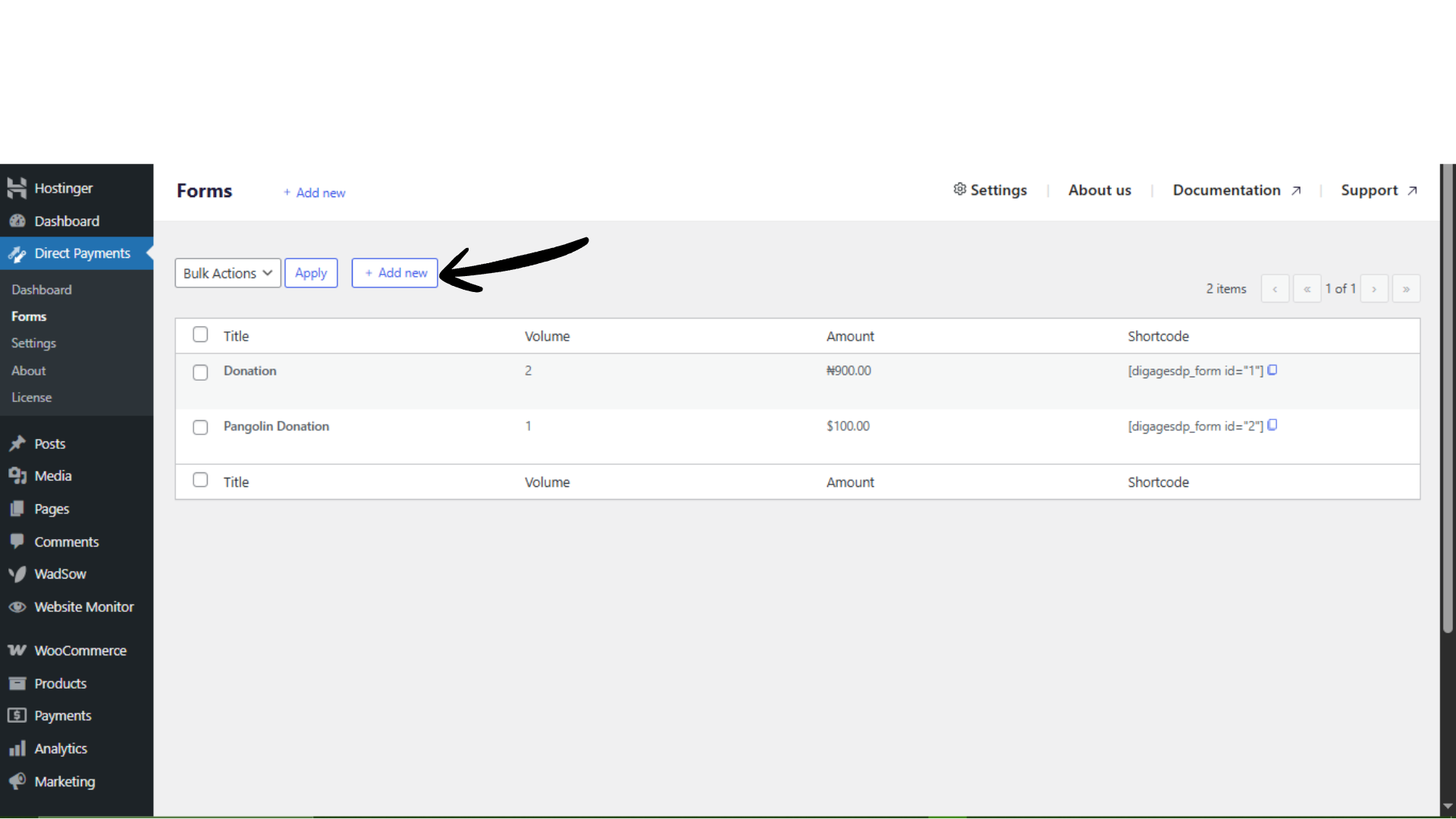
From the sidebar, go to Direct Payments → Forms.
-
On the Forms page, click Add New
Step 3: Configure the Form Details
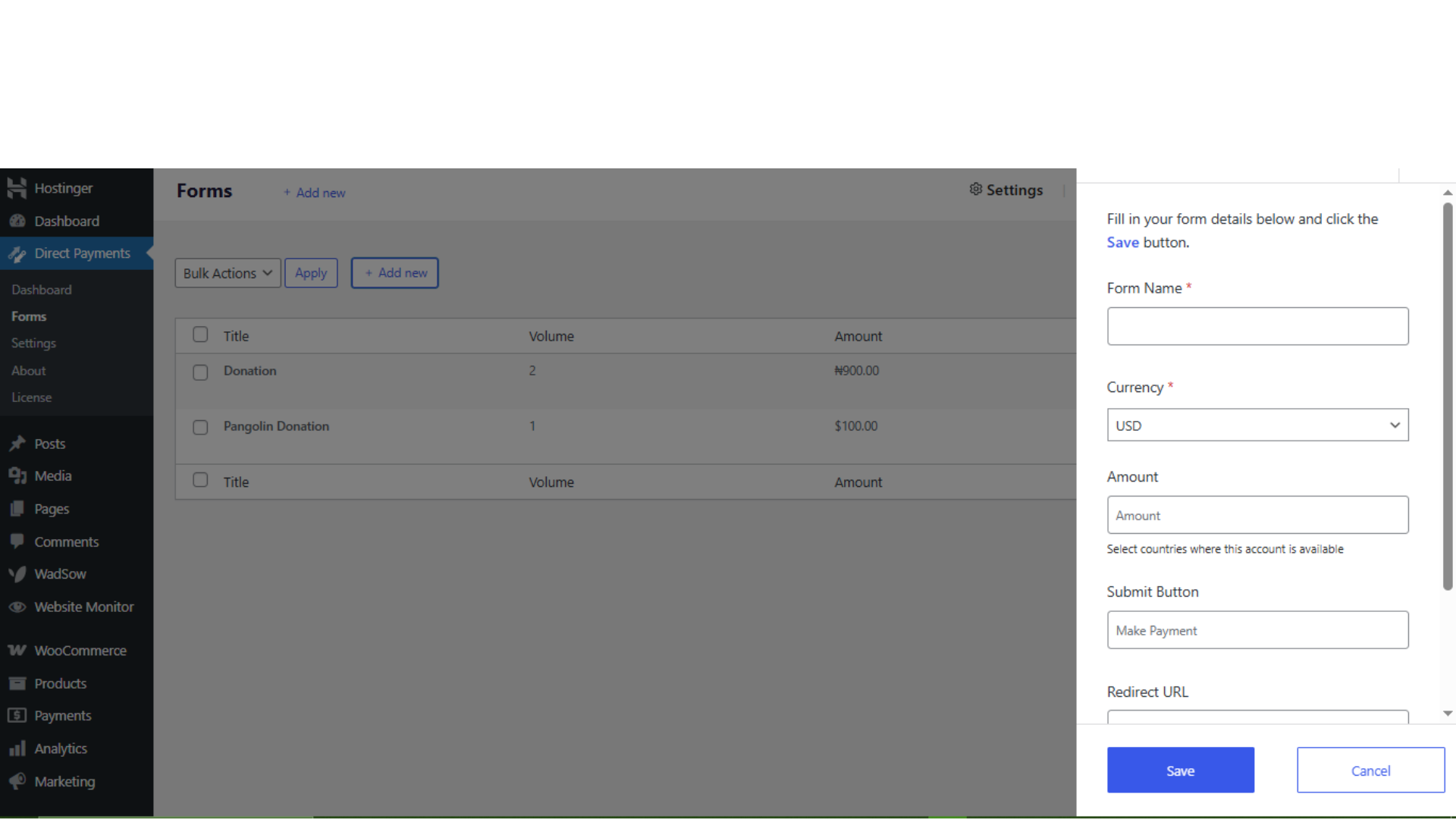
In the form setup popup, fill in the required fields:
-
Form Name: Enter a clear name to identify the form internally.
- Currency: Select the accepted currency
-
Amount: Set a fixed payment amount, or leave empty to allow customers enter a custom amount.
-
Submit Button: Customize the button text (e.g., “Pay Now”, “Submit Payment”).
-
Redirect URL: You can add a thank-you or confirmation page URL after payment submission.
-
Phone Number: Enable this if you want customers to provide their phone number.
-
Payment Description: Enable this to allow customers add a payment note or description.
After completing the configuration, click Save to create the form.
Step 4: Retrieve and Use the Form Shortcode
-
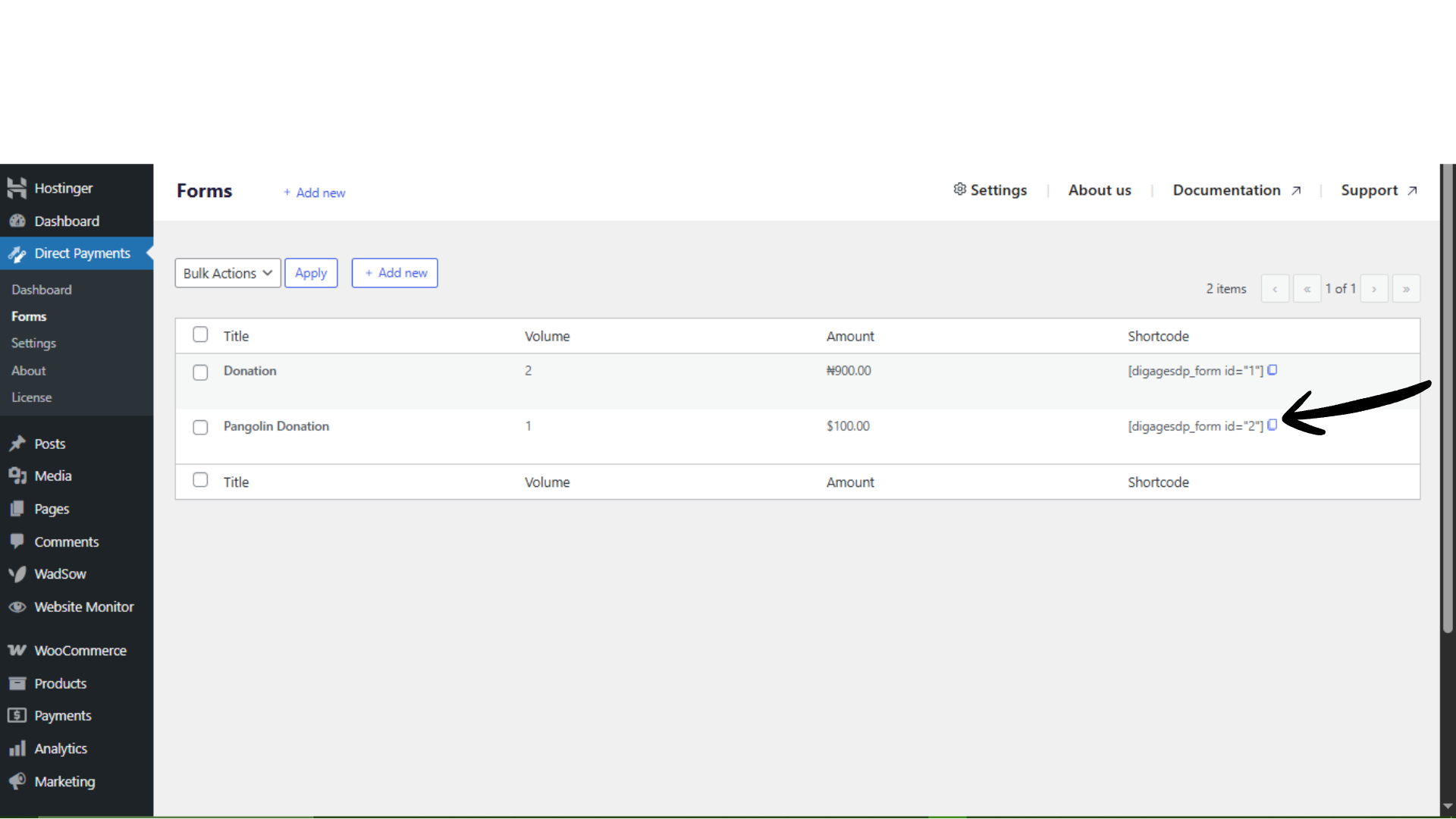
Go back to Direct Payments → Forms.
-
Locate the newly created form.
-
Click the copy icon to copy the shortcode.
-
Paste the shortcode into any WordPress page or post using the block editor or your page builder.
-
Publish or update the page.
The payment form will now appear on the selected page and be ready to accept payments.
How the Form Works
-
Customers visit the page containing the shortcode.
-
They fill in the required payment fields.
-
They select a payment method and submit the form.
-
You receive the payment details and confirmation based on your configured notification settings.
With the Free version, you can use only one payment method with Forms. With Direct Payments WP Pro, you can accept multiple payment methods with Forms.
Best Practices for Payment Forms
-
Use clear form names to easily identify them in the dashboard.
-
Add a redirect URL to guide users to a confirmation or thank-you page.
-
Only enable optional fields (phone, description) when necessary to keep the form simple.
-
Test the form after publishing to confirm all fields and payment methods display correctly.
Troubleshooting Quick Tips
If the form does not appear on the page:
-
Confirm the correct shortcode was copied and pasted.
-
Ensure the page or post is published.
-
Clear the site and browser cache.
-
Check for conflicts with page builders or theme templates.

