✨ New in v2.4: AI Powered Payment Confirmation & Custom Workflow Controls.


If you’re experiencing issues while using Direct Payments WP, most problems are typically caused by minor configuration oversights and can be resolved in a few minutes.
This guide walks through the most common Direct Payments WP issues and how to fix them quickly so your payment forms work reliably across your WordPress site.
Quick Pre-Check (Before Troubleshooting)
Before diving into specific errors, confirm the following:
-
Direct Payments WP is installed and activated.
-
At least one payment form has been created.
-
The correct shortcode or form link is used on the page.
-
The page or post containing the form is published.
-
Caching (plugin, server, CDN, browser) has been cleared.
-
Your site can send emails (SMTP configured if needed).
If all checks pass, proceed with the fixes below.
1. Payment Form Not Showing on Page
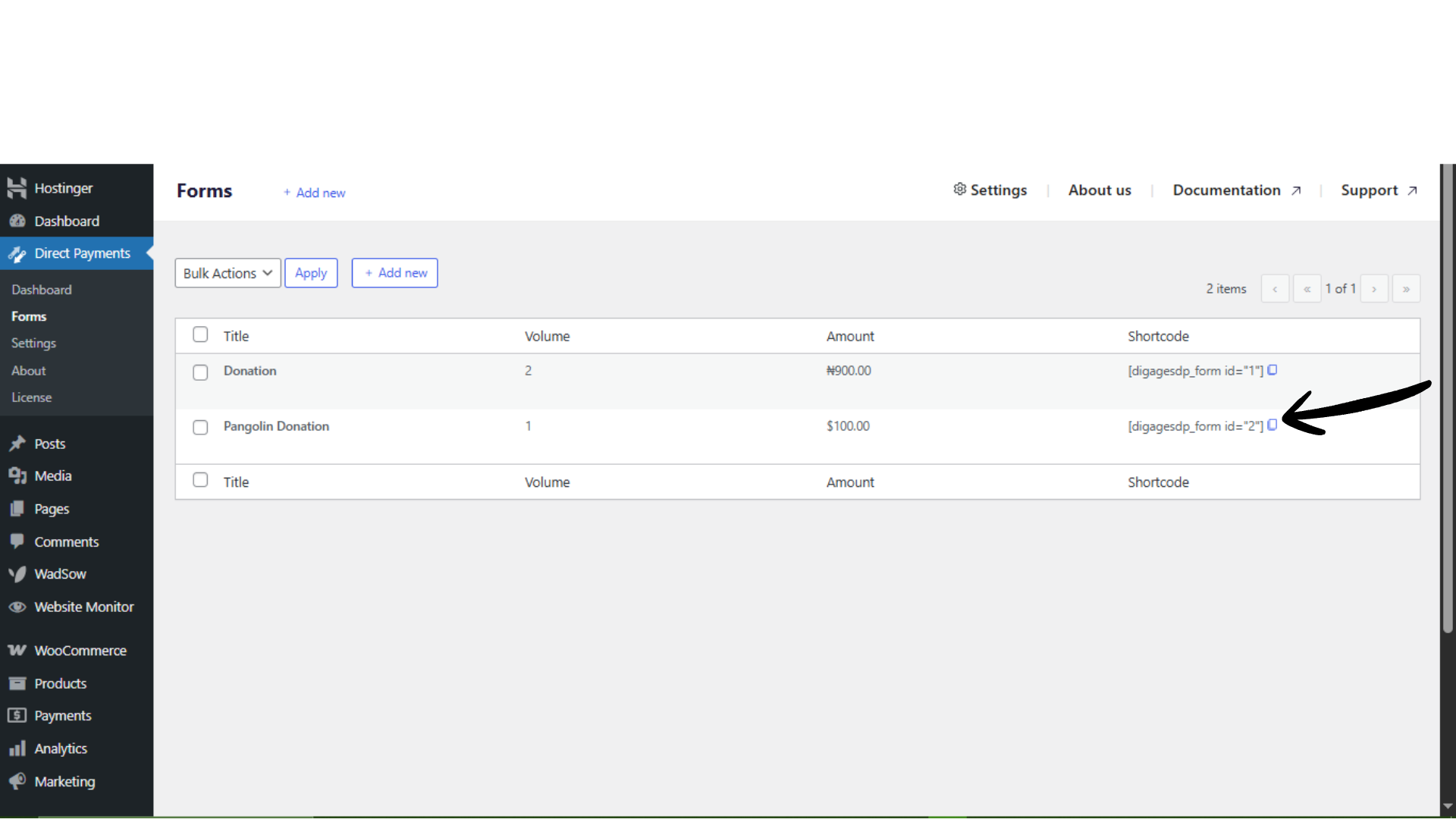
Possible causes could be an incorrect shortcode used, page not published, or a cache preventing the form from rendering.
Solution
-
Copy the exact shortcode from the form (e.g.,
[direct_payment_wp id="123"]). -
Paste it into a published page or post.
-
Clear the site cache and browser cache.
2. Email Notifications Not Received
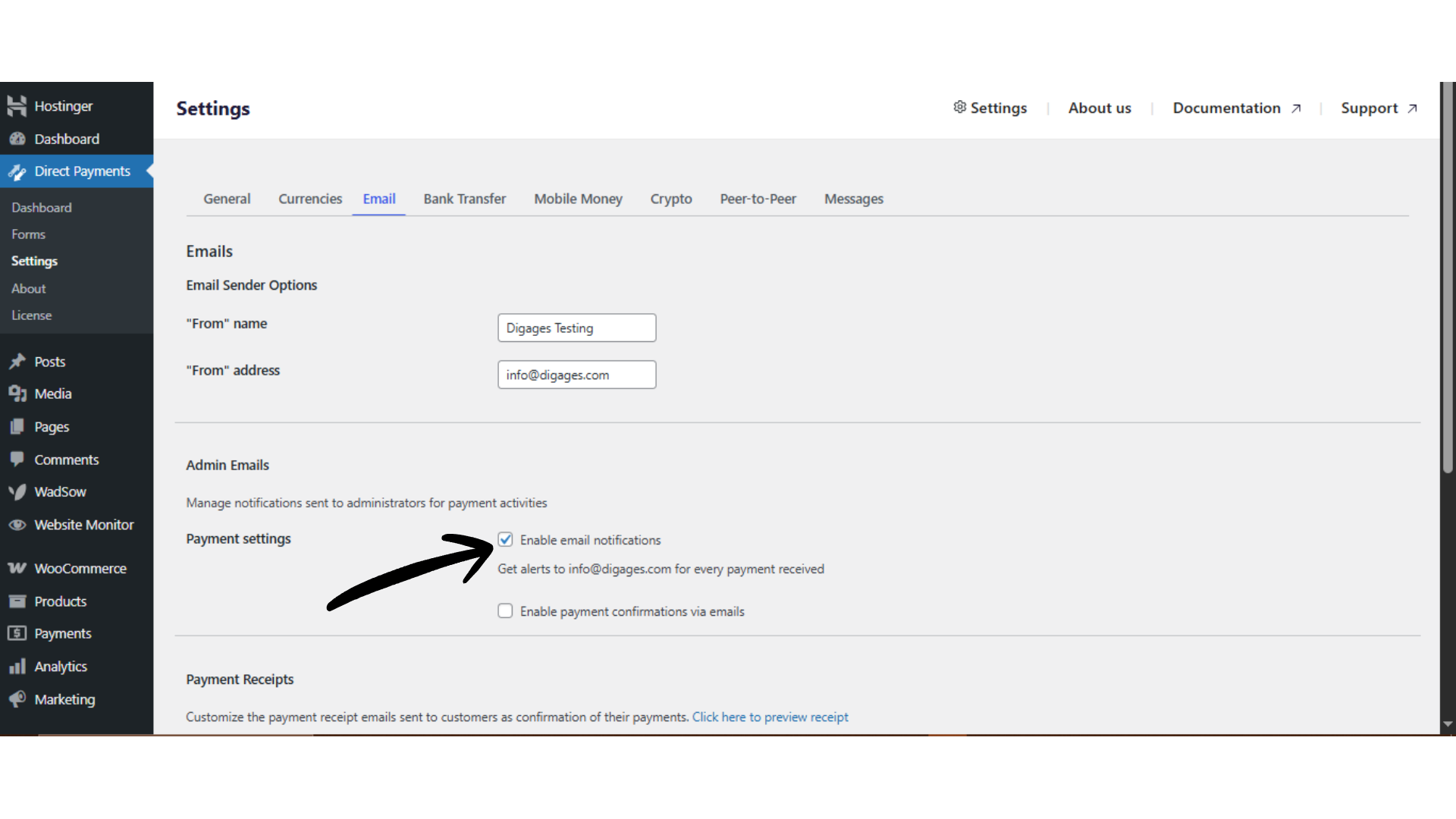
Possible causes could be Email notifications disabled, Incorrect support/admin email, or WordPress mail delivery issues.
Solution
-
Go to Settings → Email.
-
Ensure that Admin notifications are enabled, User confirmation emails are enabled, and the support or admin email address is correct.
-
Send a test payment to confirm emails are triggered.
3. Payment Methods Not Displaying
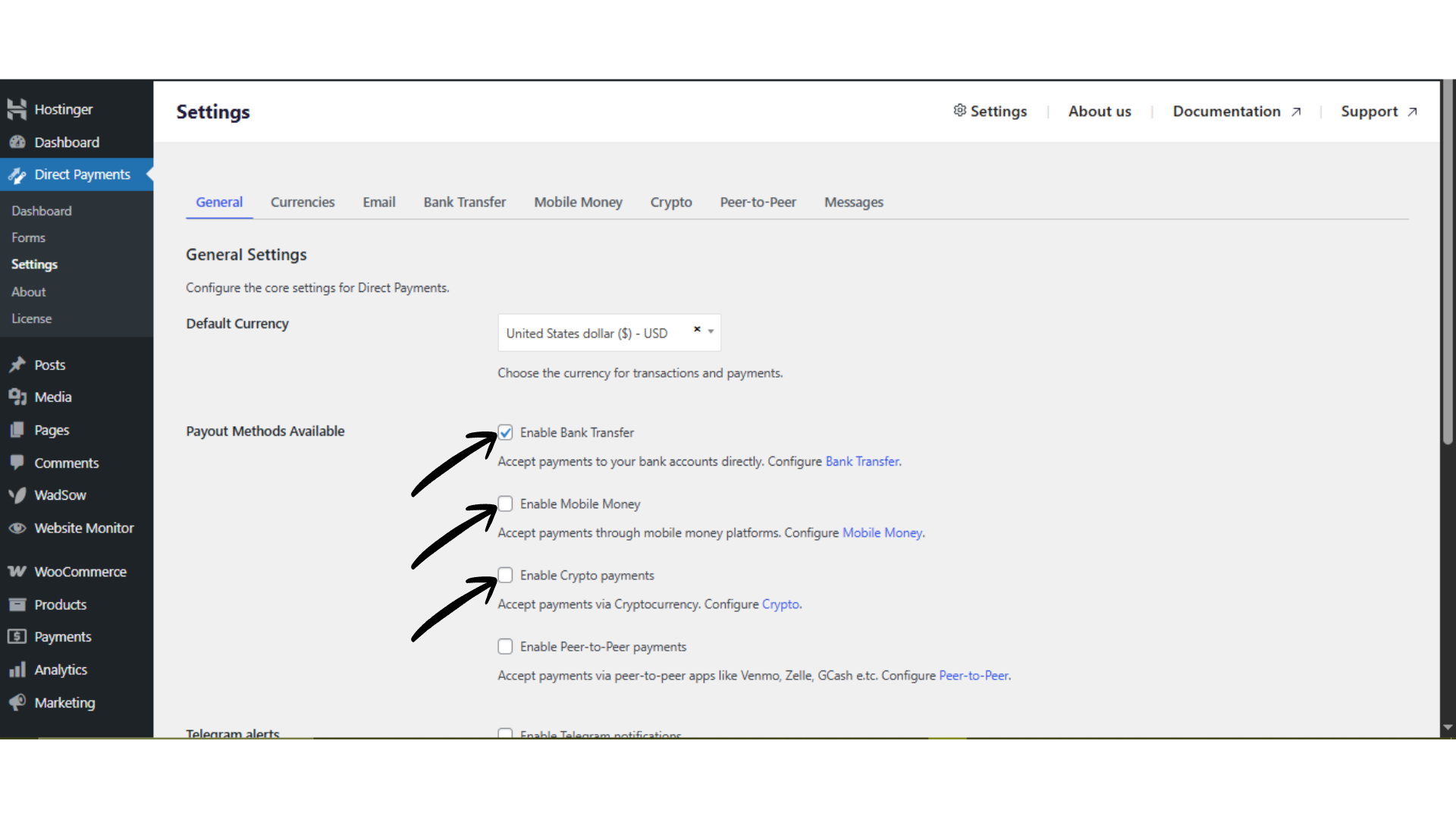
Possible causes are Changes not saved after configuration, Payment methods toggled off, or JavaScript or PHP errors are blocking UI updates
Solution
-
Navigate to Payment Methods.
-
Enable each desired method and click Save Changes.
-
Refresh the page and confirm settings persist.
-
Check browser console and hosting error logs for JavaScript/PHP errors.
-
Disable other plugins temporarily to rule out conflicts.
 4. Incorrect or Missing Crypto Network Details
Possible causes could be a wrong blockchain network specified or a network not clearly labeled on the form
Solution
-
Verify that the correct network is specified.
-
Clearly label each crypto payment method with its required network.
-
Add a visible warning message on the form to prevent user mistakes.
Caution: Using the wrong crypto network can result in irreversible loss of funds.
Need More Help?
If the issue persists after applying the fixes above:
-
Test with only Direct Payments WP and WooCommerce (if installed) active.
-
Switch to a default WordPress theme to isolate conflicts.
-
Check for plugin updates and apply the latest version.
-
You could also visit the Direct Payment WP Documentation.
-
Reach out via the support contact listed in the plugin settings.
- Check for plugin updates, as many bugs are fixed in newer versions.
Final Thoughts
Most Direct Payments WP issues are caused by shortcode placement, email configuration, caching, or plugin conflicts. A quick configuration review usually resolves the problem immediately.
For new setups, always verify email settings, payment method toggles, and shortcode placement to ensure a smooth payment experience for users.

