🎁 New: Build Customer Loyalty & Drive Repeat Purchases with WooCommerce. Learn more



Best SVG Plugins for WordPress
Search for “SVG plugins for WordPress”, and you’ll definitely find a list. What you won’t find is a clear answer to the question that actually matters: which one is right for what you’re trying to do?
That’s the problem with most plugin roundups. They tell you what each plugin does, but not when to use it, when to skip it, or what happens when you pick the wrong one for your situation.
This guide is different. We’ve looked at the best SVG plugins for WordPress across every relevant category, upload enablers, sanitisation tools, media library integrations, and in-dashboard editors, and we’re giving you an honest picture of each one.
Some plugins are great at one thing and weak at everything else. Some have security gaps that most reviews gloss over. One of them lets you edit SVG files directly in your WordPress dashboard without touching external software, and that changes the workflow in ways that matter.

By the end of this guide, you’ll know exactly which SVG plugin to install for your specific setup, and why.
Why WordPress Needs a Plugin to Handle SVG Files
WordPress restricts SVG uploads by default. This is a deliberate security decision because SVG files are written in XML, and like all XML-based formats, they can contain executable code. A maliciously crafted SVG can embed JavaScript that runs when a user views the file in a browser; this is known as a Cross-Site Scripting (XSS) attack. On a site where multiple users can upload files, this is a genuine threat.
Beyond the security gap, WordPress also doesn’t render SVG thumbnail previews in the Media Library out of the box. It uses PHP image functions that don’t understand SVG. Without a plugin, uploaded SVGs appear as blank grey boxes, usable but unmanageable at any scale.
A good SVG plugin addresses both issues: it makes SVG uploads safe, and it makes the resulting files actually usable within your WordPress workflow.
What to Look for in a WordPress SVG Plugin
Not every SVG plugin serves the same purpose. Some focus only on enabling SVG uploads, while others prioritise security, editing capabilities, or developer-focused functionality. Before choosing a plugin, it is important to understand which features actually matter for your workflow and website setup.
The first and most essential feature is SVG upload support. By default, WordPress blocks SVG uploads for security reasons, so any SVG plugin should, at a minimum, allow SVG files to be uploaded into the Media Library. However, upload support alone is not enough. Proper sanitisation is equally critical because SVG files can contain embedded scripts or malicious code. A good plugin should automatically clean SVG files before they are stored on your site.
Media Library previews are also highly recommended. Without preview support, SVG files often appear as blank placeholders inside WordPress, making them difficult to identify and manage. Thumbnail previews improve usability significantly, especially for sites handling large numbers of graphics, logos, or icons.
Some plugins go further by offering in-dashboard colour editing. This allows users to modify SVG colours directly inside WordPress without reopening external design software such as Adobe Illustrator or Figma. Whether this feature matters depends heavily on your workflow. For content teams and marketers updating branded assets frequently, it can save considerable time.
Developer-oriented features such as inline SVG rendering may also be important in certain projects. Inline rendering embeds the SVG markup directly into the page HTML, making it easier to target SVG elements with CSS or JavaScript for animations and advanced styling. While useful for developers, most standard WordPress users may never need this functionality.
Another factor to evaluate is plugin maintenance. SVG handling touches both security and media management, so active updates are essential. A plugin that is regularly maintained is more likely to stay compatible with new WordPress versions and receive timely security patches.
Finally, pricing matters. Some plugins provide all essential functionality for free, while others place advanced features behind paid plans. The right choice depends on your budget and whether you need additional editing, sanitisation, or developer tools.
1. SVG Editor
SVG Editor stands apart from most SVG plugins because it doesn’t stop at uploads. It’s one of the only free WordPress plugins that lets you edit SVG files directly inside your Media Library, changing colours, previewing in real time, and saving, without opening Illustrator, Inkscape, or any other external tool.
Built by Digages, a developer with a focused portfolio of practical tools, SVG Editor is free, open-source, and available from the official WordPress.org plugin directory. It’s been tested on WordPress 6.8 and requires no external API connections for its core functionality.
Benefits Breakdown
- SVG Upload Enablement: Adds SVG to WordPress’s allowed MIME types through a secure method
- SVG Sanitisation: Cleans all uploaded SVG files automatically, removing potentially harmful code
- Media Library Thumbnails: Renders proper SVG previews so you can identify files at a glance
- Native Editor Interface: Integrated directly into the WordPress Media Library, no new admin page to learn
- Real-Time Colour Picker: Select any SVG element and change its colour with instant canvas preview
- Preserves SVG Integrity: Sanitisation targets malicious code, not legitimate SVG structure, like
deforstyle
Installation Guide
- Go to WordPress Admin → Plugins → Add New Plugin
- Search “SVG Editor by Digages”
- Click Install Now on SVG Editor by Digages
- Click Activate
- Navigate to Media → SVG Editor to start editing
Step-by-Step: Editing an SVG Colour in WordPress
- Go to Media → SVG Editor in your admin panel
- Click ‘Select from Media Library’ or upload a new SVG
- The SVG loads in the editor canvas
- Click any element inside the SVG to select it
- Use the colour picker to choose a new fill colour, or enter a hex code
- Watch the change apply in real time on the canvas
- Click Save Changes — the updated file is stored in your Media Library
- Use it anywhere on your site immediately
2. Safe SVG
Safe SVG, developed by the team at 10up, has been around for several years and is one of the most widely installed SVG-related plugins in the WordPress ecosystem. Its focus is squarely on making SVG uploads safe, nothing more, nothing less.
What Safe SVG Does
Safe SVG uses the svg-sanitiser library to clean SVG files at the point of upload. It strips potentially dangerous elements and attributes, scripts, event handlers, and external references, while leaving the visual structure of the file intact. It also adds SVG preview support to the Media Library.
Key Benefits
- Sanitises SVGs on upload using a well-maintained sanitisation library
- Adds SVG thumbnail previews to the WordPress Media Library
- Role-based upload permissions to restrict SVG uploads to specific user roles
- Simple setup: install, activate, and it works
3. SVG Support
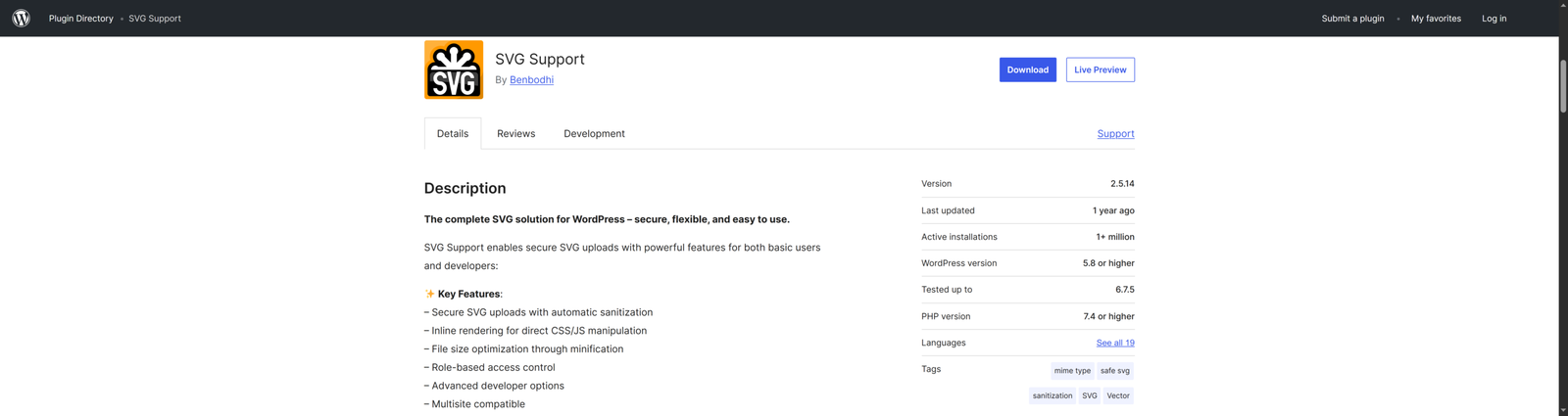
SVG Support by Benbodhi takes a different angle. Beyond enabling uploads, it focuses on making SVGs more functional on the front end, specifically by allowing inline SVG rendering directly within post and page content.
What SVG Support Does
Inline SVG means the actual SVG markup is embedded into your page’s HTML output rather than referenced as an external file. This matters if you want to control SVG elements with CSS, for colour animations, hover effects, or theme-based overrides that respond to user interaction.
Key Benefits
- Enables SVG file uploads to the media library
- Renders SVGs inline in post and page content
- CSS class targeting support for fine-grained styling control
- Optional sanitisation in the Pro version
4. WP SVG Images
WP SVG Images is a minimal plugin by Short Pixels that enables SVG uploads to WordPress and adds thumbnail preview support for SVG files in the Media Library. That’s broadly its scope.
It’s a lighter-weight option compared to Safe SVG or SVG Editor, and it’s been around long enough to have a meaningful install base. However, its sanitisation capabilities are less comprehensive than the dedicated security-focused options, which is worth factoring in.
Pros and Cons
Pros
- Simple and lightweight — minimal impact on site performance
- Adds SVG preview support to the Media Library
- Low configuration overhead
Cons
- Sanitisation is not as robust as dedicated options like Safe SVG
- No editing functionality
- Less actively maintained than the top-tier options
5. Enable SVG, WebP & ICO Upload
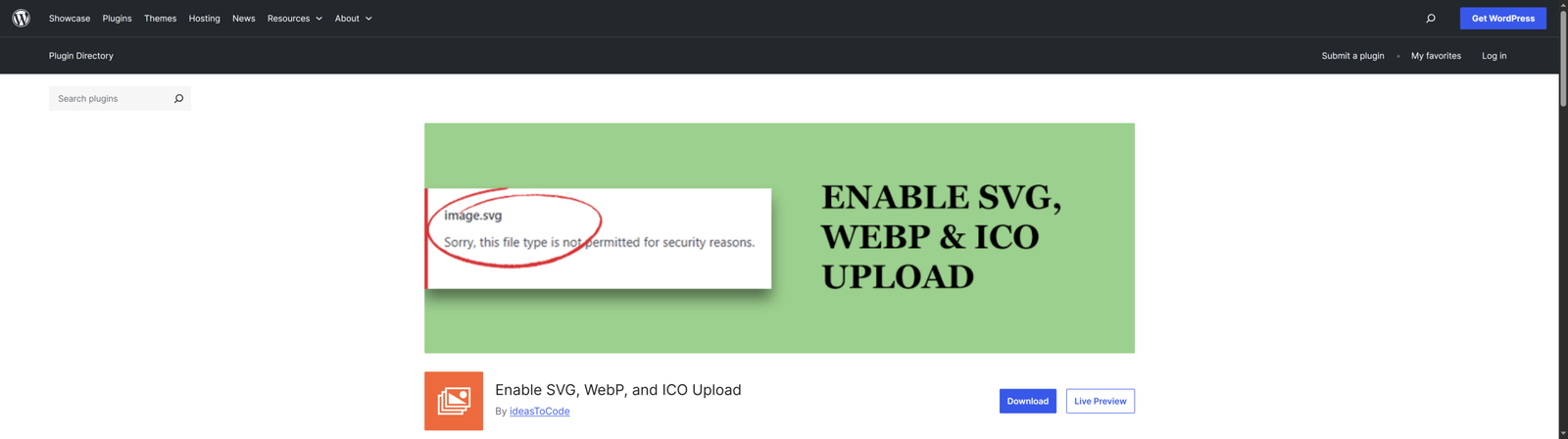
This plugin by ideasToCode takes a broader approach: rather than focusing purely on SVG, it enables multiple file formats that WordPress blocks by default, SVG, WebP (on older WordPress versions), ICO, and sometimes others. If you need to enable several non-default formats at once, a multi-format enabler can save you from installing separate plugins for each.
For Enable SVG, WebP, and ICO Upload, the trade-off is depth. Plugins that try to enable many file types are typically less focused on the specifics of SVG security than a dedicated SVG plugin. Sanitisation may be basic or absent depending on the specific plugin.
Pros and Cons
Pros
- Enables multiple file formats with a single plugin installation
- Useful for sites with varied media format requirements
- Simple to configure
Cons
- SVG-specific sanitisation is typically less thorough than dedicated plugins
- No SVG editing capabilities
- Quality and maintenance vary significantly between plugins in this category
Conclusion
The best SVG plugins for WordPress aren’t the most complex ones. They’re the ones that remove friction from your actual workflow. The fewer steps between “I need to update this SVG” and “it’s done”, the better the plugin.
SVG Editor wins that test for the widest range of users. Install it, activate it, and your SVG workflow changes immediately.
Ready to improve your designs? Install SVG Editor today, with setup in under 2 minutes. No API keys, no developer, no dependencies. Get it for free on WordPress.org








