🎁 New: Build Customer Loyalty & Drive Repeat Purchases with WooCommerce. Learn more



Best Tools for Managing SVG Files in WordPress
WordPress doesn’t support SVG uploads out of the box. That single limitation has caused more wasted hours, broken workflows, and frustrated designers than almost any other quirk in the platform.
If you’ve ever tried to upload an SVG logo, icon set, or illustration to your WordPress Media Library, you’ve probably seen the error: “Sorry, this file type is not permitted for security reasons.” It’s one of WordPress’s bluntest walls.
The best tools for managing SVG files in WordPress fix that, and go well beyond it. Whether you need to safely enable SVG uploads, preview vectors in your media library, or actually edit SVG colours without leaving your dashboard, there’s a plugin built for that specific job.

This guide covers every category: upload tools, sanitisation layers, media library integrations, and in-dashboard editing tools that let you make real changes to your SVGs without touching Illustrator, Inkscape, or any external software.
We’ve reviewed each tool honestly, including the ones that don’t make it to the top spot.
Why SVG Management Matters in WordPress
SVGs aren’t just a design preference. They have real, measurable advantages over raster formats like PNG or JPEG when used on websites.
The Practical Case for SVGs on Your WordPress Site
- Resolution independence, an SVG logo looks sharp on a 4K monitor and a budget Android phone equally
- Smaller file sizes for simple graphics, which directly improves page load speed
- Easily styled with CSS, making them ideal for theming, dark mode, and hover effects
- Accessible when properly coded, screen readers can interpret inline SVG content
- Editable as plain text, you can open an SVG in any code editor and change colours, paths, and properties directly
For developers, inlining SVGs into theme templates opens up CSS animations and interaction. For designers and content editors, SVGs mean logos that never go blurry and icons that match brand colours exactly.
Why WordPress Restricts SVG Uploads by Default
WordPress restricts SVG uploads for a clear technical reason: SVGs are XML-based files and can contain embedded JavaScript. A maliciously crafted SVG uploaded by a bad actor could execute scripts in a visitor’s browser, a classic XSS (Cross-Site Scripting) attack vector.
SVG security risks are real, not theoretical. Any tool you use to enable SVG uploads should include sanitisation, a process that strips potentially harmful code from the file before it’s stored. Never enable raw SVG uploads without sanitisation on any site that allows contributor-level or user-generated content uploads.
The good news: every reputable SVG plugin handles sanitisation automatically. You get the benefits of SVGs without exposing your site to risk.
1. SVG Editor
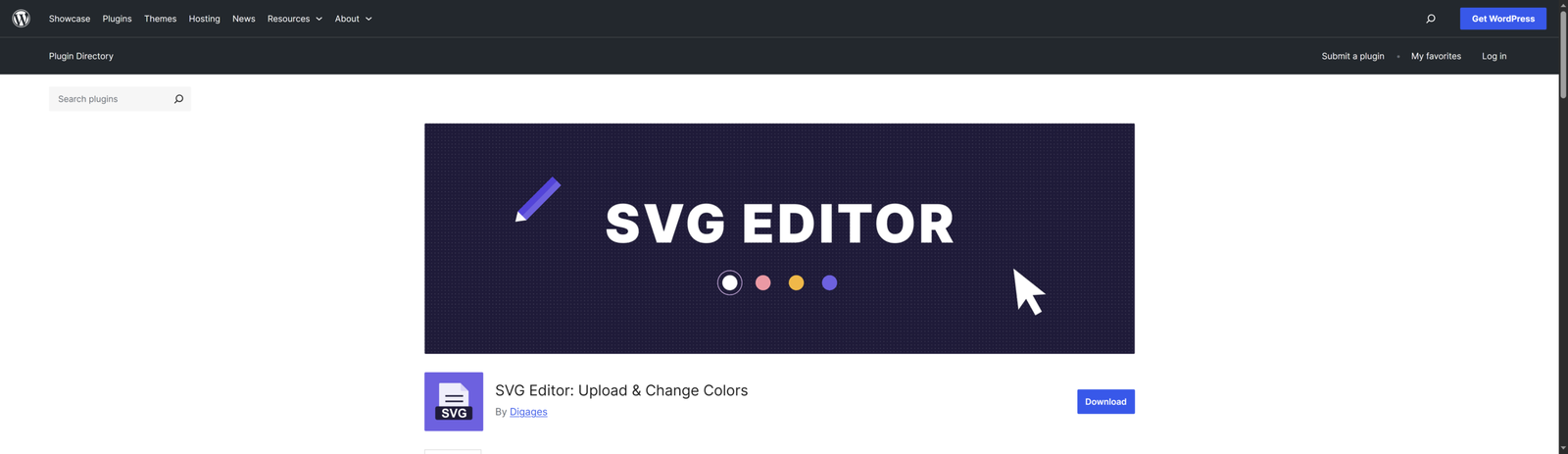
SVG Editor is one of the very few WordPress plugins focused specifically on editing SVG files directly inside the WordPress dashboard, not just allowing uploads, but giving you a real native editing interface without leaving your CMS.
Built and maintained by Digages, a WordPress plugin developer focused on practical, workflow-first tools, it’s free, open-source, and published on the official WordPress.org plugin directory. It requires no API keys, no external accounts, and no configuration beyond activation.
What SVG Editor Does
When you activate SVG Editor, three things change immediately:
- SVG uploads are enabled. You can add SVG files to your Media Library the same way you add any other image.
- SVGs are visible in the Media Library. Instead of blank grey boxes, you see a rendered thumbnail preview of each file.
- An “Edit SVG” button appears on every SVG in your library. Clicking it opens the native editor.
The editor focuses on colour editing. You select any element inside an SVG and change its fill colour using a real colour picker. Changes are previewed in real time, you see exactly what you’re getting before saving.
Key Benefits
- Enable SVG Uploads: Adds SVG to WordPress’s allowed file types through a secure method
- Media Library Previews: Renders SVG thumbnails so you can see your files at a glance
- Native WordPress Integration: Works within the existing Media Library UI, no separate interface to learn
- Real-Time Colour Picker Editor: Intuitive colour editing with instant visual preview
- SVG Sanitisation on Upload: Automatically cleans uploaded SVG code to remove potentially harmful scripts
- Preserves SVG Structure: Sanitisation targets malicious code, not your legitimate SVG elements
- Mobile Responsive Editor: Works on mobile devices, quick edits on the go
How to Install SVG Editor
- Go to WordPress Admin → Plugins → Add New Plugin
- Search for “SVG Editor by Digages”
- Click Install Now on SVG Editor
- Click Activate
- Go to Media → SVG Editor in your admin dashboard to start using it
Editing SVG Colours: Step-by-Step
- Navigate to Media → SVG Editor in your WordPress admin panel
- Click ‘Select from Media Library’ or upload a new SVG directly
- The SVG preview loads in the editor interface
- Click any element in the SVG to select it — the colour picker activates
- Choose your new colour using the picker, or type a hex value directly
- Preview the change in real time in the editor canvas
- Click Save Changes — the updated SVG is stored in your media library
- Use the updated file anywhere on your site immediately
2. Safe SVG
Safe SVG, developed by the team at 10up, has been around for several years and is one of the most widely installed SVG-related plugins in the WordPress ecosystem. Its focus is squarely on making SVG uploads safe, nothing more, nothing less.
What Safe SVG Does
Safe SVG uses the svg-sanitiser library to clean SVG files at the point of upload. It strips potentially dangerous elements and attributes, scripts, event handlers, and external references, while leaving the visual structure of the file intact. It also adds SVG preview support to the Media Library.
Key Benefits
- Sanitises SVGs on upload using a well-maintained sanitisation library
- Adds SVG thumbnail previews to the WordPress Media Library
- Role-based upload permissions to restrict SVG uploads to specific user roles
- Simple setup: install, activate, and it works
3. SVG Support
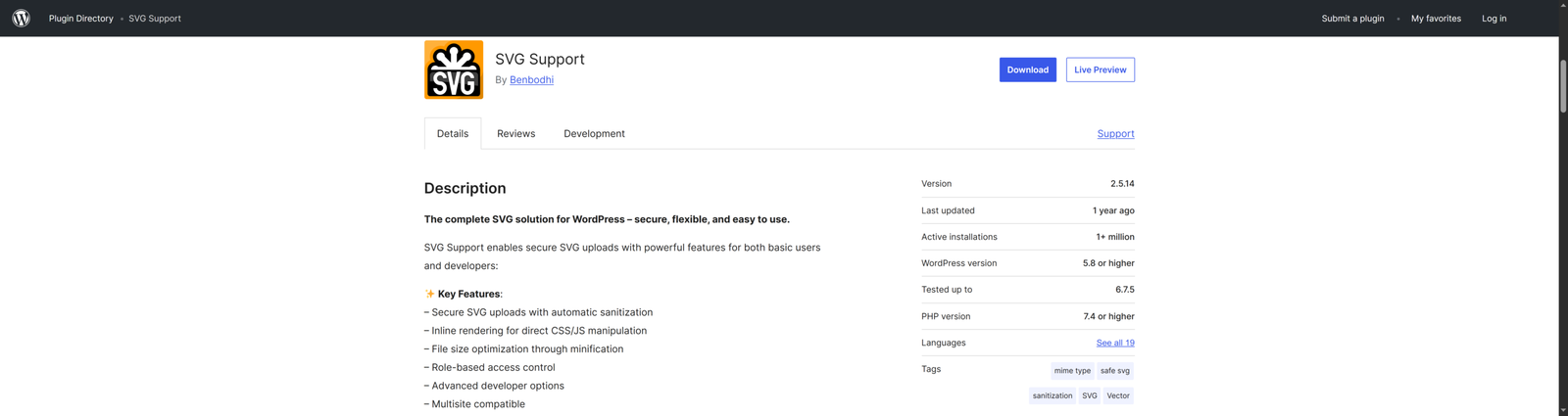
SVG Support by Benbodhi takes a different angle. Beyond enabling uploads, it focuses on making SVGs more functional on the front end, specifically by allowing inline SVG rendering directly within post and page content.
What SVG Support Does
Inline SVG means the actual SVG markup is embedded into your page’s HTML output rather than referenced as an external file. This matters if you want to control SVG elements with CSS, for colour animations, hover effects, or theme-based overrides that respond to user interaction.
Key Benefits
- Enables SVG file uploads to the media library
- Renders SVGs inline in post and page content
- CSS class targeting support for fine-grained styling control
- Optional sanitisation in the Pro version
4. Inkscape
Inkscape is a free, open-source desktop application for creating and editing vector graphics. It’s the closest free alternative to Adobe Illustrator, and the go-to tool when you need to do serious SVG work, path editing, node manipulation, complex transformations, and original asset creation.

When You Still Need an External Editor
There are tasks that a WordPress-native plugin won’t cover. For those, Inkscape is the right free tool:
- Creating SVGs from scratch — original logos, icons, illustrations
- Complex path editing — adjusting anchor points, bezier curves, shape nodes
- Adding or removing SVG elements entirely
- Applying SVG filters and visual effects
- Batch-processing or restructuring multiple SVG files
Pros and Cons
Pros
- Free and cross-platform (Windows, macOS, Linux)
- Deep editing capabilities for professional and complex SVG work
- Exports clean, web-ready SVG files
Cons
- Completely external to WordPress — every change requires a full re-upload workflow
- Steep learning curve for non-designers
- Overkill for simple colour changes that an in-WordPress plugin handles in seconds
5. Adobe Illustrator
Adobe Illustrator is the industry standard for professional vector design. If you’re creating original SVG assets, custom brand logos, complex icon systems, detailed illustrations — Illustrator is still the most capable tool available.
Pros and Cons
Pros
- Unmatched capability for original, professional SVG creation
- Industry-standard file compatibility across design and development workflows
- Precise, granular control over every SVG attribute and element
Cons
- Expensive subscription-based pricing — not practical for everyone
- Completely external to WordPress — breaks the editorial and content workflow
- Unnecessary for tasks that a WordPress-native plugin handles natively
Matching the Right Tool to Your Situation
For Freelance Designers Managing Client Sites
Your clients will ask for logo colour variants, seasonal icon changes, and brand refreshes on short notice. You need a tool that lets you make those changes quickly without a full design round-trip. SVG Editor handles this inside WordPress, no Illustrator licence needed for minor changes. Save external tools for original creation work.
For Content Editors and Non-Technical Users
If your role involves updating website content, you shouldn’t need to ask a developer every time an icon colour needs updating. SVG Editor’s colour picker interface is built for non-technical users. If you can use a colour picker, you can edit an SVG.
For WordPress Developers Building Themes
You might use SVG Support for inline rendering (enabling CSS animations) and SVG Editor for file management and colour editing. They serve different purposes and work well on the same installation. Many developer setups use both.
For Agencies Managing Multiple Client Sites
SVG Editor reduces the number of steps between “a client wants a change” and “the change is live.” For agencies billing by the hour, that efficiency is real money. It also reduces the dependency on designers being available for tasks that don’t actually need design skills.
Conclusion
For most WordPress users, the answer is simpler than this guide might suggest.
Start with SVG Editor. It handles SVG uploads, sanitisation, Media Library previews, and colour editing in a single free plugin. For the majority of content workflows, logos, icons, and brand assets, it removes the need for any external design tool.
If you need inline SVG rendering for CSS animations or developer-level theme integration, add SVG Support alongside it.
If you’re creating original SVG artwork from scratch, use Inkscape (free) or Illustrator (paid) for initial creation, then manage everything inside WordPress from there using SVG Editor.
What makes SVG Editor genuinely useful isn’t just the feature list. It’s the workflow efficiency. The fewer times you have to leave WordPress to make a routine change, the faster your team moves, and the more autonomy your content editors have without needing developer support.
For any WordPress site that takes its visual identity seriously and uses SVGs as part of that identity, having an editing tool inside the dashboard isn’t a luxury. It’s a practical time-saver.
The best tools for managing SVG files in WordPress are the ones that reduce the distance between “I need to change this” and “it’s done.” SVG Editor does that better than any other free option available today.
Ready to improve your designs? Install SVG Editor today, with setup in under 2 minutes. No API keys, no developer, no dependencies. Get it for free on WordPress.org








