🎁 New: Build Customer Loyalty & Drive Repeat Purchases with WooCommerce. Learn more



How to Create a Packing Staff Role in WooCommerce
Your packing and dispatch team has one job: get orders picked, packed, and shipped. They need to know what was ordered, where it’s going, and when it needs to leave. That’s it.
But without a properly configured WooCommerce role, packing staff often end up with far more access than that. They might be logged in under the Shop Manager role because it was the quickest way to give them order access, which means they can also view your revenue reports, edit your shipping rates, and see your payment gateway credentials.

This guide walks you through creating a purpose-built packing staff role in WooCommerce using Digages Role Manager. You’ll end up with a clean, focused role that gives your warehouse team exactly what they need and locks out everything else.
What Packing Staff Actually Need to Do Their Job
When creating a role for packing and fulfilment staff, defining what they cannot access is just as important as defining what they can. Their primary responsibility is preparing, packing, and dispatching orders. Any permission beyond that increases the risk of accidental changes, security issues, or exposure to sensitive business information.
The default WooCommerce Shop Manager role often grants far more access than packing staff actually need.

WooCommerce Settings
Packing staff do not need access to WooCommerce settings. This area contains critical store configuration options, including payment gateway settings, tax rates, shipping rules, email templates, and other administrative controls that have no impact on day-to-day fulfilment activities.
Revenue and Sales Reports
Financial reports should generally be restricted to management and business analysts. Packing staff do not need access to revenue figures, profit data, sales trends, or other business intelligence metrics to complete their work.
Product Editing
The fulfilment team ships products but does not manage the catalogue. They should not be able to create, edit, publish, or delete products, modify pricing, or change inventory configurations unless those responsibilities are explicitly part of their role.

Customer Account Management
Packing staff typically only need enough customer information to fulfil an order. They should not have access to customer account management tools or the ability to edit customer profiles and account settings.
WordPress Posts and Pages
Content creation and website management are unrelated to order fulfilment. Access to posts, pages, media management, and other content tools should be reserved for marketing and content teams.
Plugin Settings
Most plugins contain configuration options that affect store functionality, integrations, security, or customer experience. There is usually no operational reason for packing staff to access plugin settings or administration screens.
User Management
Packing staff should never be able to create users, edit user accounts, reset permissions, or assign roles. User management is an administrative function that should remain restricted to trusted site administrators.
WordPress General Settings
Core WordPress settings control important site-wide functions such as URLs, user registration, time zones, and other foundational configurations. Access to these settings should be limited to administrators only.
The Principle of Least Privilege
A good packing role should provide access only to the information and actions required to process and dispatch orders. If a permission does not directly support fulfilment work, it should generally be excluded. This reduces risk, improves security, and makes the admin area easier for staff to navigate.
Why Default WooCommerce Roles Don't Work for Packing Staff
WooCommerce ships with two relevant staff roles: Shop Manager and Customer. Neither fits a packing staff job function.
Shop Manager is far too broad; it gives access to store settings, reports, and configurations that have nothing to do with order fulfilment. Customer is designed for buyers on the front end and gives no access to the admin panel at all.
WordPress’s own built-in roles are no help either. Editor, Author, Contributor, and Subscriber all exist for content management purposes and have no WooCommerce access out of the box.
The only clean solution is a custom role, one you build specifically around the packing and dispatch workflow. That’s exactly what Digages Role Manager is designed for.
Creating the Packing Staff Role in Digages Role Manager
The following steps assume Digages Role Manager is installed and activated on your WordPress site. If you haven’t done that yet, install it from the WordPress plugin directory and activate it before continuing.
Step 1: Open Digages Role Manager and Start a New Role
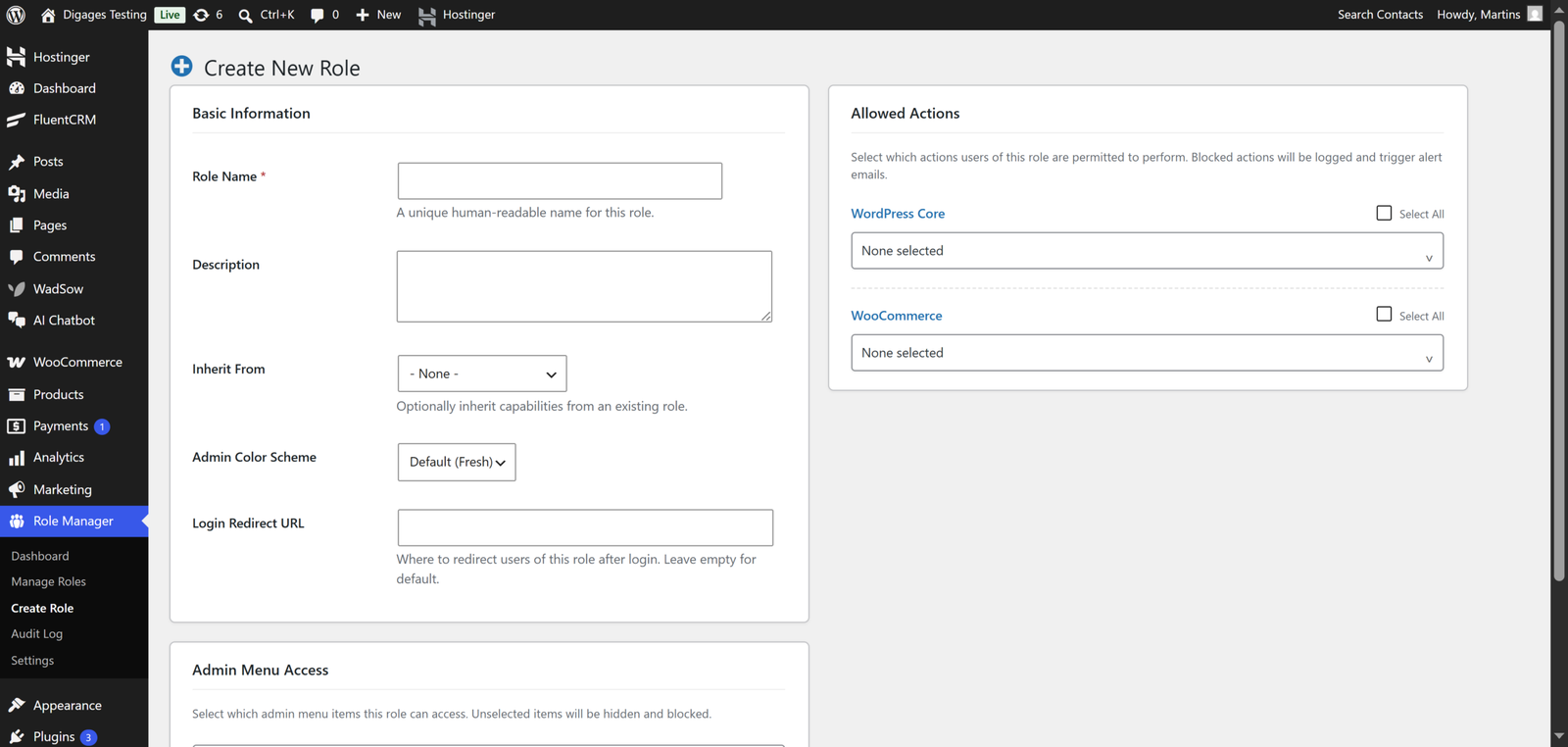
From the WordPress admin sidebar, click Role Manager, then click Create New Role (or the + Add New Role button on the Manage Roles screen). This opens the role creation form.
Step 2: Fill in the Basic Information
In the Basic Information panel on the left side of the screen, fill in the following:
- Role Name: WooCommerce Packing Staff (or Warehouse Staff, Dispatch Team — whatever matches your internal terminology)
- Description: Handles order picking, packing, and dispatch. Access to WooCommerce Orders only. No access to store settings, products, reports, or user management.
- Inherit From: Leave this set to None. You’ll build this role from scratch to keep it minimal.
- Login Redirect URL: Enter the full URL of your WooCommerce Orders page (usually /wp-admin/edit.php?post_type=shop_order). This sends packing staff directly to their work queue when they log in.
Setting a login redirect URL is a small touch that makes a difference for packing staff. Rather than landing on the WordPress dashboard and having to navigate to orders, they land directly on the page they use every day.
Step 3: Configure WordPress Core Capabilities
In the Allowed Actions panel on the right, you’ll see the WordPress Core Capabilities dropdown. For a packing staff role, you need very little here:
- Check read; This allows the user to log in and view the basic WordPress dashboard
- Leave everything else unchecked; No post editing, no page management, no plugin access, nothing
The read capability is the baseline requirement for any WordPress user to log in and access the admin panel. Without it, the user can’t access the dashboard at all.
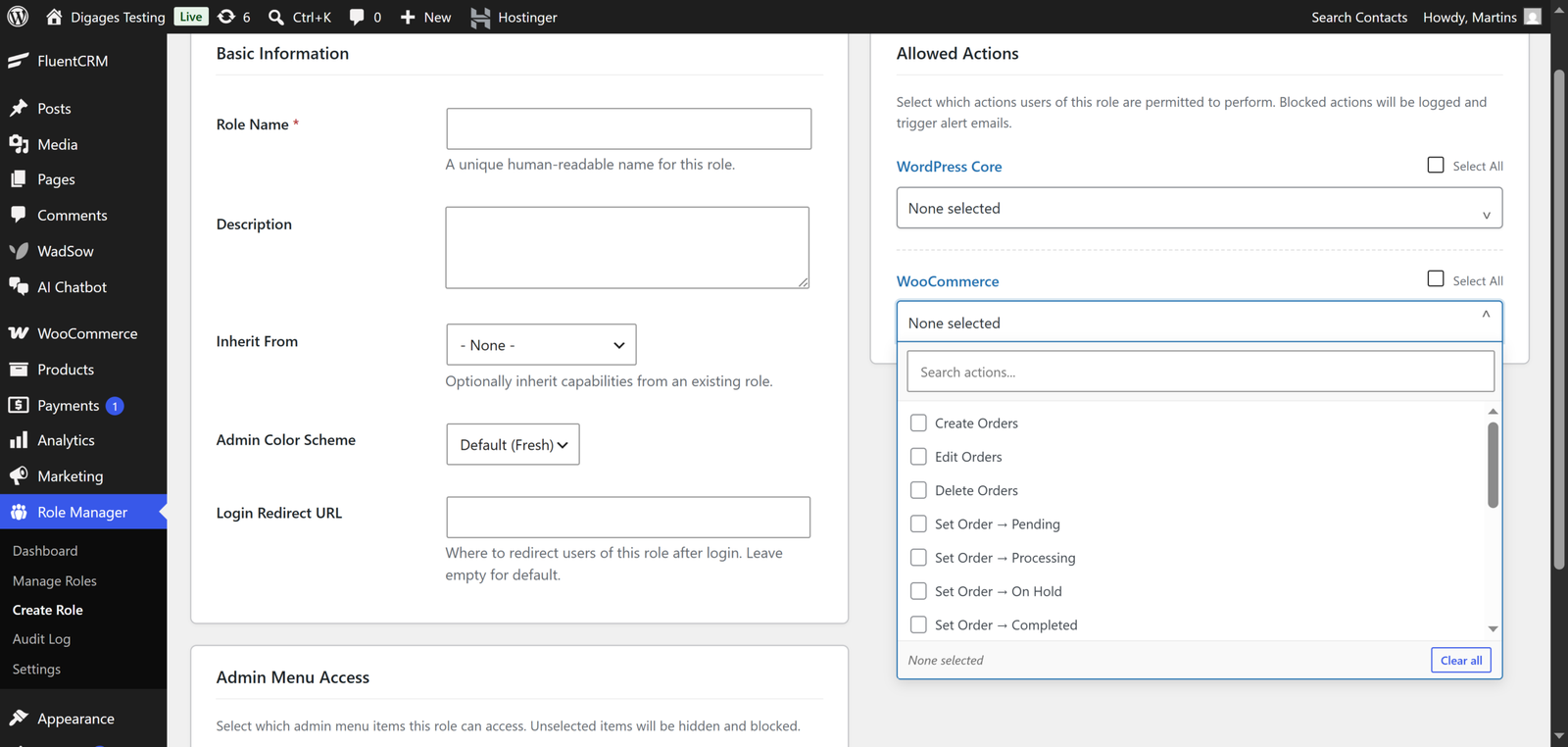
Step 4: Configure WooCommerce Capabilities
Below the WordPress Core section, you’ll see the WooCommerce Capabilities section (this only appears if WooCommerce is active on your site).
For packing staff, select only:
- edit_shop_orders; Allows viewing and updating order status, adding order notes, and printing packing slips
Leave everything else unchecked, specifically:
- manage_woocommerce: Not needed and too broad
- view_woocommerce_reports: Financial reporting not relevant to packing staff
- edit_products: No product management needed
- publish_products: No product publishing needed
Step 5: Configure Admin Menu Access
The Admin Menu Access section is further down the same screen. This controls which items appear in the WordPress admin sidebar when a user with this role logs in.
For packing staff, select only:
- WooCommerce (top-level menu item)
- WooCommerce > Orders (sub-menu item)
Deselect or leave unchecked everything else: Posts, Pages, Media, Comments, Appearance, Plugins, Users, Tools, Settings, and all other WooCommerce sub-menus (Products, Analytics, Marketing, and WooCommerce Settings).
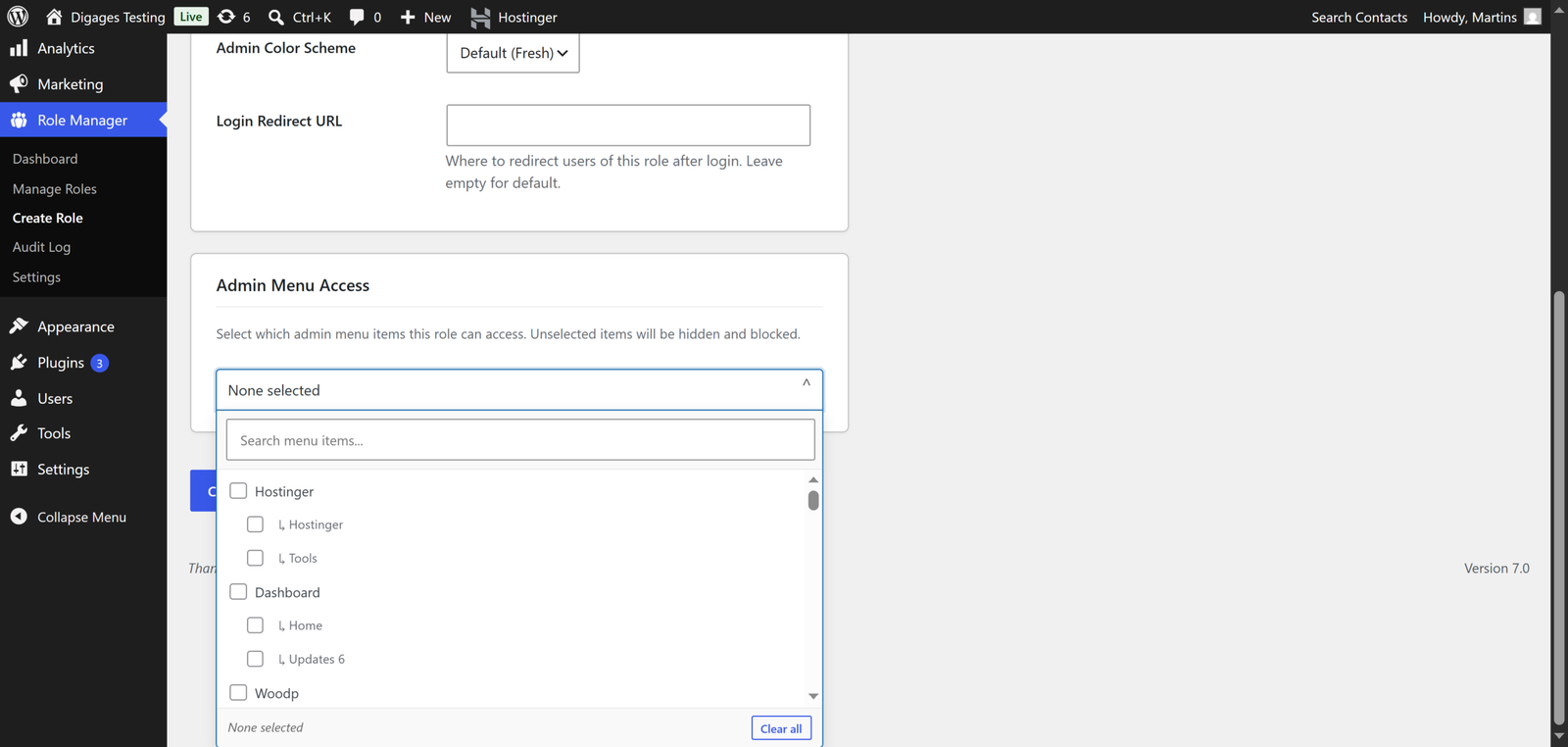
Always configure Admin Menu Access alongside capabilities. Even if a capability is correctly restricted, admin menu items can still provide navigation paths to restricted areas. Hiding the menu is a second layer of protection that makes the user interface clean and focused.
Step 6: Save the Role
Click the Create Role button at the bottom of the screen. If everything was filled in correctly, the new role will appear on the Manage Roles screen and in the Active Custom Roles section of the Role Manager dashboard.
Extending This to Other Warehouse Roles
Once you have a packing staff role working, you can use it as a starting point for other warehouse or fulfilment roles your operation might need.
Dispatch Supervisor
A dispatch supervisor might need everything the packing staff role includes, plus the ability to view WooCommerce reports to track daily order volumes and shipping performance.
- Start from: WooCommerce Packing Staff role
- Add: view_woocommerce_reports
- Add to Admin Menu: WooCommerce > Analytics
Inventory Manager
An inventory or stock manager needs to view and edit products, specifically stock levels and availability status, but doesn’t need order processing access.
- Create fresh from None
- Include: read, edit_products, manage_product_terms
- Admin Menu: WooCommerce > Products only
Returns Coordinator
A returns coordinator needs order access to process returns and refunds, but might also need to edit products to update stock levels when returned items come back into inventory.
- Include: read, edit_shop_orders, edit_products
- Admin Menu: WooCommerce > Orders and WooCommerce > Products
Conclusion
Creating a dedicated WooCommerce packing staff role takes less than ten minutes in Digages Role Manager, but the effect it has on your store’s security posture is significant. Your fulfilment team gets a clean, focused interface built around their actual workflow, and your store settings, financial data, and product configurations are protected by default.
The combination of the edit_shop_orders capability and a restricted admin menu gives packing staff everything they need and nothing they don’t. Pair that with a login redirect to the Orders page, and you’ve built a genuinely efficient, secure access setup for your warehouse team.
Once the role is working for your packing team, you can apply the same approach to other warehouse functions: dispatch supervisors, inventory managers, returns coordinators, each with their own focused role configuration.