🎁 New: Build Customer Loyalty & Drive Repeat Purchases with WooCommerce. Learn more




How to Offer Gift Messages on WooCommerce Products
A customer wants to add “Happy Birthday, love you loads” to their order, and there’s nowhere to put it. WooCommerce’s default order notes field isn’t tied to any specific product, so as soon as an order has more than one item, there’s no reliable way to know which message belongs to which gift.
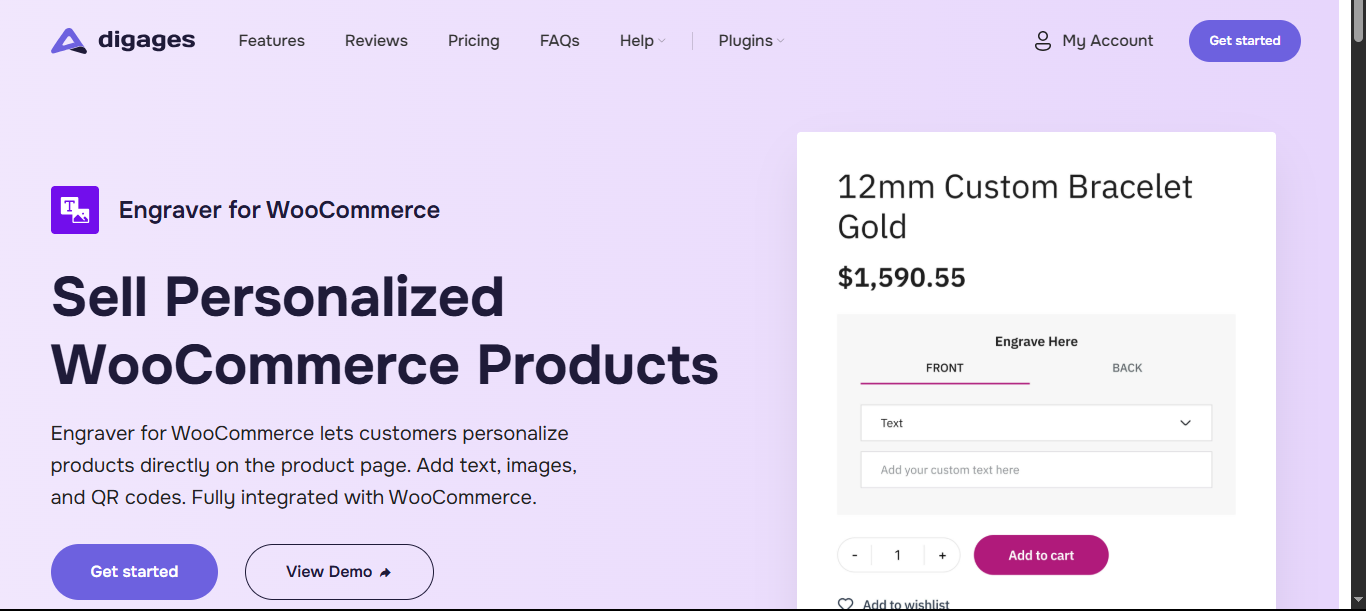
Engraver for WooCommerce fixes this by adding a proper message field to the product page itself, besides Add to Cart, so the message is captured as part of the normal purchase flow and stays attached to that exact product, even in multi-item orders. Here’s how to set it up.
1. Put the Message Field on the Product Page, Not at Checkout
A single checkout-level note works only if every order is a single gift. The moment a customer buys a gift for someone else and something for themselves in the same order, a checkout note can’t distinguish between the two, and neither can a generic cart-level “gift wrap” field.
Engraver for WooCommerce avoids this by placing the message field together with the product itself, so it’s captured at the point the customer is already thinking about the recipient and tied to that item, regardless of what else is in the cart.
2. Build the Field With a Template
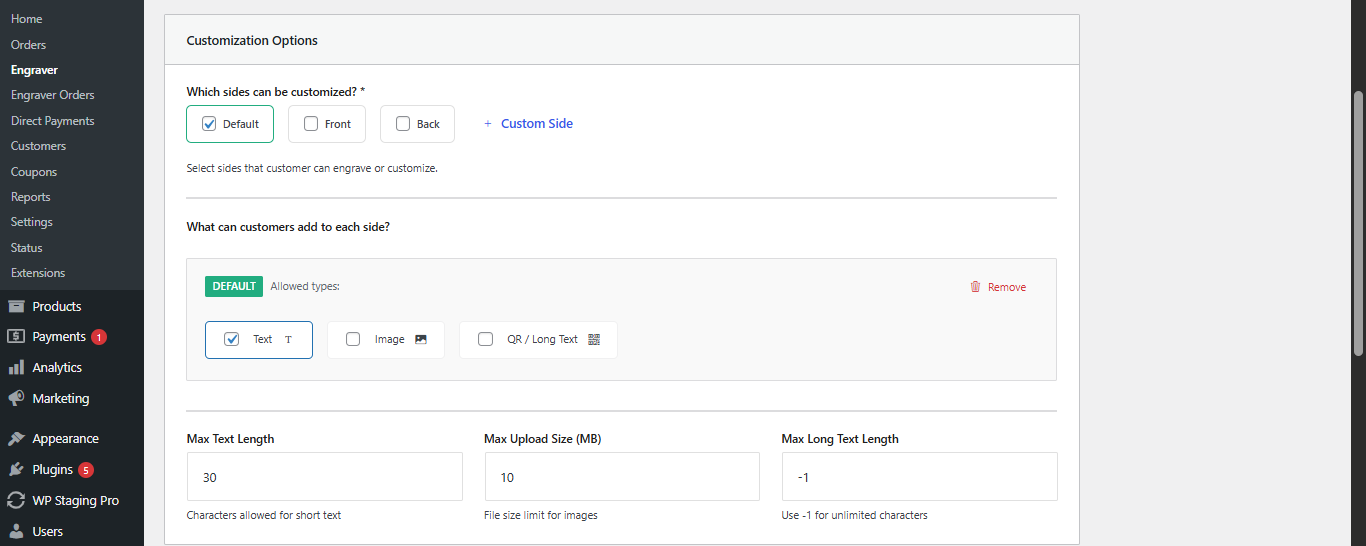
From WooCommerce → Engraver, create a template that controls how the message field behaves:
- Label — write something inviting, like “Add a gift message (optional),” rather than a generic “Notes” field that customers assume is for delivery instructions.
- Character limit — keep it realistic for whatever the message is printed on, a card, a label, or a box insert.
The free version of Engraver for WooCommerce handles short text messages, which covers most gifting use cases. PRO extends this to longer messages, photo uploads, and QR codes for stores that want to offer more than plain text.
You can assign the template to all products or to a specific product; you can also assign it to a category like “Gifts,” which lets you add a new gift item to that category later, and it inherits the same field automatically, without the need for reconfiguring product by product.
3. Manage Incoming Messages and Orders
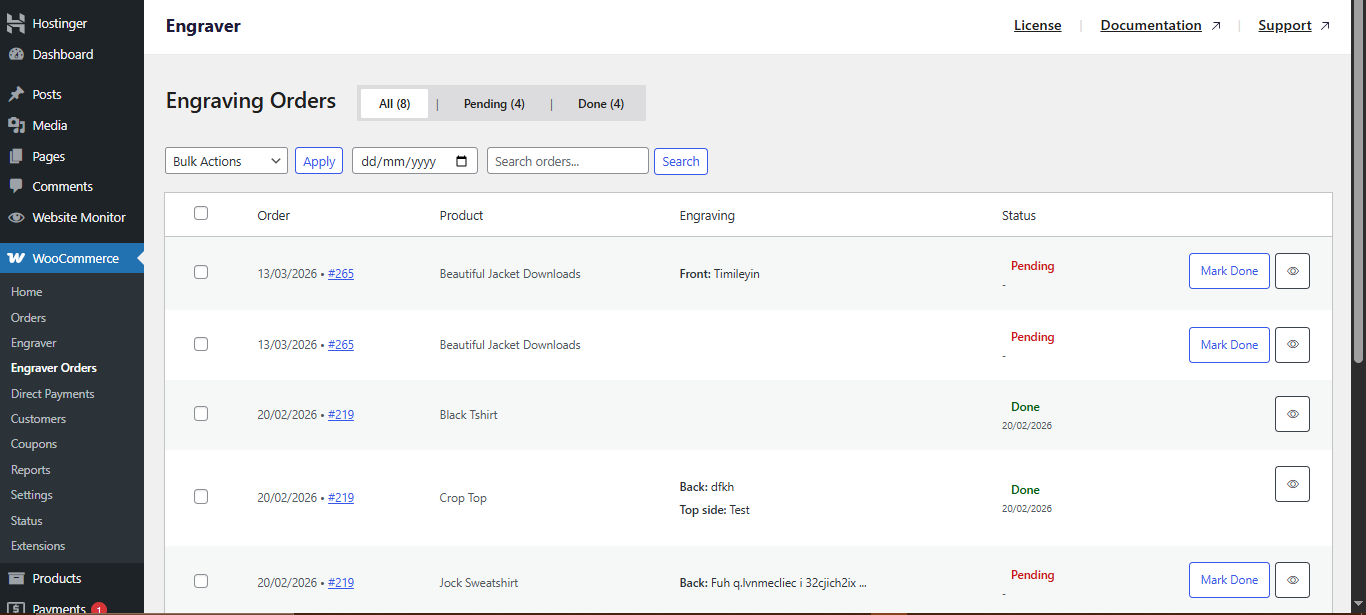
Every order containing a gift message appears in its own dashboard, WooCommerce → Engraver Orders, separate from the regular order list, showing exactly what was submitted and which product it belongs to. A practical routine for a packing team.
- Filter the dashboard by “Pending” each morning to see what needs a card or label printed.
- Print or write the message exactly as submitted; don’t “clean up” the customer’s own words.
- Mark the item as done once the card is included and the gift is packed.
Cross-check the WooCommerce order status once every message on the order has been actioned.
Avoiding Mix-Ups on Multi-Item Orders
- Never rely on a single checkout note when an order contains more than one gift; print each message next to the item it belongs to.
- Double-check recipient names against the message text, not just the shipping address, since gifts are often shipped to the buyer and forwarded, or shipped directly with a different name on the card.
- Keep a simple escalation step for blank or unclear messages; a quick automated email asking the customer to confirm is far better than guessing.
Quick setup, start to finish
- Install and activate Engraver for WooCommerce.
- Create a template: set the label, character limit, and whether it’s optional.
- Assign the template to all products, a category, or specific gifts.
- Publish. The message field appears above Add to Cart automatically.
- Place a test order to confirm the message reaches the Engraver Orders dashboard correctly.
Turning Gift Messages Into a Marketing Advantage
Once the mechanics are solid, the gift message feature is worth mentioning outside the checkout flow too, not just leaving it as a quiet functional detail.
- Mention it in product descriptions for anything commonly bought as a gift. “Add a gift message at checkout” is a small line that reassures gift-buyers early.
- Use it in seasonal campaigns. Christmas, Valentine’s Day, and Mother’s Day emails all benefit from reminding customers that a personal message is included.
- Consider pairing it with gift wrapping or a branded card as a small upsell, since customers already in a gifting mindset are receptive to it.
- Highlight it in your homepage or category banners during gifting seasons; it’s a low-effort differentiator that’s easy for competitors to overlook.
It’s a small addition to marketing copy, but it consistently performs well because it answers a question gift-buyers are already asking themselves: will this actually feel personal, or just arrive in a box? Making the answer obvious before checkout removes one more reason to hesitate.
Conclusion
Offering gift messages on WooCommerce is a small feature that has an outsized effect on how customers feel about buying from you. The details that matter are where the field lives, how clearly it’s labelled, and whether your team can act on the message without extra manual work.
Get those three things right, and a simple text box becomes one of the easiest ways to turn ordinary purchases into gifts customers are genuinely glad they sent.
It’s a feature that costs little to build and almost nothing to maintain once it’s set up correctly, which makes it one of the better returns on effort available to a WooCommerce store, far simpler than a full product redesign, and far more visible to customers than most backend improvements ever are.
If you’re ready to add proper gift messaging to your product pages, take a look at how Engraver for WooCommerce handles text or image, and see whether its template system fits the way your store is already set up.