✨ New in v2.4: AI Powered Payment Confirmation & Custom Workflow Controls.


Automate instant payment confirmations with Direct Payment WP. Direct Payment WP allows you to receive payment submissions and confirm them by email. When enabled, the plugin can notify you when a customer submits a payment or receipt, and automatically send a confirmation email once you mark the payment as received. This helps reduce manual follow-ups and keeps customers informed.
This guide will show you how to configure payment receipts on your website using Direct Payment WP.
Before You Start
-
Ensure the plugin is installed and activated.
-
Make sure your WordPress site can send emails (via SMTP or a reliable email service). If emails do not send, confirmations will fail even if the settings are enabled.
Step 1: Open Direct Payment WP Settings
-
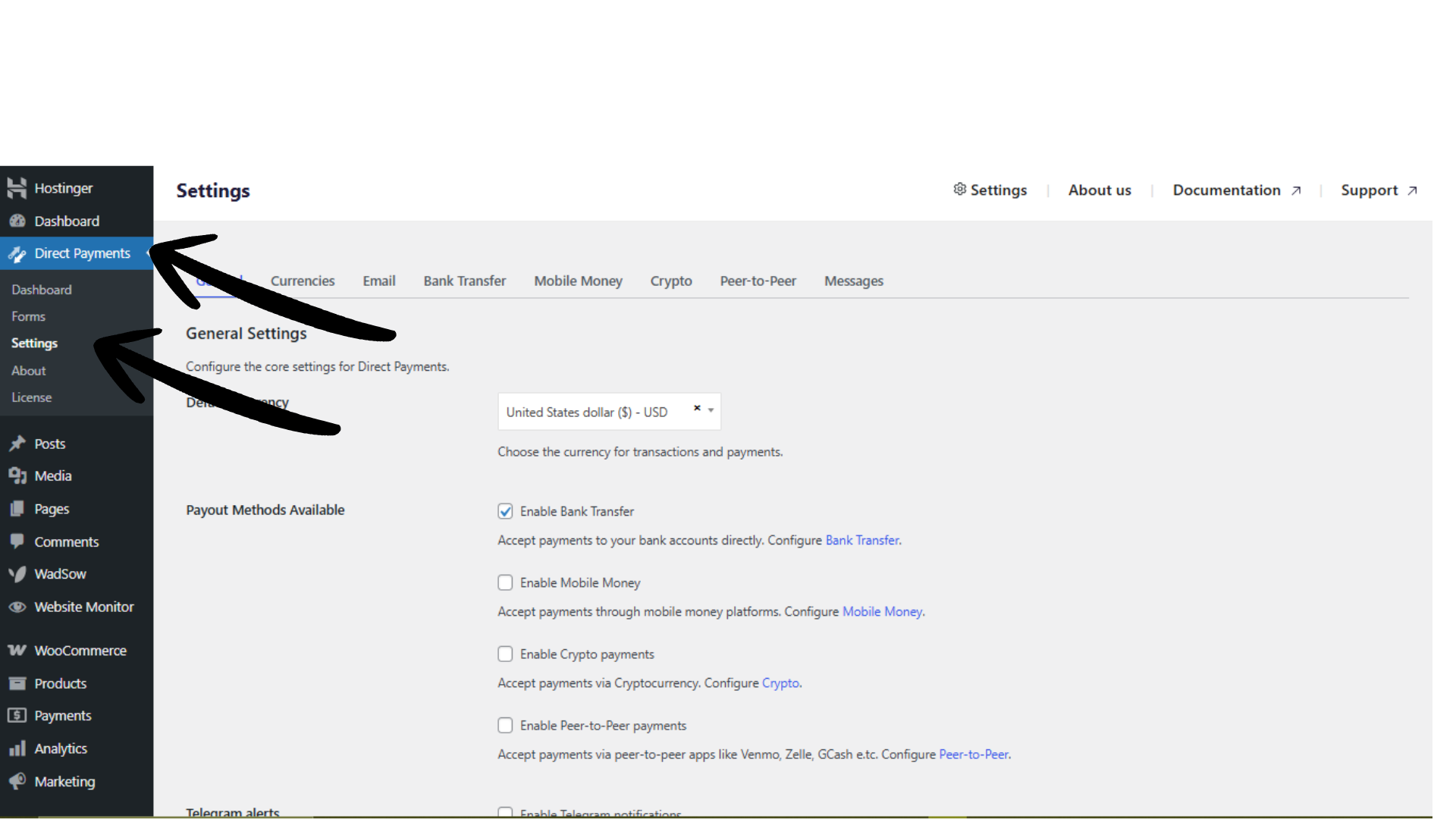
In your WordPress dashboard, go to Direct Payment WP.
-
Click Settings from the submenu.
Step 2: Configure Email Sender Details
-
At the top of the Settings page, click the Email tab.
-
In the email configuration section, fill in: Sender Name (The name customers will see as the email sender), Sender Email (The email address used to send notifications).
Step 3: Enable Email Notifications and Confirmations
Scroll to the Payment Settings section and enable:
-
Enable Email Notifications
Sends you an alert whenever a customer submits a payment or uploads a receipt. -
Enable Payment Confirmations via Email (Pro)
Automatically sends a confirmation email to the customer after you mark the payment as received.

Step 4: Customize Customer Receipt Emails
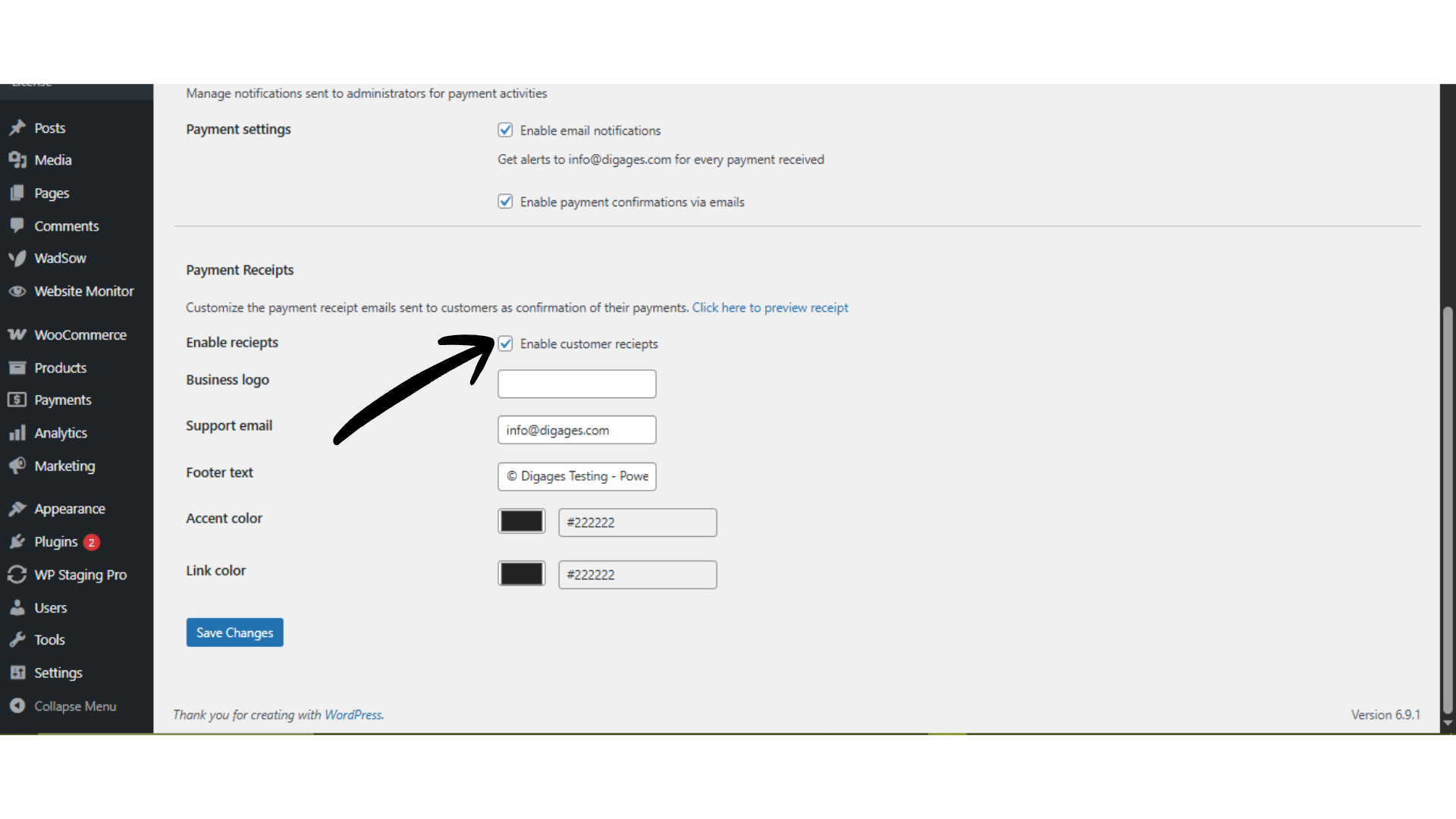
Scroll to the Payment Receipts section and configure:
-
Enable Customer Receipts – Allows customers to receive a receipt email.
- Business Logo (Pro) – Add your business logo to the receipt email
-
Support Email – Contact email shown in the receipt for support inquiries.
-
Footer Text – Additional message displayed at the bottom of receipt emails.
-
Accent Color (Pro) – Primary color used in the email design.
- Link Color (Pro) – Color used in links in the design.
These options control the appearance and contact information in the receipt email sent to customers. Customize as it fits your brand.
 Step 5: Save Changes
Click Save Changes to apply all settings.
These customized the payment receipt emails sent to customers as confirmation of their payments.

Congratulations, you have now configured payment receipt emails in Direct Payment WP. With notifications enabled and confirmation emails automated, you will be alerted whenever a payment or receipt is submitted, and customers will receive timely confirmation once their payment is marked as received. This reduces manual follow-ups, improves transparency, and keeps your payment workflow organized.
Before going live, submit a test payment to verify that:
-
Notification emails are delivered to the admin inbox.
-
Confirmation emails are sent after the payment is marked as received.
-
Receipt branding (support email, colors, footer text) appears as expected.
If emails do not arrive, confirm your SMTP/email service configuration, then re-test. Once verified, your payment receipt system is fully operational.
Additional Guide:
How to Add Favourite Payment Methods
How to receive Peer-to-Peer (P2P) Payments on WordPress
How to receive Venmo Payments on WordPress





