🎁 New: Build Customer Loyalty & Drive Repeat Purchases with WooCommerce. Learn more


How to Set Up a Service Payment Form In WordPress
You have a WordPress site. You offer a service. But when it comes to actually collecting money from clients, things get surprisingly complicated.
The typical workaround? Sending payment requests manually via email. Sharing your PayPal link through WhatsApp. Chasing scattered invoices. Asking clients to ‘send via bank transfer’ and hoping for the best.
This works barely until you try to scale. Missed payments, no clear records, and a checkout experience that makes your business look less professional than it is.
The real solution is simpler than most WordPress users realise: a dedicated payment form, embedded directly on your site. Not a full e-commerce store. Not a complex payment gateway integration. Just a clean, functional form that says: fill this in and send money.

In this guide, you will learn exactly how to build one using Direct Payments WP, a plugin specifically designed for this exact use case, without the technical headaches.
What is Direct Payments WP?
Direct Payments WP is a WordPress plugin developed by Digages that lets you create fully functional payment forms without writing a single line of code or connecting to third-party payment processors like Stripe or PayPal.
Instead of routing payments through an intermediary gateway (and paying their fees), Direct Payments WP directs your clients to complete the payment through their preferred method, whether that is a bank transfer, mobile money, cryptocurrency, PayPal, Venmo, Google Pay, or dozens of other options and then submitting proof of payment through the form. This approach offers several distinct advantages.
Supported Payment Methods
One of Direct Payments WP’s most powerful selling points is the sheer breadth of payment methods it supports. Whether your clients are in the United States, Nigeria, the Philippines, Germany, or Brazil, there is a payment option they already use and trust.
Global & P2P Platforms: PayPal, Venmo, Zelle, Cash App, Wise, Google Pay, Apple Pay, Skrill, Payoneer, Revolut, PicPay, AliPay, and more
Mobile Money: MTN Mobile Money, Airtel Money, GCash (Philippines), M-Pesa, Paytm (India), and 50+ more regional mobile money providers
Bank Transfers: Local and international Bank Transfers in any currency
Cryptocurrency: USDT, ETH, BTC, SOL, LTC, ADA, and more
This is not a plugin designed for a single country or payment processor. It is built for the real, diverse, global WordPress audience.
How to Set Up a Service Payment Form: Step-by-Step
Setting up your payment form takes less than 10 minutes. Here is the complete walkthrough from installation to going live.
Step 1: Install and Activate Direct Payments WP
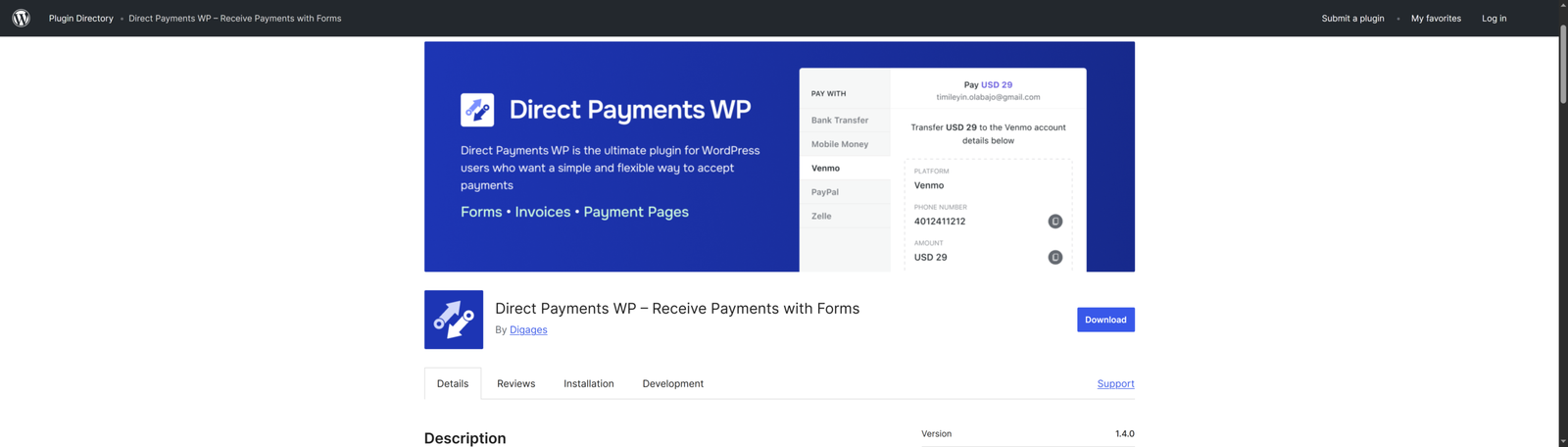
Direct Payments WP is available as a free WordPress plugin. To install it:
- Log in to your WordPress dashboard
- Go to Plugins → Add New
- Search for “Direct Payments WP by Digages”.
- Click Install Now, then click Activate.
Alternatively, A Pro version is also available for download here with additional features. You can then upload the plugin ZIP file from Plugins → Add New → Upload Plugin.
Step 2: Configure Your Payment Methods
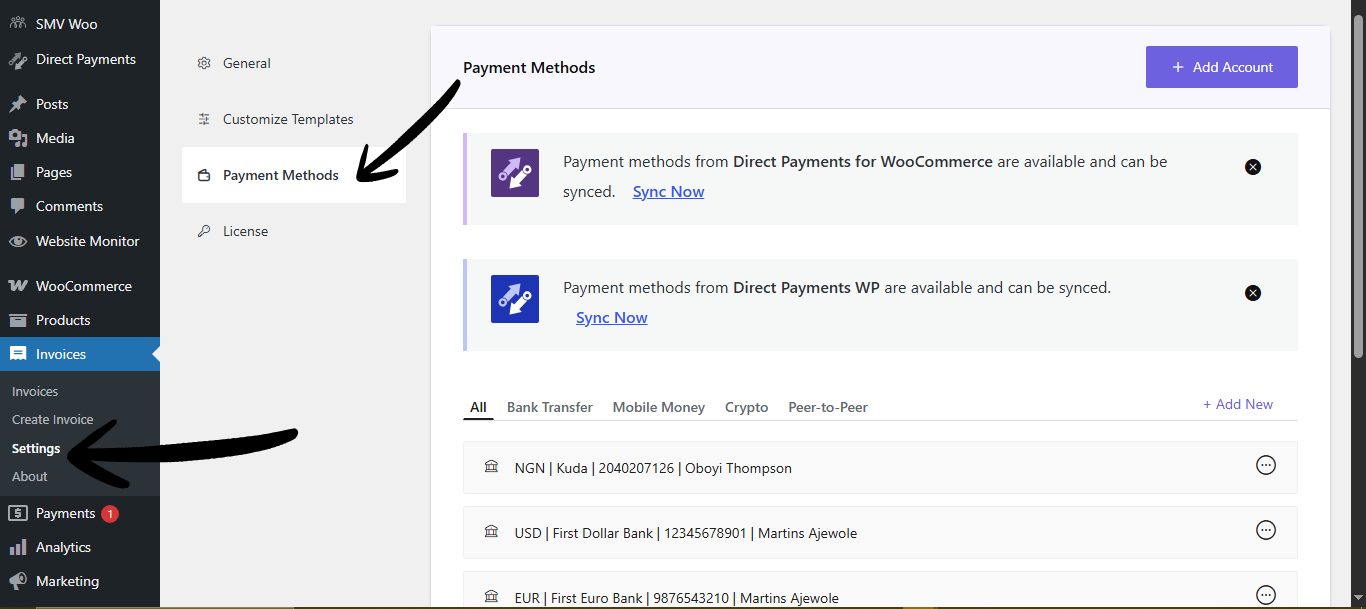
- Go to Direct Payment → Settings in your WordPress dashboard.
- Navigate to the Payment Methods tab.
- Add the payment methods your clients will use: bank transfer details, PayPal email, or a crypto wallet address.
- Save your settings. These will appear as options on your payment form.
Step 3: Create Your Service Payment Form
- Go to Direct Payment → Forms.
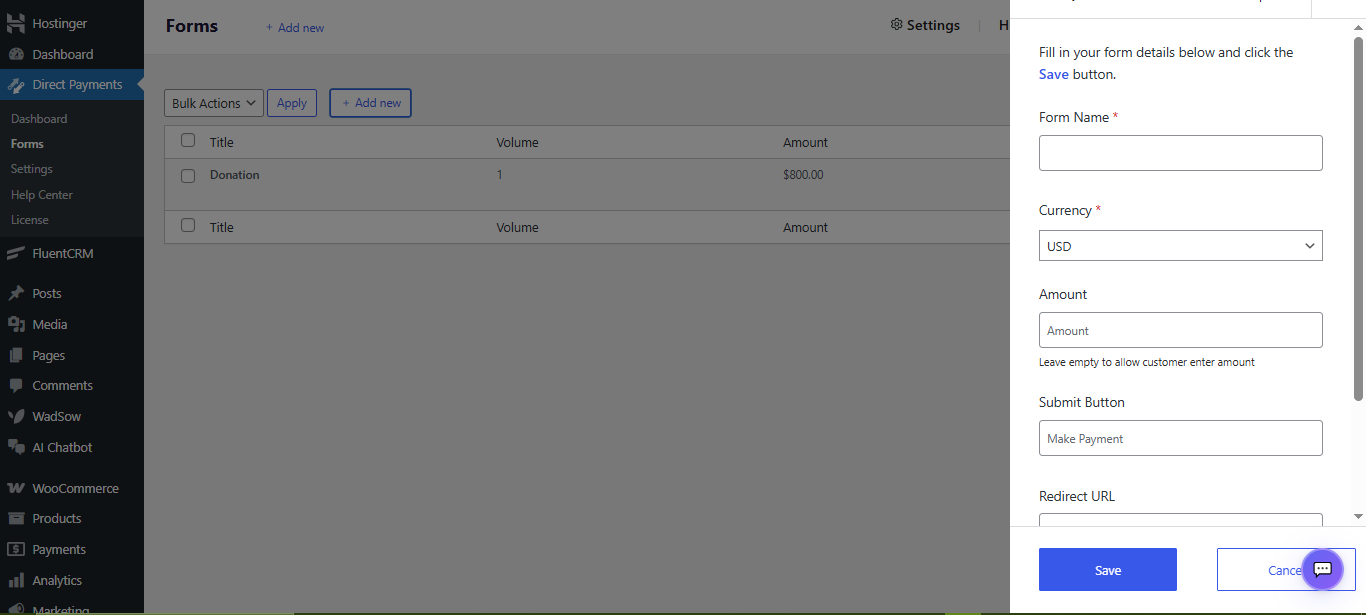
- Click Add Forms, then click Get Started to open the form builder.
- Fill in the Form Name (e.g., “Web Design Deposit” or “Consulting Fee”).
- Set the Amount: enter a fixed price or leave blank to let clients specify their own amount.
- Customise the Submit Button Label (e.g., “Pay Now”, “Send Payment”, “Book My Session”).
- Add a Redirect URL to send clients to a thank-you page after submission.
- Optionally enable the Phone Number Field to collect contact details.
- Optionally enable the Payment Description Field for notes (e.g., invoice number or project name).
- Click Submit.
Step 4: Copy Your Form Shortcode
- Navigate back to Direct Payment → Forms.
- Locate the form you just created.
- Click the copy icon next to its shortcode.
- The shortcode will look like:
[direct_payment_wp id="1"]

Step 5: Embed the Form on Your Page
- Go to Pages → Add New (or edit an existing page).
- In the Block Editor, add a Shortcode block.
- Paste your shortcode into the block.
- Click Publish or Update.
Your payment form is now live and accepting payments.
Conclusion
Collecting payments for services should not feel like an administrative burden. It should be a seamless, professional part of your client experience, something that happens automatically in the background while you focus on doing the work.
Direct Payments WP makes that possible for any WordPress site, regardless of technical skill level. No complex integrations. No transaction fees eating into your margins. No limitations on which payment methods your clients can use.
Whether you are a solo freelancer building your first payment form, or an agency deploying payment solutions across dozens of client sites, Direct Payments WP gives you everything you need to start receiving payments in under 10 minutes.
Direct Payments WP lets you keep 100% of your revenue with no transaction fees or hidden costs. Give your WordPress page the freedom to accept payments your way, all set up in under 10 mins – Get started with the free version now


