✨ New: Sell Gifts & Personalized WooCommerce Products with Engraver. Learn more


In this article
- 1. The PayPal Problem When Trying to Receive PayPal Payments in Nigeria on WooCommerce
- 2. Step 1: Register and Link Your PayPal Account with Paga
- 3. Create or log in to your Paga account
- 4. Link PayPal to Paga
- 5. Step 2: Install and Activate Direct Payments for WooCommerce
- 6. Install and activate the plugin
- 7.
- 8. Add PayPal as a payment method
- 9. Enable Direct Payments and P2P payments
- 10. Step 3: Test Your WooCommerce Checkout
- 11. Frequently Asked Questions (FAQ)
- 12. Can you receive PayPal payments in Nigeria on WooCommerce directly?
- 13. Is this setup safe for live WooCommerce stores?
- 14. Do developers need special PayPal API credentials?
Receiving PayPal payments in Nigeria on WooCommerce is a common challenge for store owners targeting international customers. Due to PayPal restrictions in Nigeria, merchants cannot easily receive or withdraw funds locally, which creates friction at checkout for global buyers.
A practical workaround is to link PayPal to Paga, a licensed Nigerian payment platform, and then integrate that setup into WooCommerce using the Direct Payments for WooCommerce plugin. This allows you to offer PayPal at checkout while handling settlements through Paga.
This guide explains the setup in three clear steps, focusing only on what you need to get PayPal working on a Nigerian WooCommerce store.
The PayPal Problem When Trying to Receive PayPal Payments in Nigeria on WooCommerce
PayPal’s limitations in Nigeria affect many WooCommerce stores:
- Most Nigerian PayPal accounts have restricted receiving or withdrawal capabilities
- Direct withdrawal to Nigerian bank accounts is unreliable
- International customers strongly prefer PayPal at checkout
Because of these constraints, Nigerian merchants need an intermediary that can legally receive PayPal payments and settle funds locally. Paga fills this gap.
Step 1: Register and Link Your PayPal Account with Paga
To receive PayPal payments in Nigeria on WooCommerce, you need an intermediary service that can legally process PayPal transactions and settle funds locally. Paga acts as this bridge..
Create or log in to your Paga account
- Visit the Paga website and sign up (or log in)
- Complete any required identity verification
- Access your Paga dashboard
Link PayPal to Paga
- On your dashboard, tap the country icon.
- Select PayPal Account.
- Tap Connect PayPal and enter your PayPal login details and approve the connection.
- Authorise the connection and confirm that PayPal is successfully linked
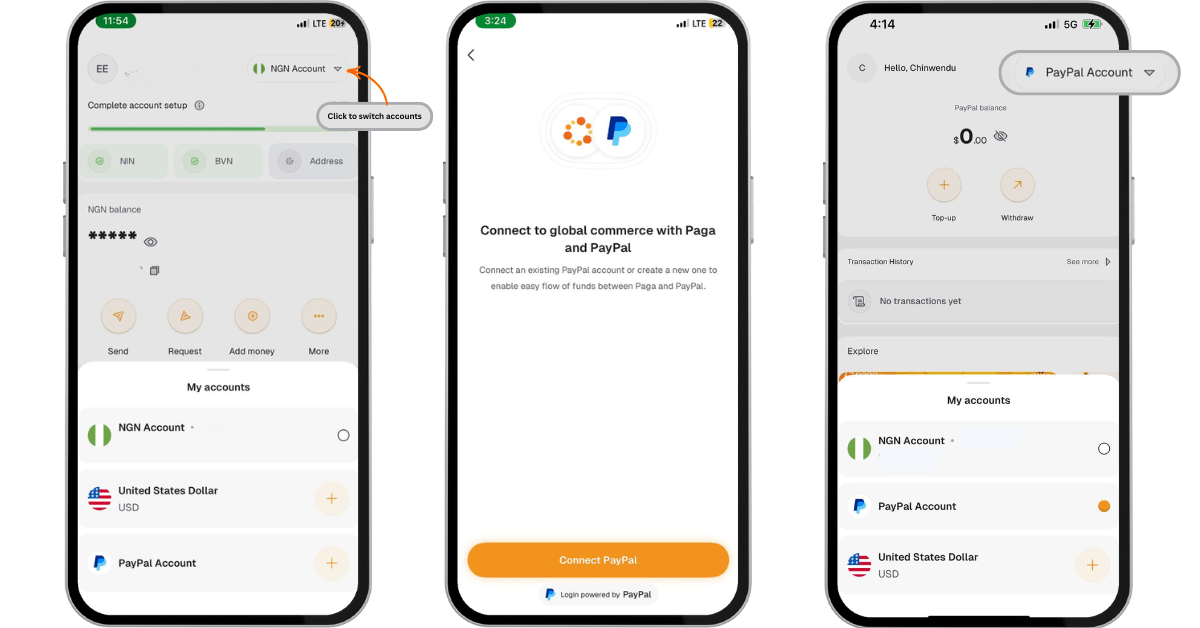
For detailed steps on integration of your PayPal account with Paga, please refer to the full guide here: 👉 How to link your PayPal account with Paga.
Once completed, Paga is ready to process PayPal payments for you.
Step 2: Install and Activate Direct Payments for WooCommerce
This step contains Direct Payments plugin installation, configuration, and PayPal setup for your WooCommerce site.
Install and activate the plugin
- Log in to your WordPress dashboard
- Go to Plugins → Add New
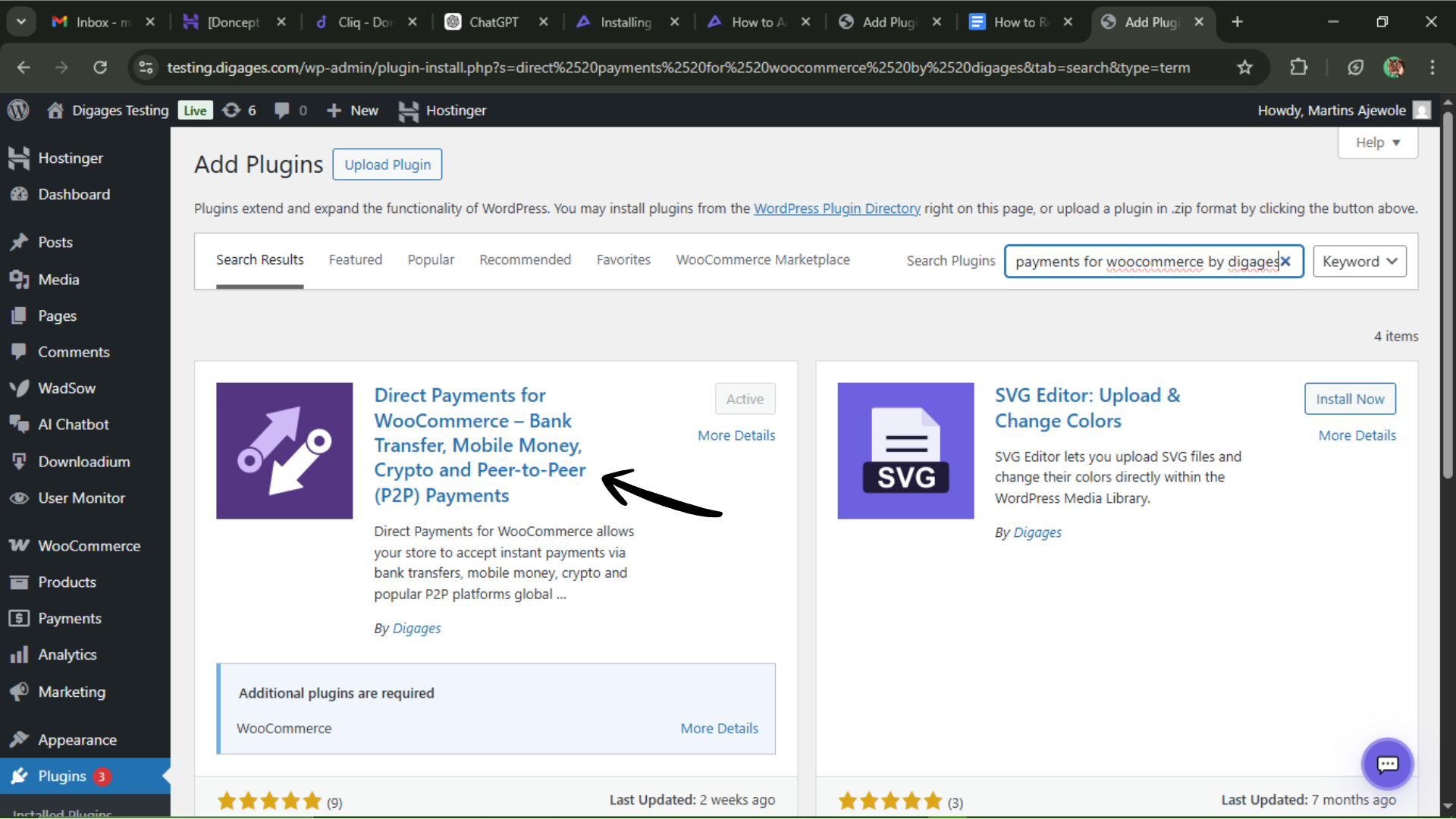
- Search for Direct Payments for WooCommerce by Digages
- Click Install Now, then Activate. After activation, you would need to set up Direct Payments
Add PayPal as a payment method
- On your WordPress dashboard, navigate to WooCommerce → Direct Payments → Settings
- In the Direct Payments settings, navigate to Peer-to-Peer
- Click add account
- Specify the platform name by typing PayPal
- Enter your PayPal email and other required details and save
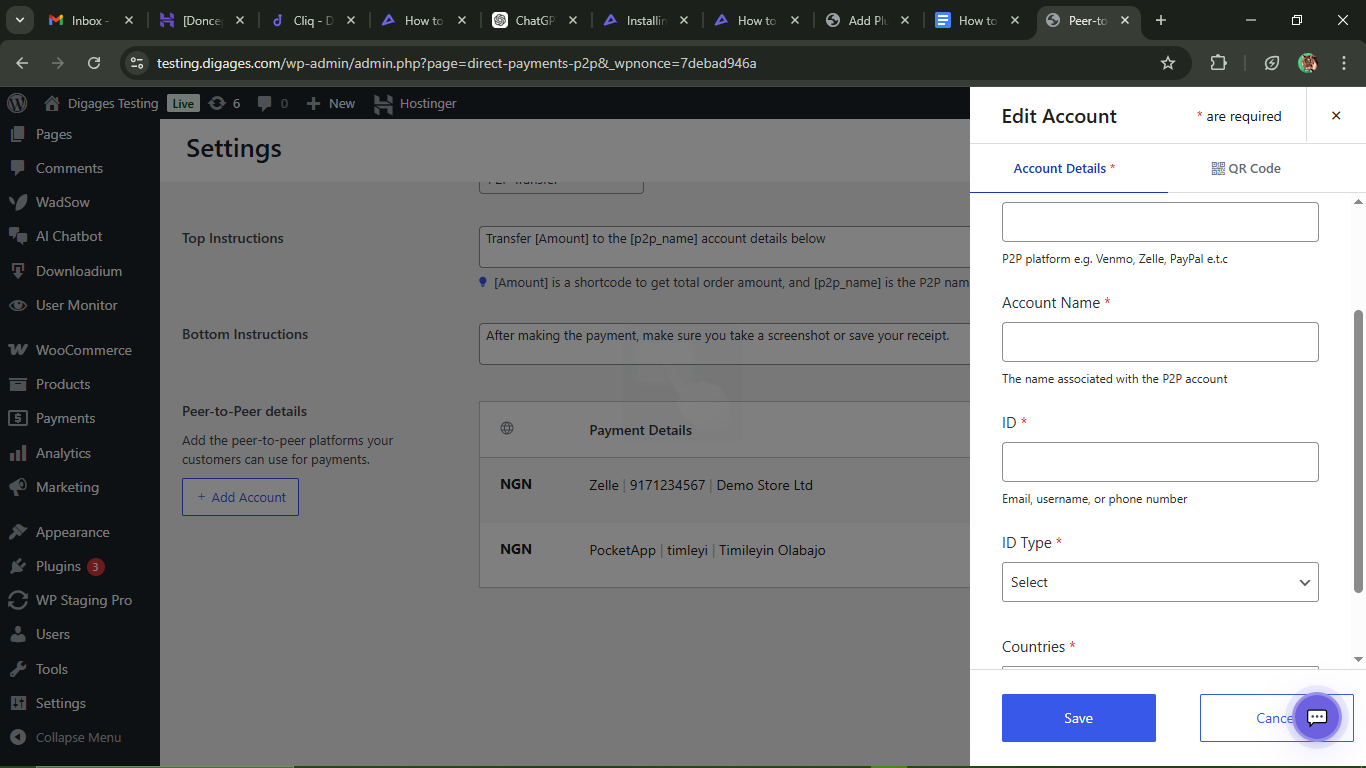
After you have added PayPal as a payment method and saved your configurations, you need to enable P2P (Peer‑to‑Peer) payments.
Enable Direct Payments and P2P payments
- Go to Direct Payments → Settings
- Locate Direct Payments for WooCommerce and click Manage
- Navigate to the Payment Methods
- Tick enable P2P (Peer‑to‑Peer) payments
- Save your changes
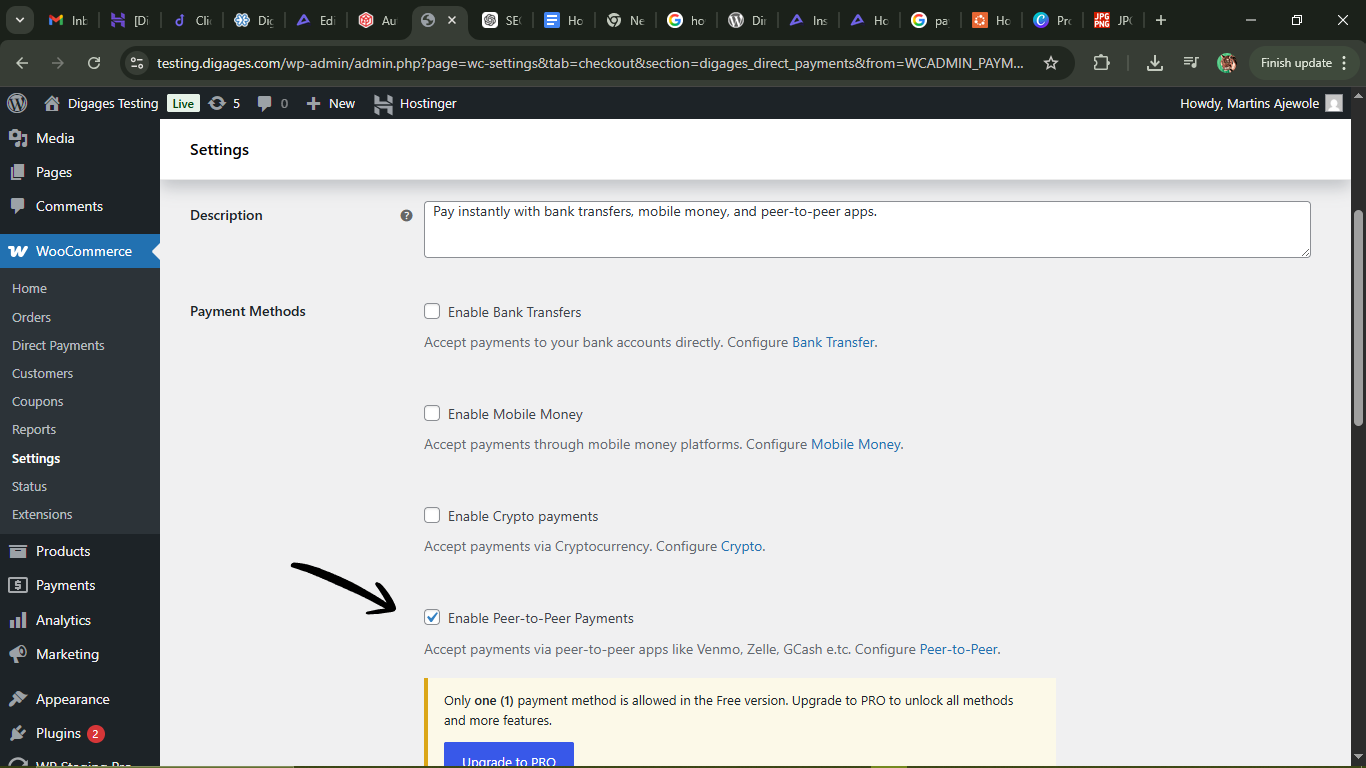
At this point, your WooCommerce store is technically configured to accept PayPal payments, which you can confirm via Paga.
Step 3: Test Your WooCommerce Checkout
Testing ensures everything works before going live.
- Place a test order on your WooCommerce store
- Confirm your PayPal details are shown correctly on your store’s checkout
That’s it! You can now successfully receive PayPal payments in Nigeria on your WooCommerce store.
Frequently Asked Questions (FAQ)
Can you receive PayPal payments in Nigeria on WooCommerce directly?
Not reliably. Most Nigerian PayPal accounts face receiving and withdrawal restrictions, which is why using Paga as an intermediary is necessary.
Is this setup safe for live WooCommerce stores?
Yes. When configured correctly and tested with demo credentials first, this setup is suitable for production use.
Do developers need special PayPal API credentials?
No. The integration relies on PayPal account linkage through Paga and Direct Payments rather than direct API access.








