✨ New: Sell Gifts & Personalized WooCommerce Products with Engraver. Learn more


Module Settings
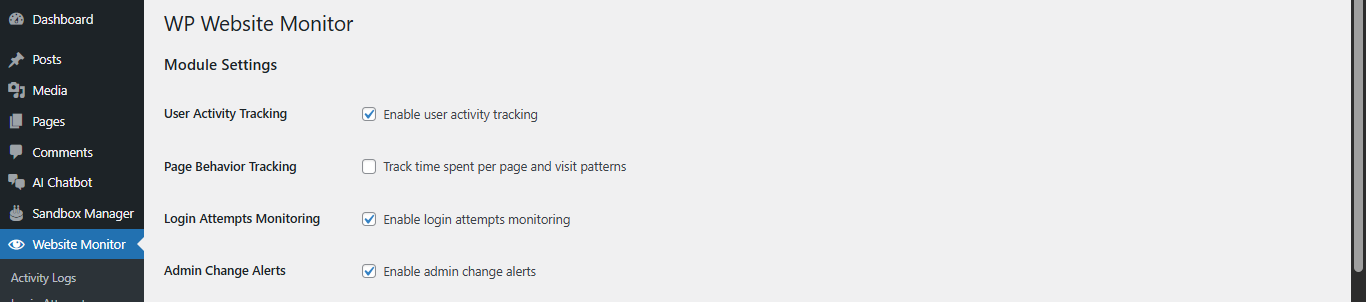
Recommendation: For most sites, you can track User Activity, Login Attempts, and Admin Change at all times. Track Page Behaviour only if you specifically need visitor behaviour analytics.
Login Security
The Login Security section governs how the plugin responds to repeated failed login attempts. These settings work together with the Login Attempts Monitoring module to enforce automatic IP-based lockouts — one of the most effective defences against brute-force password attacks.

Note: For sites under active attack, a lower value, such as 3, would provide stronger protection. For sites with users who frequently forget passwords, a slightly higher value, such as 7 or 8, may reduce false lockouts.
Tip: A 30-minute lockout is sufficient to defeat most automated bots. For high-security environments, consider increasing this to 60 or 120 minutes
Data Management
The Data Management section controls how the plugin stores and handles the log data it collects. As logs accumulate over time, it is important to manage database growth to maintain site performance.
Tip; For sites with compliance requirements (e.g., GDPR, PCI-DSS), consider exporting logs regularly via CSV before the retention period expires, or set the value to 0 and manage deletion manually.
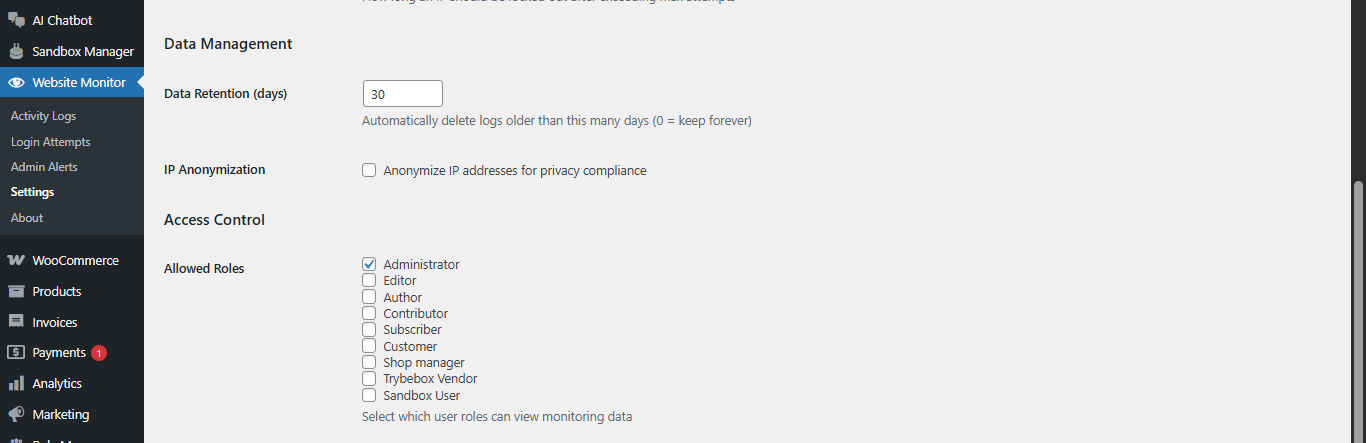
Note: Sites serving users in the European Union or other privacy-regulated regions should evaluate if storing full IP addresses requires a legal basis under their data protection laws. IP Anonymization is one way to mitigate this risk.
Access Controls
The Access Control section determines which WordPress user roles are permitted to view the monitoring data within the Website Monitor dashboard. This is an important security layer in its own right: the monitoring data itself is sensitive and should only be visible to appropriate staff.
Best practice: Restrict access to the Administrator role only unless there is a clear operational reason to share monitoring visibility with other roles.
Email Notifications
The Email Notifications section enables the plugin to send automatic email alerts when admin-level changes are detected. This ensures that even when you are not actively logged into the WordPress dashboard, you are informed of significant events in real time.
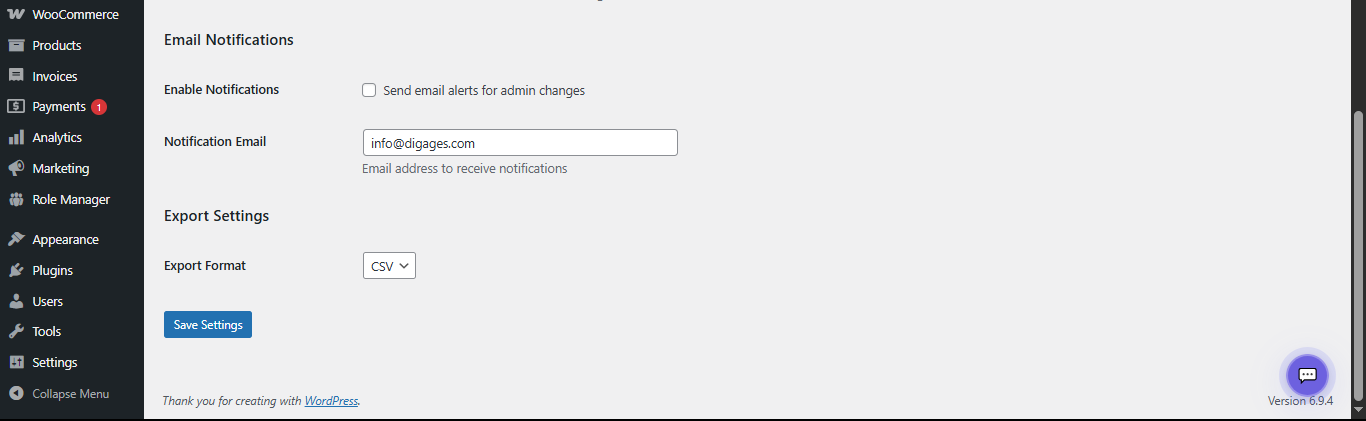
Tip: Use a dedicated security inbox rather than a personal inbox to ensure alerts are seen promptly and not lost among other emails. Also, enable notifications and direct them to this monitoring inbox.
Export
The Export Settings section controls the file format used when exporting log data from any of the three monitoring pages (Activity Logs, Login Attempts, Admin Alerts).
Tip: Export log data for external analysis, compliance audits, incident reports, or archival before the data retention period expires.
Saving Your Settings
All changes made on the Settings page take effect only after clicking the ‘Save Settings’ button at the bottom of the page. It is important to save after every change — navigating away from the page without saving will discard any unsaved modifications.
Reminder: Always click ‘Save Settings’ after making any changes. A success message will appear at the top of the page to confirm the settings were saved.
Conclusion
The Settings page in Digages Website Monitor gives you full operational control over how your site is monitored, secured, and maintained. By properly configuring each section—Module Settings, Login Security, Data Management, Access Control, Email Notifications, and Export Settings—you can tailor the plugin to match your site’s specific security requirements and administrative workflow.
For best results, review these settings during initial setup and revisit them periodically as your site grows or your security needs change. Small adjustments, such as tightening login restrictions, refining notification triggers, or managing data retention policies, can significantly improve both security visibility and system performance.
A well-configured Settings page ensures that Website Monitor not only tracks activity but actively supports proactive site management, helping you stay informed, reduce risks, and maintain full control over your WordPress environment.








