Upgrading to Direct Invoices PRO

Last modified: June 19, 2026

Introduction

Upgrading to Direct Invoices PRO  unlocks advanced invoicing features, automatic plugin updates, and priority support, giving you everything you need to get more out of Direct Invoices.

This guide walks you through the entire upgrade process, from purchasing the PRO version to installing the plugin, activating your license key, and accessing your new features. You’ll also learn where to find your license key if needed and find answers to common questions about upgrading.

Whether you’re upgrading for the first time or reinstalling Direct Invoices PRO on a new site, this guide will help you complete the process quickly and get back to managing your invoices with minimal interruption.

Purchasing the PRO Version

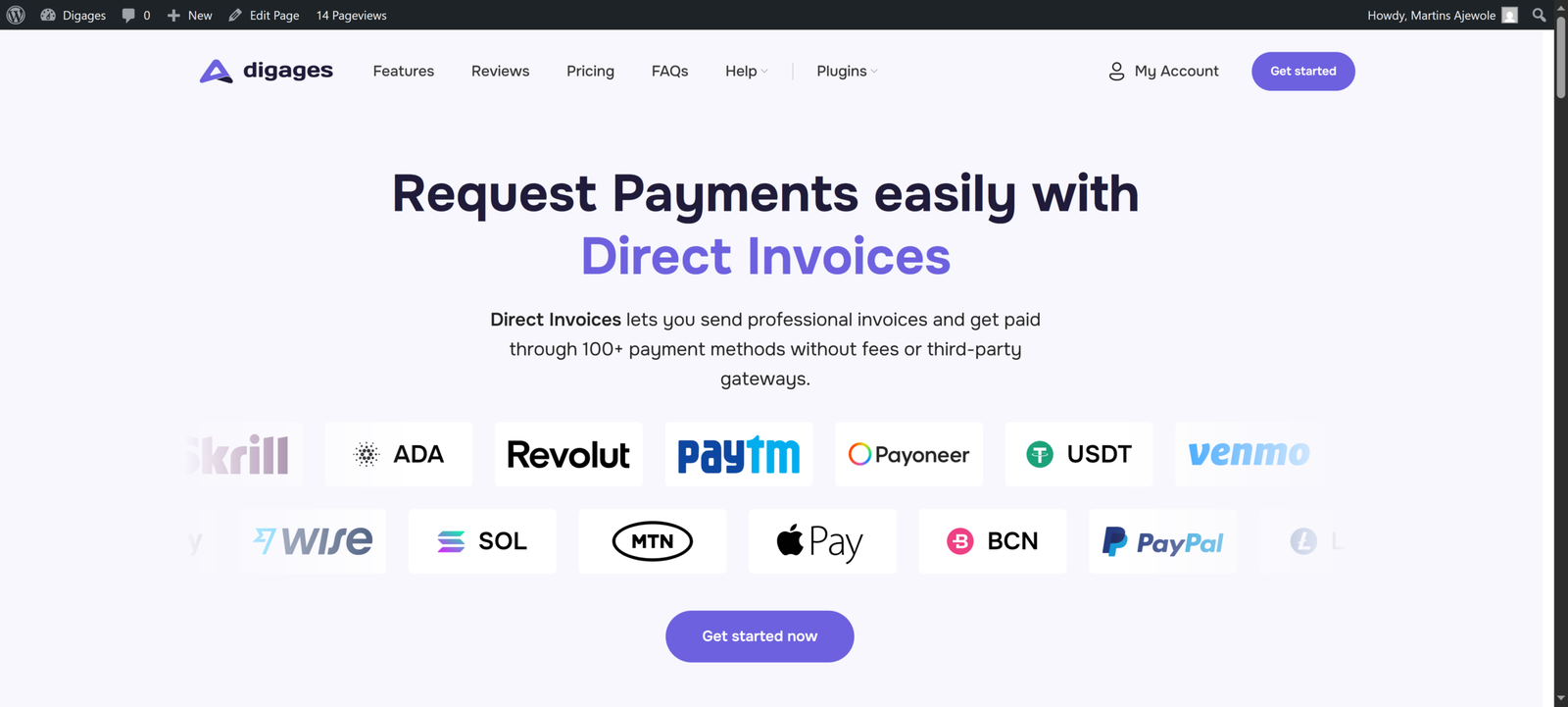
To get started, open your free version dashboard and click the Upgrade to Pro button. This will take you to the Direct Invoices Landing Page, where you can compare plans and choose the option that best fits your needs.

  1. In your free version dashboard, click Upgrade to Pro. This opens the Direct Invoices landing page.
  2. On the landing page, click Get Started Now to begin the upgrade process.
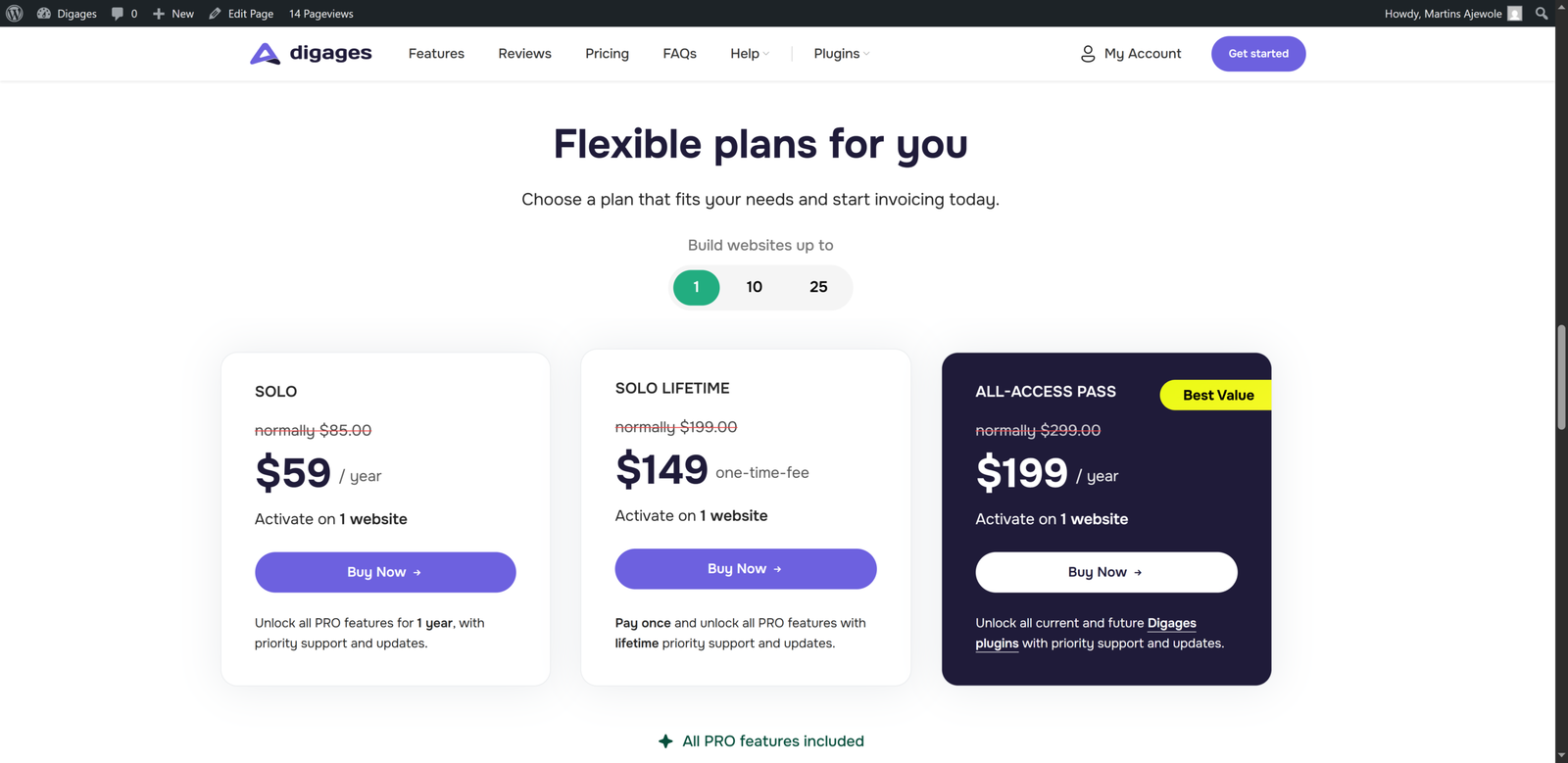
  3. Select the plan that best matches your needs.
  4. Complete the checkout process and pay for your selected plan.

After payment, you will be redirected to where you can download the PRO version of the plugin. You will also get an email with steps on how to find your license keys and how to activate the PRO version. You can also check out the Downloads and License page.

If you’ve paid for the PRO version but can’t download it or locate your license key, check the Downloads and License sections of your account dashboard, or reach out to Support for assistance.

Activating the PRO Version

After downloading and installing the Direct Invoices PRO plugin, you will need to activate it with a valid license key to unlock Pro features, updates, and support.

Don’t forget to deactivate the free version before activating Direct Invoices PRO.
License Key Management

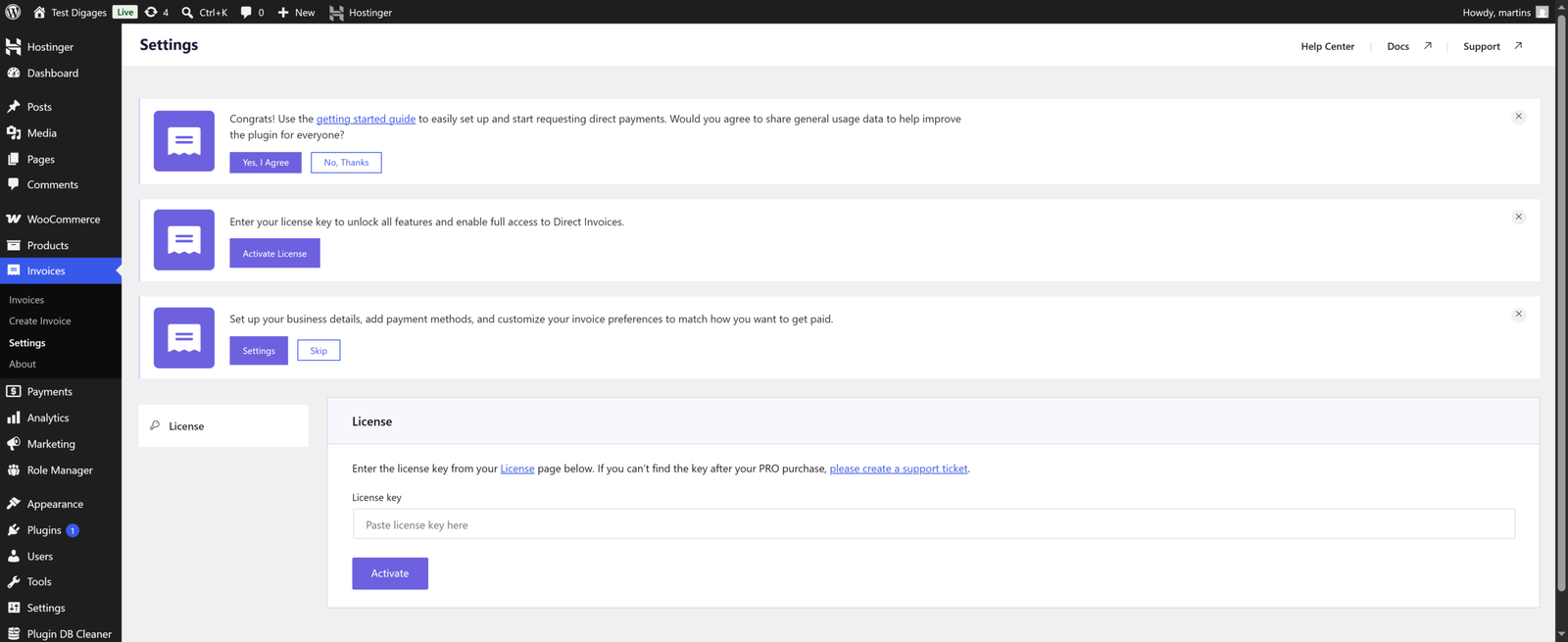
Once the PRO plugin is installed and active, head to the plugin’s settings page to enter your license key:

  1. Go to your WordPress Dashboard.
  2. Navigate to Direct Invoices > Settings.
  3. Select the License tab to check whether a license key has already been entered.
  4. Paste your license key into the field provided, then click Activate Pro.

How to Find Your License Key

If you need to retrieve your license key, you can find it in two places:

  • From your email: the confirmation email sent after checkout includes your license key along with activation steps.
  • From your account dashboard: log in to your account, navigate to the License section, and copy the key shown there.

Once you have your key, return to the License tab in the plugin settings, paste it in, and click Activate Pro. After activation, you’ll have immediate access to Pro features, automatic updates, and priority support.

Frequently asked questions

Do you have a question about Direct Invoices? See the list below for our FAQs. If your question is not listed here, please visit our docs or contact us.

Will I lose my settings after upgrading?

No, your existing configurations carry over automatically to the PRO version.

How quickly can I start using the PRO features?

Once the plugin is installed and your license key is activated, PRO features are available immediately.

What if I encounter issues during the upgrade?

Reach out to support, and our team will help you resolve any issues with your upgrade.

Plugin:
Was this article helpful?
No