✨ New: Sell Gifts & Personalized WooCommerce Products with Engraver. Learn more


Introduction
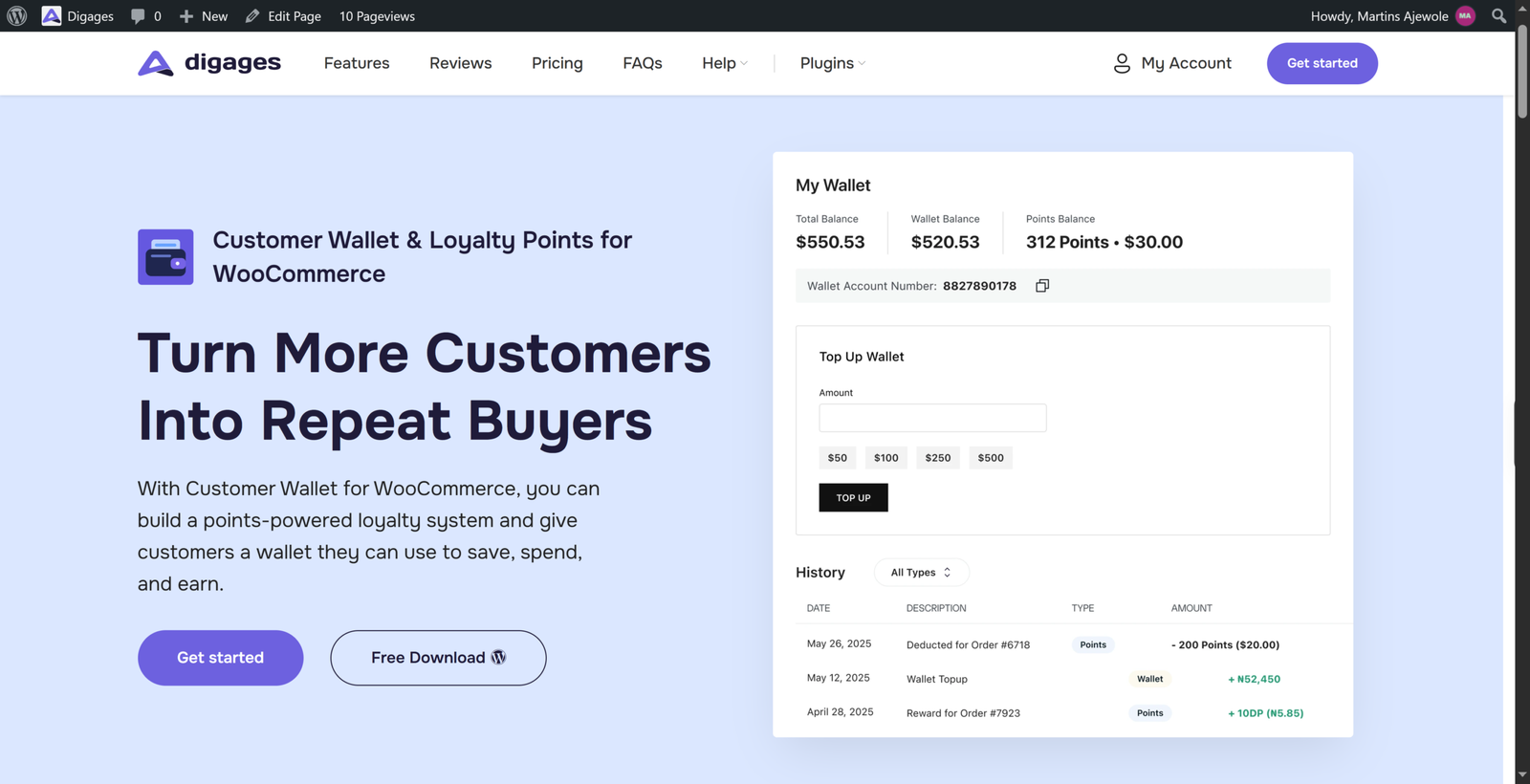
Customer Wallet for WooCommerce lets customers top up their wallets using any enabled payment method and use their balance to pay for orders at checkout. They can pay for an order in full or combine their wallet balance with another payment gateway (partial payment) when the balance does not cover the total cost. Customers can also transfer funds to another customer’s wallet using a 10-digit account number or email address. Store administrators have full control over wallet settings, including top-up limits, wallet transfers, partial payments, bonus credit, and transaction management.
In This Article
- 1. Installation & Activation
- 2. Configure Wallet Settings
- 3. Managing Customer Wallets
- 4. The Customer Experience
- 5. Troubleshooting
1. Installation & Activation
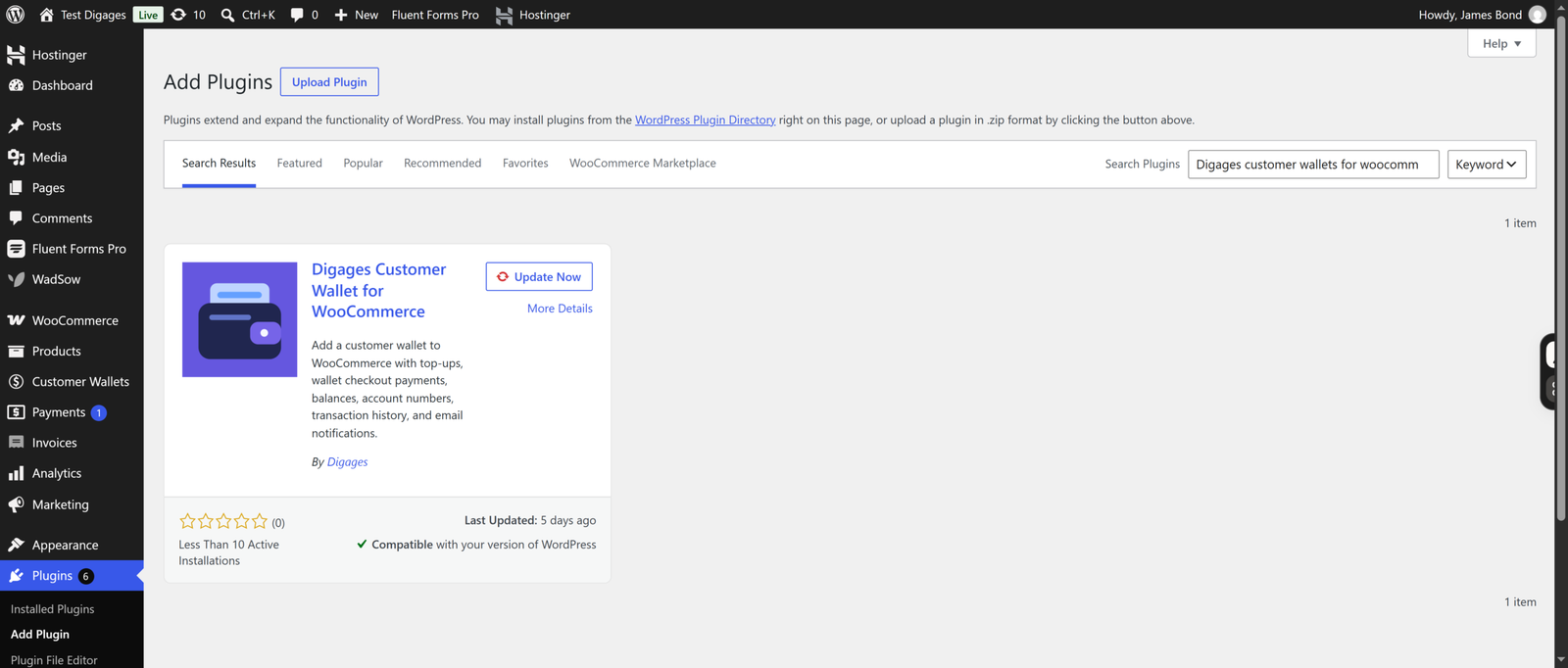
Installation follows the same process as other Digages plugins:
- Go to WordPress Admin > Plugins > Add New from the left-hand menu
- In the search box, type Customer Wallets by Digages
- Click Install Now
- Click Activate Now
WooCommerce must be installed and active, since Customer Wallets links into WooCommerce checkout and customer accounts.
2. Configure Wallet Settings
After activation, a new Customer Wallets menu appears in the WordPress admin sidebar.
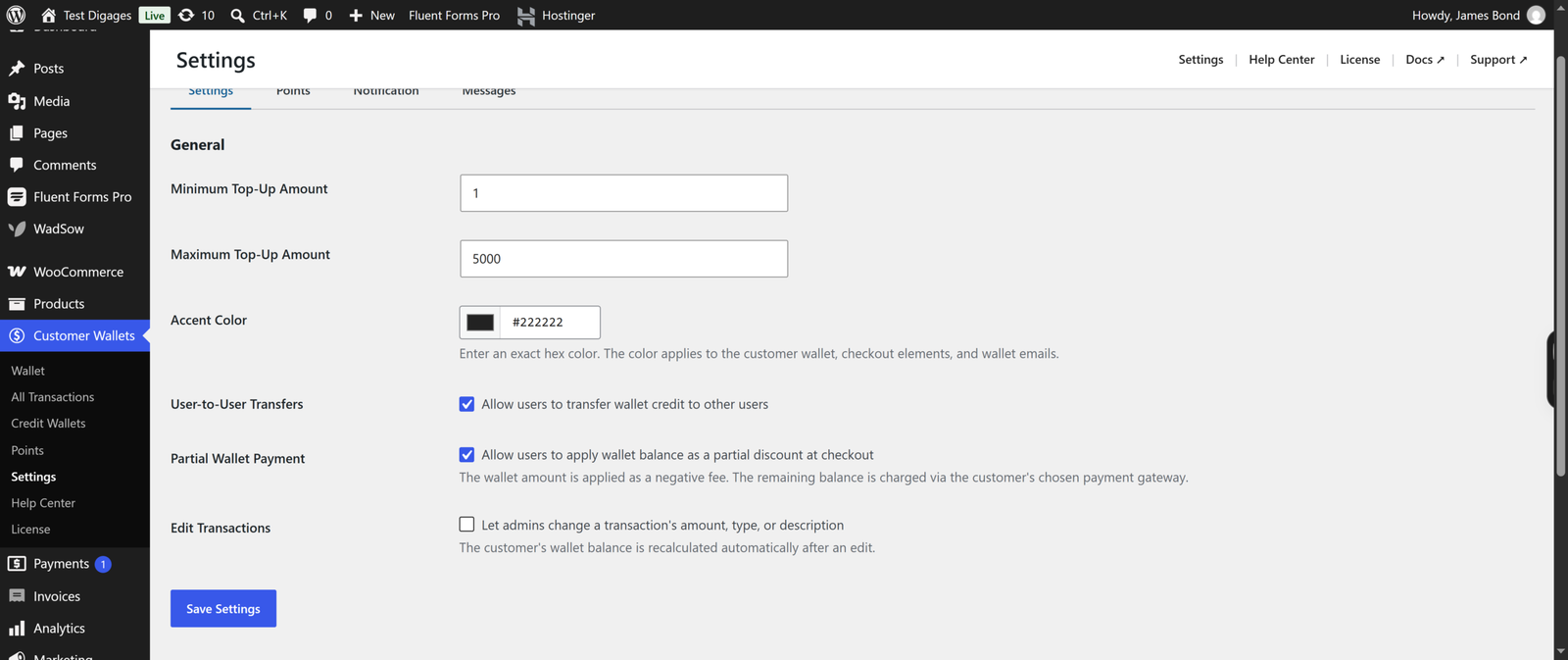
Go to Customer Wallets > Settings.
General Settings
- Minimum Top-Up Amount — the lowest amount a customer can add to their wallet in one transaction.
- Maximum Top-Up Amount — the highest amount a customer can add to their wallet in one transaction.
- User-to-User Transfers — check this box to allow customers to send wallet credit to other customers.
- Partial Wallet Payment — check this box to allow customers to apply their wallet balance as a partial discount at checkout. The wallet amount is applied as a negative fee, and the remaining balance is charged via the customer’s chosen payment gateway.
Email Notifications
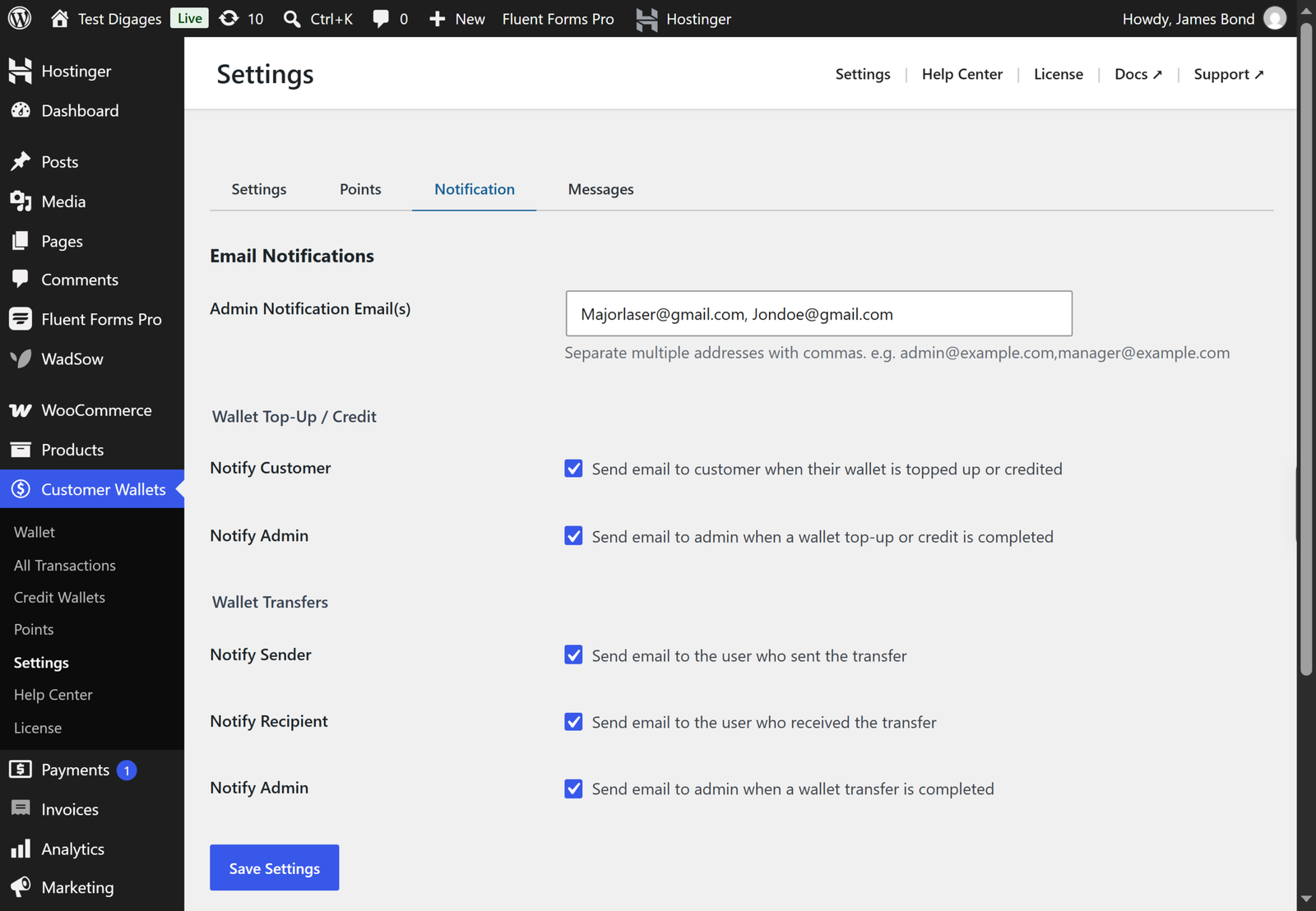
Set the Admin Notification Email(s) field to one or more addresses (comma-separated) that should receive admin alerts.
Then choose which events trigger emails:
- Wallet Top-Up / Credit — notify the customer and/or the admin when a top-up or credit completes.
- Wallet Transfers — notify the sender, the recipient, and/or the admin when a wallet transfer completes.
Click Save Settings when you’re done.
3. Managing Customer Wallets
Go to Customer Wallets > Customer Wallets to see every customer with a wallet: their name, email, account number, and current balance.
- Click Send Credit next to a customer to add funds directly to their wallet.
- Click Transactions to view that customer’s wallet history.
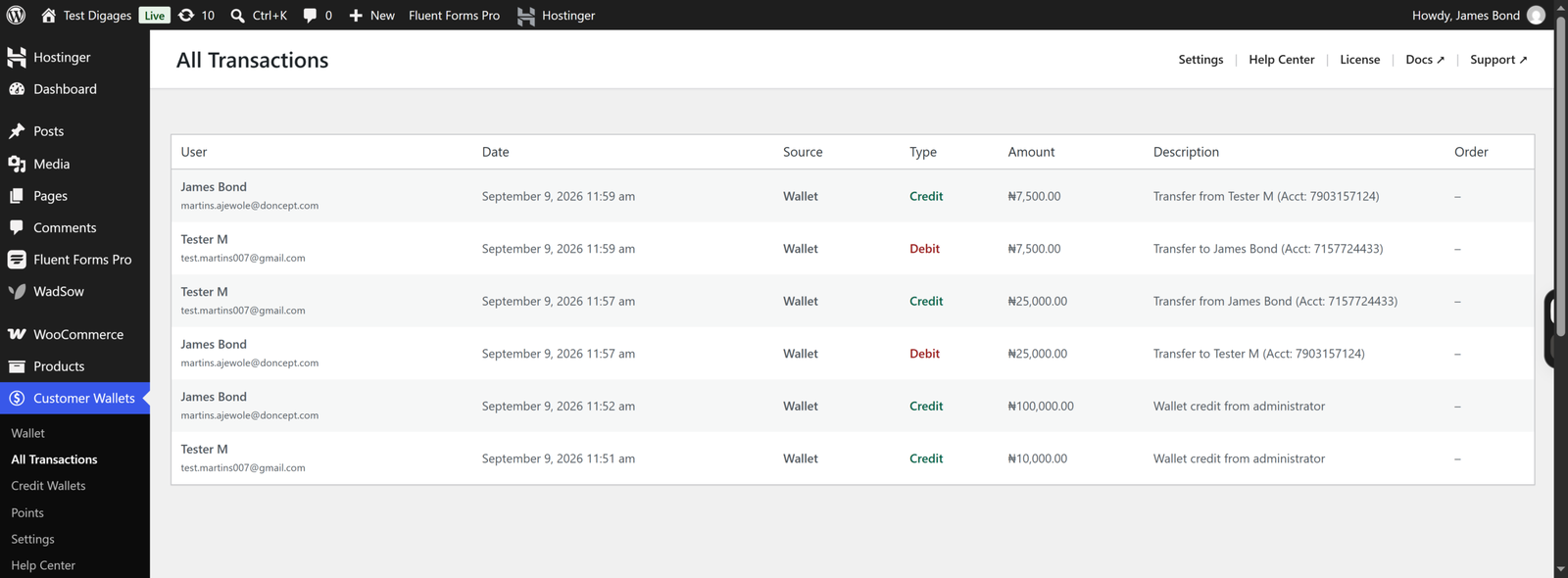
Use Customer Wallets > All Transactions for a store-wide log of every top-up, payment, and transfer.
Sending Bonus Credit
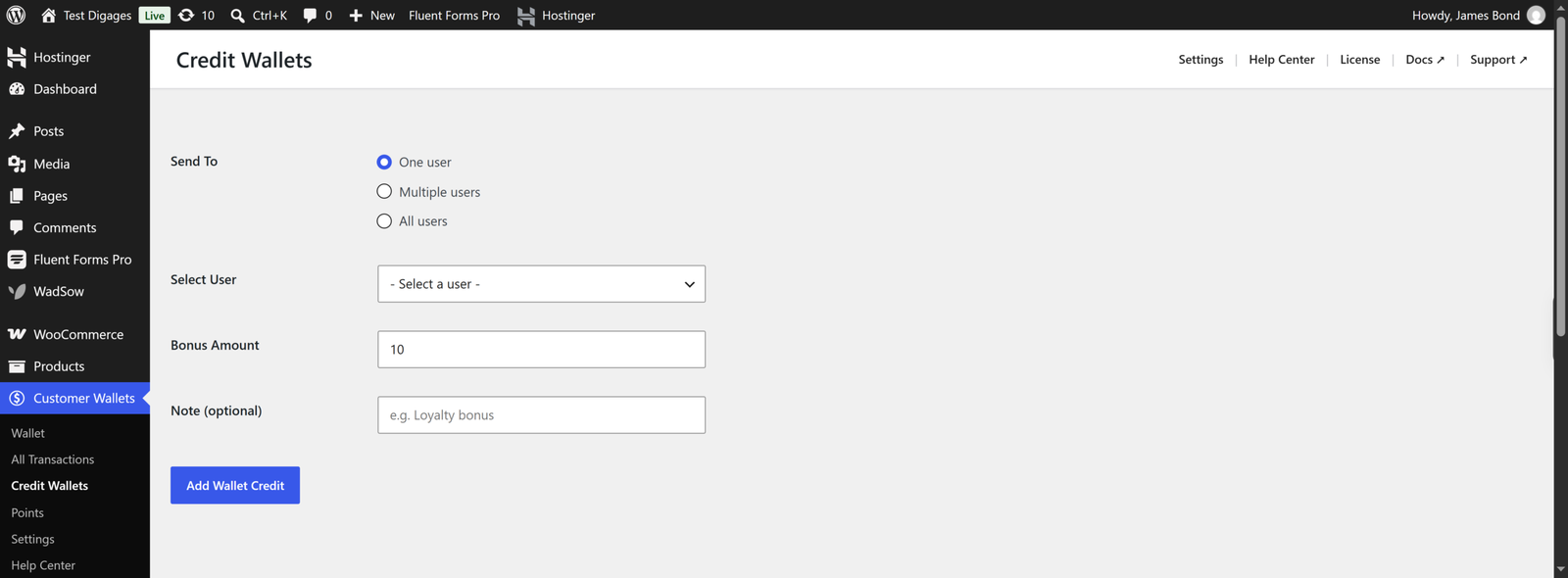
Go to Customer Wallets > Credit Wallets
Here, you can send Bonus Credit to manually credit a customer’s wallet, for example, as a loyalty reward or goodwill gesture.
- Select the user from the Select User dropdown (you can send to one user, multiple users, or all users).
- Enter the Bonus Amount.
- Optionally add a Note describing the reason for the credit.
- Click Add Wallet Credit.
4. The Customer Experience
Once the plugin is active, logged-in customers see two new tabs in My Account: My Wallet and Transfer Funds.
My Wallet
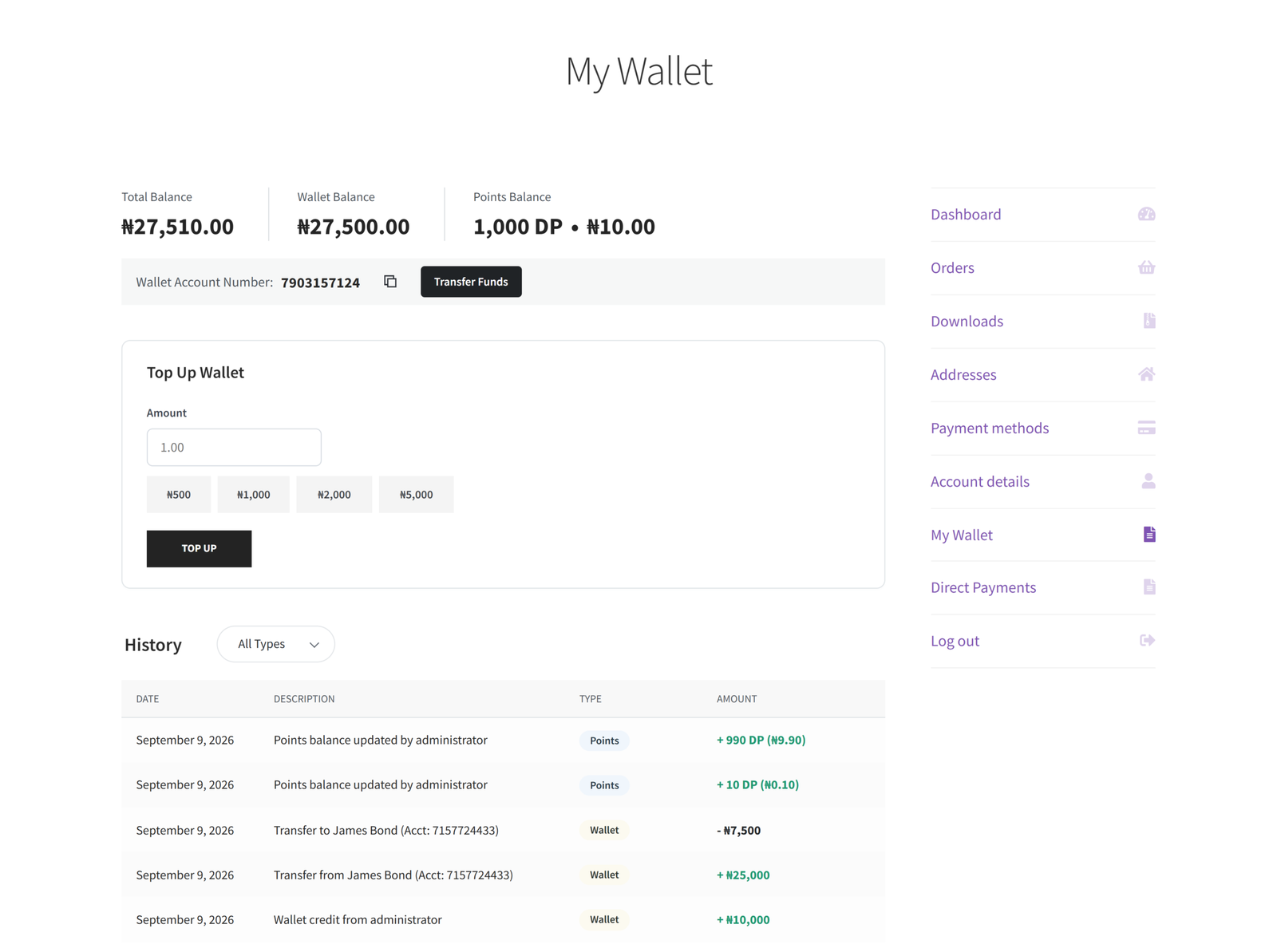
From My Account > My Wallet, customers can see their wallet balance and their unique wallet account number, which they can copy with one click.
To top up, the customer enters an amount (or selects a preset amount) and clicks Top Up. They’re taken through their normal WooCommerce payment flow to complete the top-up.
Transfer Funds
From My Account > Transfer Funds, customers can send wallet credit to another customer in the store. They look up the recipient by their 10-digit account number or by email address, then enter the amount to send.
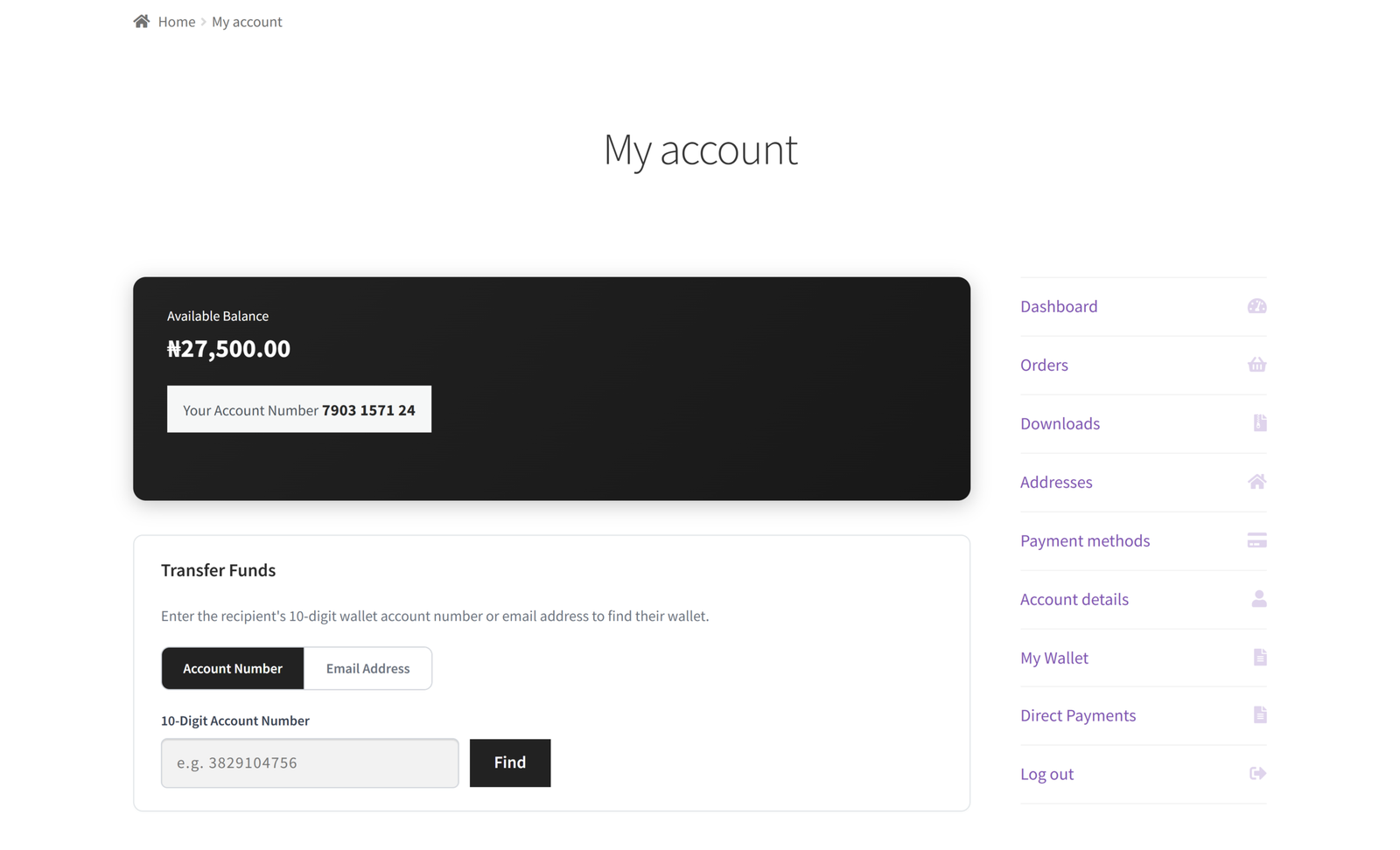
Transfer Funds only appears if User-to-User Transfers is enabled in Settings.
Paying With Wallet Balance at Checkout
If Partial Wallet Payment is enabled, customers see an option at checkout to apply their wallet balance to the order. If the balance covers the full order, no other payment method is needed. If it doesn’t, the wallet amount is deducted as a discount, and the customer pays the remainder through their selected payment gateway.
5. Troubleshooting
- Wallet tab missing from My Account — confirm the plugin is active and the customer is logged in. Wallets are only created for registered customer accounts.
- Transfer Funds tab missing — check that User-to-User Transfers is enabled in Customer Wallets > Settings.
- Top-up amount rejected — the amount must fall between the Minimum Top-Up Amount and Maximum Top-Up Amount set in Settings.
- Customer didn’t receive a notification email — check that the relevant notification toggle is enabled in Settings, and confirm the Admin Notification Email(s) field is correctly formatted.
With Customer Wallet for WooCommerce configured, your store now supports wallet top-ups, wallet payments at checkout, and peer-to-peer wallet transfers.