✨ New: Sell Gifts & Personalized WooCommerce Products with Engraver. Learn more


Introduction
All Customer Wallet for WooCommerce options are live in Customer Wallet > Settings in your WordPress admin. This guide breaks down every setting on that page, what it controls, how it affects the customer experience, and what the default value is.
So you can configure the wallet with confidence.
In This Article
- General Settings
- Email Notifications
- Where These Settings Show Up for Customers
- Related Admin Pages
- Recommended Configuration
General Settings
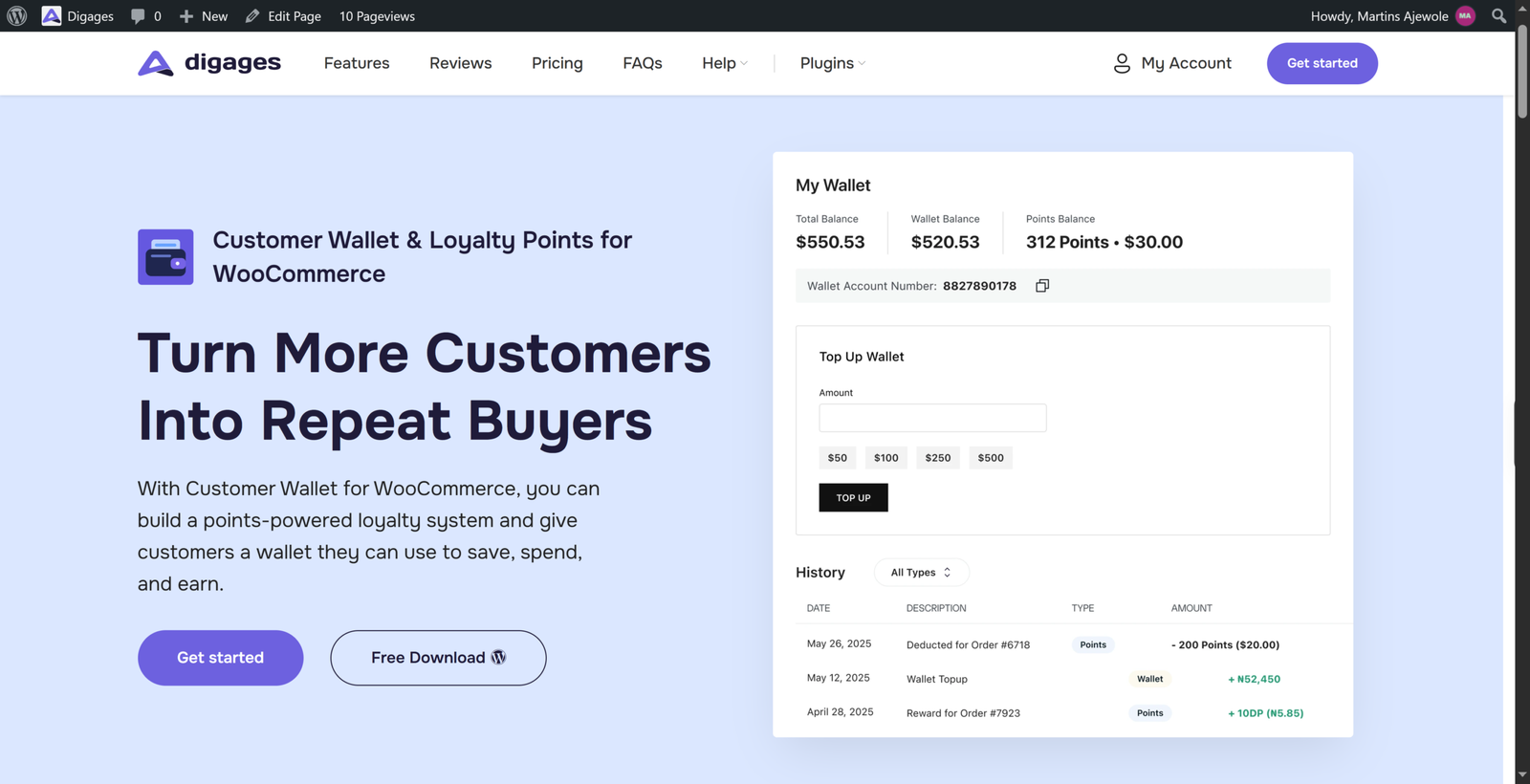
The General section controls top-up limits and the two core wallet behaviors: transfers between customers and partial payment at checkout.
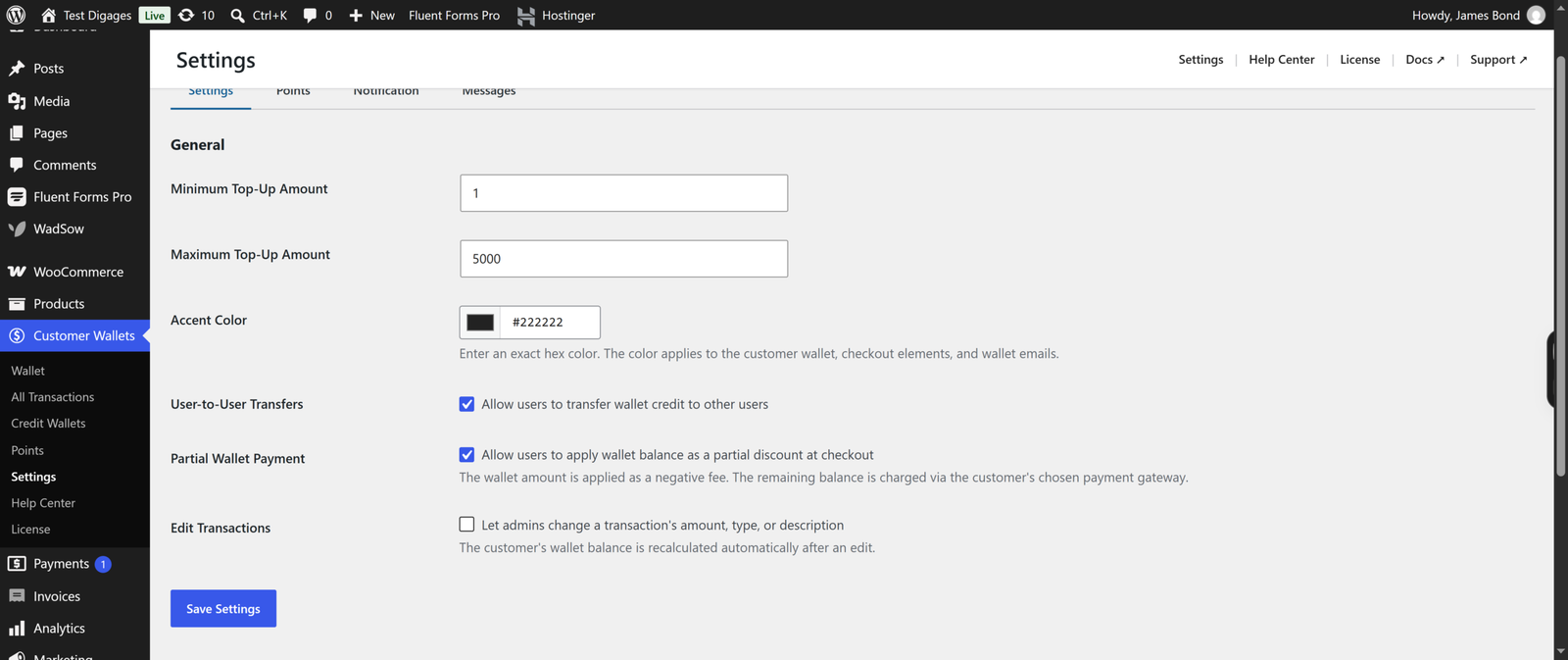
Minimum Top-Up Amount
Use this setting to define the smallest amount a customer is allowed to add to their wallet in a single top-up transaction. Setting a minimum top-up amount helps prevent customers from making very small deposits that may not be practical for your business or payment provider.
Maximum Top-Up Amount
This setting determines the largest amount a customer can add to their wallet in a single top-up transaction. You can use it to limit your financial exposure, comply with internal policies, or stay within your payment gateway’s transaction limits.
User-to-User Transfers
This checkbox controls whether customers can transfer funds directly to other customers’ wallets. When enabled, customers will see the Transfer Funds option under My Account → Transfer Funds, allowing them to send wallet balances to other registered users. When disabled, the Transfer Funds option is completely hidden from customers. This setting is enabled by default.
Partial Wallet Payment
This checkbox determines whether customers can use their wallet balance to pay for only part of an order. When enabled, the available wallet balance is applied as a negative fee, and the remaining amount is paid using the customer’s selected payment gateway during checkout. When disabled, customers can only pay with their wallet if the balance is sufficient to cover the entire order. This setting is enabled by default.
Set Minimum and Maximum Top-Up Amount in line with your store’s typical order values — too low a maximum can frustrate high-volume customers, while too high a minimum discourages casual top-ups.
Email Notifications
The Email Notifications section controls who is emailed when wallet activity happens — top-ups, credits, and transfers. Notifications are split into three groups: general admin alerts, top-up/credit alerts, and transfer alerts.
Admin Notification Email(s)
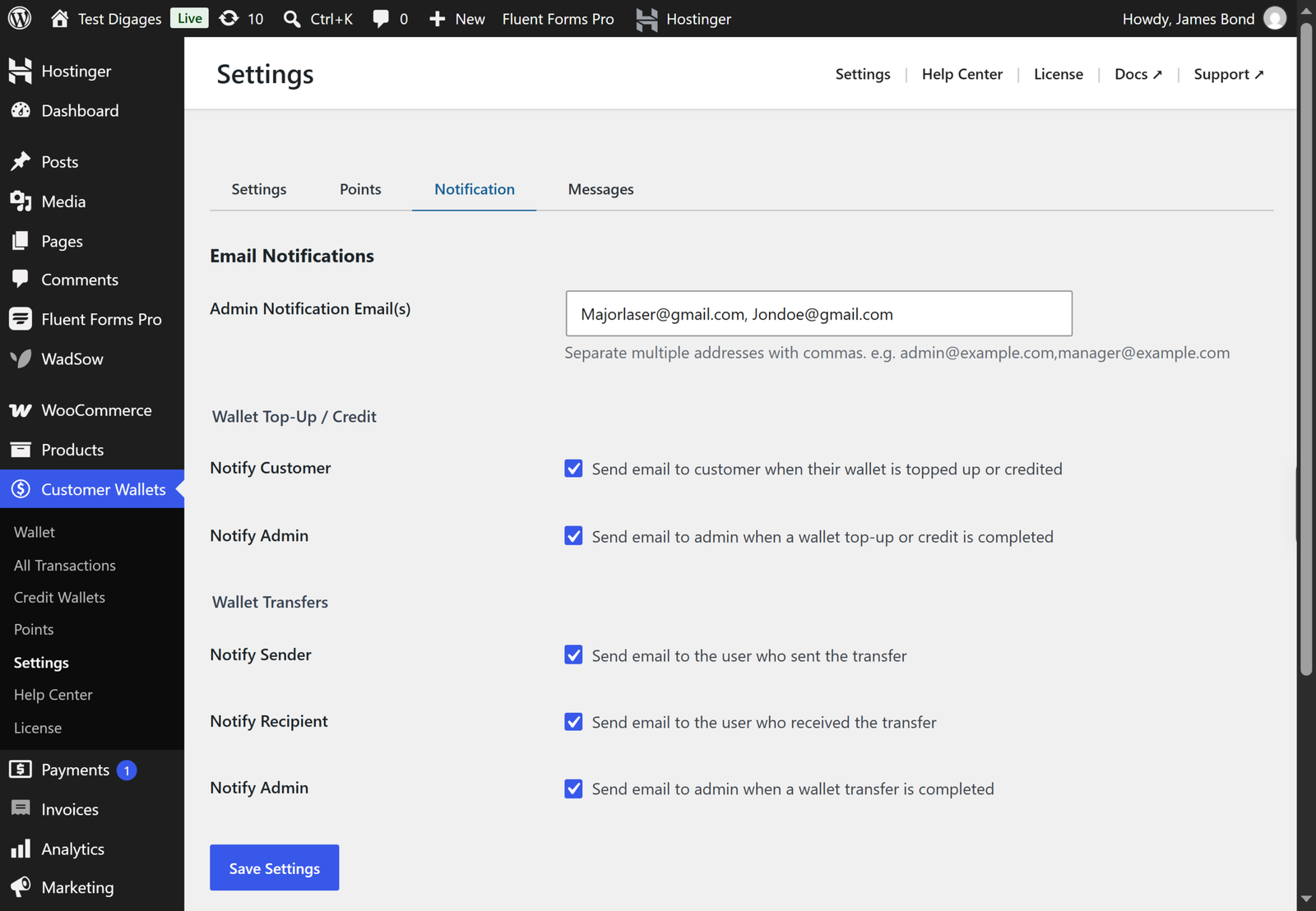
Use this field to specify the email address or addresses that should receive administrator notifications related to wallet activity. If you want multiple administrators to receive these alerts, separate each email address with a comma (for example, admin@example.com, manager@example.com). These email addresses are used whenever any of the Notify Admin options are enabled throughout the wallet notification settings. By default, this field is empty, so you should add your preferred administrator email addresses.
Wallet Top-Up / Credit Notifications
Notify Customer; This checkbox controls whether customers receive an email whenever their wallet balance is increased. Notifications are sent for both customer-initiated wallet top-ups and administrator-issued wallet credits, such as those added through the Send Bonus Credit feature. This setting is enabled by default.
Notify Admin; When enabled, an email notification is sent to all email addresses listed in Admin Notification Email(s) whenever a wallet top-up or wallet credit is successfully completed. This allows administrators to monitor wallet funding activity without manually checking the dashboard. This setting is enabled by default.
Wallet Transfer Notifications
Notify Sender; Enable this option to send a confirmation email to the customer who initiates a wallet-to-wallet transfer. The email confirms that the transfer was completed successfully and provides reassurance that the funds have been sent. This setting is enabled by default.
Notify Recipient; When enabled, the customer receiving a wallet-to-wallet transfer is notified by email as soon as the funds are added to their wallet. This provides immediate confirmation that the transfer has been received. This setting is enabled by default.
Notify Admin; This option sends an email to the administrator email address(es) specified in Admin Notification Email(s) whenever a wallet-to-wallet transfer is completed. It helps administrators keep track of wallet transfers between customers. This setting is enabled by default.
Click Save Settings at the bottom of the page after making changes. Settings apply store-wide immediately — no cache clearing required.
Where These Settings Show Up for Customers
Each setting maps directly to something a customer sees or can do in their account:
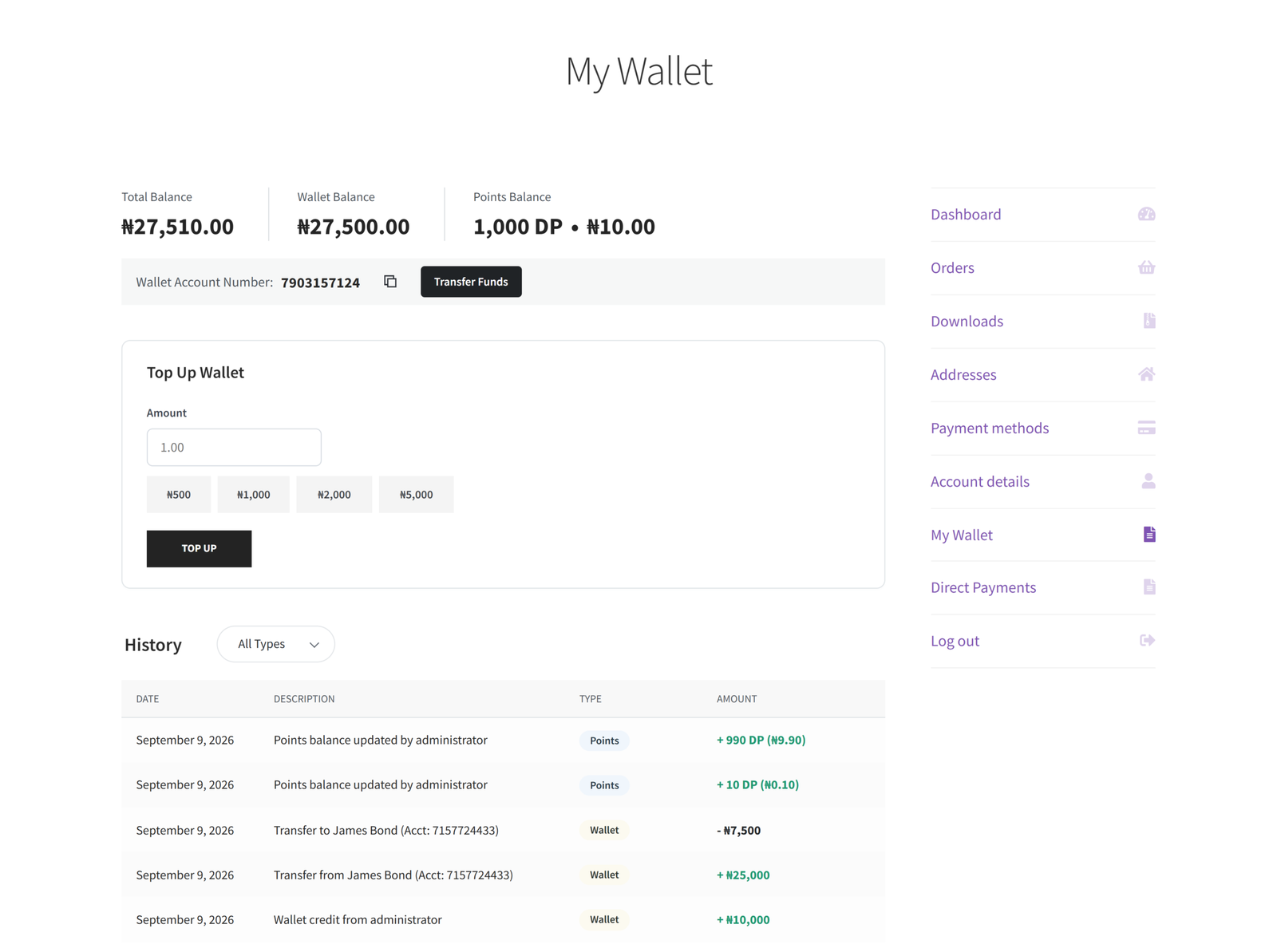
- Minimum / Maximum Top-Up Amount — enforced on the Top Up form under My Account > My Wallet.
- User-to-User Transfers — controls whether the Transfer Funds menu item and page appear under My Account.
- Partial Wallet Payment — controls whether customers can combine wallet balance with another payment method at checkout, versus needing the full order amount available in the wallet.
- Notify Customer / Notify Sender / Notify Recipient — controls the emails customers receive for their own wallet activity.
Related Admin Pages
The Customer Wallet menu includes a few other admin pages that work alongside Settings but aren’t configuration screens themselves — they’re where you manage wallets day to day.
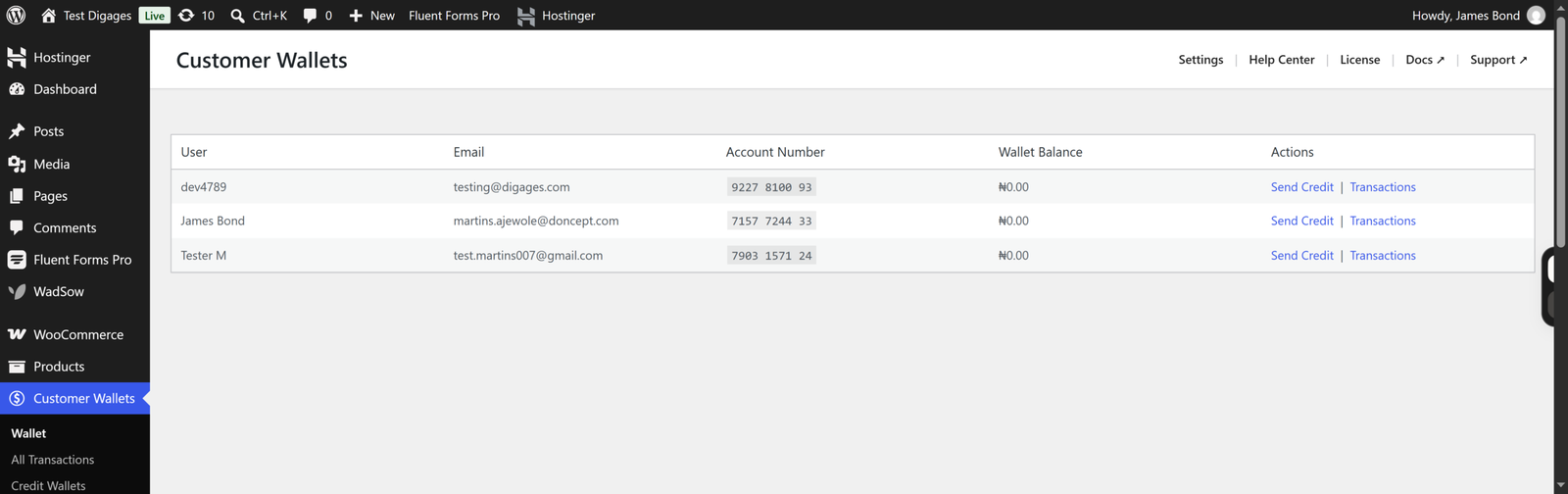
- Customer Wallets — lists every customer with a wallet, their account number, and current balance, with quick links to Send Credit or view Transactions.
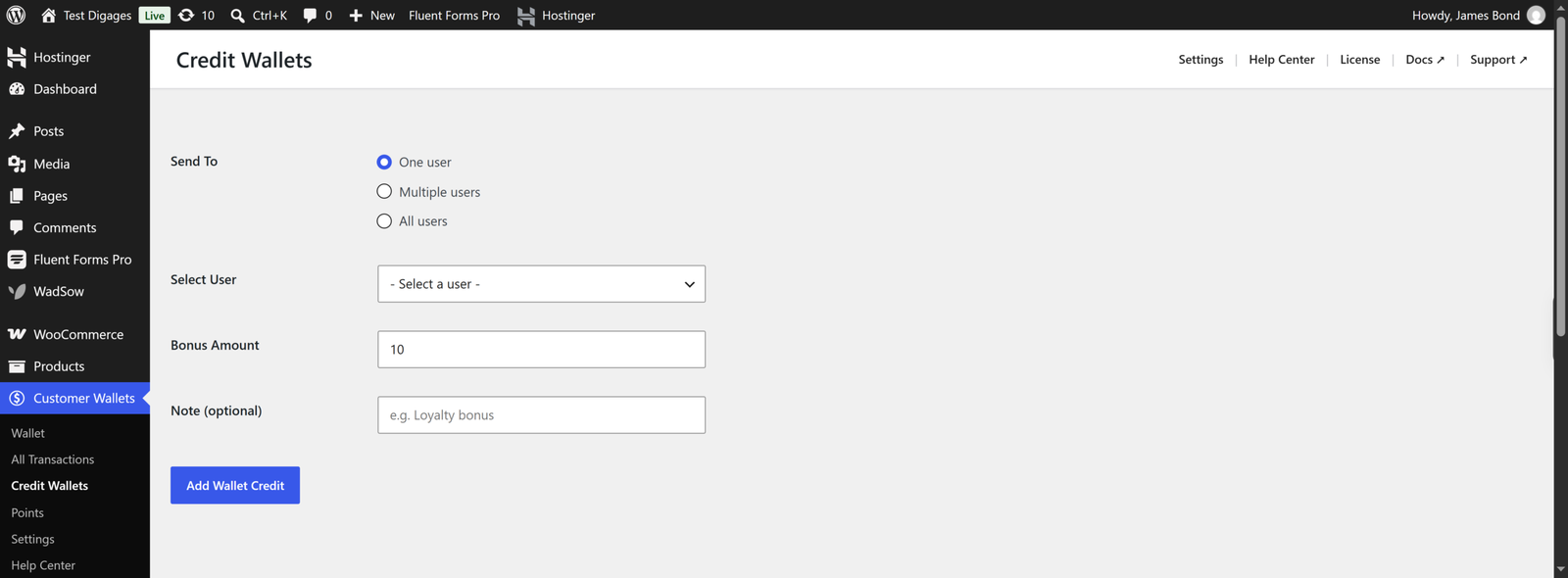
- Send Bonus Credit — lets an admin manually credit a specific customer’s wallet (for example, a loyalty bonus), with an optional note recorded against the transaction.
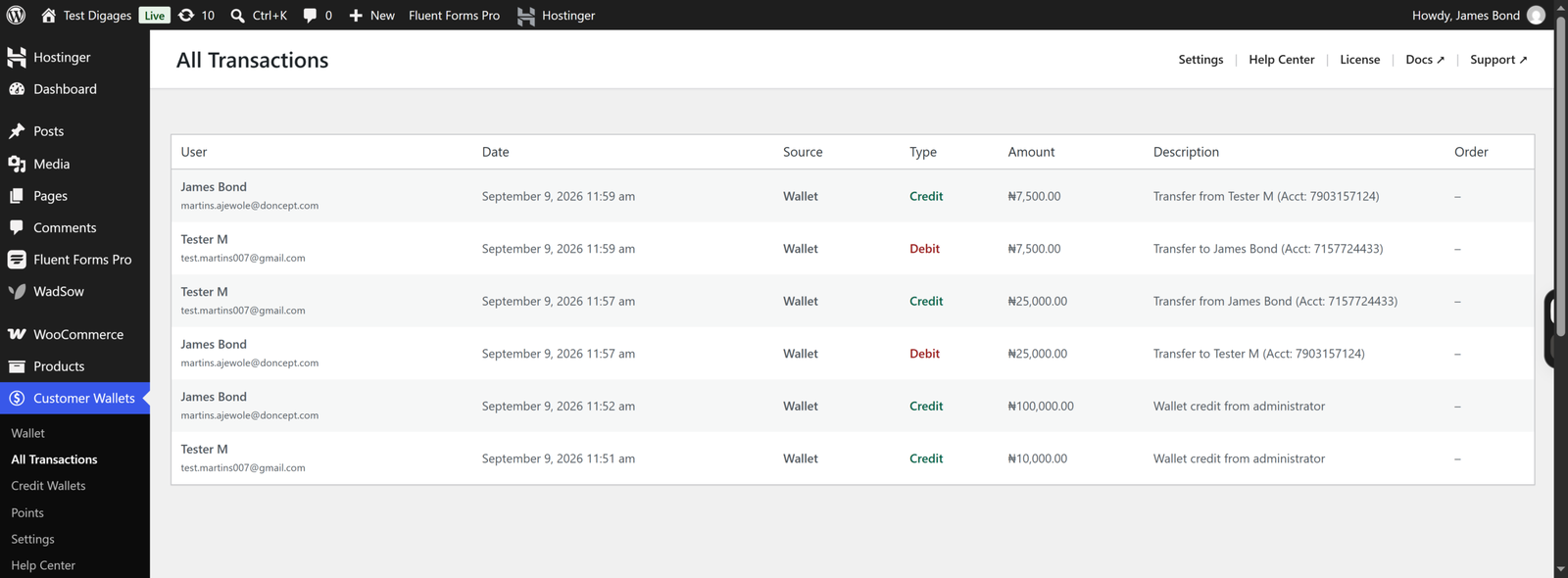
- All Transactions — a store-wide log of every top-up, purchase, credit, and transfer across all customer wallets.
Recommended Configuration
For most stores, the default configuration works well out of the box. A few scenarios where you may want to adjust settings:
- Gift or loyalty programs: keep User-to-User Transfers enabled and use Send Bonus Credit to seed customer wallets.
- Stores selling high-ticket items: raise Maximum Top-Up Amount so wallet balances can realistically cover full orders.
- Simpler store-credit use case: disable Partial Wallet Payment if you only want the wallet usable when it fully covers an order.
- High support volume: keep all Notify Admin options enabled, so your team has visibility into wallet activity without checking the transaction log manually.