✨ New: Sell Gifts & Personalized WooCommerce Products with Engraver. Learn more


Introduction
The partial wallet payment system in Customer Wallet for WooCommerce lets a customer apply whatever balance is in their wallet toward an order and pay only the remaining amount through another payment method. This is useful whenever a customer’s wallet balance is lower than the order total, so they’re never blocked from checking out just because their wallet can’t cover the full amount.
This article explains how partial wallet payment works, how to turn it on, and how to troubleshoot common issues.
In This Article
- 1. How Partial Wallet Payment Works
- 2. Enabling Partial Wallet Payment
- 3. What the Customer Sees at Checkout
- 4. Example Walkthrough
- 5. Troubleshooting
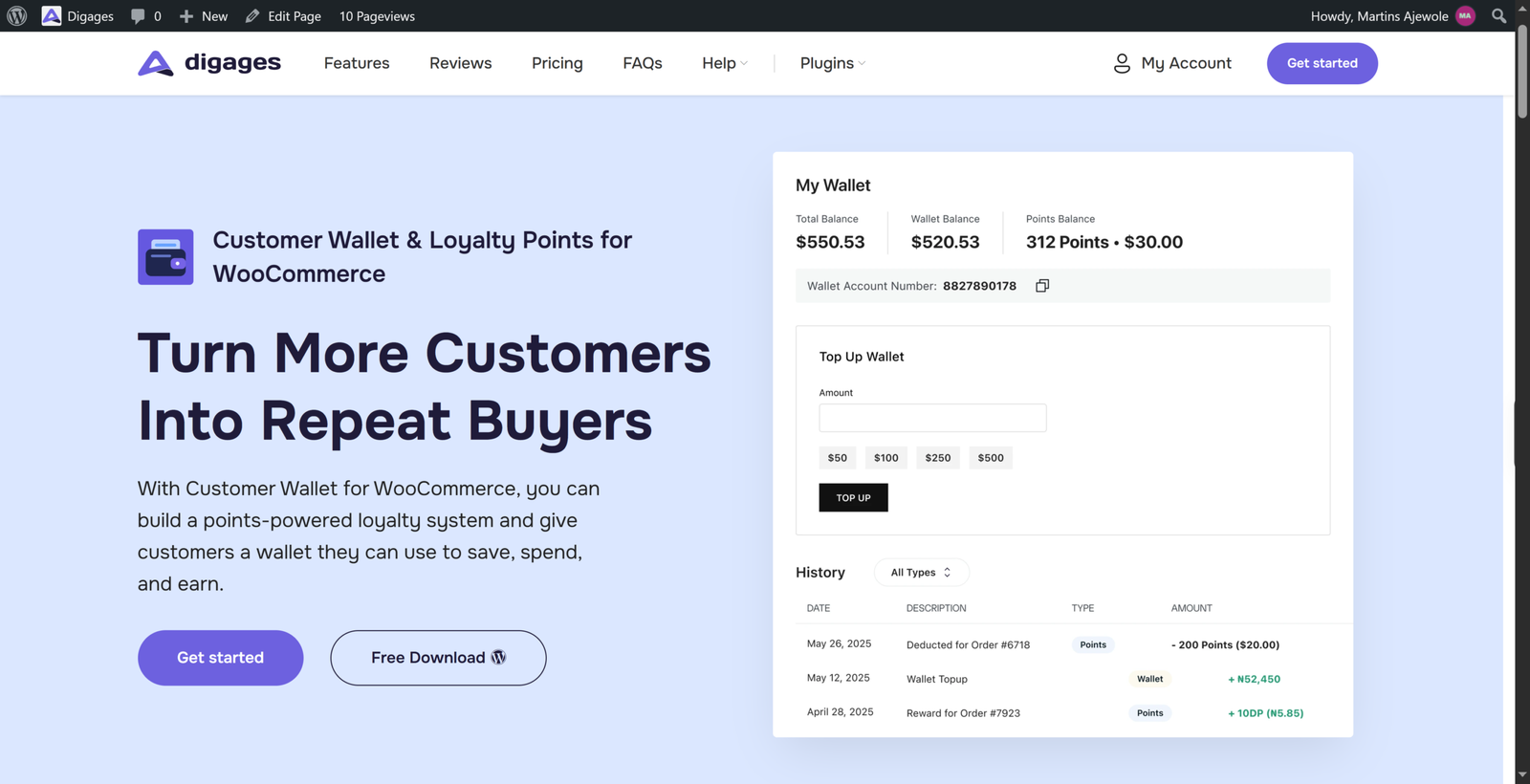
1. How Partial Wallet Payment Works
When a customer’s wallet balance doesn’t fully cover an order, the plugin can apply the available balance as a deduction against the order total, then charge the remaining balance through whichever payment gateway the customer chooses (card, bank transfer, etc.).
- Full balance covers the order: the wallet pays the entire total, and no other payment method is needed.
- Balance is lower than the order total: the wallet covers part of the total, and the customer completes payment for the remainder through a second method.
- Wallet balance is zero: the customer checks out normally with another payment method; the wallet option simply won’t apply a discount.
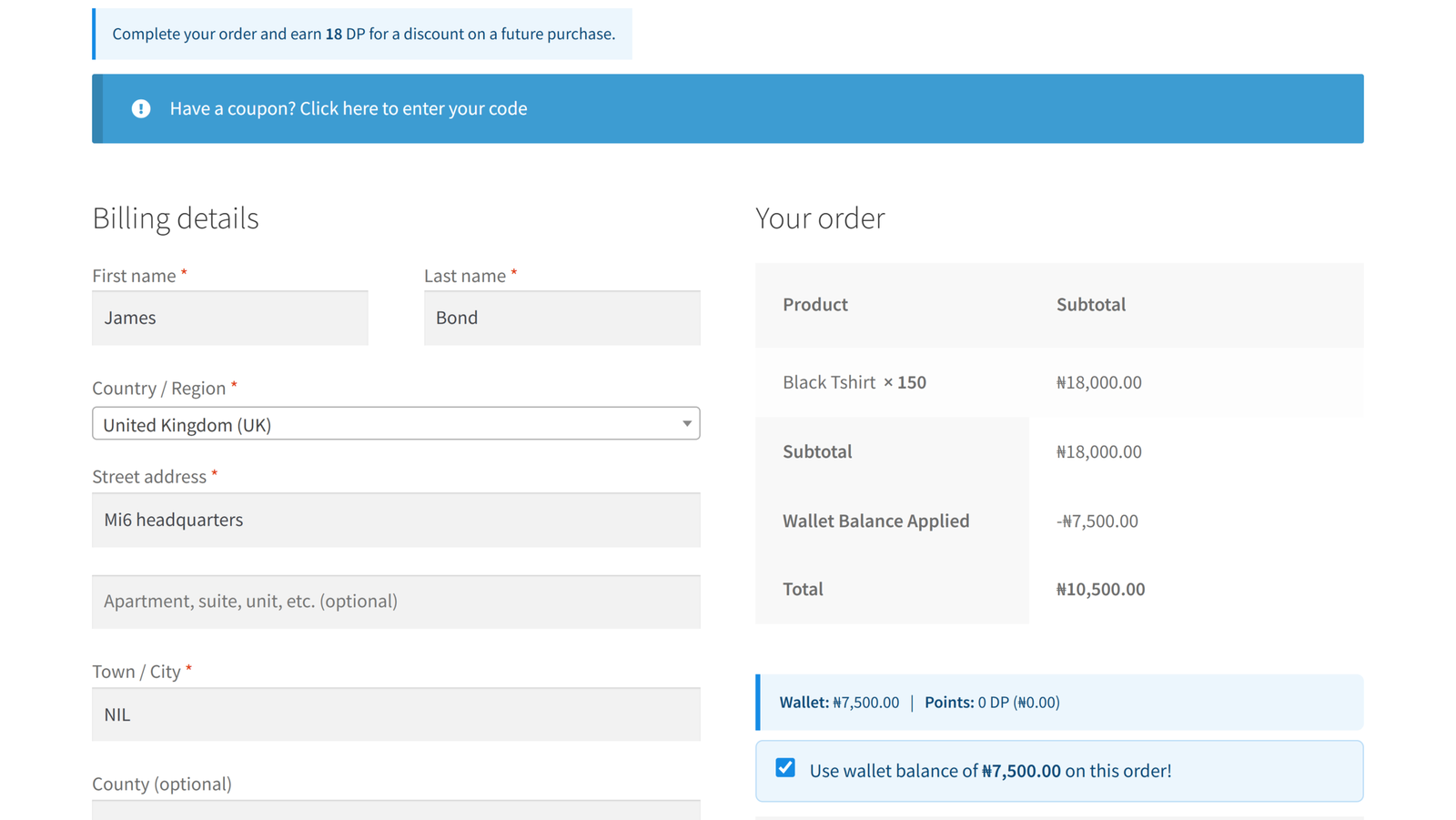
The wallet deduction is applied as a negative fee on the order, so it’s visible as a separate line item in the order summary, both for the customer and in the admin order view.
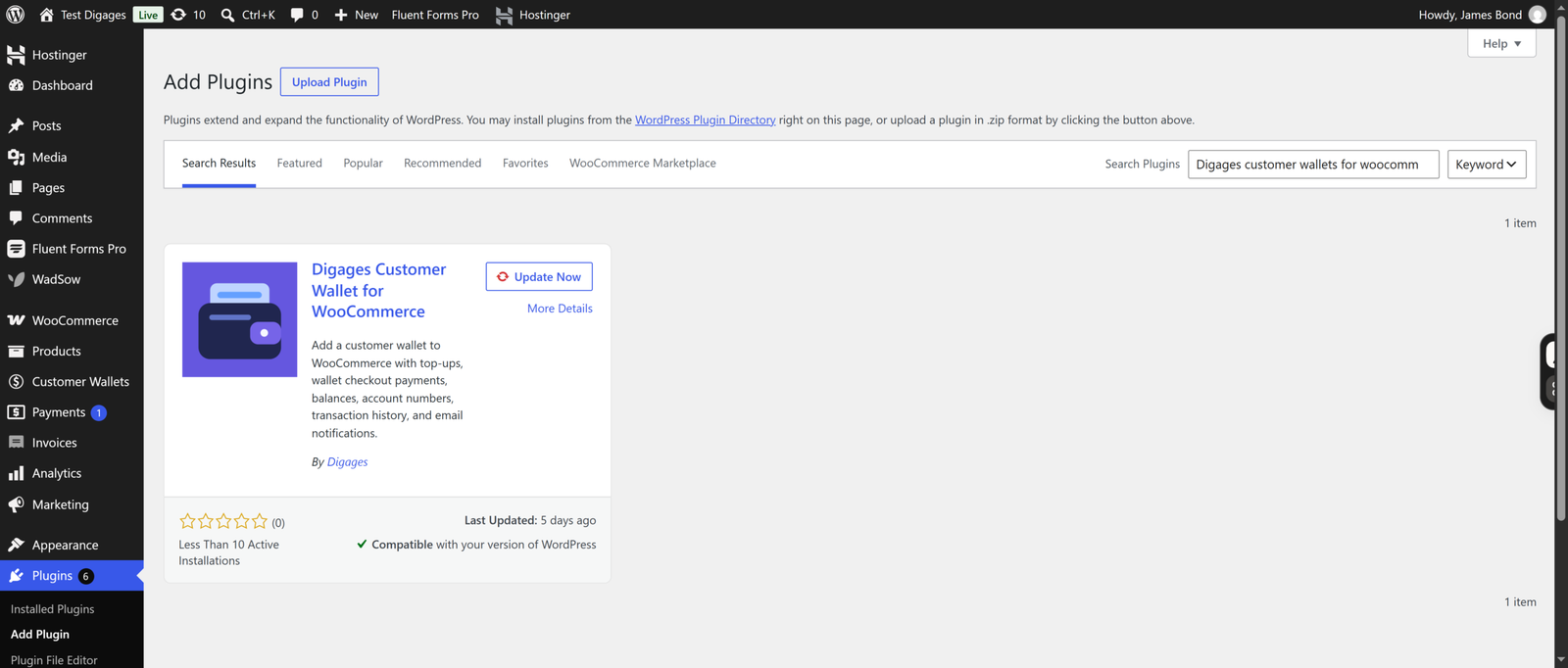
2. Enabling Partial Wallet Payment
Partial payment is controlled by a single setting in the plugin, alongside the wallet’s other general options.
- Go to Customer Wallet > Settings.
- On the General tab, find Partial Wallet Payment.
- Check “Allow users to apply wallet balance as a partial discount at checkout“.
- Click Save Settings.
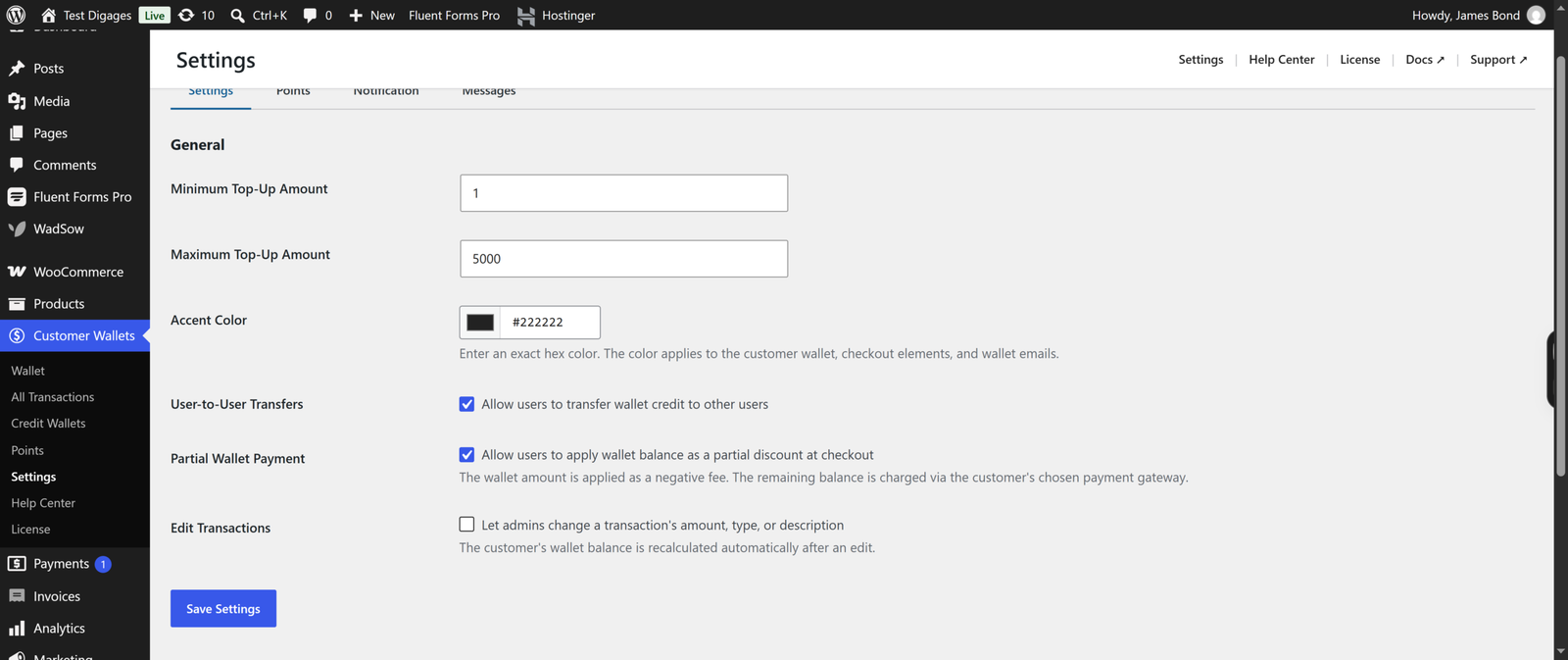
If this box is left unchecked, customers can still use their wallet at checkout, but only when the balance is enough to cover the entire order total.
3. What the Customer Sees at Checkout
Once partial payment is enabled, customers with a wallet balance will see it automatically reflected during checkout:
- The customer’s current wallet balance is displayed on the checkout page.
- The customer applies the wallet balance to the order.
- The order total updates to show the wallet deduction, along with the remaining amount still due.
- The customer selects a payment method to cover the remaining amount and completes the order.
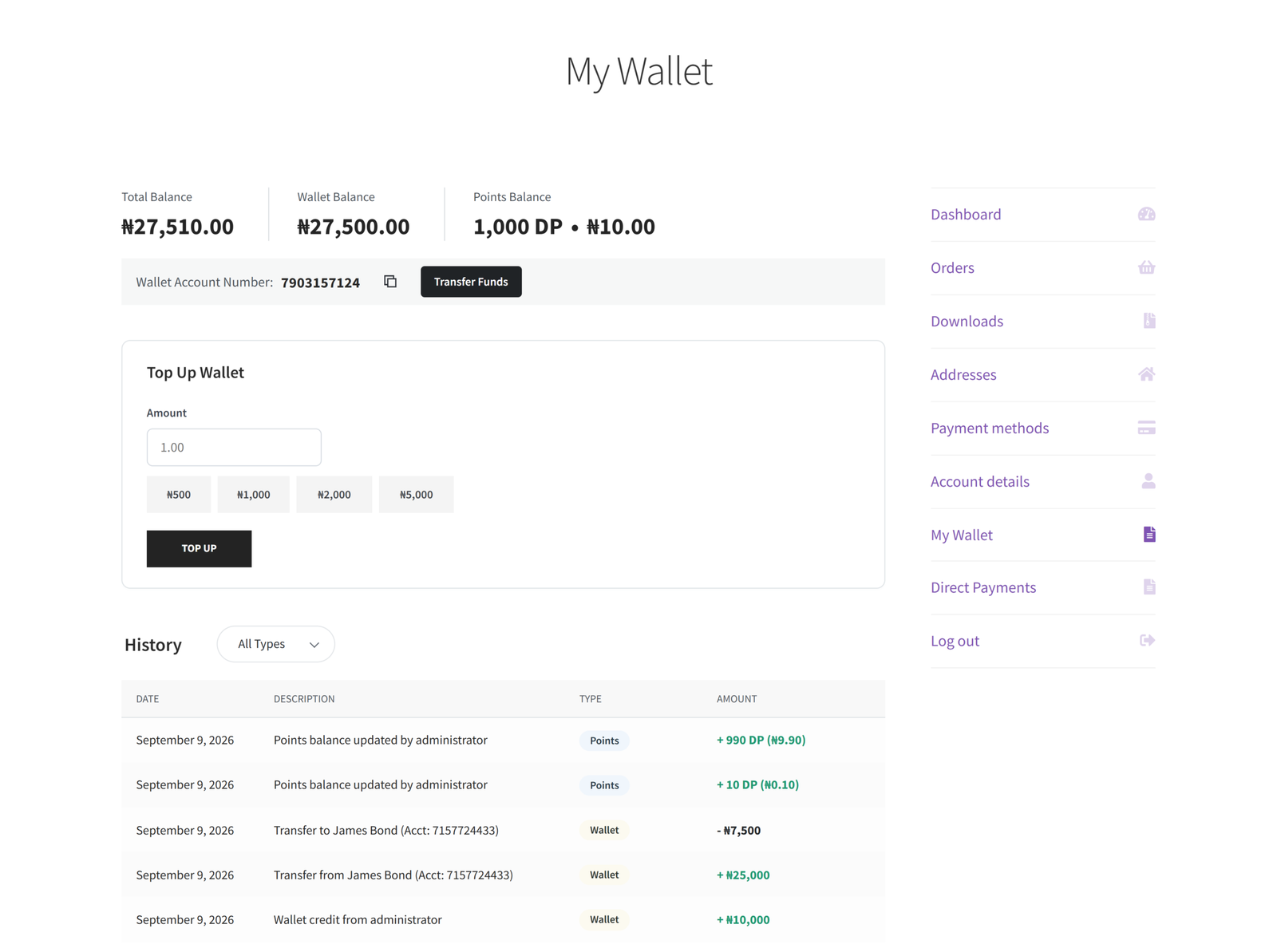
Customers can check their current balance at any time from My Account > Wallet before they get to checkout.
4. Example
The following example demonstrates how Partial Wallet Payment works when a customer’s wallet balance is lower than the total value of their order.
A customer places an order worth ₦8,000 but has only ₦3,000 available in their wallet. At checkout, the available wallet balance is automatically applied as a deduction, reducing the order total by ₦3,000. The customer then pays the remaining ₦5,000 using any other enabled payment method, such as a credit or debit card, bank transfer, or another available payment gateway.
In this example:
- Order Total: ₦8,000
- Customer’s Wallet Balance: ₦3,000
- Wallet Amount Applied: ₦3,000
- Remaining Amount Due: ₦5,000
- Payment Method for Remaining Balance: Card, bank transfer, or any other enabled payment gateway
After the payment is completed, the order records two separate payment entries: a ₦3,000 wallet deduction and a ₦5,000 payment through the customer’s selected payment gateway. The customer’s wallet balance is then reduced to ₦0.00, accurately reflecting that all available wallet funds have been used toward the purchase.
5. Troubleshooting
The partial payment option isn’t showing at checkout
- Confirm Partial Wallet Payment is enabled in Customer Wallet > Settings.
- Confirm the customer is logged in — wallets are tied to customer accounts and aren’t available to guest checkouts.
- Confirm the customer’s wallet balance is greater than ₦0.00.
The wallet deducted the wrong amount
- Check that no other discount, coupon, or fee is being applied at the same time — stacked discounts can make the final total look different from what was expected.
- Review the order’s line items in WooCommerce > Orders to confirm the wallet fee amount matches the balance that was available at checkout.
Customer says their balance didn’t update after an order
- Go to Customer Wallet > Customers, open the customer’s record, and check their transaction history for the deduction.
- If the order was cancelled or refunded, confirm whether the wallet amount was refunded to the customer — this depends on your refund settings.
Fix: If a balance still looks wrong after checking the transaction log, use Adjust Balance on the customer’s wallet to correct it manually and leave a note explaining the change.