🎁 New: Build Customer Loyalty & Drive Repeat Purchases with WooCommerce. Learn more


By default, when a customer selects a Direct Payments for WooCommerce method at checkout, clicking Place Order opens a popup where they can view payment details and upload proof of payment. You can turn this off for any payment method so customers go straight to the order confirmation page instead, the same way WooCommerce’s default Bank Transfer method works.
💡 Note: This feature requires Direct Payments for WooCommerce v2.6 or later. Update the plugin if you’re on an earlier version.
Step 1: Open the Desired Payment Method
- Log in to your WordPress dashboard.
- Go to WooCommerce > Direct Payments > Settings.
- Open the Payment Methods tab.
- Find the payment method you want to update (Bank Transfer, Mobile Money, Crypto, or Peer-to-Peer), then click the 3-dot icon next to it to edit it.
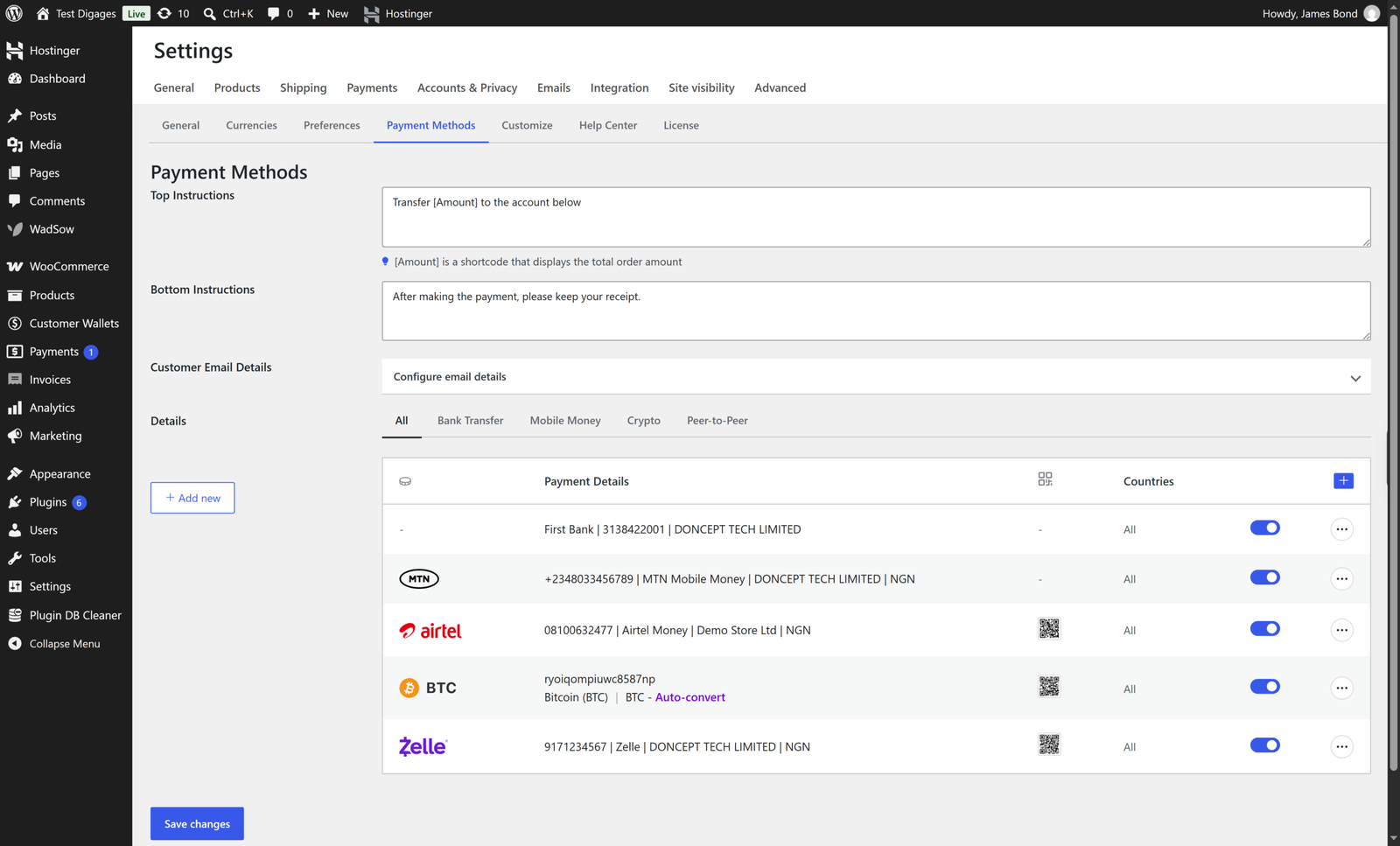
Step 2: Open the Options Tab
Each payment method has three tabs: Account Details, QR Code, and Options.
- Click the Options tab.
- Under Checkout options, click Show as a separate payment method
- Scroll and click the “Customers place the order first and view payment instructions on the Thank you page.” toggle
- Click Save.
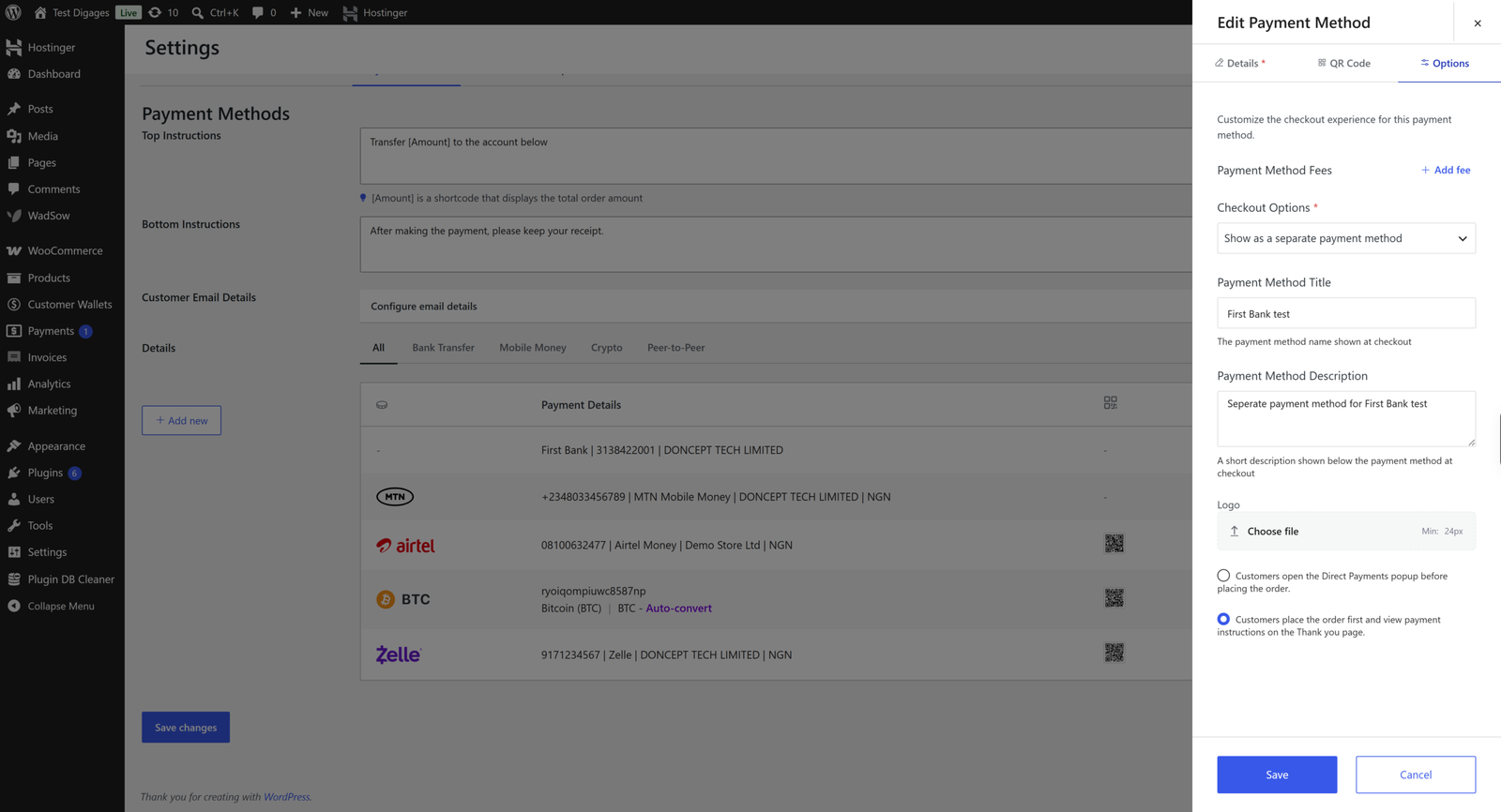
Step 3: Save Your Changes
Clicking Save returns you to the Payment Methods list; then you click Save changes to confirm the update.