🎁 New: Build Customer Loyalty & Drive Repeat Purchases with WooCommerce. Learn more


When a payment method is set to display separately at checkout in Direct Payments for WooCommerce, you can add a logo or icon so customers can visually recognize it, such as the Zelle or MTN logo next to the payment option.
However, before this can happen, the payment method must be set to “show separately at checkout”.
💡 Note: This feature requires Direct Payments for WooCommerce v2.6 or later. Update the plugin if you’re on an earlier version.
Step 1: Open the Payment Method
- Log in to your WordPress dashboard.
- Go to WooCommerce > Direct Payments > Settings.
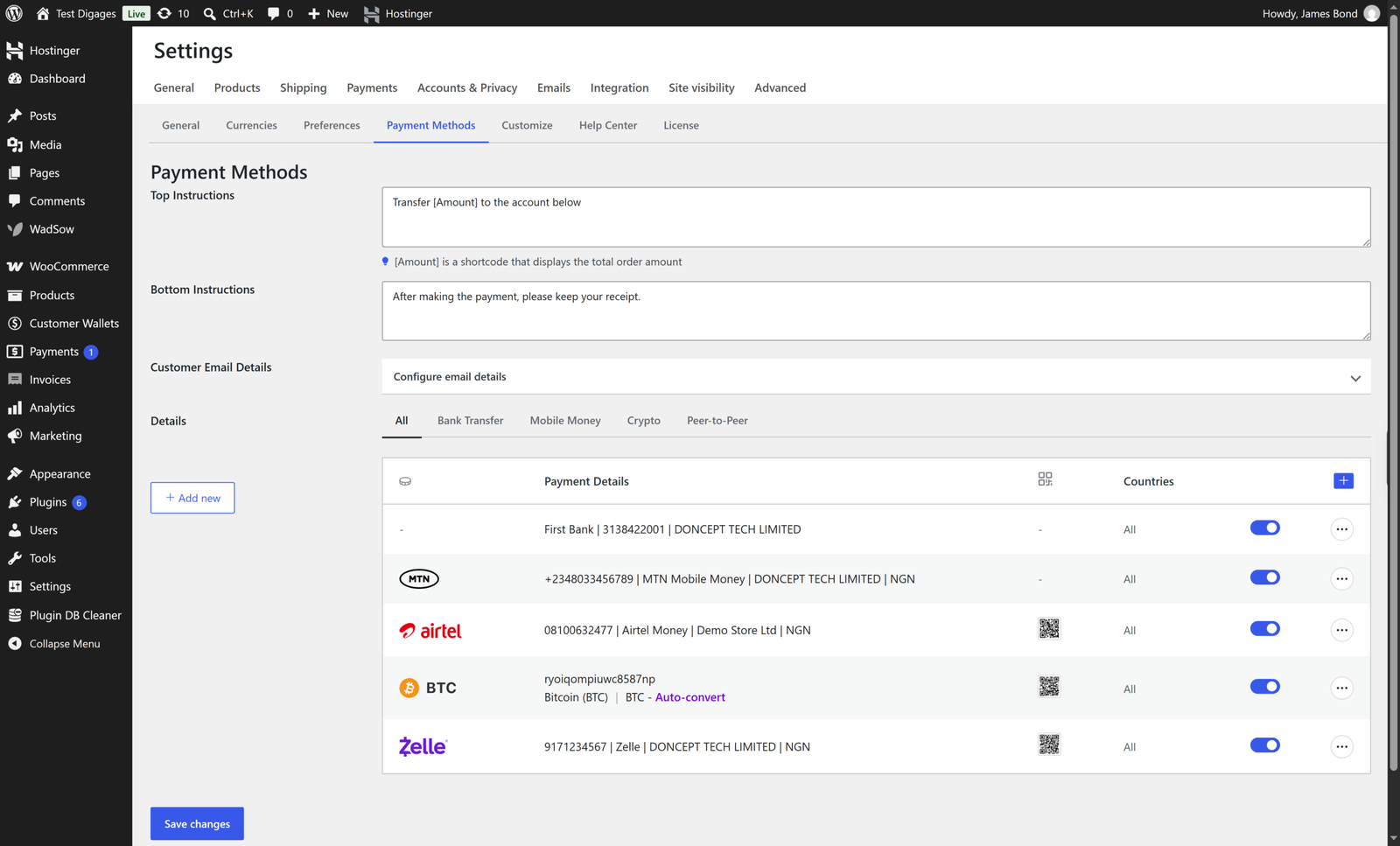
- Open the Payment Methods tab.
- Find the payment method you want to add an icon to, then click the 3-dot icon next to it to edit it.
Step 2: Upload the Icon
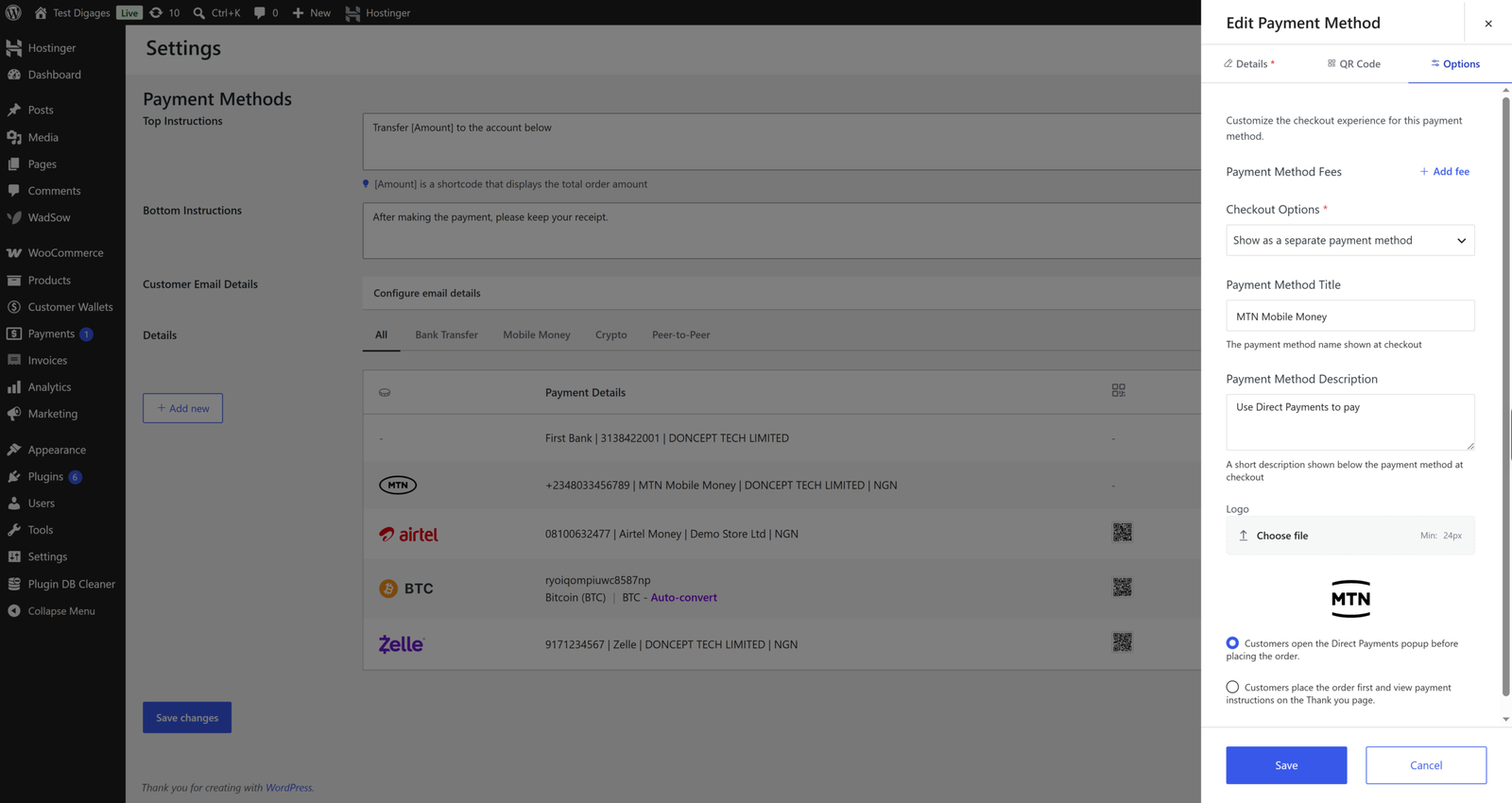
- Click the Options tab.
- Find the icon or logo upload field.
- Upload your image (use a clear, square image for the best result).
- Click Save.
Step 3: Save Your Changes
Clicking Save returns you to the Payment Methods list; then you click Save changes to confirm the update.