🎁 New: Build Customer Loyalty & Drive Repeat Purchases with WooCommerce. Learn more


Direct Payments for WooCommerce includes a Refund Centre where you can review, approve, and record refunds for orders paid through Direct Payments for WooCommerce. Customers can also request refunds themselves from their Direct Payments dashboard if you enable this option.
💡 Note: This feature requires Direct Payments for WooCommerce v2.6 or later. Update the plugin if you’re on an earlier version.
Step 1: Allow Customers to Request Refunds
- Log in to your WordPress dashboard.
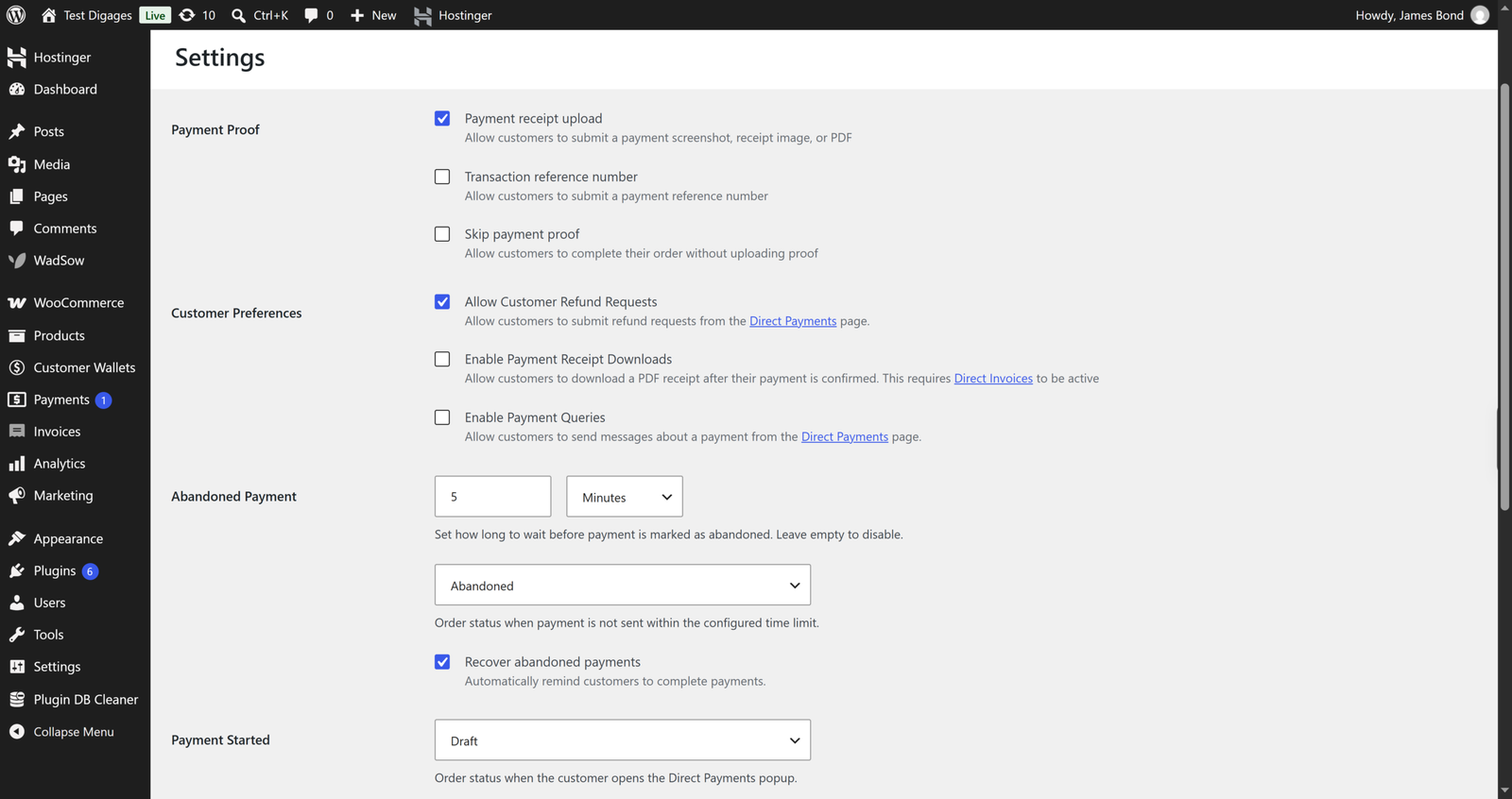
- Go to WooCommerce > Direct Payments > Settings.
- Open the Preferences tab.
- Under Customer Preferences, check Allow Customer Refund Requests.
- Click Save.
With this enabled, customers can submit a refund request from My Account > Direct Payments > Refunds on the front end of your store.
Step 2: Review and Process a Refund
- Go to WooCommerce > Direct Payments in your WordPress admin sidebar.
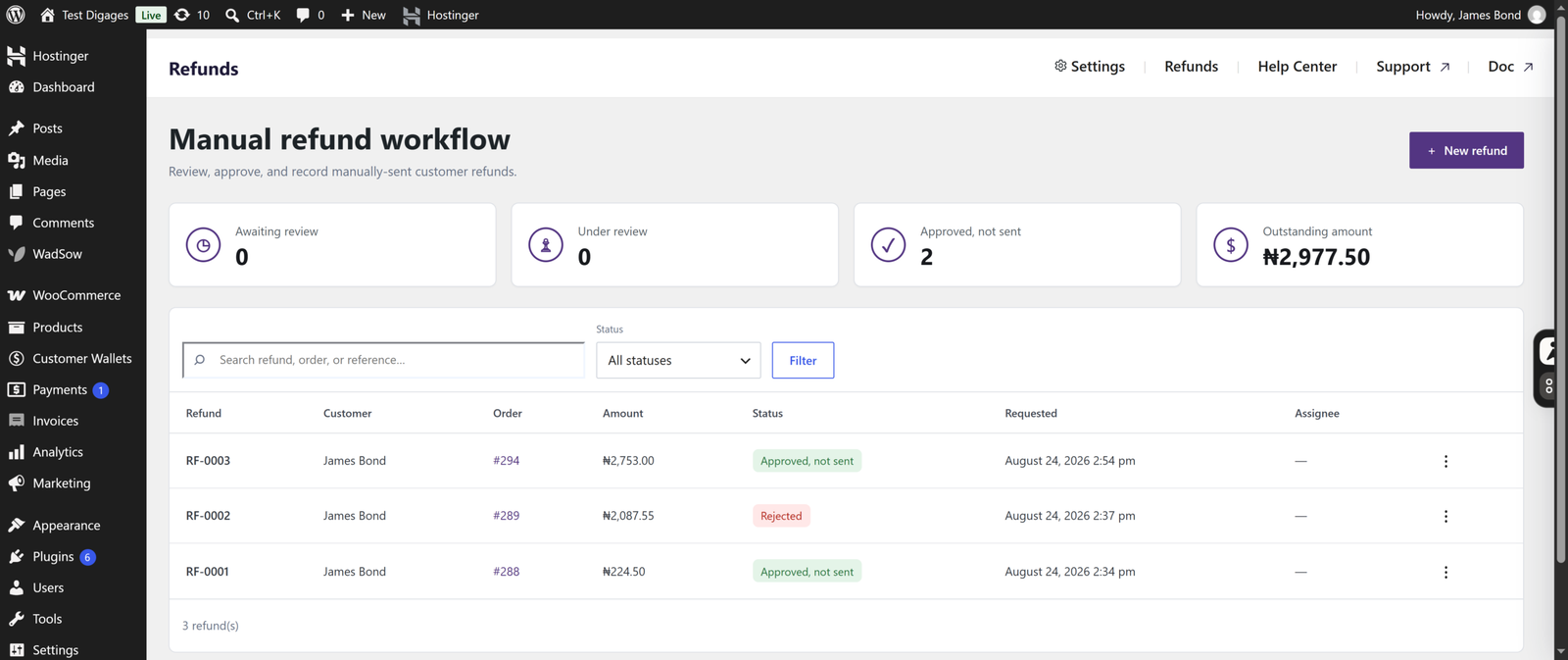
- Click Refunds in the top right to open the Manual Refund Workflow page.
- Review and verify any refunds under Awaiting review, Under review, or Approved, not sent.
- Click a refund to view the order, customer, and requested amount.
- Approve, reject, or update the refund status as needed.
Step 3: Record a Refund Manually
You can also start a refund yourself, without waiting for a customer request:
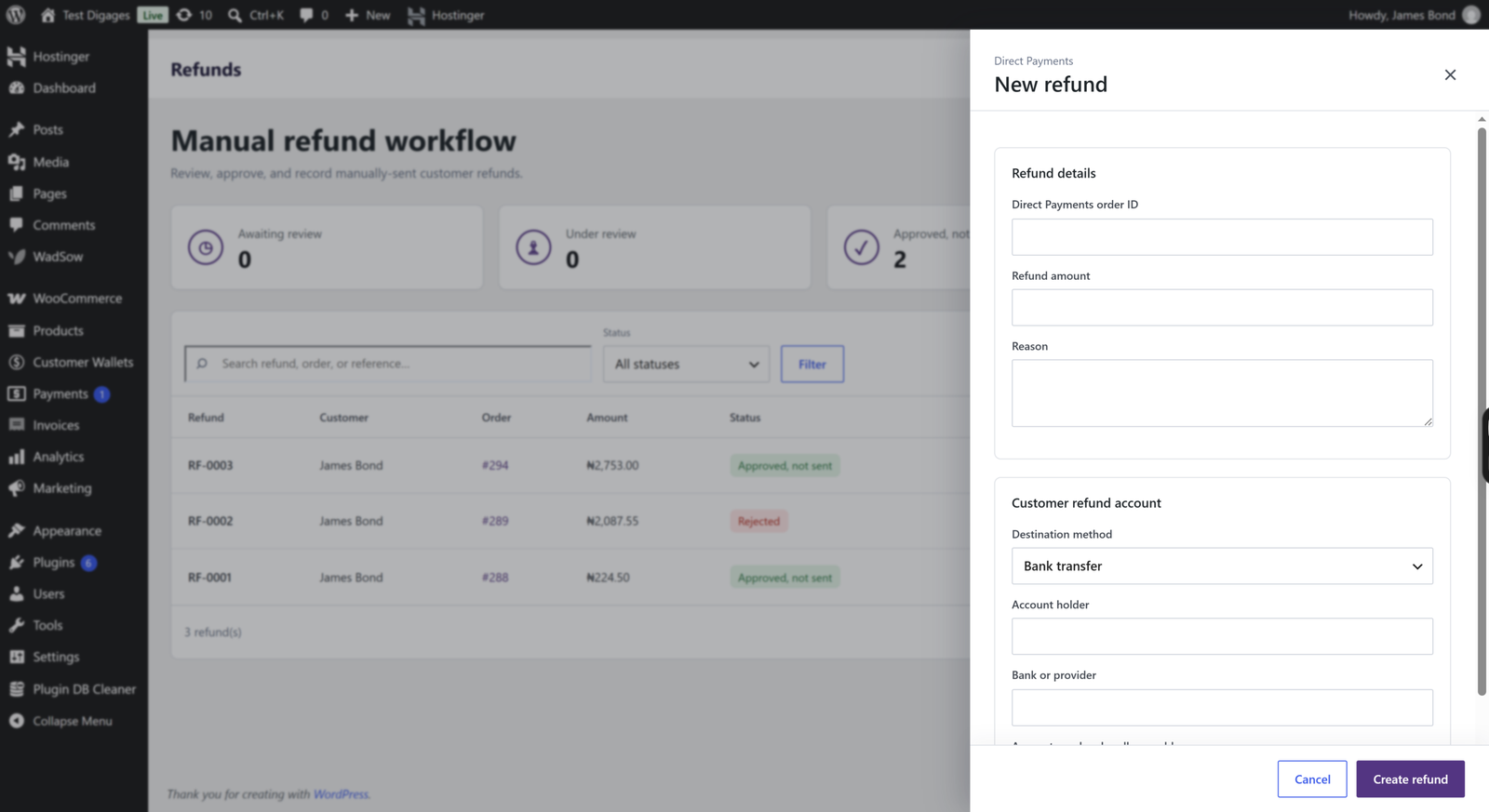
- From the Refunds page, click + New refund.
- Input the Refund details (Direct Payments order ID, Refund Amount, Reason)
- Input the Customer refund account details (Destination method, Account holder, bank, Account number)
- Click Create Refund (this brings the refund to the dashboard)
- Approve or update the refund as needed
Refunds move through the Refund Centre from request to completion, and the Outstanding amount total updates automatically so you always know what’s pending. Customers who requested a refund can track its status from My Account > Direct Payments > Refunds.