🎁 New: Build Customer Loyalty & Drive Repeat Purchases with WooCommerce. Learn more


With Dropshipfy installed, you can turn your regular WooCommerce store into a dropshipping store, where approved dropshippers get special pricing and a dedicated checkout flow. Here’s how to set it all up.
Step 1: Enable Dropshipping
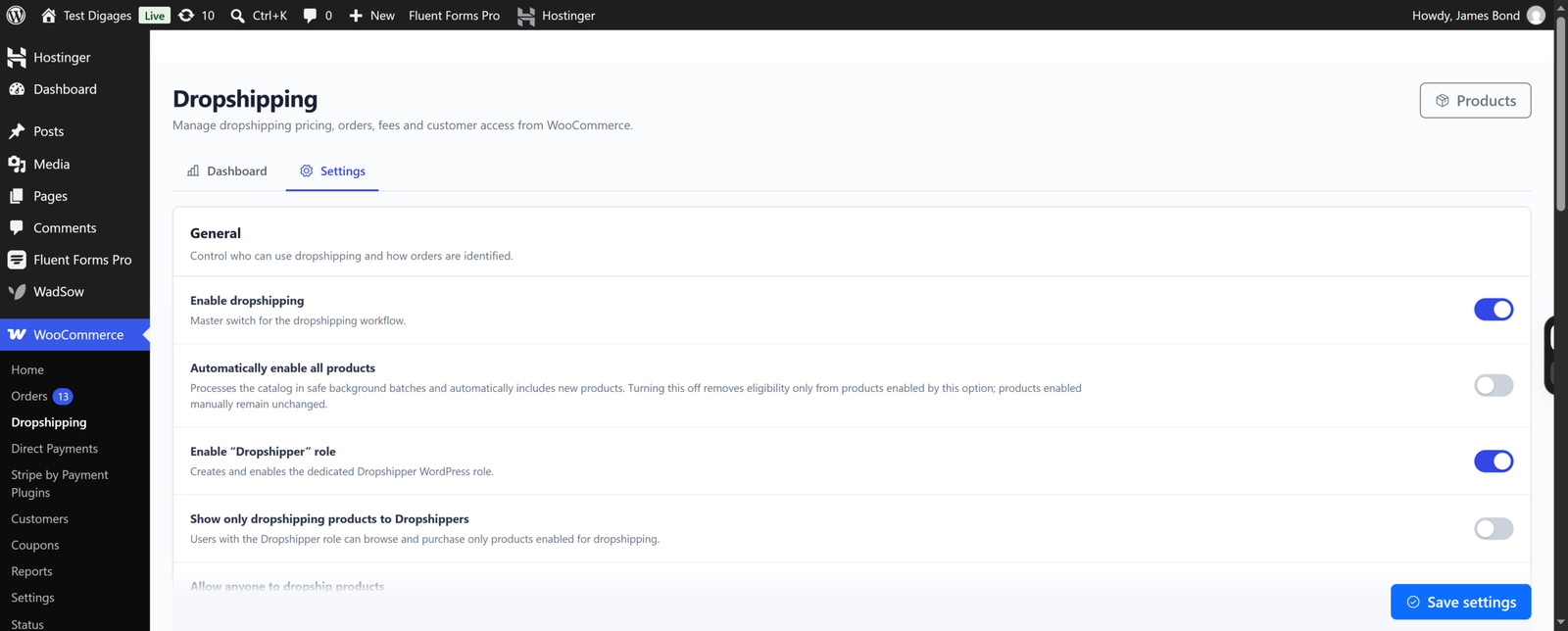
Go to WooCommerce > Dropshipping > Settings > General and:
- Toggle “Enable dropshipping” on. This is the master switch that turns your store into a dropshipping-ready store.
- Toggle “Enable “Dropshipper” role” on to create the Dropshipper user role.
- Click Save settings.
Step 2: Decide Who Can Access Dropshipping
By default, only customers with the Dropshipper role can see and use dropshipping prices. If you’d rather let any customer, including guests, access dropshipping pricing on eligible products, turn on Allow anyone to dropship products in the same General tab.
If you want the dropshipping checkbox to be pre-selected automatically for dropshippers at checkout, also turn on Default Dropshipper orders to dropshipping.

Step 3: Automatically Enable All Products for Dropshipping
Instead of enabling dropshipping on each product one by one, you can turn it on for your entire catalog at once:
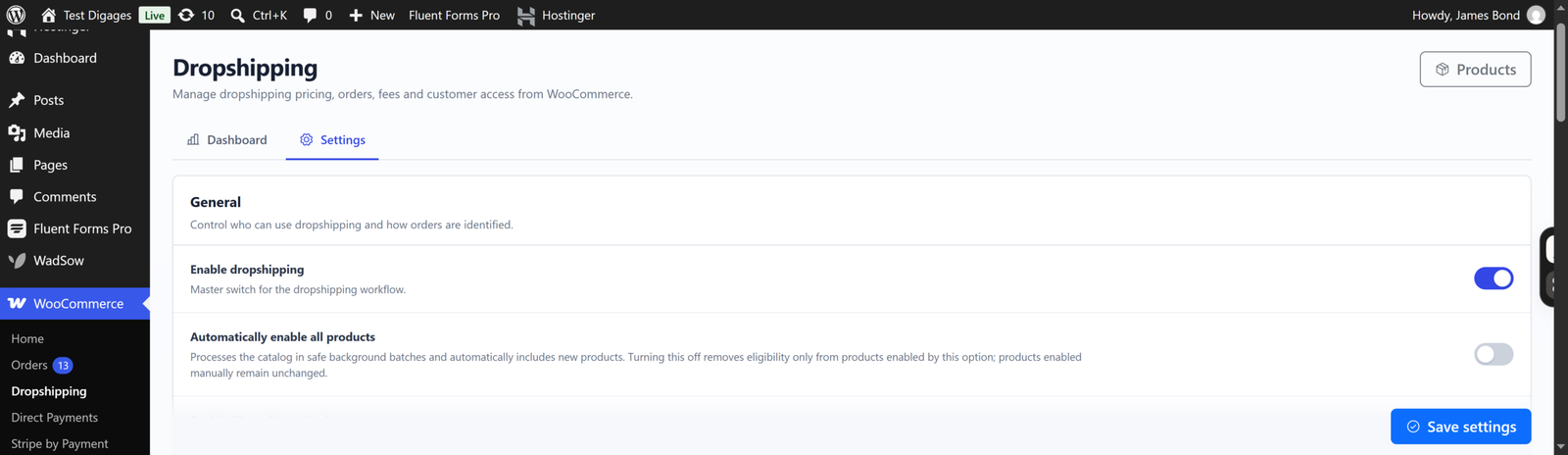
- Go to WooCommerce > Dropshipping > Settings > General.
- Turn on Automatically enable all products.
- Click Save settings.
This makes every product in your store eligible for dropshipping. You’ll still need to set a dropshipping price on each product for the discount to apply.
Step 4: Set Up Checkout and Fees
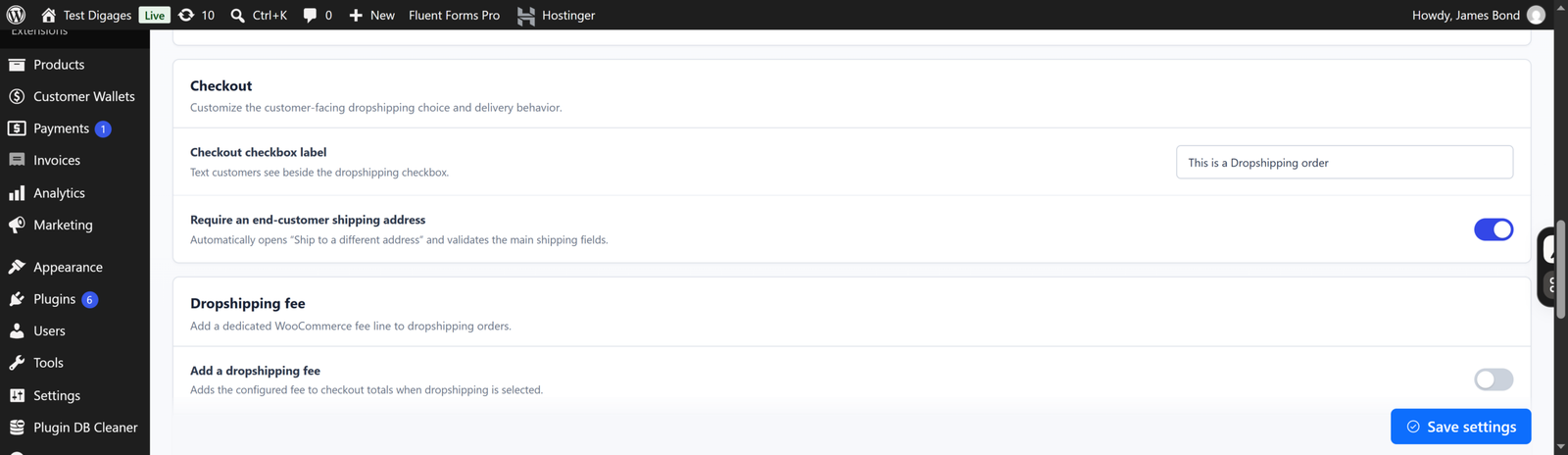
Go to the Checkout tab to customize the checkout checkbox label and decide whether a separate shipping address is required for end customers. If you want to charge an extra fee on dropshipping orders, turn this on in the Dropshipping fee tab and choose a fixed amount or percentage.
Step 5: Register Your Dropshippers
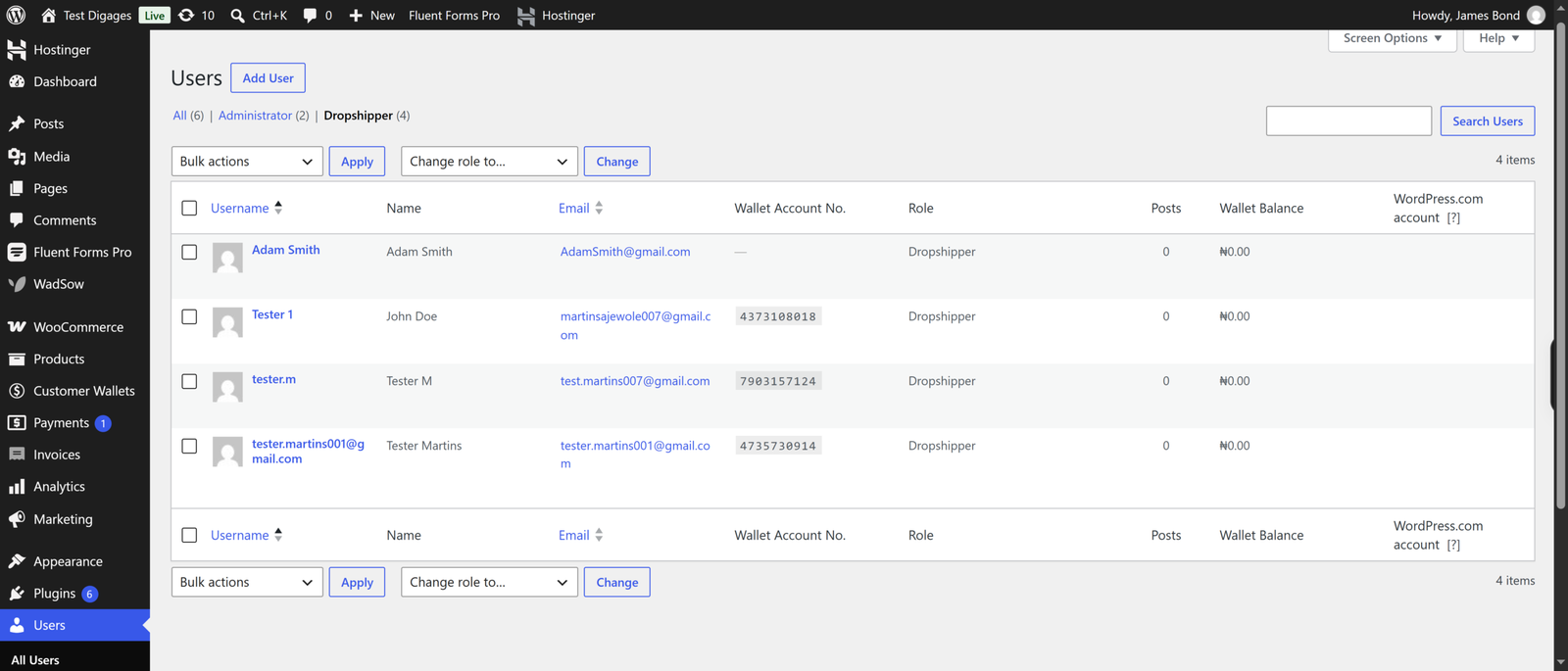
Go to Users > All Users in your WordPress admin and set the Role to Dropshipper for each customer who should get dropshipping pricing.
Step 6: Test Your Store
Log in as a registered dropshipper and check out a product to confirm that the dropshipping price, checkout option, and any fees all work as expected.
Your WooCommerce store is now set up to run as a dropshipping store, with special pricing reserved for the customers you approve.
Check out Dropshipfy for more info.


