✨ New: Sell Gifts & Personalized WooCommerce Products with Engraver. Learn more


Digages Customer Wallet for WooCommerce includes a built-in points system that lets customers earn points on purchases and redeem them for discounts. This guide covers setting up that loyalty points program.
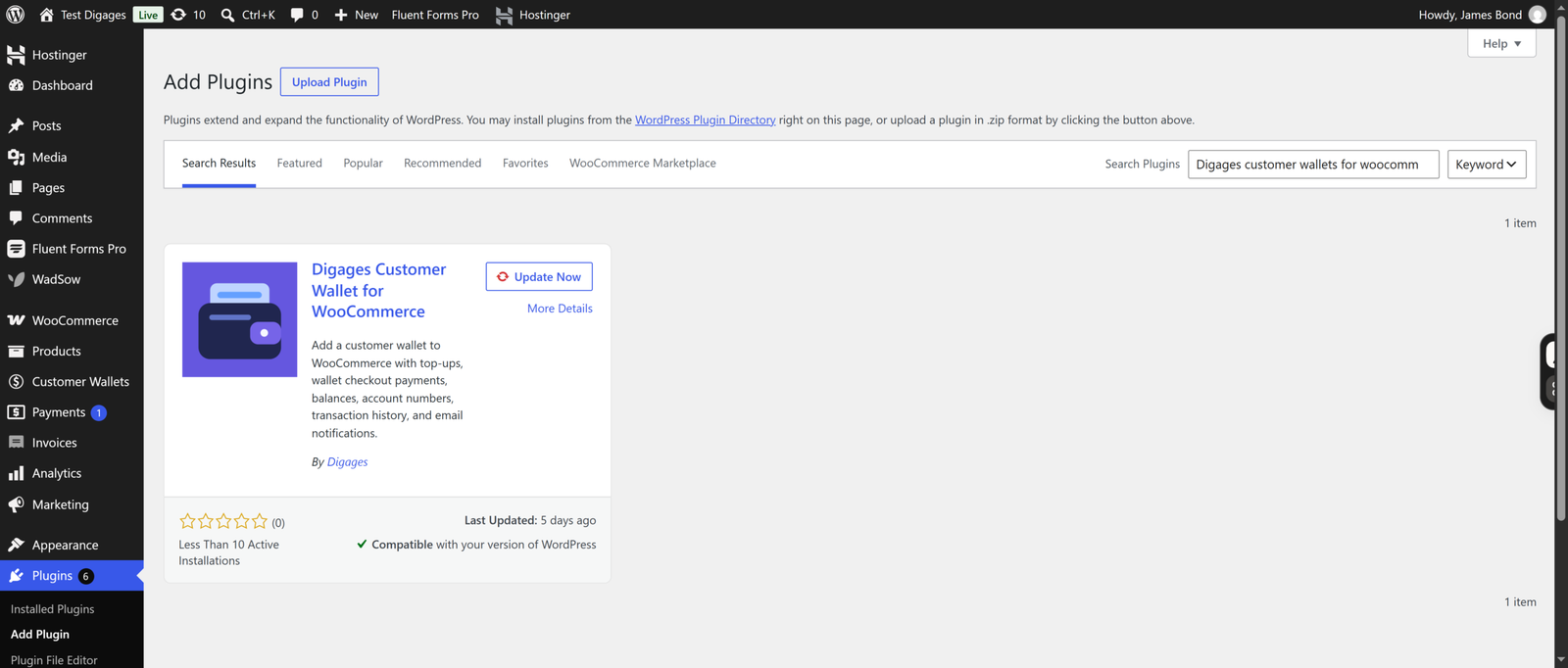
Ensure Customer Wallets for WooCommerce is installed and activated
- Log in to your WordPress Admin Panel.
- Go to Plugins > Add New and search for Digages Customer Wallets for WooCommerce.
- Click Install and then Activate to enable the plugin.
Enable Points & Rewards
Points are disabled by default so upgrading stores aren’t affected until you turn the feature on.
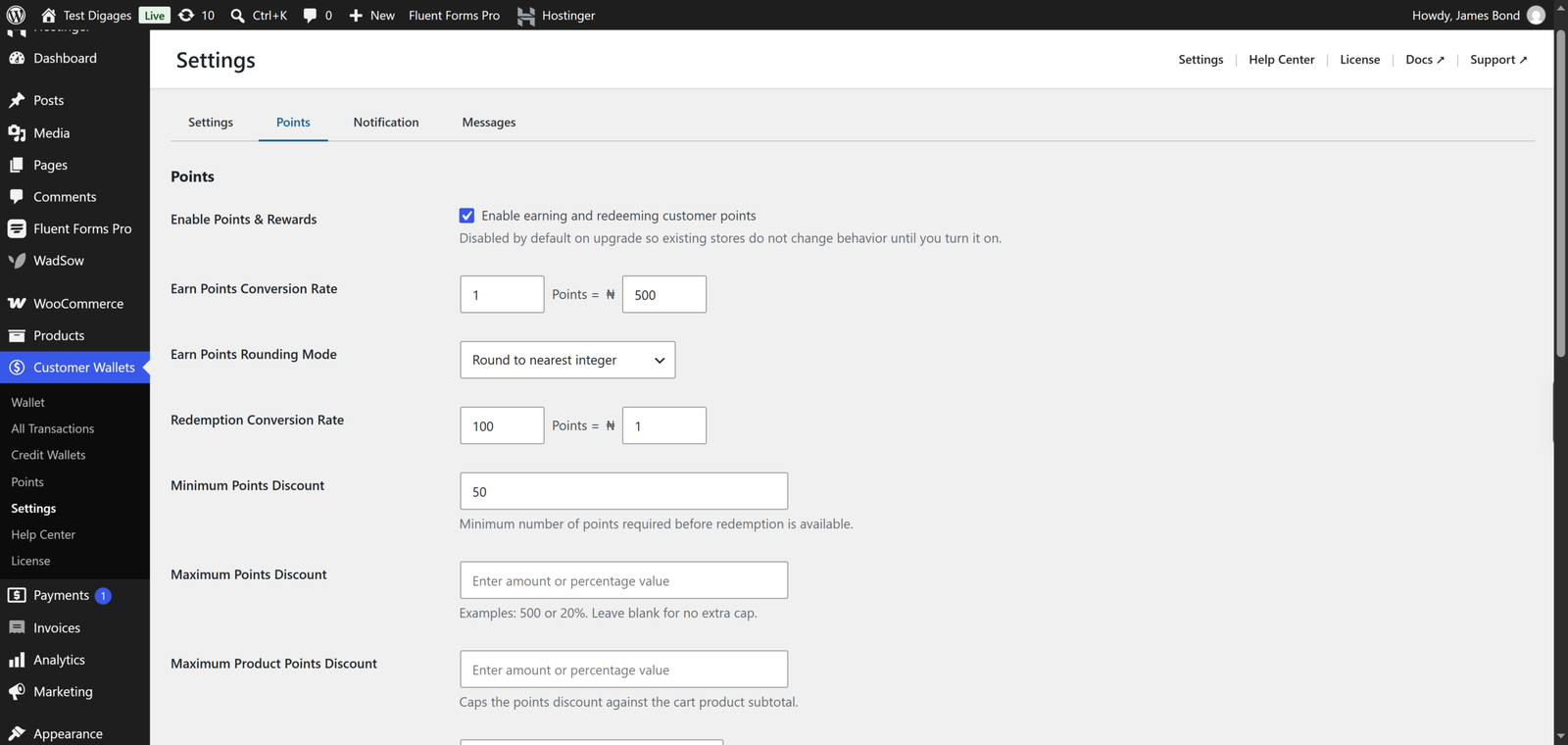
- Go to WooCommerce → Customer Wallets → Settings.
- Open the Points tab.
- Check Enable Points & Rewards (Enable earning and redeeming customer points).
- Click Save Changes.
Set How Points Are Earned
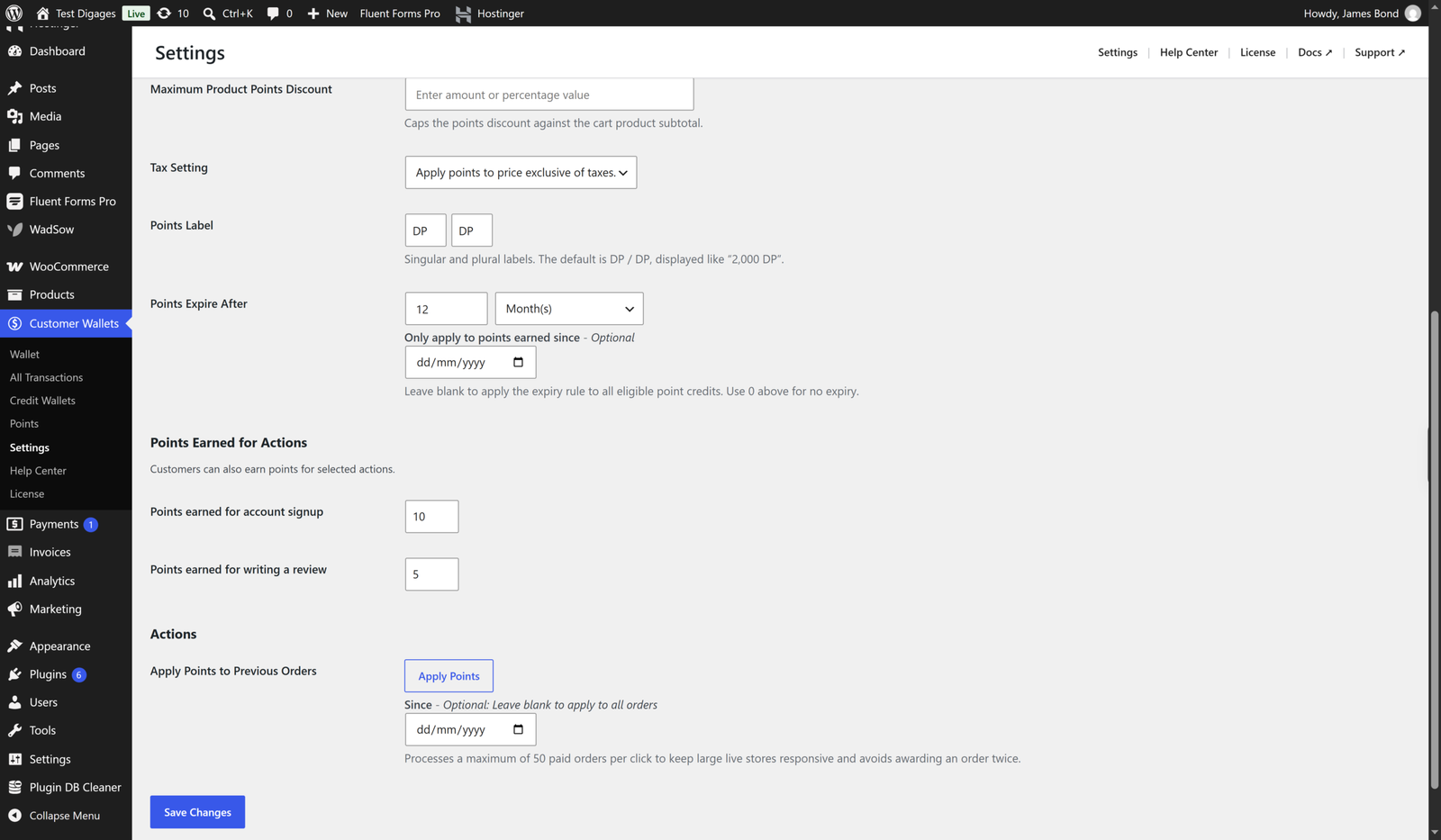
- In Earn Points Conversion Rate, set how many points a customer earns per amount spent in the store. Example: 1 Point = ₦500.
- Choose an Earn Points Rounding Mode, such as Round to nearest integer.
- Under Points Earned for Actions, optionally set Points earned for account signup and Points earned for writing a review.
- Click Save Changes.
Set How Points Are Redeemed
- Set the Redemption Conversion Rate — the exchange rate customers use at checkout. Example: 100 Points = ₦1.
- Set Minimum Points Discount, the minimum number of points required before redemption is available.
- Optionally set Maximum Points Discount and Maximum Product Points Discount to cap how much of an order points can cover.
- Choose a Tax Setting, e.g., apply points to price inclusive of taxes.
- Customize the Points Label (singular/plural). The default is DP / DP, shown as “2,000 DP”.
- Set Points Expire After if you want points to expire — enter a number and choose Month(s), or leave at 0 for no expiry. You can optionally limit this to points earned since a specific date.
- Click Save Changes.
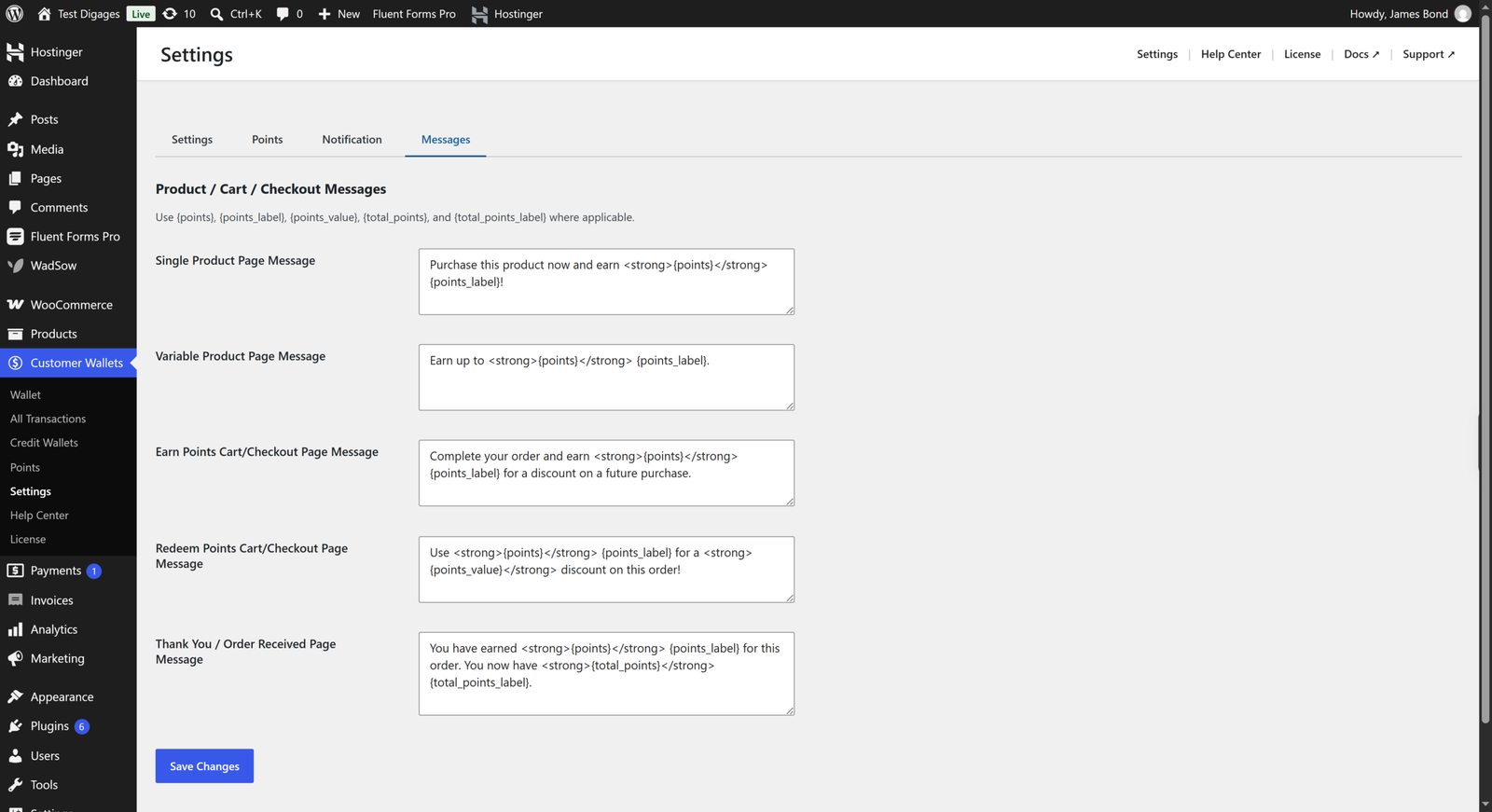
Customize the On-Site Messages
Go to the Messages tab to edit the text shown to customers on product, cart, and checkout pages. Use the placeholders {points}, {points_label}, {points_value}, {total_points}, and {total_points_label} where applicable
Click Save Changes after editing.
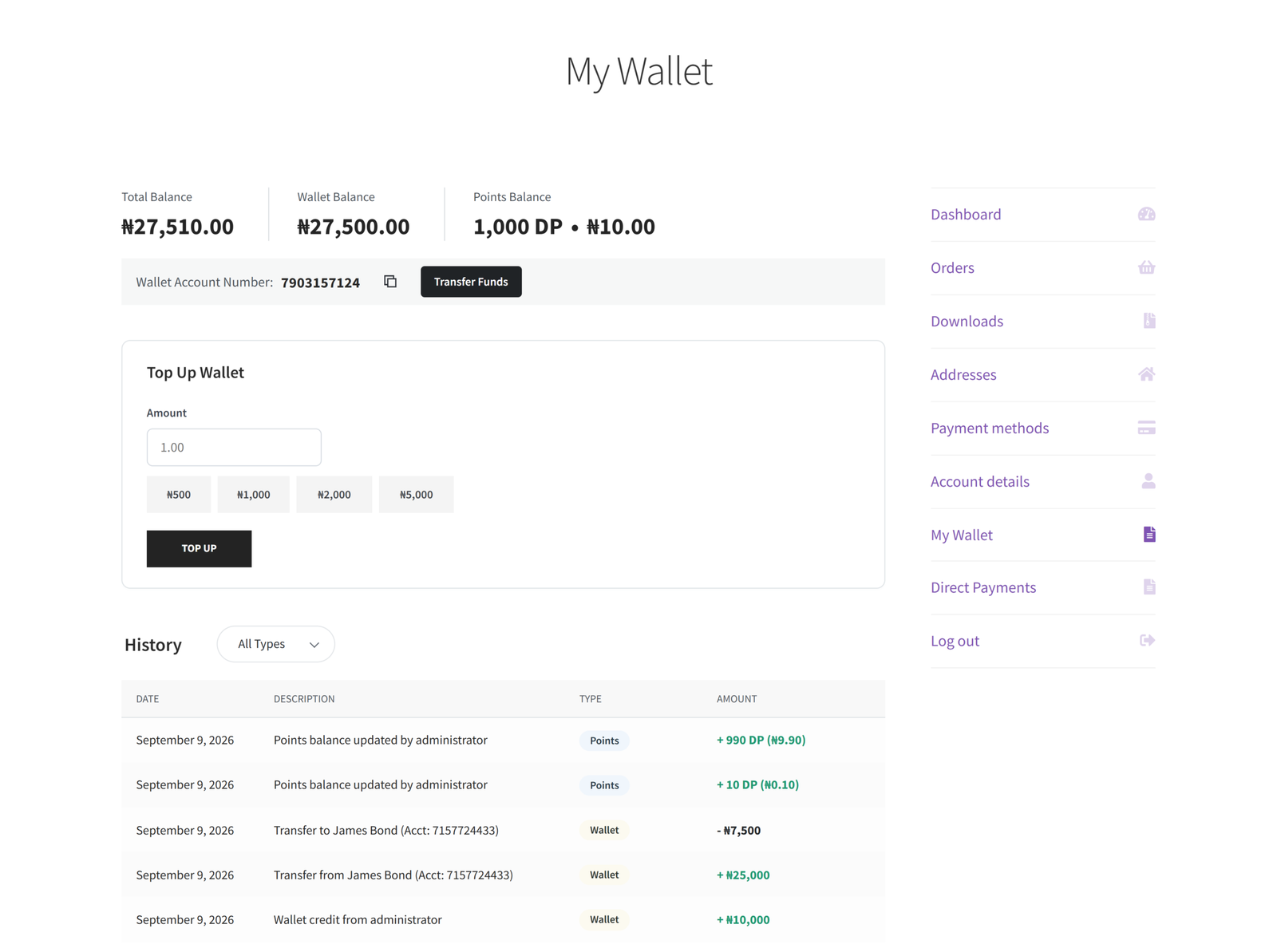
Where Customers See Their Points
Customers can view their points balance under My Account → My Wallet, next to their wallet balance. To manually adjust an individual customer’s points, go to WooCommerce → Customer Wallets → Points, find the customer, enter a value, and click Update.