🎁 New: Build Customer Loyalty & Drive Repeat Purchases with WooCommerce. Learn more


Setting up auto-cancellation for pending payments helps streamline your payment workflow by automatically cancelling unpaid transactions after a defined period. This prevents outdated pending orders from cluttering your records and keeps your payment management clean and accurate.
This guide explains how to configure the Auto-cancel Pending Payments feature in Direct Payments WP.
Quick Pre-Check (Before Setup)
Before enabling auto-cancellation, confirm the following:
-
Direct Payments WP is installed and active.
-
Your payment forms are already receiving submissions.
-
You understand your typical payment completion window (e.g., same-day, 24 hours, 48 hours).
This ensures you choose a cancellation period that matches your business flow.
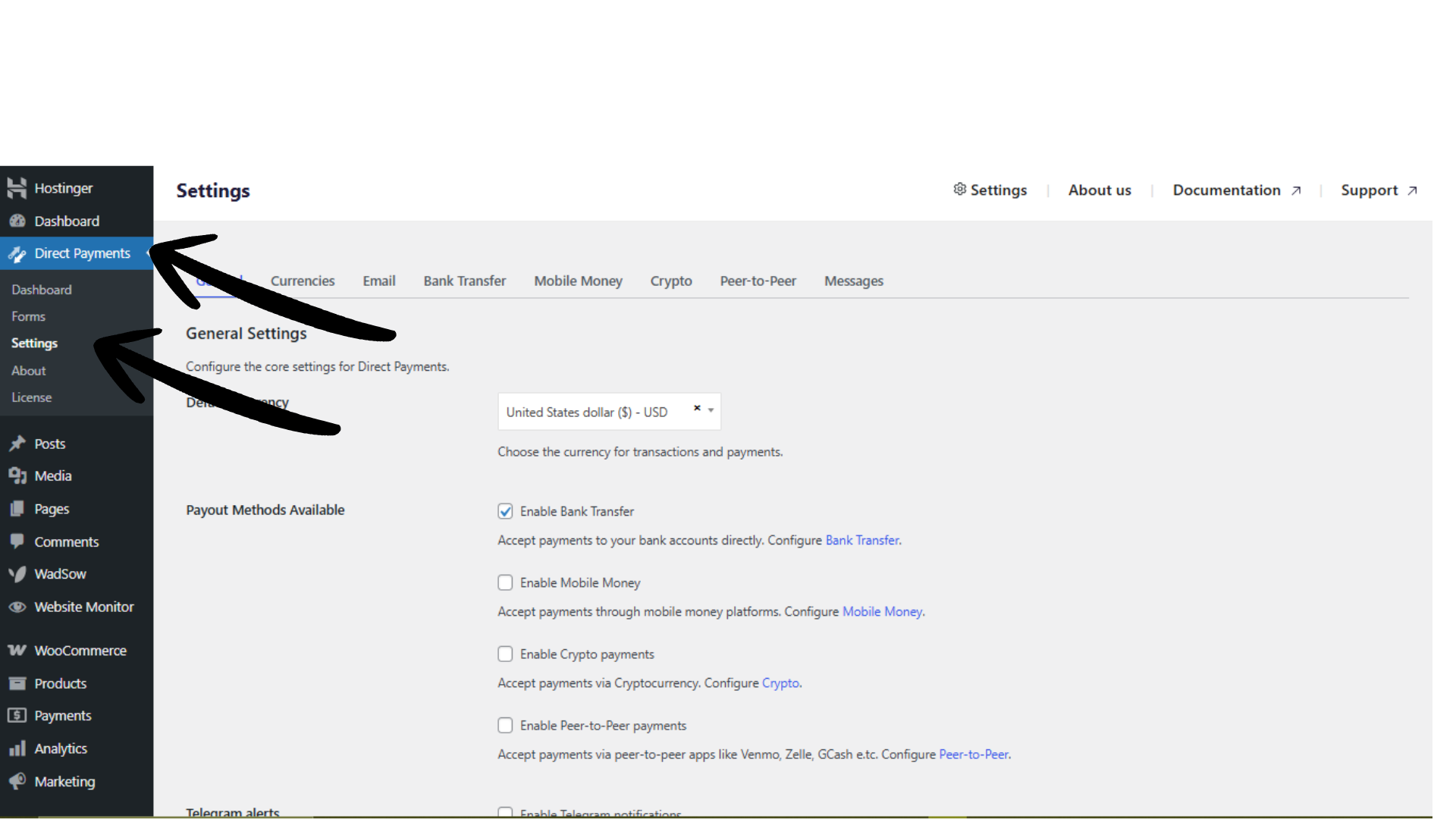
Step 1: Navigate to Plugin Settings
-
Log in to your WordPress admin dashboard.
-
Go to Direct Payments WP → Settings.
This opens the general configuration page where payment behaviour options are managed.
Step 2: Locate the Auto-cancel Pending Payments Option
-
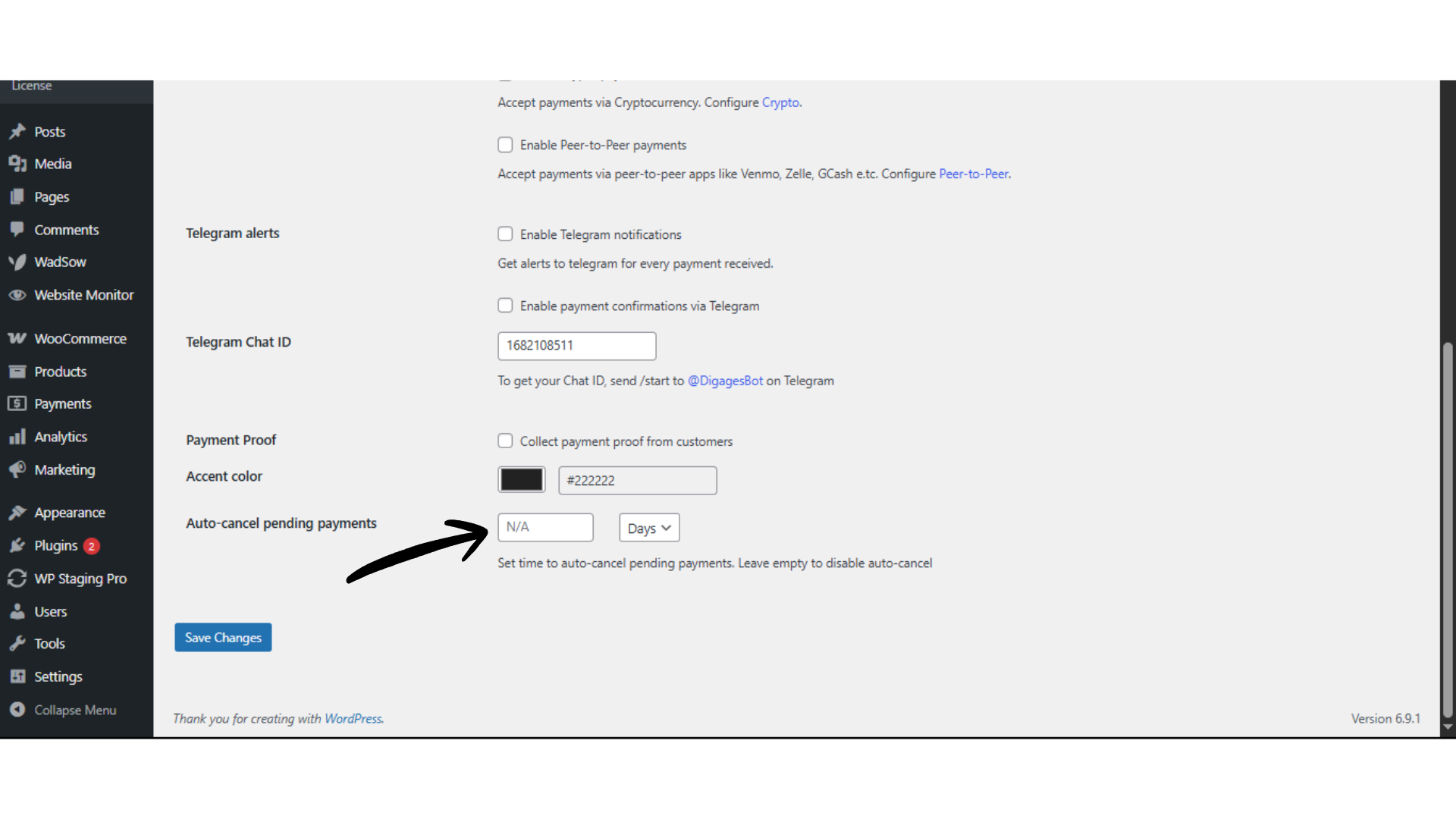
Scroll down to the Auto-cancel Pending Payments section.
-
You will see a field that allows you to define the number of days before pending payments are automatically cancelled.
This setting controls how long unpaid payment submissions remain in a pending state.
 Step 3: Set the Auto-Cancel Duration
-
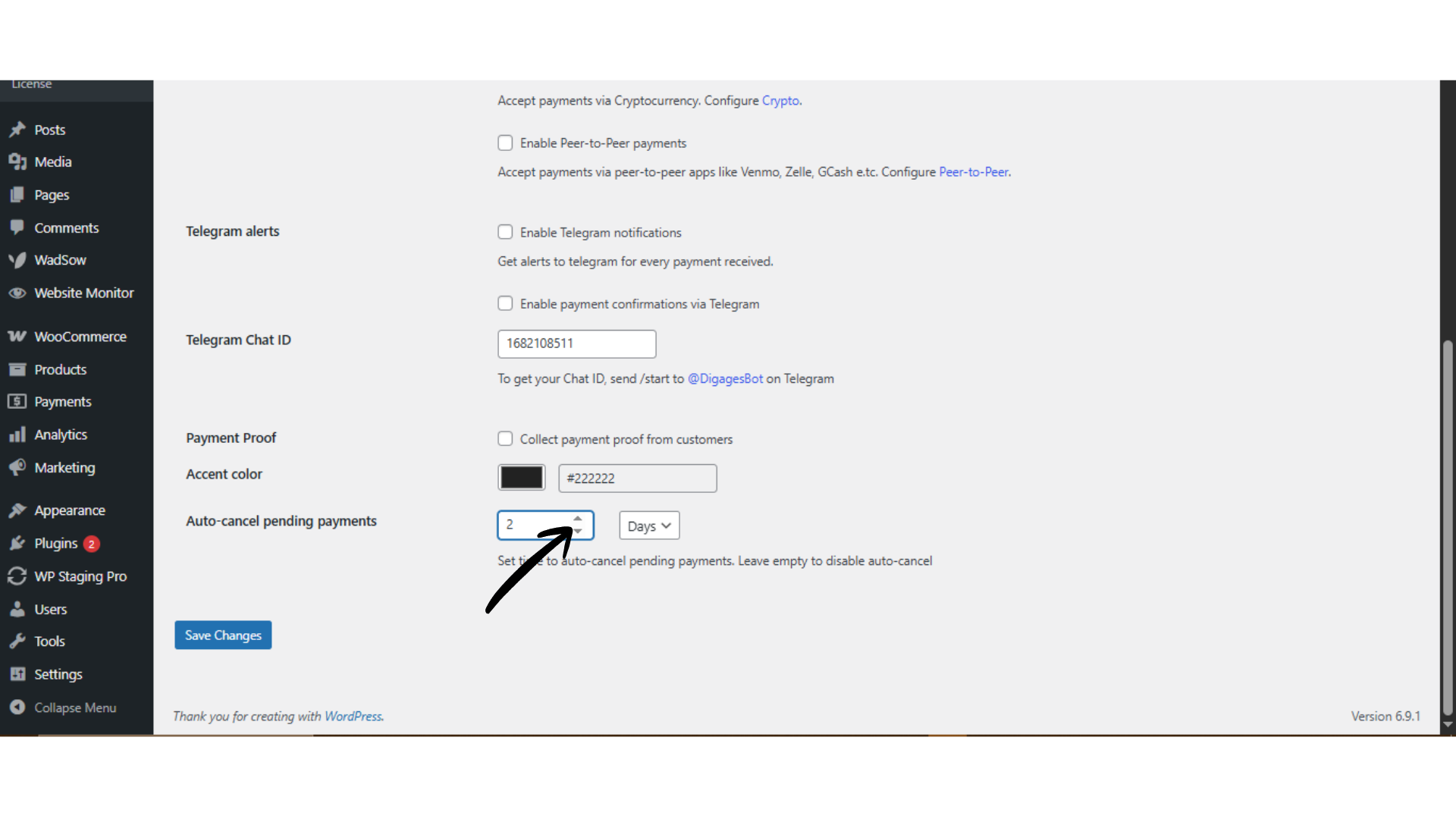
In the Auto-cancel Pending Payments field, enter the number of days after which pending payments should be cancelled.
-
Example: Enter 2 to automatically cancel any unpaid payments after 2 days.
-
-
Click Save Changes.
Once saved, the system will automatically cancel pending payments that exceed the specified timeframe.
 How Auto-Cancel Works
-
If the user does not complete the payment within that period, the payment status will automatically change to Cancelled.
-
This helps maintain accurate payment records and reduces manual cleanup.
Best Practices for Auto-Cancel Settings
-
Use 1 day for time-sensitive payments (e.g., bookings or limited offers).
-
Use 2–3 days for peer-to-peer or manual payment methods that may take longer to confirm.
-
Avoid setting very long durations, as this may leave too many outdated pending payments in your dashboard.
Choose a timeframe that balances flexibility for customers with operational efficiency.
Troubleshooting Quick Tips
If pending payments are not auto-cancelling:
-
Ensure the number of days field is not empty.
-
Confirm changes were saved successfully.
-
Check that the payment status is actually marked as Pending (not completed or cancelled manually).
-
Clear caching if settings appear unchanged.








