Direct Invoices Dashboard

Last modified: April 13, 2026

Introduction

The Direct Invoices dashboard is the central workspace where you manage all invoices created on your WordPress site. It allows you to track invoice status, monitor payments, and perform actions on individual or multiple invoices.

This guide explains:

  • How to access the dashboard
  • What does each control mean
  • How to manage invoices efficiently

Accessing the Dashboard

To open the Direct Invoices dashboard:

  1. Log in to your WordPress admin panel
  2. In the left sidebar, click Invoices

This takes you to the dashboard page where all invoices are listed.

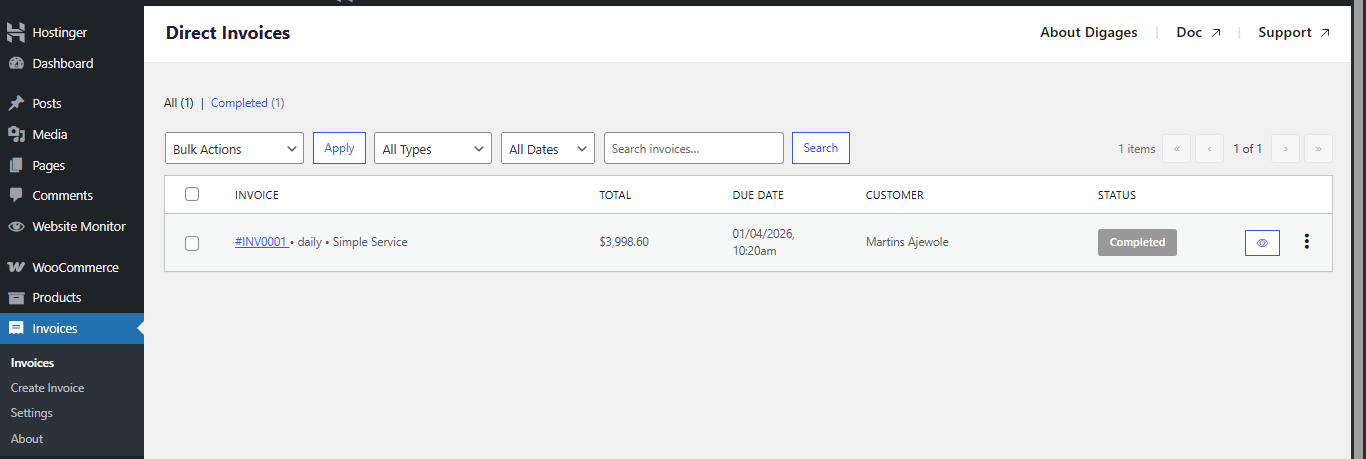
The dashboard displays a table of all invoices. Each row represents a single invoice and provides key details for tracking and management.

Direct Invoices Dashboard

Invoice Information

For each invoice, you will see:

  • Invoice Number (#); A unique identifier prefixed with #, Clickable for quick reference and identification
  • Customer: The recipient of the invoice
  • Total Amount: The amount billed to the customer
  • Due Date: The deadline for payment
  • Status: The current state of the invoice

Bulk Actions

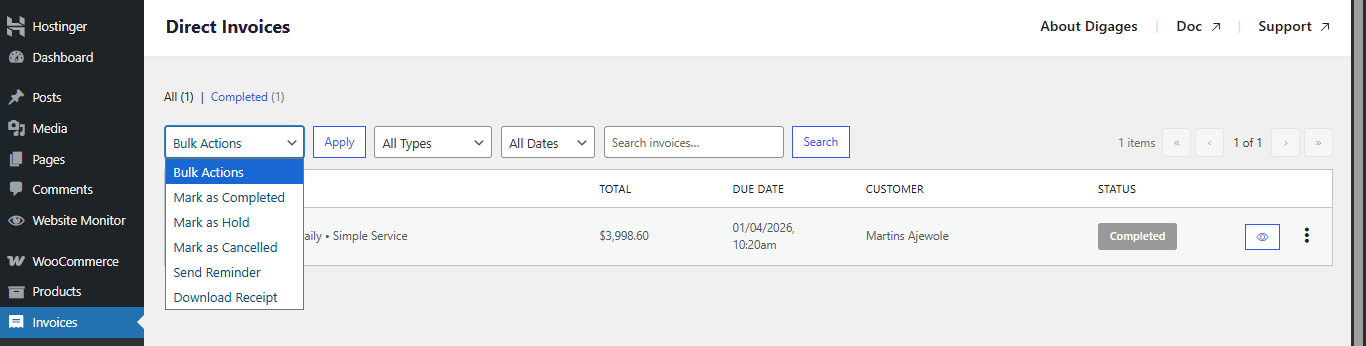
Bulk actions allow you to perform operations on multiple invoices at once.

Available Bulk Actions

  • Mark as Hold
  • Mark as Completed
  • Mark as Cancelled
  • Send Reminder
  • Download Invoice
  • Download Receipt

How to Use Bulk Actions

  1. Select invoices using the checkboxes
  2. Choose an action from the dropdown
  3. Click Apply

Direct Invoices Dashboard Bulk Actions

Individual Invoice Actions

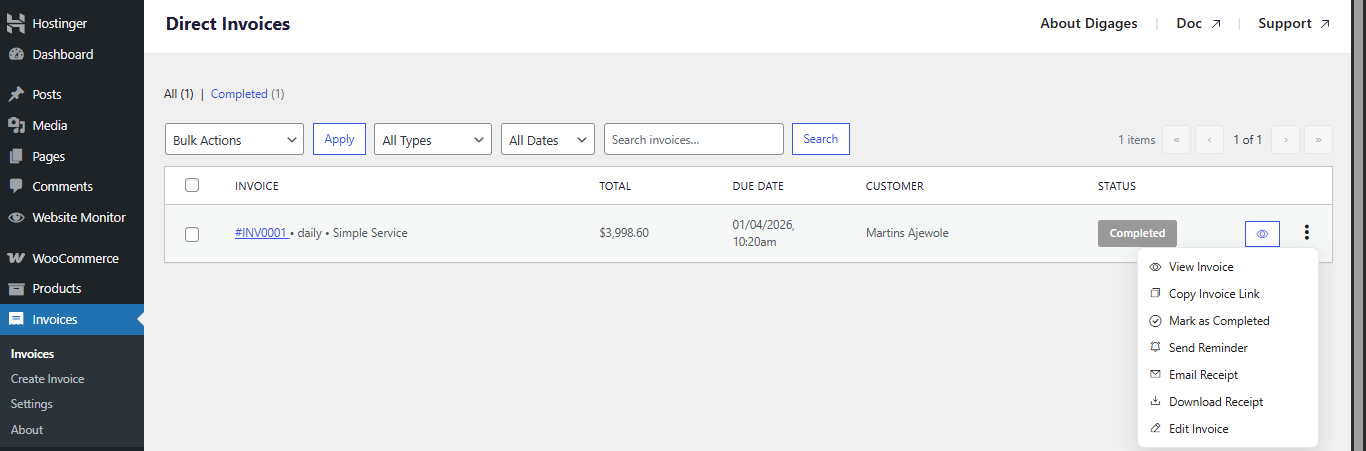
Each invoice includes controls for managing it individually.

Three-Dot Menu (⋮)

This menu provides quick access to actions:

  • View Invoice
  • Copy Invoice Link
  • Mark as Completed
  • Send Reminder
  • Email Receipt
  • Download Receipt
  • Edit Invoice

When to Use These Actions

  • Copy Invoice Link – Share invoice manually
  • Send Reminder – Follow up on unpaid invoices
  • Edit Invoice – Fix errors or update details
  • Email Receipt – Send proof of payment after confirmation

Direct Invoices Dashboard 3 Dot Icon

Eye Icon

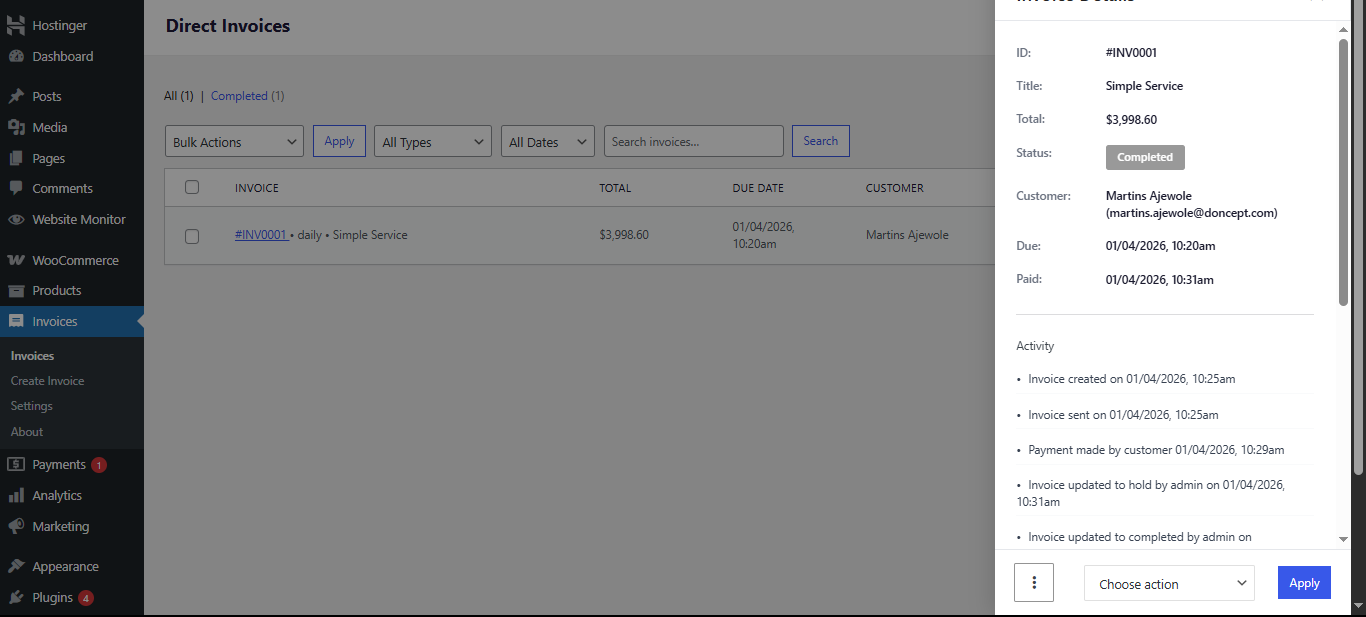
Clicking the eye icon opens a sidebar with full invoice details. On the sidebar, you can;

  • View invoice information
  • View customer details and invoice activity
  • Select and apply actions to that invoice

Direct Invoice Dashboard Eye Icon

Best Practices for Managing Invoices

  • Mark invoices as Completed after verification
  • Use Overdue status to prioritize follow-ups
  • Send reminders in bulk to save time
  • Double-check invoice details before sending

Final Thoughts

The Direct Invoices dashboard gives you full operational control over your invoicing workflow. It combines visibility (statuses), control (actions), and efficiency (bulk operations) in a single interface.

When used correctly, it helps you:

  • Track invoice progress clearly
  • Verify payments before confirmation
  • Reduce manual follow-ups
  • Maintain a structured and professional billing process

Before managing invoices at scale, ensure you understand how statuses and actions interact. This prevents errors and keeps your workflow consistent.

Frequently Asked Questions (FAQs)

Why is an invoice stuck on “Paid”?
  • The customer has marked it as paid
  • You still need to verify and mark it as "Completed."
When should I use “Hold”?
  • Use it while confirming payment after the customer clicks “I have paid.
Why can’t I download a receipt?
  • Receipts are only available for completed invoices
Why is an invoice marked as overdue?
  • The due date has passed without payment
Why are reminders not working?
  • Use Send Reminder manually or via bulk actions
  • Confirm reminder settings are configured (before/after due date)
  • Verify that email or messaging templates are properly set
Can I send invoices via WhatsApp from WordPress?

Yes. Direct Invoices by Digages allows you to send invoices via WhatsApp, email, and Telegram directly from your dashboard. This helps improve response rates compared to email-only delivery.

Plugin:
Was this article helpful?
No