🎁 New: Build Customer Loyalty & Drive Repeat Purchases with WooCommerce. Learn more


Digages Customer Wallet for WooCommerce adds a customer wallet to your store through the WordPress admin, no code required. This guide covers installing the plugin and making the wallet available to customers.
1. Installation & Activation
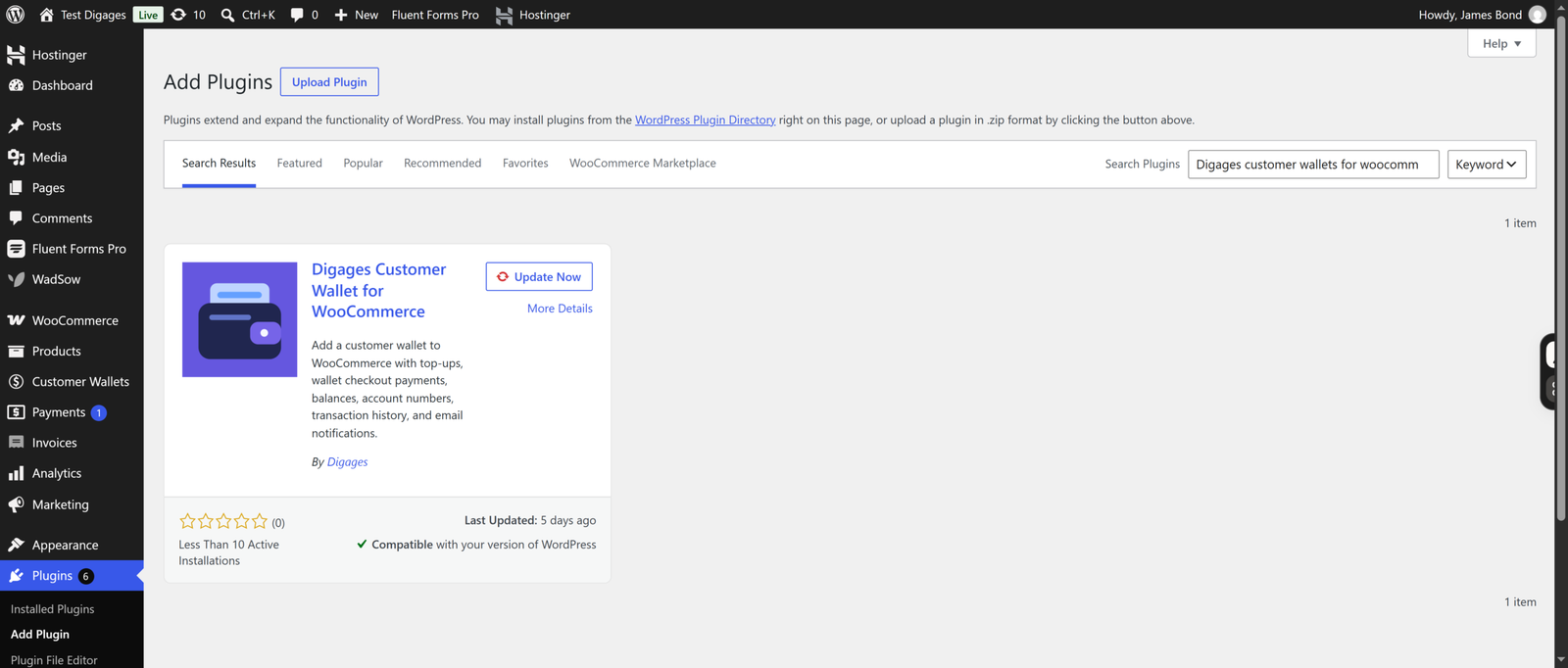
- Go to WordPress Admin → Plugins → Add New.
- Search for Digages Customer Wallet for WooCommerce.
- Click Install Now.
- Click Activate Now.
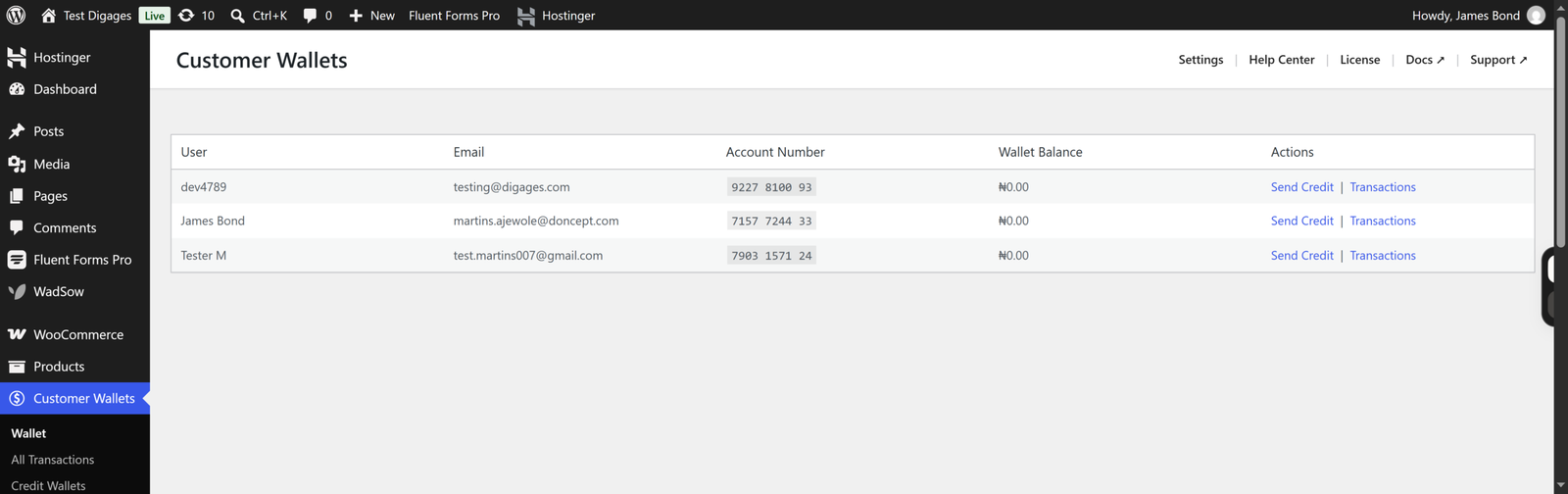
A new Customer Wallets menu appears in the WordPress admin sidebar.
2. Configure the Wallet
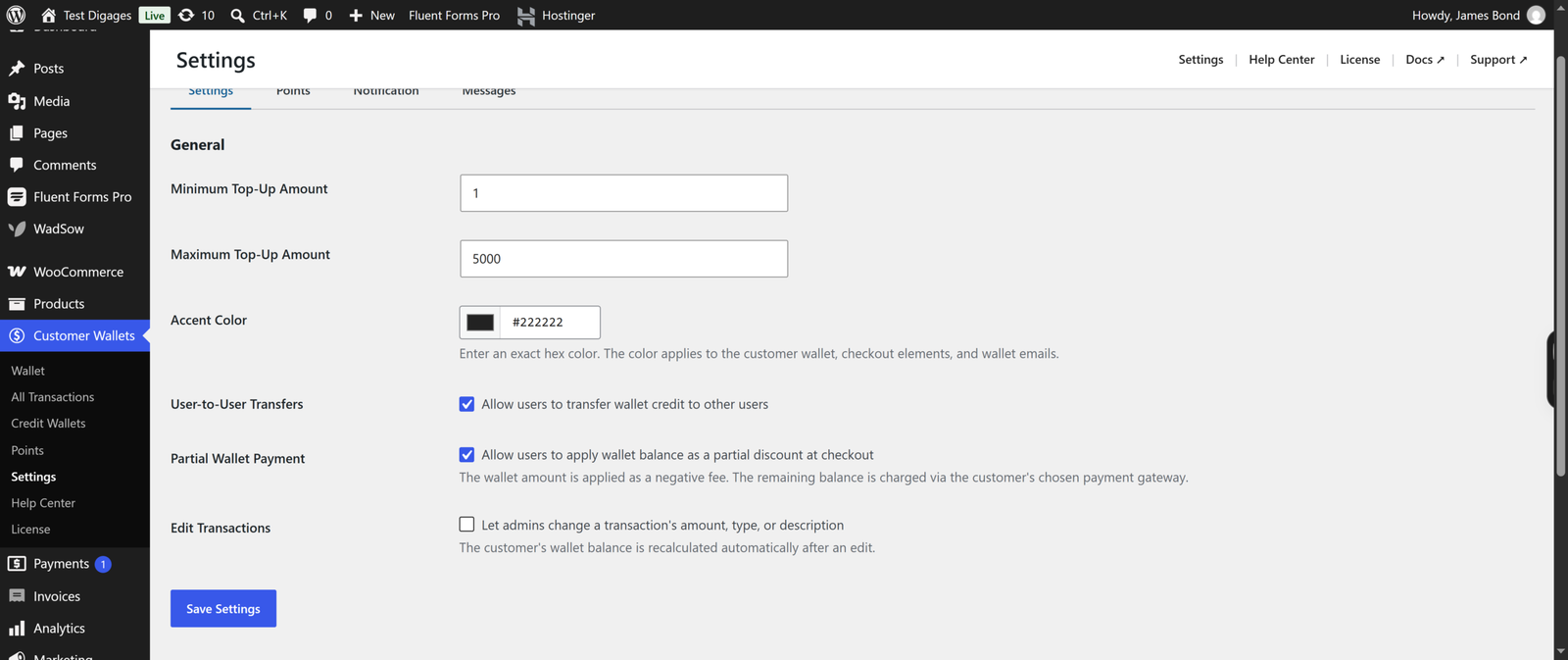
- Go to Customer Wallets → Settings.
- On the Settings tab, set the Minimum Top-Up Amount and Maximum Top-Up Amount customers can add to their wallet.
- Set an Accent Color (hex code). This applies to the customer wallet, checkout elements, and wallet emails.
- Enable User-to-User Transfers if you want customers to send wallet credit to each other.
- Enable Partial Wallet Payment if you want customers to use their wallet balance toward checkout.
- Click Save Settings.
3. How Customers Access Their Wallet
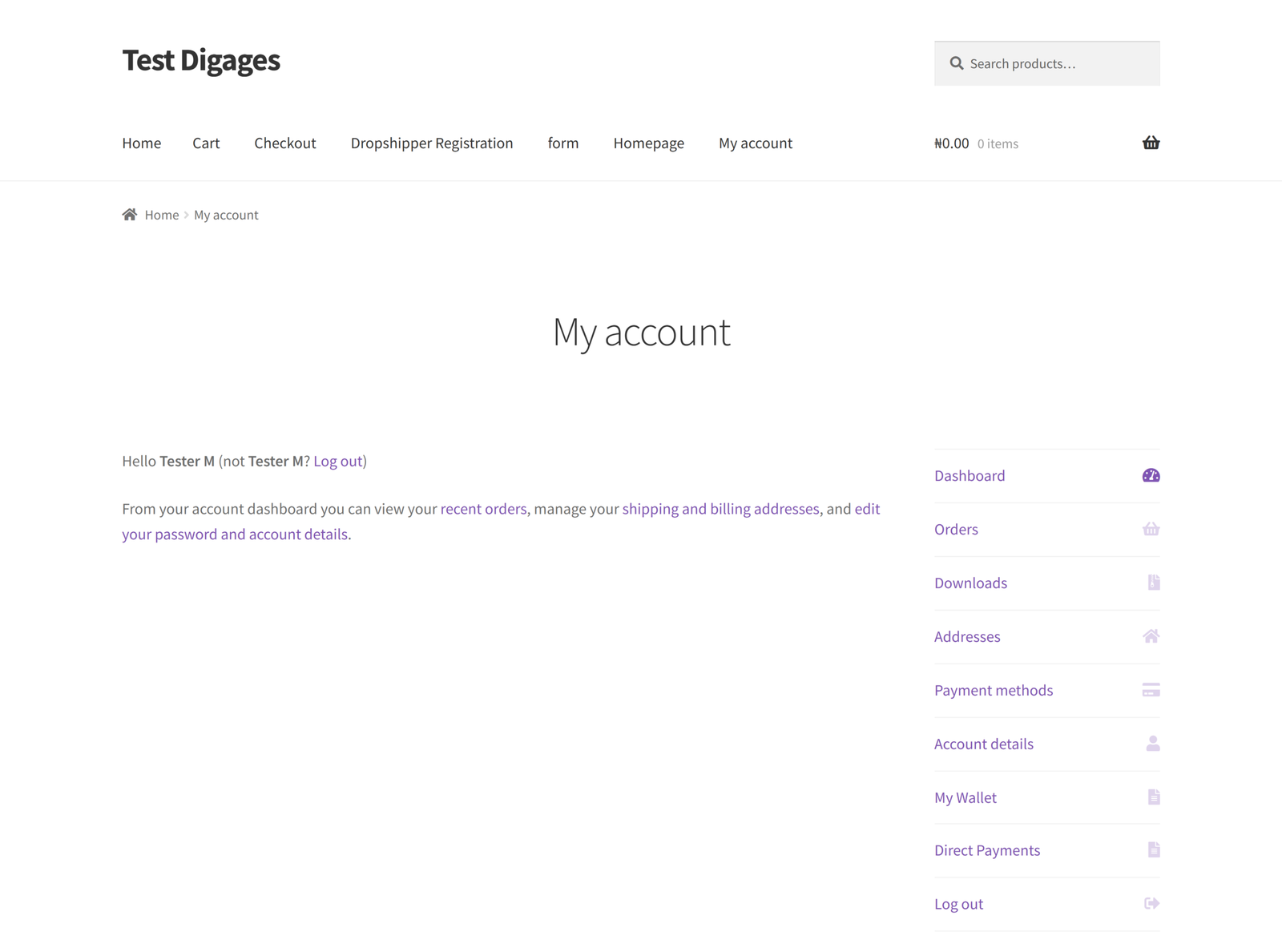
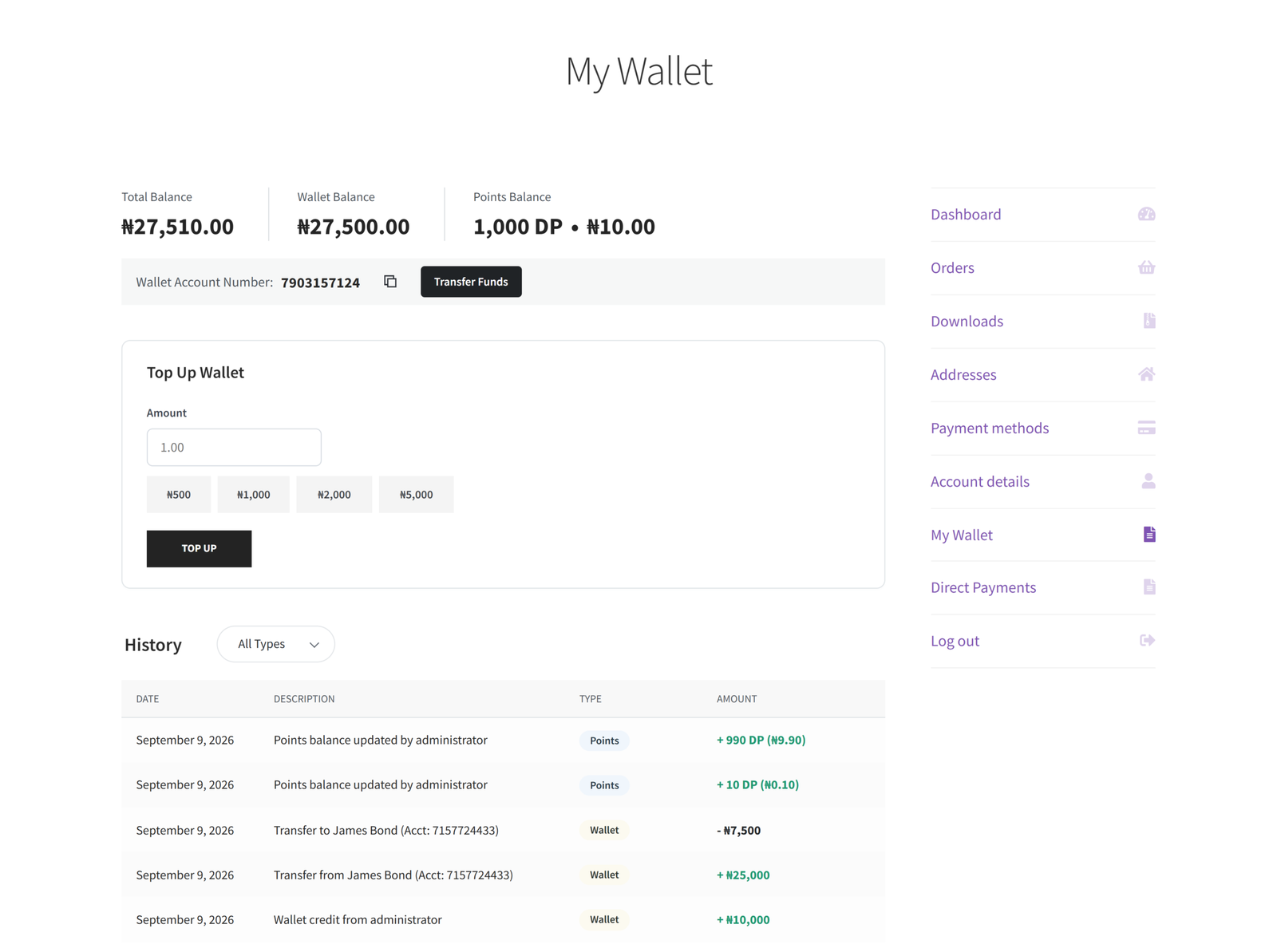
Once the plugin is active, every logged-in customer gets a wallet automatically. They can access it from My Account → My Wallet.
The My Wallet page shows:
- Total Balance, Wallet Balance, and Points Balance
- Their Wallet Account Number (a unique 10-digit number, with a copy button)
- A Transfer Funds button, if User-to-User Transfers is enabled
Under Top Up Wallet on the My Wallet page, customers can:
- Enter an amount or select one of the quick amounts shown (e.g., ₦500, ₦1,000, ₦2,000, ₦5,000).
- Click Top Up.
The top-up is processed through your store’s normal WooCommerce checkout and payment gateways.
Balances and activity are always visible on the My Wallet page:
- Wallet Balance — the customer’s spendable store credit.
- Points Balance — shown as points plus their cash equivalent, if the points program is enabled.
- History — a table of past top-ups, credits, debits, and transfers, filterable by type or points.
4. Managing Wallets as an Admin
From Customer Wallets → Wallet, you can see every customer’s account number and wallet balance, and open Send Credit or Transactions for any user. Use Customer Wallets → All Transactions for a store-wide log of every wallet credit and debit.