🎁 New: Build Customer Loyalty & Drive Repeat Purchases with WooCommerce. Learn more


By default, all your Direct Payments for WooCommerce methods are grouped under a single Direct Payments option at checkout, and customers choose their method in the popup. You can change this so each payment method (for example, Zelle, MTN Mobile Money, or a specific bank account) appears as its own separate option on the checkout page.
💡 Note: This feature requires Direct Payments for WooCommerce v2.6 or later. Update the plugin if you’re on an earlier version.
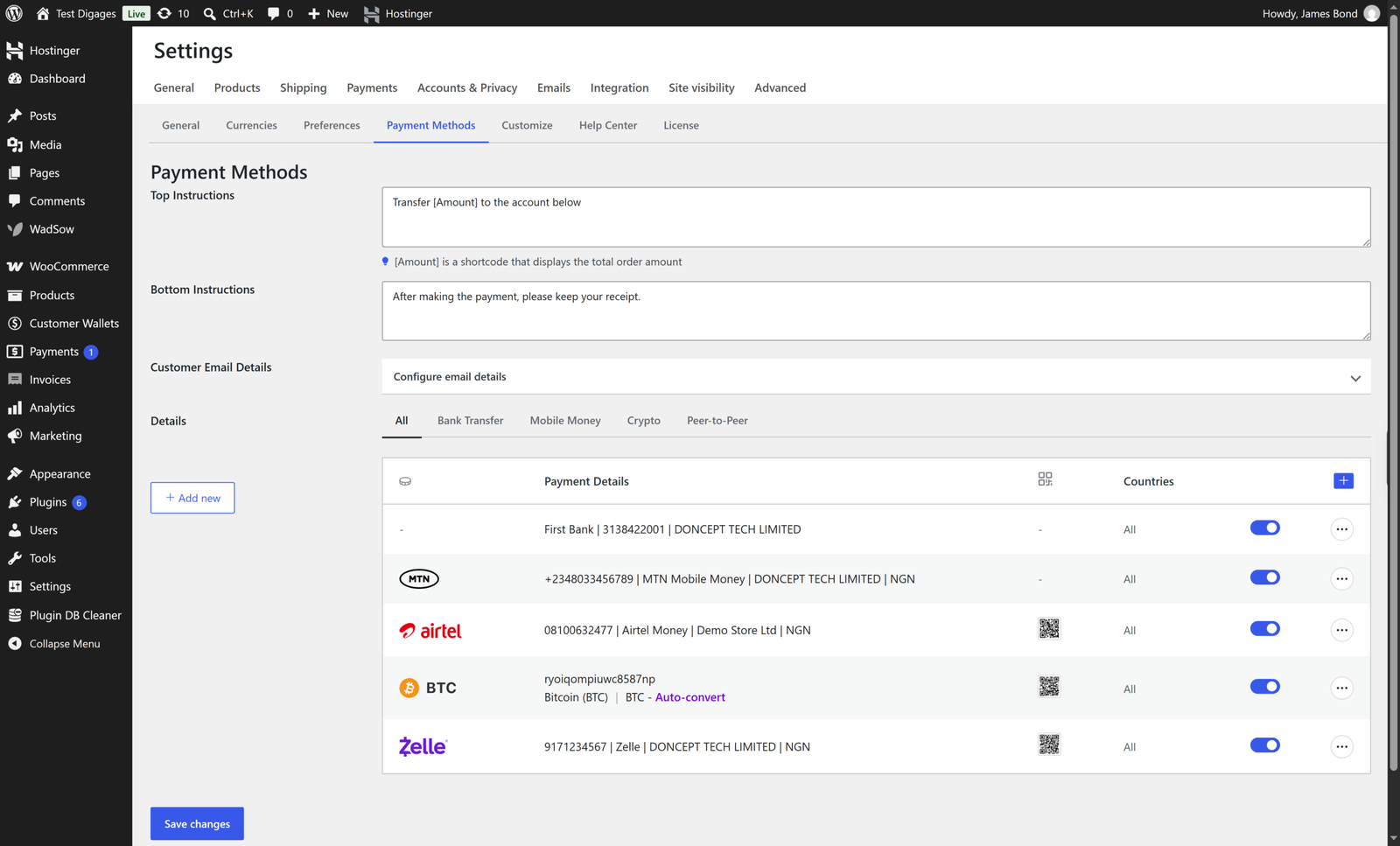
Step 1: Open the Payment Method You Want to Display Separately
- Log in to your WordPress dashboard.
- Go to WooCommerce > Direct Payments > Settings.
- Open the Payment Methods tab.
- Find the payment method you want to display separately at checkout, then click the 3-dot icon next to it to edit it.
Step 2: Enable Separate Payment Method
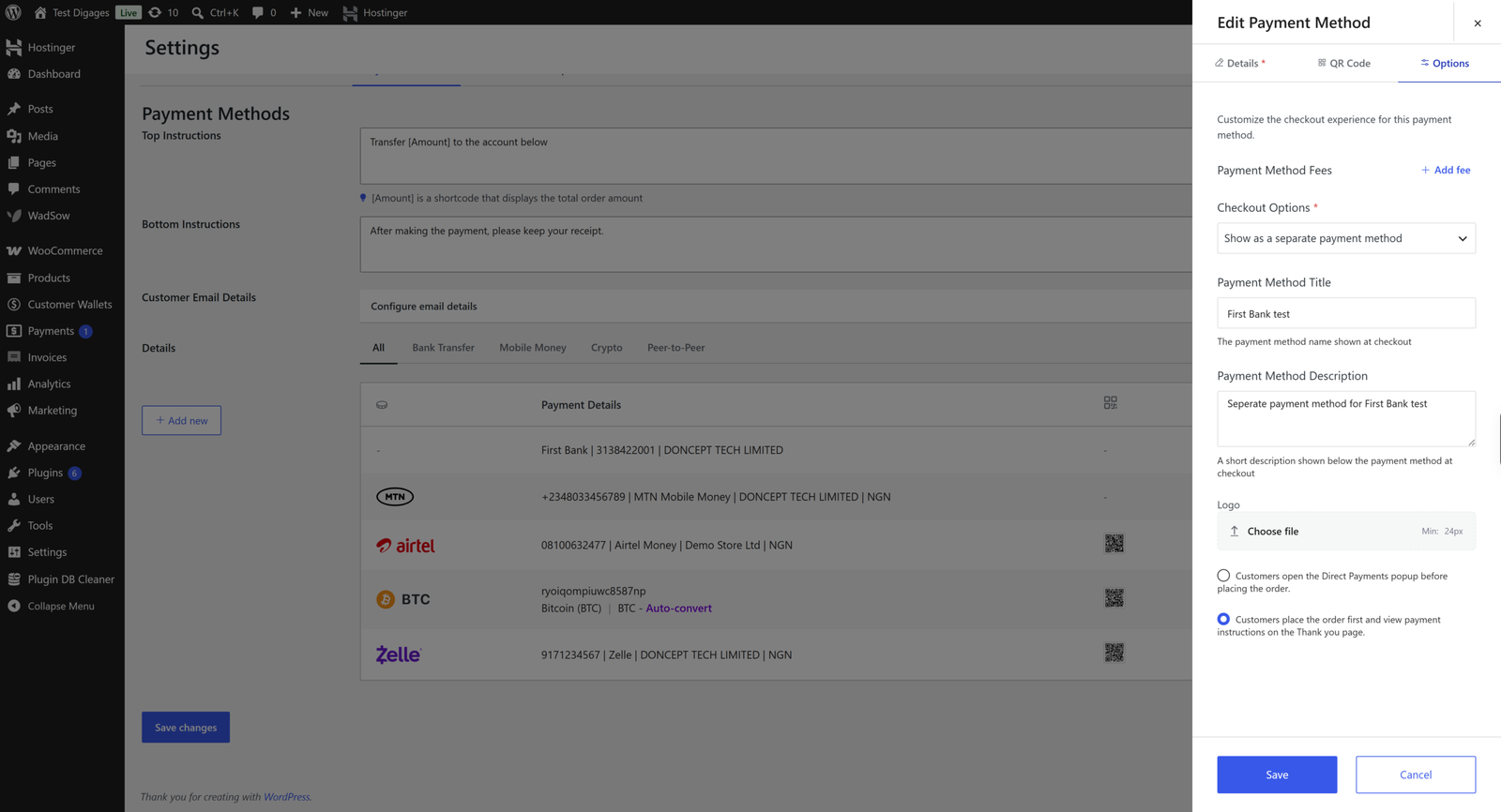
- Click the Options tab.
- Under Checkout options, click “Show as a separate payment method”.
- Enter a Payment Method Title (the title customers will see at checkout, e.g., “Pay with Zelle”).
- Enter a Checkout Description (a short line explaining the option to customers).
- Click Save.
Repeat this step for any other payment method you want listed individually at checkout.
Step 3: Save Your Changes
Clicking Save returns you to the Payment Methods list; then you click Save changes to confirm the update.