🎁 New: Build Customer Loyalty & Drive Repeat Purchases with WooCommerce. Learn more


Dropshipfy lets you set a special dropshipping price on any product, so registered dropshippers pay less than your regular retail price. You can do this one product at a time, or in bulk across many products at once. Here’s how.
Add a Dropshipping Discount to a Single Product
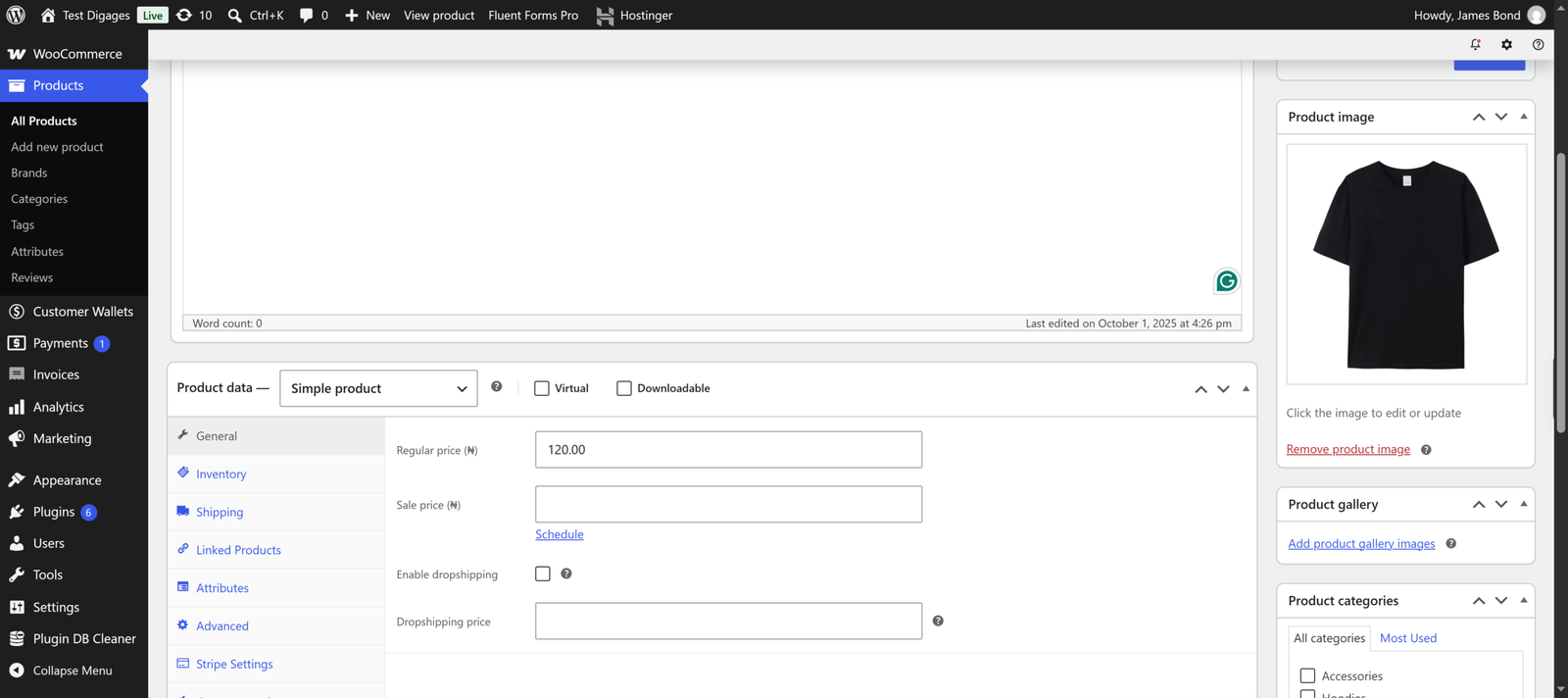
- Go to Dashboard > Products > Add New Product (or edit an existing product).
- Scroll to the Product Data section.
- Enable dropshipping for the product.
- Enter the dropshipping price you want to offer.
- Click Publish or Update to save the product.
This dropshipping price will only apply to dropshipping orders once Enable dropshipping prices is turned on in WooCommerce > Dropshipping > Settings.
Add a Dropshipping Discount to Multiple Products at Once
If you want to discount several products at the same time, use the bulk action instead of editing each product individually:
- Go to Dashboard > Products > All Products.
- Check the box next to each product you want to discount.
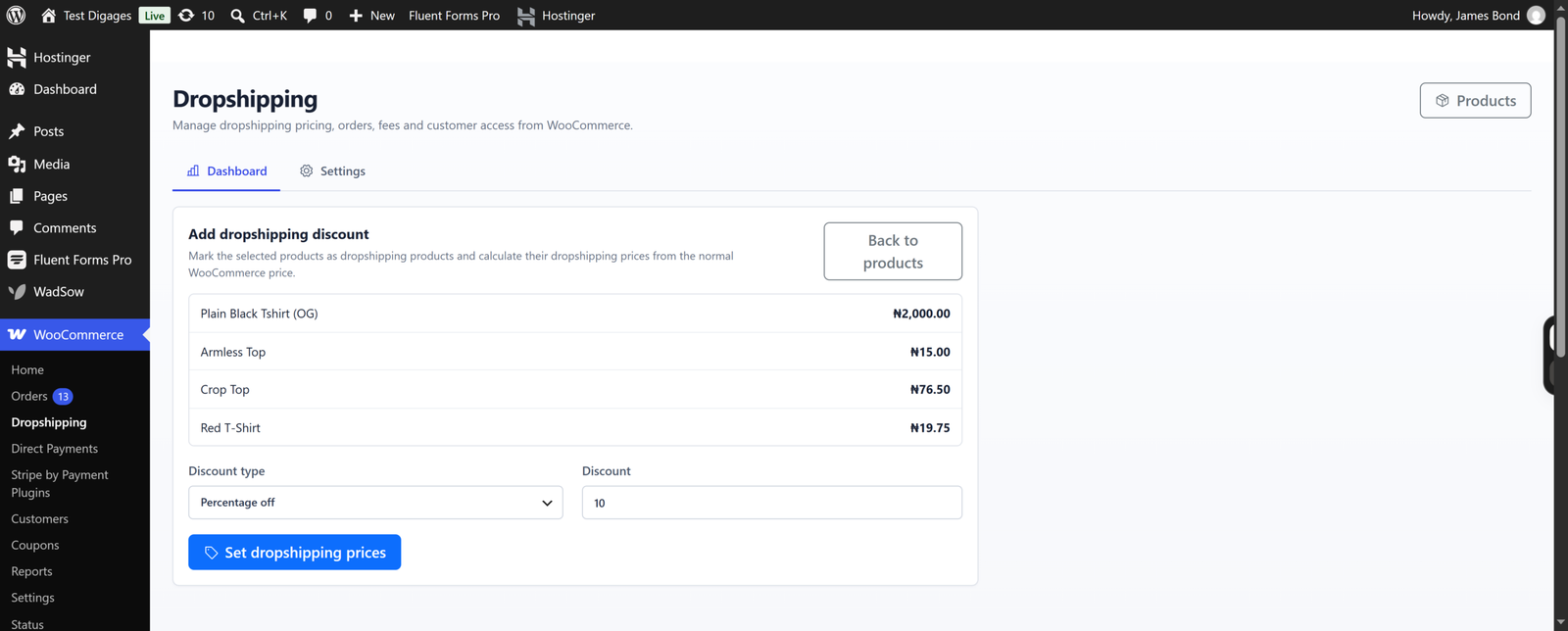
- From the Bulk actions dropdown, select Add dropshipping discount.
- Click Apply.
- Choose whether the discount is a percentage discount or a fixed-amount discount, then enter the value.
- Confirm to apply the discount to all selected products.
This sets a dropshipping price on every selected product in one step, saving you from editing each product one by one.
Conclusion
A product only shows a dropshipping price to dropshippers if dropshipping is enabled on that product. Products without a dropshipping price will show the regular price, even if dropshipping is selected at checkout.
Check out Dropshipfy for more info.


