🎁 New: Build Customer Loyalty & Drive Repeat Purchases with WooCommerce. Learn more


In this article
- 1. Ensure Customer Wallets for WooCommerce is installed and activated
- 2. 1. Credit a Customer's Wallet
- 3. 2. Issuing Refunds as Store Credit
- 4. 3. Giving Customer Bonuses
- 5. 4. Running Promotions Across Multiple or All Customers
- 6. 5. Manual Credit vs. Automatic Points
- 7. 6. Reviewing Credit History
Customer Wallet for WooCommerce lets store admins manually add wallet credit to one customer, several customers, or every customer at once. This guide covers the Credit Wallets workflow and when to use it.
Ensure Customer Wallets for WooCommerce is installed and activated
- Log in to your WordPress Admin Panel.
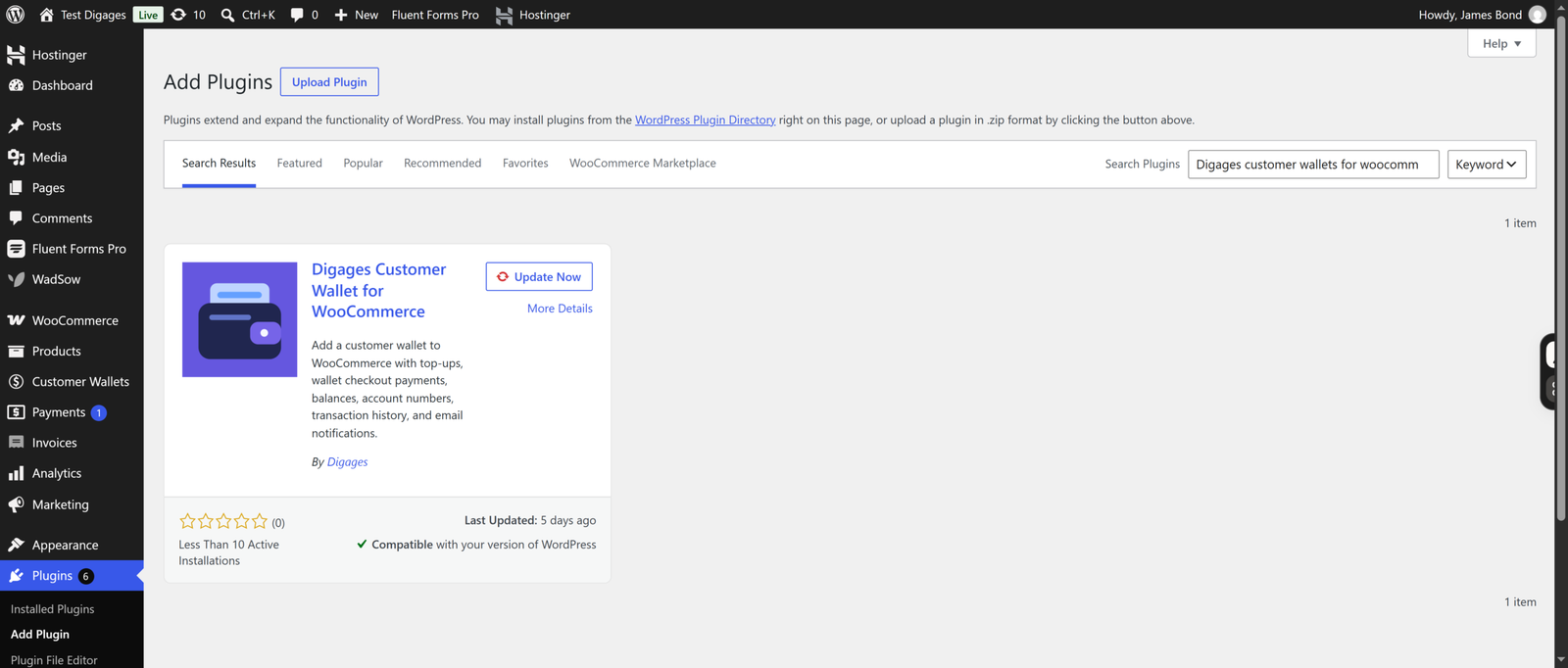
- Go to Plugins > Add New and search for Digages Customer Wallets for WooCommerce.
- Click Install and then Activate to enable the plugin.
1. Credit a Customer’s Wallet
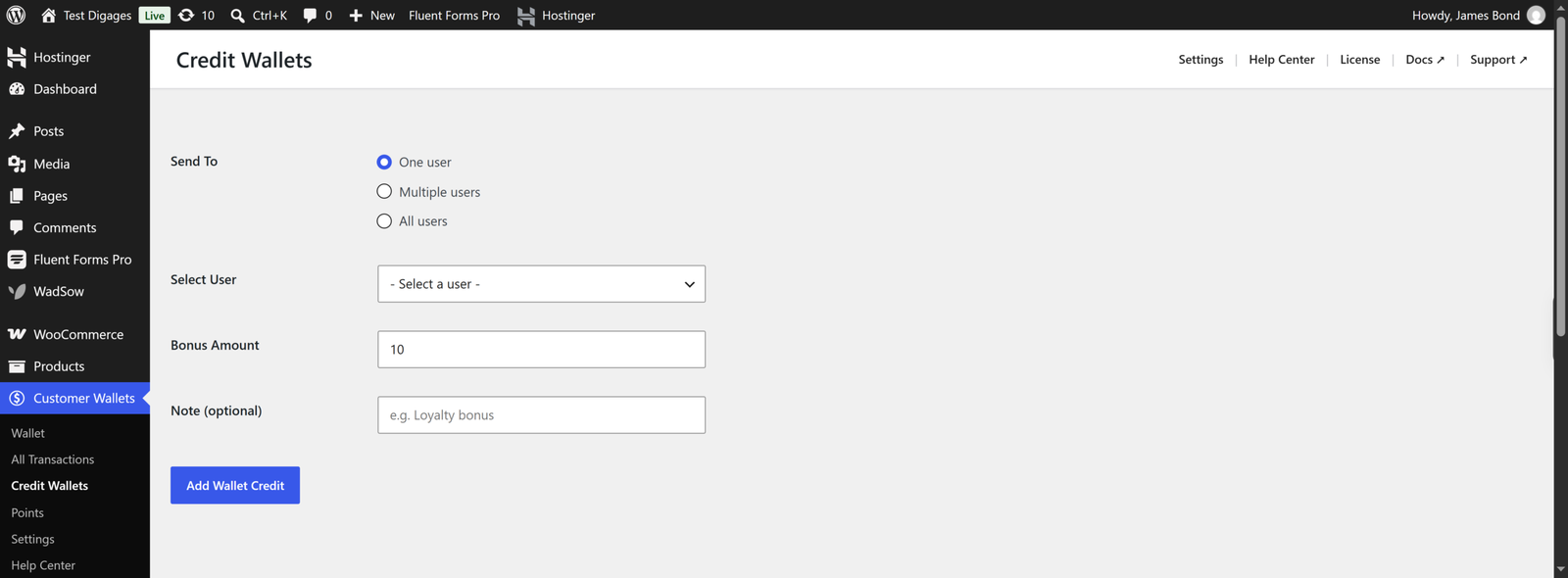
- Go to Customer Wallets → Credit Wallets.
- Under Send To, choose One user, Multiple users, or All users.
- If crediting one or multiple users, use Select User to pick the recipient(s).
Enter the amount in Bonus Amount. - Optionally add a Note (e.g., “Loyalty bonus”) — this is stored with the transaction for your records.
- Click Add Wallet Credit.
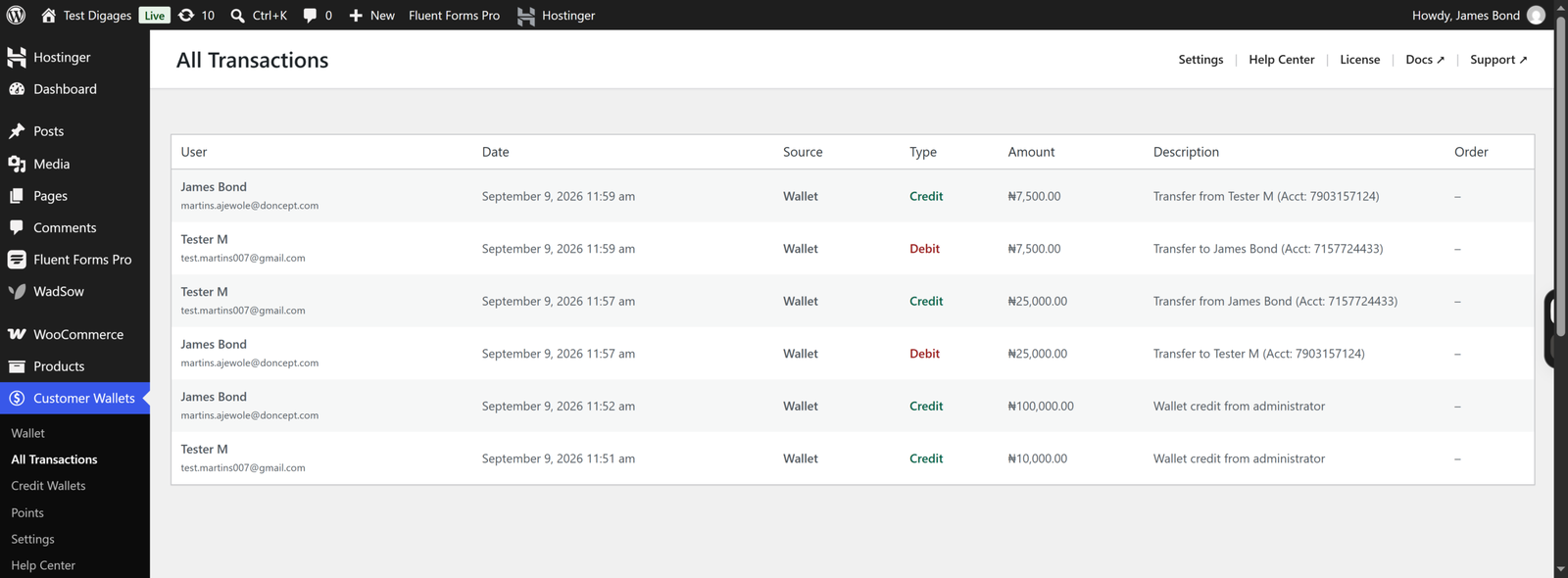
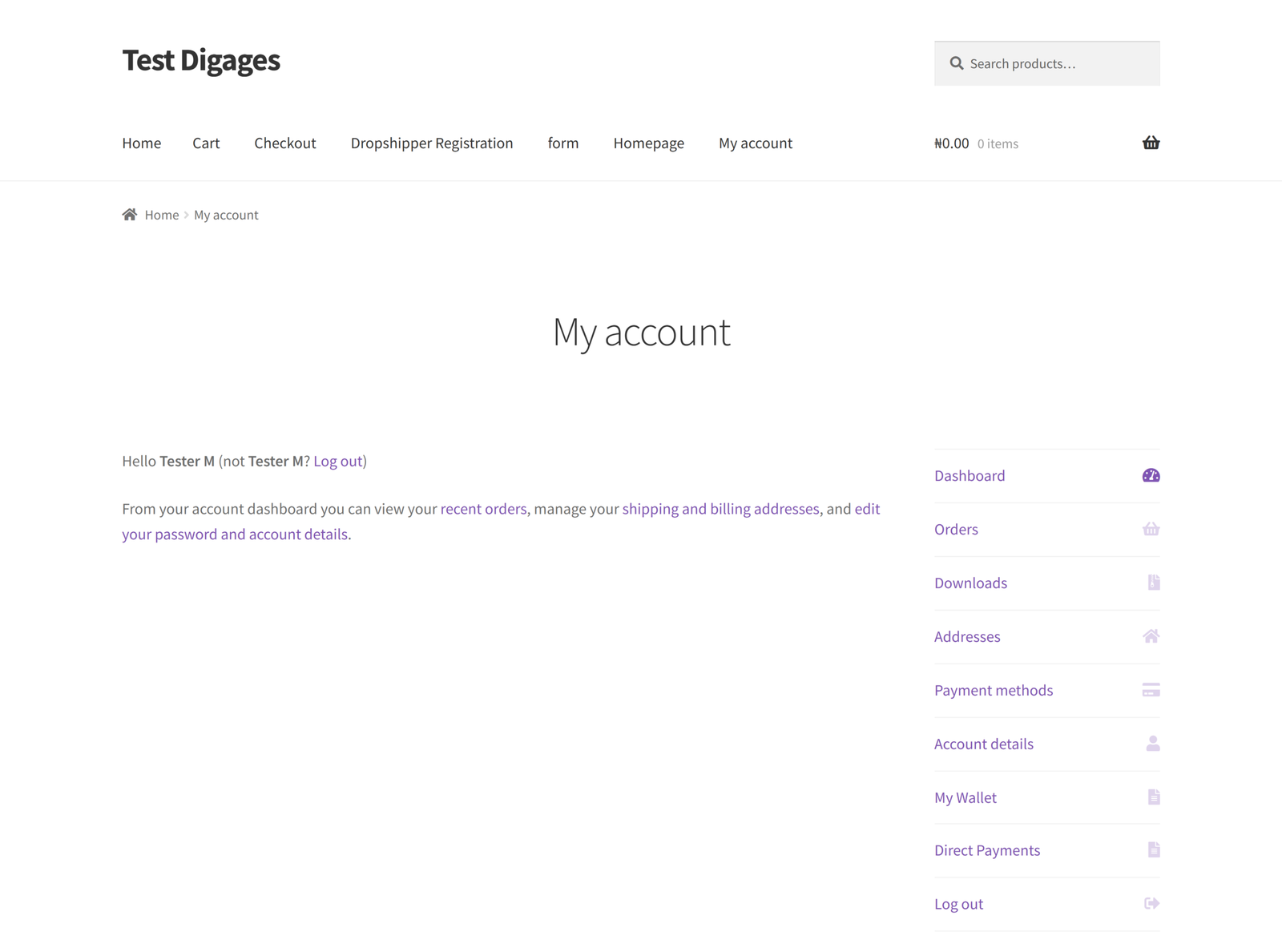
The credit is added instantly and appears in the customer’s My Wallet → History and in Customer Wallets → All Transactions.
2. Issuing Refunds as Store Credit
There is no separate “refund” button inside Customer Wallet — refunds are issued the same way as any other credit:
- Go to Customer Wallets → Credit Wallets.
- Select One user and choose the customer.
- Enter the refund amount in Bonus Amount.
- In Note, reference the order, e.g., “Refund for Order #1042”.
- Click Add Wallet Credit.
The amount is added to the customer’s wallet balance, which they can spend on a future order (if Partial Wallet Payment is enabled) or transfer, if allowed.
3. Giving Customer Bonuses
For an individual bonus — a goodwill credit, a support-issue makeup, or a one-off reward, use the same One user flow above with a descriptive Note.
4. Running Promotions Across Multiple or All Customers
- Go to Customer Wallets → Credit Wallets.
- Under Send To, choose Multiple users to hand-pick a group, or All users to credit your entire customer base.
- Enter the Bonus Amount.
- Add a Note describing the promotion, e.g., “Anniversary sale credit”.
- Click Add Wallet Credit.
5. Manual Credit vs. Automatic Points
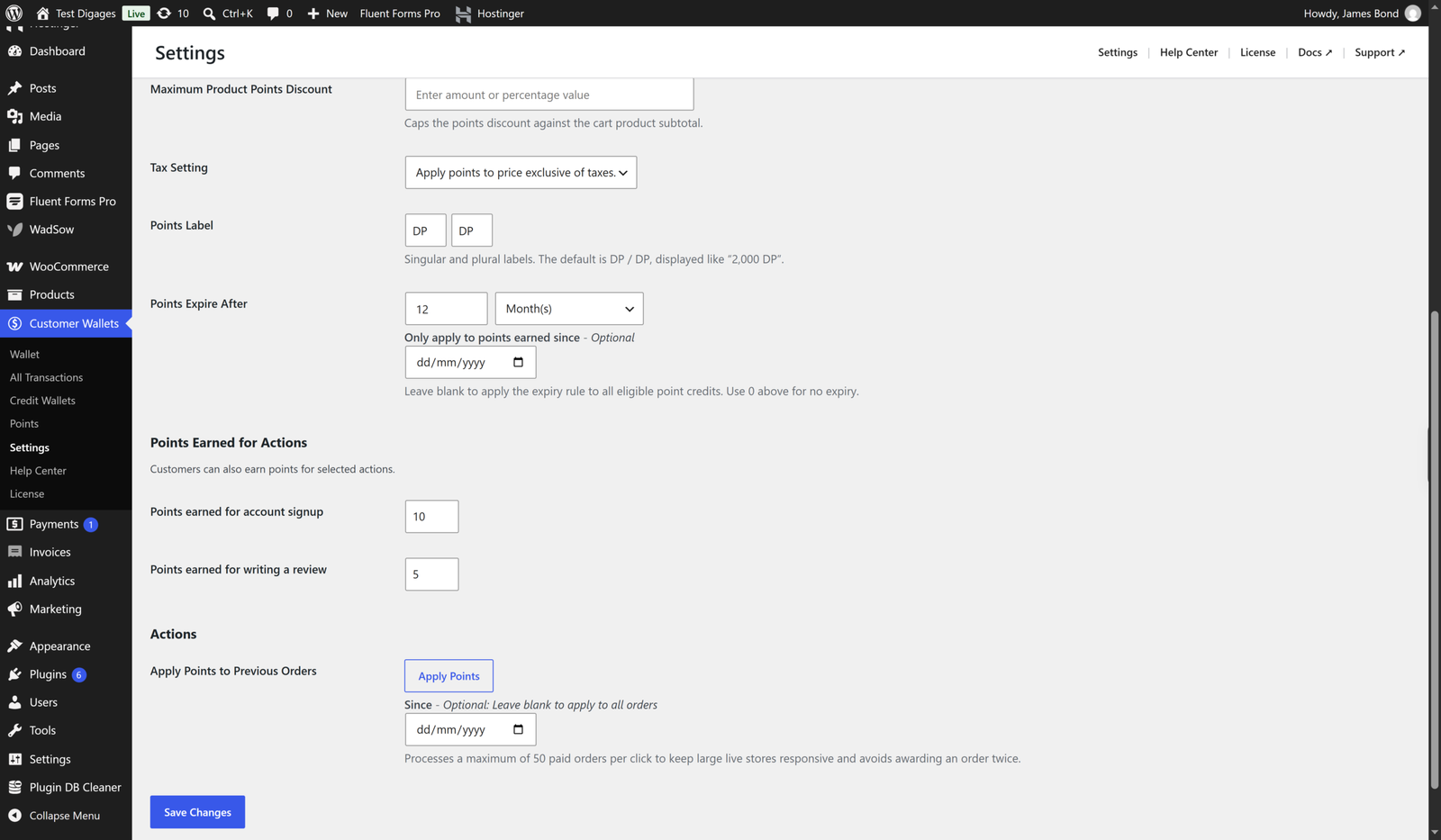
Credit Wallets is a manual action performed by an admin; there is no automated trigger for wallet credit. If you want customers to automatically earn rewards (for signing up, leaving a review, or making a purchase), that’s handled separately through the points system under Customer Wallets → Settings → Points.
6. Reviewing Credit History
To confirm that a credit was applied, go to Customer Wallets → Wallet, find the customer, and click Transactions, or check Customer Wallets → All Transactions for a full store-wide log with Type, Amount, and Description for every credit and debit.