🎁 New: Build Customer Loyalty & Drive Repeat Purchases with WooCommerce. Learn more


Digages Customer Wallet for WooCommerce lets customers apply their wallet balance toward an order at checkout. This guide covers enabling the feature and how it works for customers.
1. Enable Partial Wallet Payment
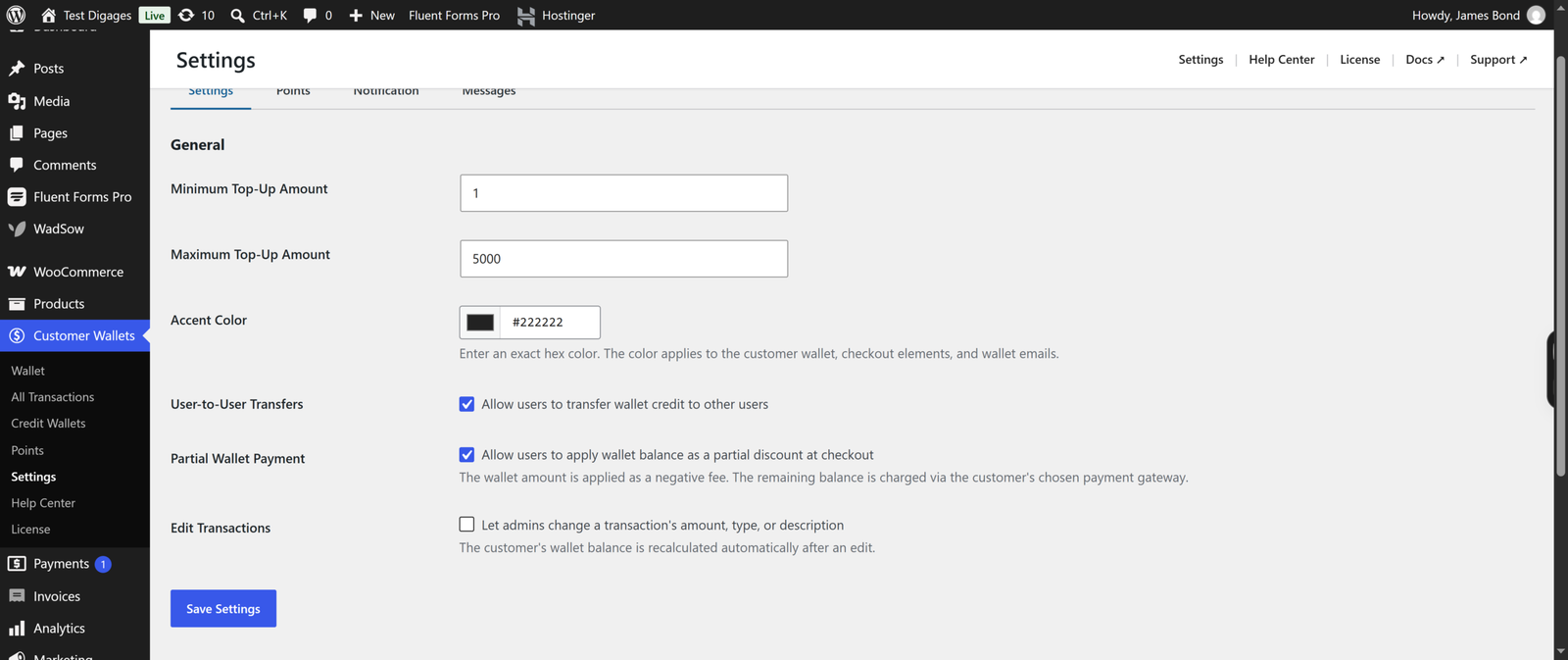
- Go to Customer Wallets → Settings.
- On the Settings tab, check Partial Wallet Payment (allows users to apply wallet balance as a partial discount at checkout).
- Click Save Settings.
The wallet amount is applied at checkout as a negative fee. The remaining balance is charged through the customer’s chosen payment gateway as usual.
2. How It Works for the Customer
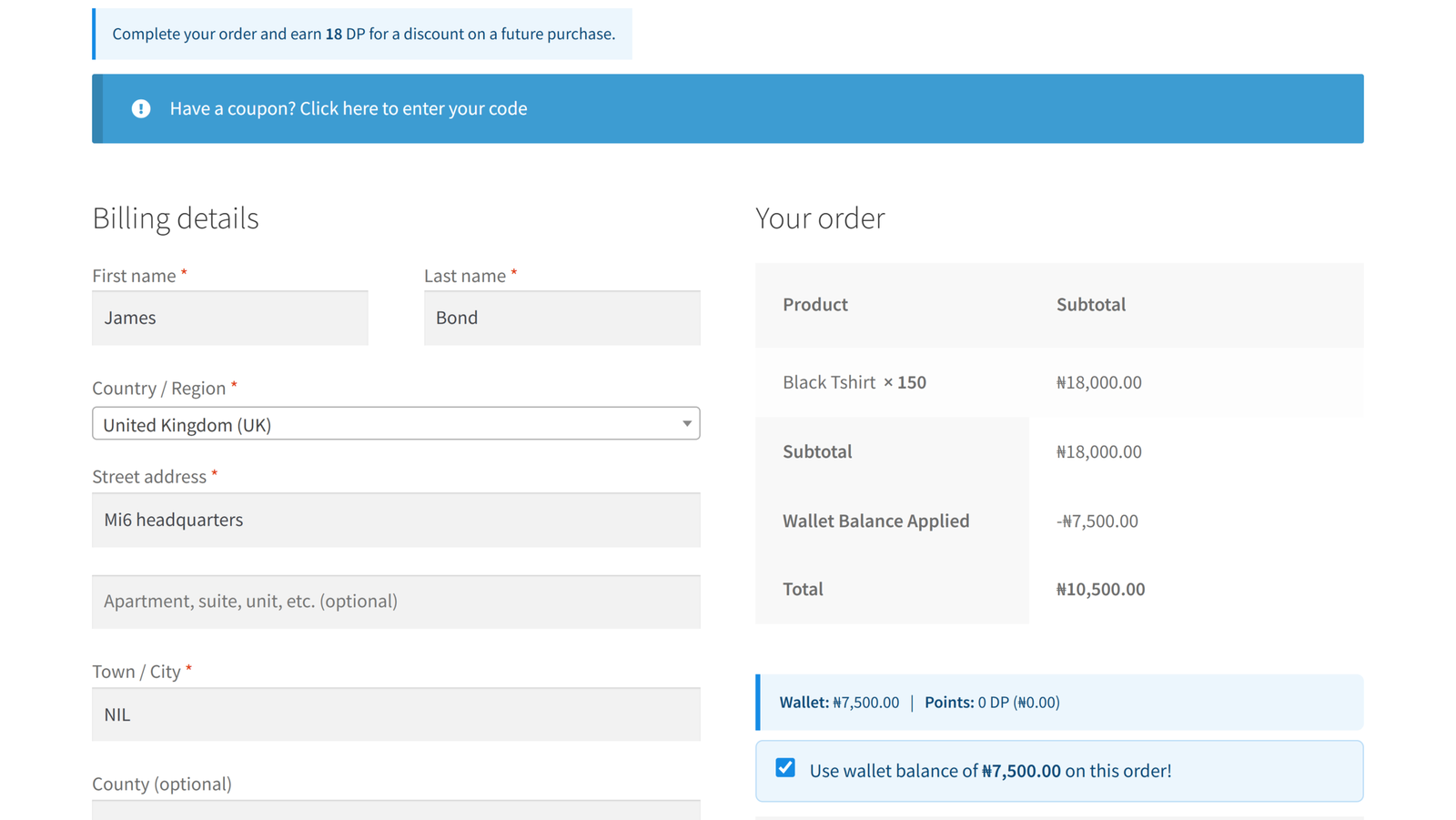
When Partial Wallet Payment is enabled, a customer with a wallet balance can apply it toward their order total at checkout. The wallet amount is deducted first, and whatever is left is paid through the store’s normal payment methods.
Example:
- Order total: ₦10,000
- Wallet balance: ₦6,000
- Remaining amount charged via payment gateway: ₦4,000
3. When the Wallet Covers the Full Order
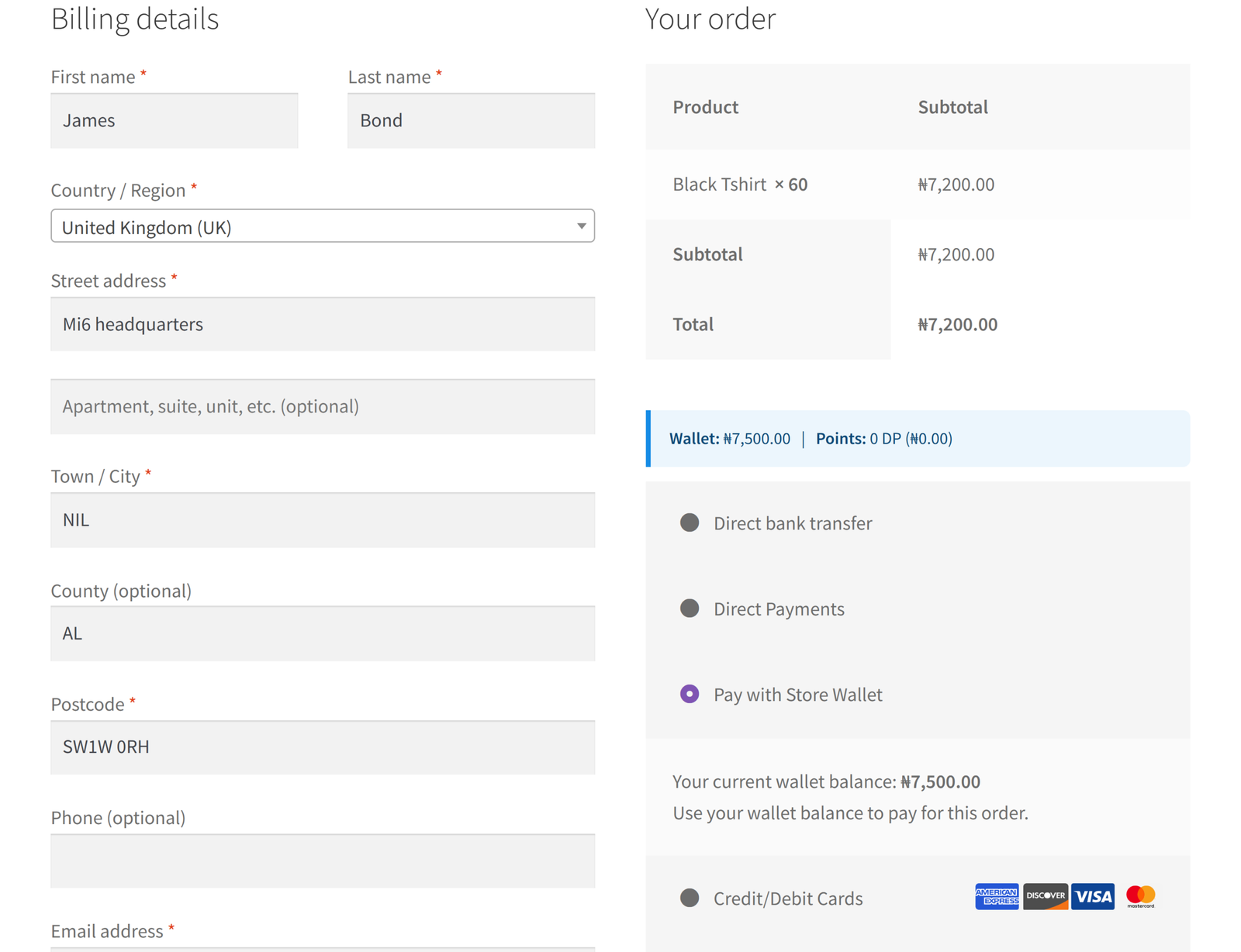
A “Pay With Store Wallet” option appears as a payment option at checkout
Since the wallet amount is applied as a negative fee against the order total, if the wallet balance is equal to or greater than the order total, there’s nothing left for the customer to pay through a payment gateway.
4. Top-Ups vs. Checkout Payments
These are two separate actions:
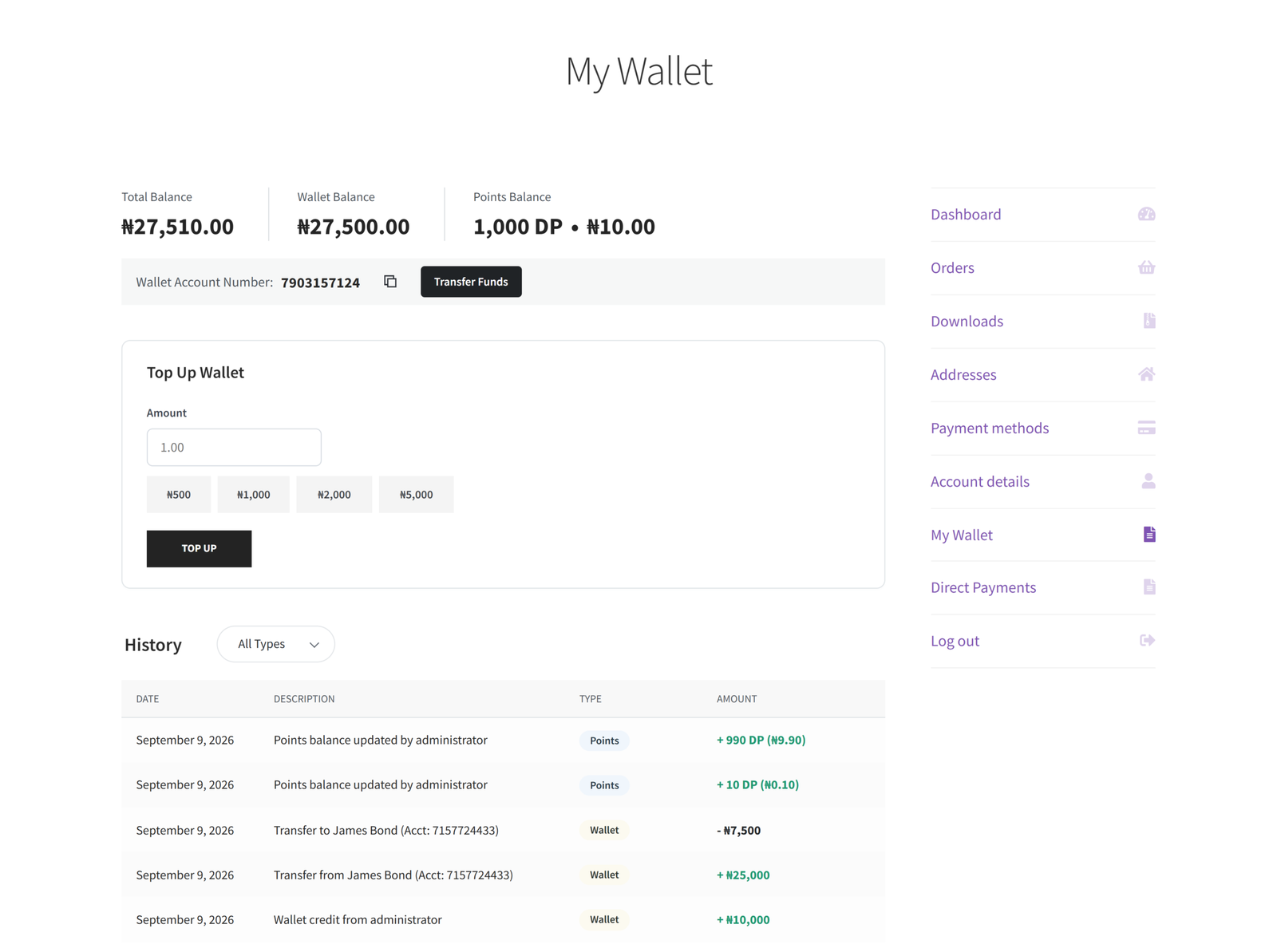
- Topping up — a customer adds funds to their wallet from My Account → My Wallet using the Top Up Wallet card.
- Paying with wallet balance — the customer applies their existing balance to an order at checkout, which only works if Partial Wallet Payment is enabled.
5. Combining with Points
If your store also has the points system enabled (Customer Wallets → Settings → Points), customers can redeem points for a discount separately from their wallet balance. Redemption rules, minimum points, maximum discount, and conversion rate are configured on the Points tab and are independent of the Partial Wallet Payment setting.
6. Checking Wallet Payments After the Fact
Every wallet deduction from an order is logged. Go to Customer Wallets → All Transactions to see the Type (Debit), Amount, and linked Order for each wallet payment.
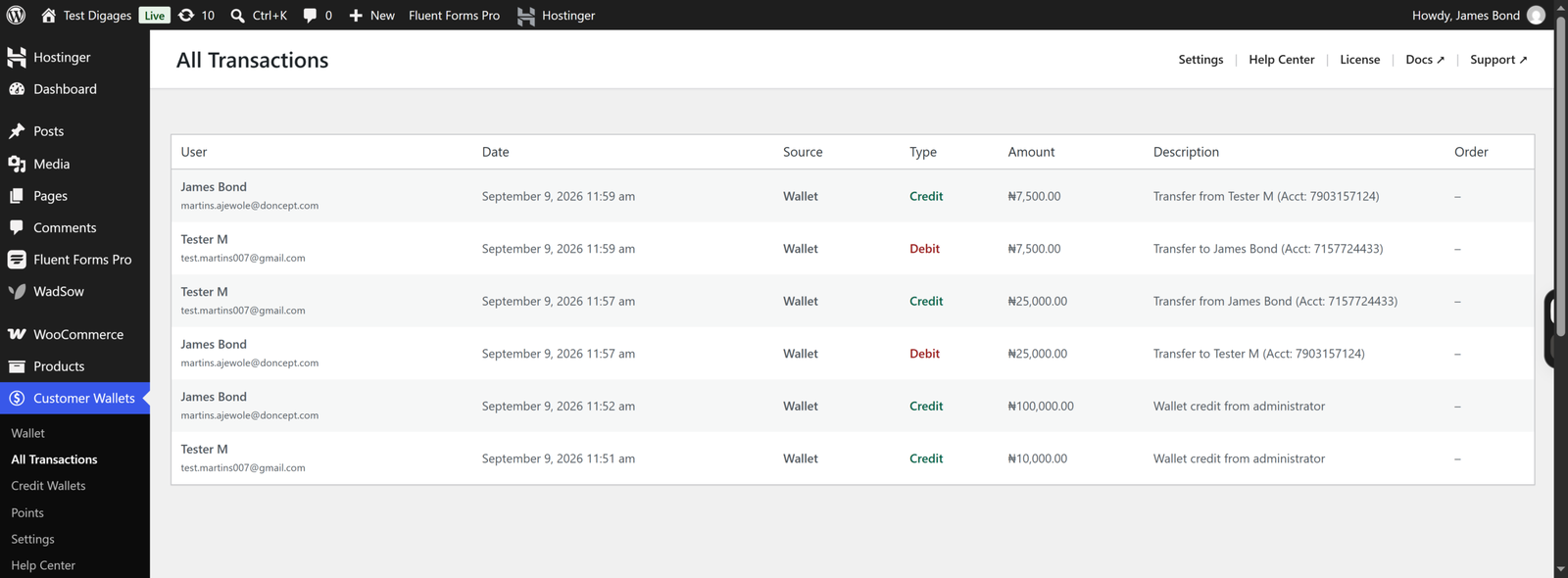
These changes would also be reflected on the customer’s end, in My Account > My Wallet.