🎁 New: Build Customer Loyalty & Drive Repeat Purchases with WooCommerce. Learn more


With Dropshipfy: Once you have several dropshippers registered on your store, whether through a Fluent Forms registration form or added manually, you’ll need a way to keep track of them. Here’s how to view, manage, and remove dropshippers in WooCommerce.
View All Registered Dropshippers
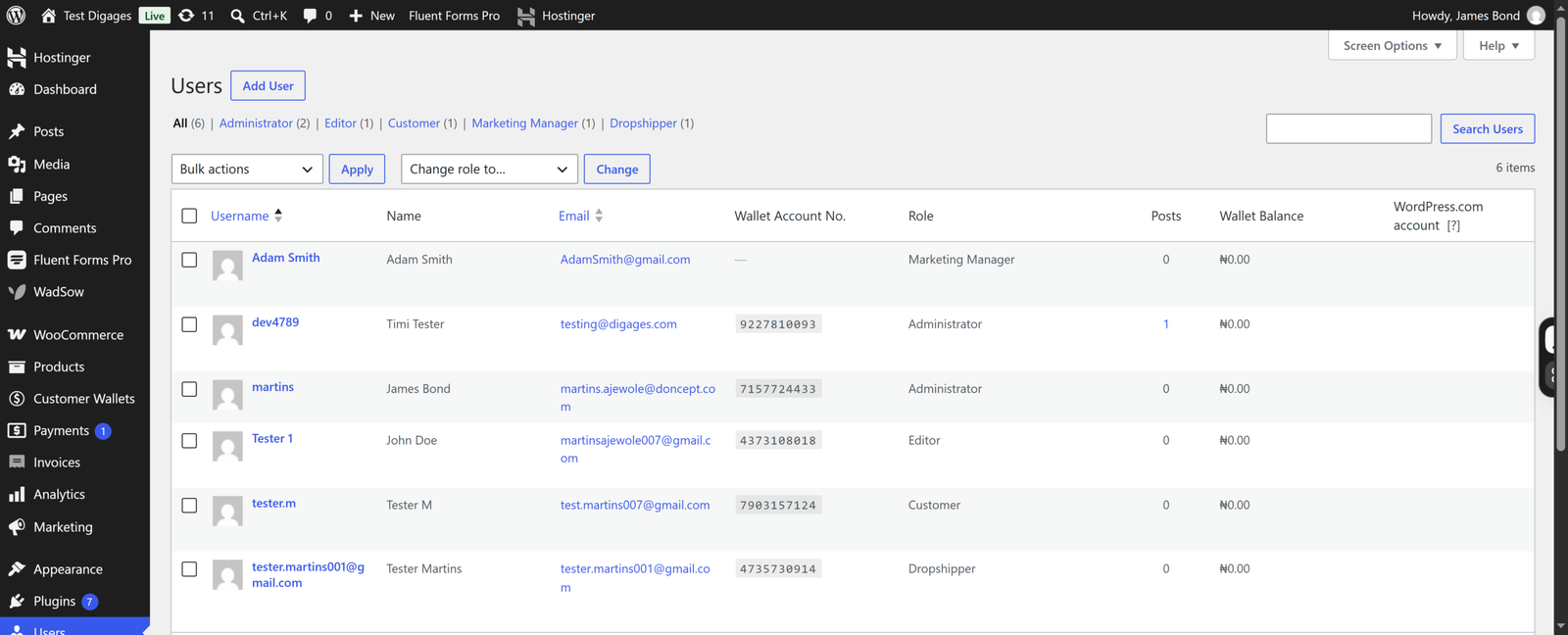
- Go to Users > All Users in your WordPress admin.
- Use the Role filter above the users table to filter the list by Dropshipper.
This gives you a complete list of all customers currently registered with dropshipping access.
Track Dropshipper Activity from the Dropshipfy Dashboard
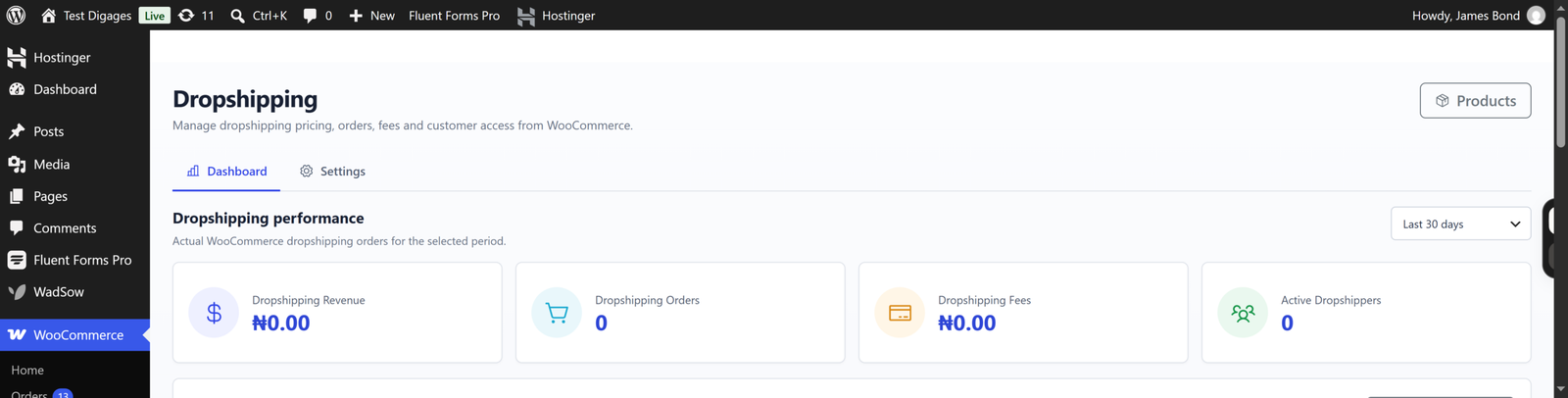
Go to WooCommerce > Dropshipping > Dashboard to see an overview of dropshipper activity:
- The Active Dropshippers stat card shows how many dropshippers have activity within the selected date range.
- The Dropshipping orders table lists individual orders, including the Customer who placed each one, so you can see which dropshippers are actively ordering.
- Use the search field above the table to look up orders from a specific dropshipper by name or email.
Review New Applications
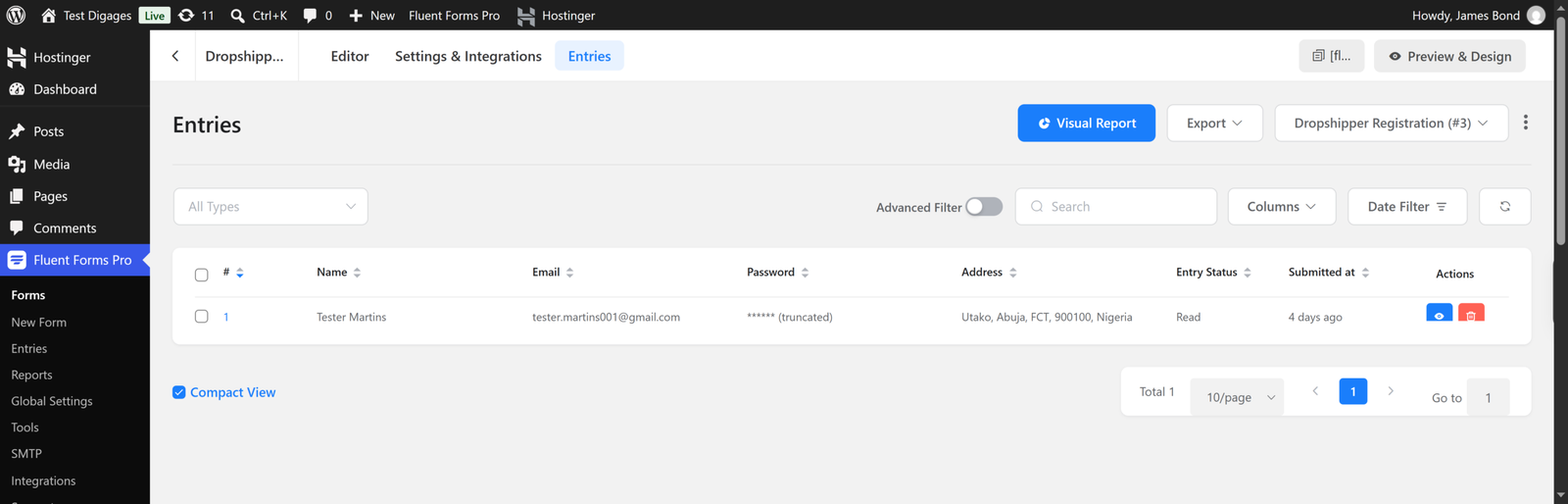
If you’re using a Fluent Forms registration form to bring in new dropshippers, check the form’s Entries section in your Fluent Forms dashboard regularly to review and process new applications alongside your existing dropshipper list.
Edit or Remove a Dropshipper
To update or remove a dropshipper’s access:
- Go to Users > All Users.
- Find the dropshipper’s account and click Edit.
- To remove their dropshipping access, change their Role to Customer (or another appropriate role).
- Click Update User.
The customer will keep their regular account but will no longer see or use dropshipping prices on your store.
Keep Your Dropshipper List Organized
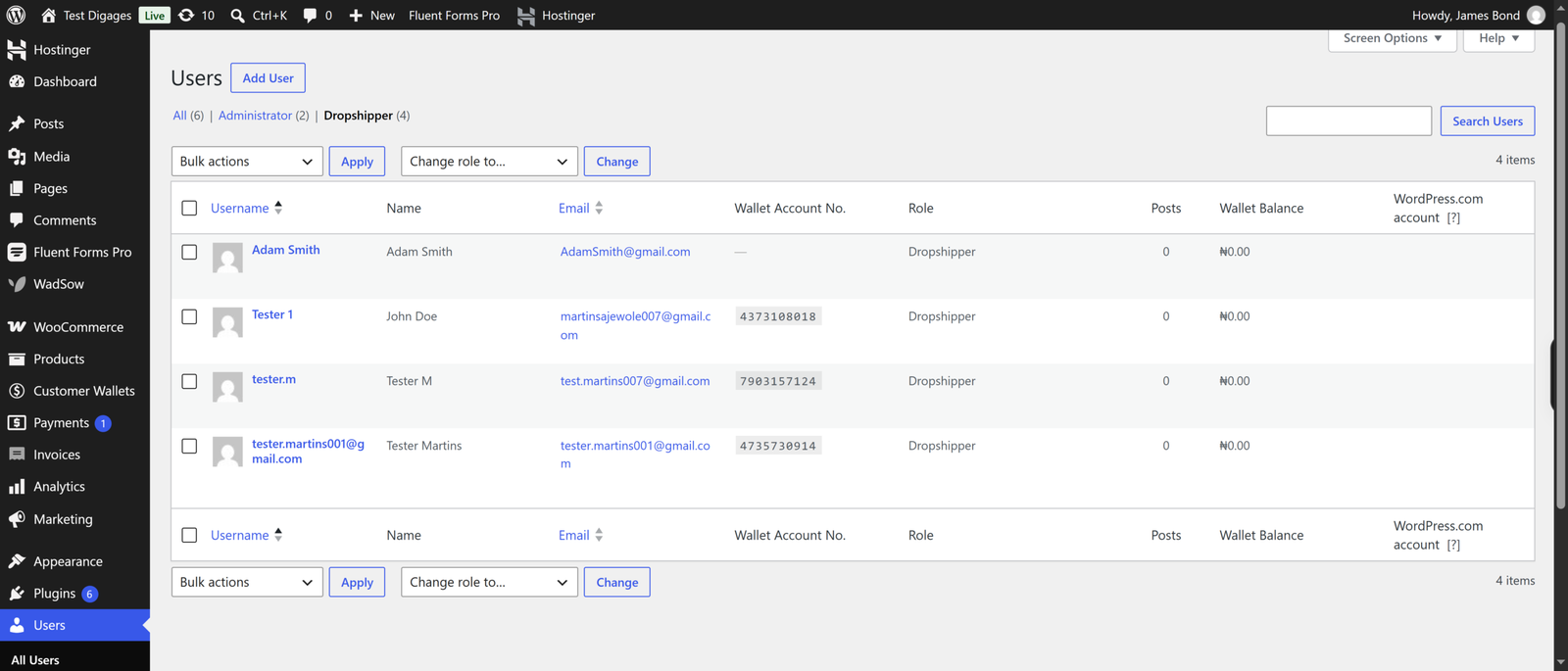
As your list of dropshippers grows, review it periodically:
- Filter by the Dropshipper role to check for inactive accounts.
- Cross-check with the Dropshipfy Dashboard to see which dropshippers are placing orders and which aren’t.
- Remove or downgrade dropshippers who no longer meet your criteria.
With the WordPress Users screen and the Dropshipfy Dashboard working together, you have everything you need to manage a growing list of dropshippers on your WooCommerce store.
Check out Dropshipfy for more info.


