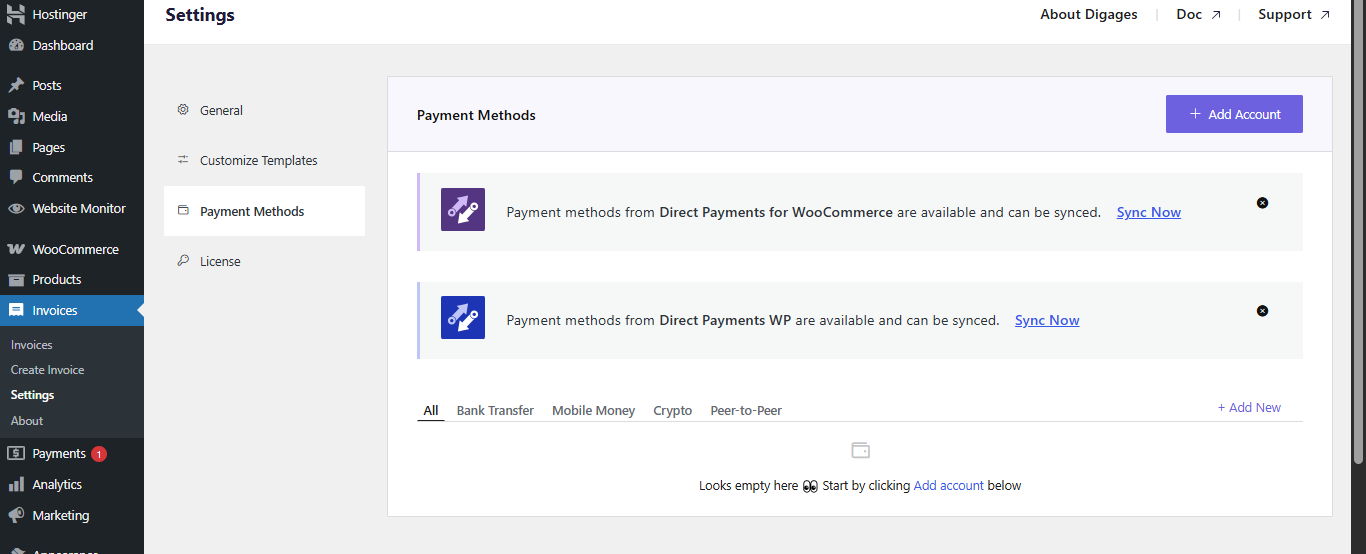
How to Manage Payment Methods in Direct Invoices
Introduction
Configuring payment methods is a critical step when setting up Direct Invoices. Without properly configured payment accounts, customers will receive invoices but won’t have a clear way to complete payment.
Direct Invoices allows you to accept multiple payment types, including bank transfer, mobile money, cryptocurrency, and peer-to-peer (P2P) payments. This flexibility makes it suitable for both local and international transactions.
In this guide, you’ll learn how to:
- Locate the payment method settings
- Add and configure different payment methods
Where to Find Payment Method Settings
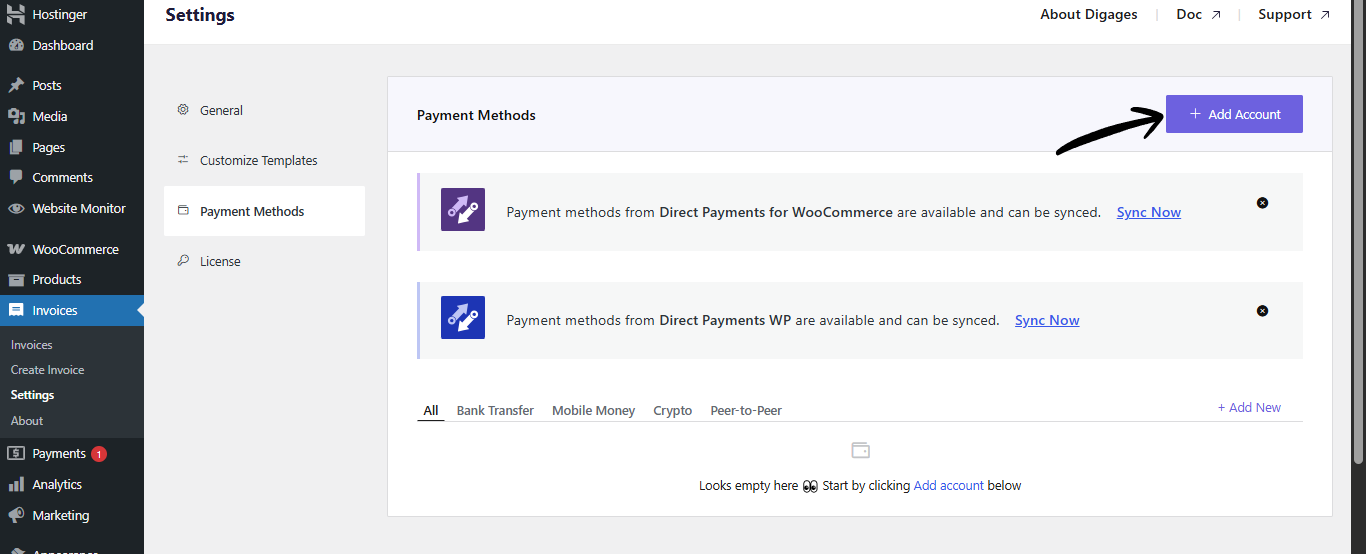
To configure payment methods in Direct Invoices:
- Go to your WordPress Dashboard
- Navigate to Invoices → Settings
- Click on the Payment Methods tab
- Click Add Account
This opens a sidebar where you can choose the type of payment method you want to add:
- Bank Transfer
- Mobile Money
- Cryptocurrency
- Peer-to-Peer (P2P)
Why Payment Method Setup Matters
Before creating invoices, ensure at least one payment account is configured.
If no payment method is selected:
- Customers cannot complete payments
- Invoices will lack payment instructions
- You may experience delays or failed transactions
How Payment Methods Affect Invoices
Your selected payment methods determine:
- What options customers see
- How payments are completed
- What instructions are displayed
If no payment method is configured, customers will not be able to pay invoices.
Sync Payment Methods (Recommended)
If you already use Direct Payments for WooCommerce and/or Direct Payments WP
You can use the Sync option to automatically import your existing payment methods.
This ensures consistency across your payment systems and faster setup without manual reconfiguration
How to Add a Bank Transfer Payment Method
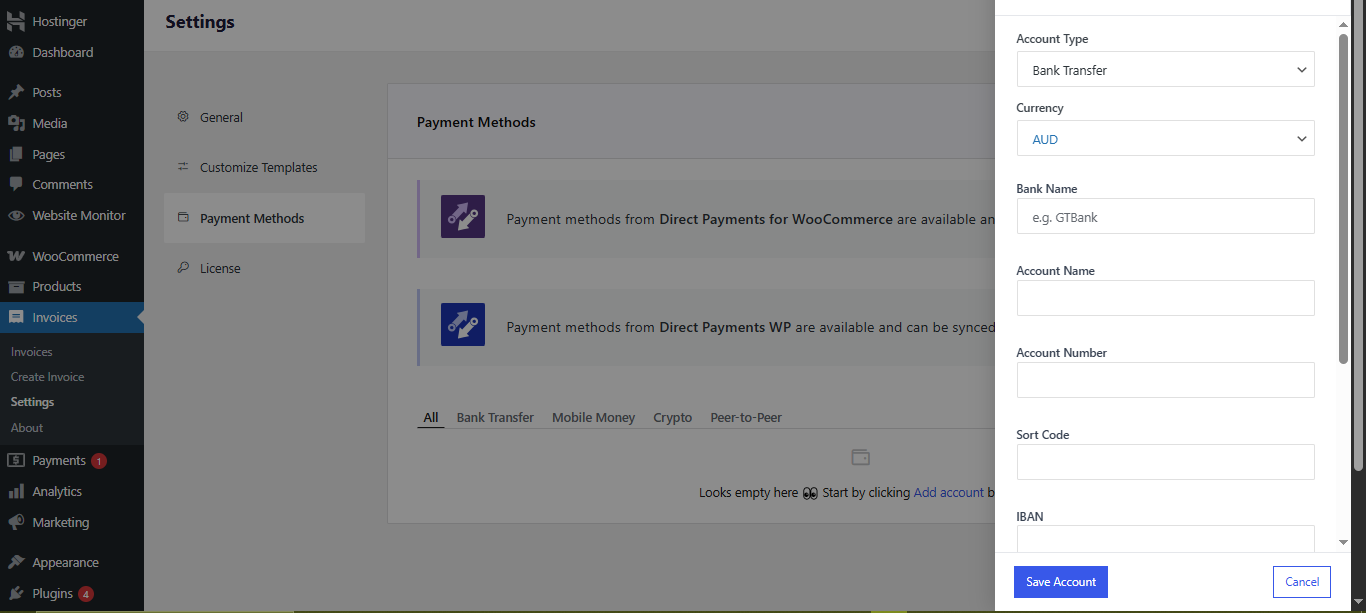
Use this option to receive payments directly into your bank account.
Steps:
- Click Add Account
- Select Bank Transfer
- Fill in the required details like Currency, Bank Name, Account Name, and Account Number
- Click Save Account
Best Practices
- Double-check account number accuracy
- Use the correct currency to avoid payment confusion
- Ensure the account name matches your business name
How to Add a Mobile Money Payment Method
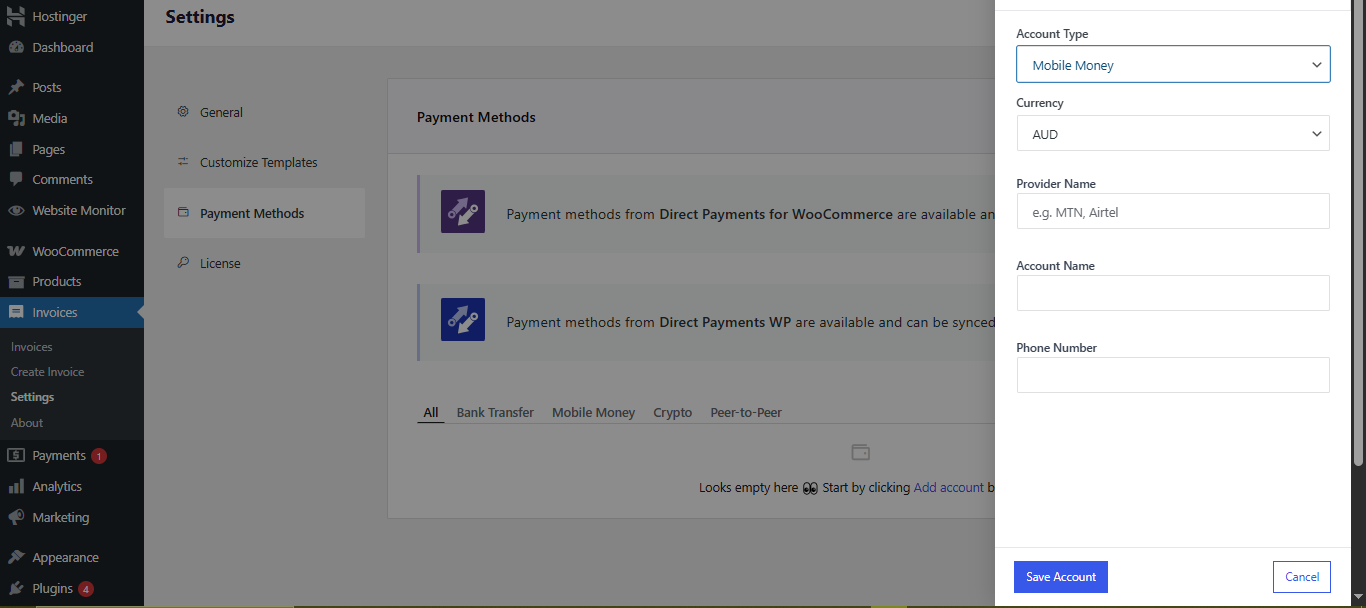
This option is ideal for regions where mobile wallets are widely used.
Steps:
- Click Add Account
- Select Mobile Money
- Enter the required details like Currency, Provider Name (e.g., MTN, Airtel), Account Name, and Phone Number
- Click Save Account
Best Practices
- Use a phone number that is active and verified
- Clearly match the provider name with the correct region
- Confirm the number supports incoming payments
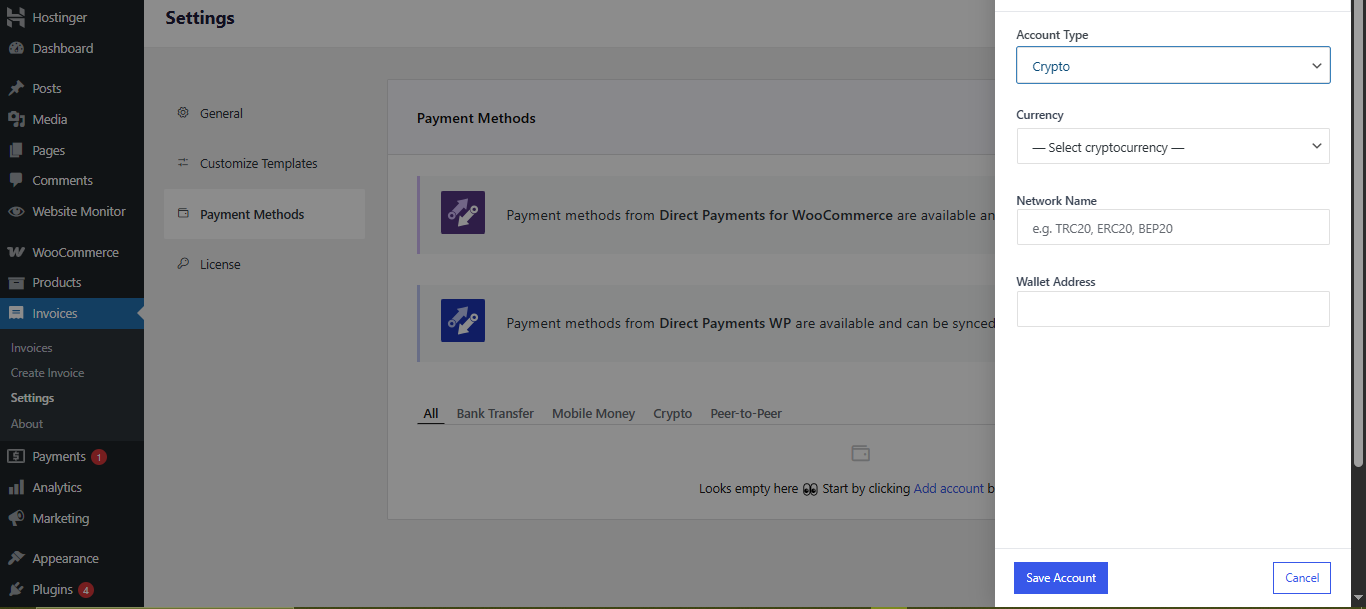
How to Add a Cryptocurrency Payment Method
Use this option to accept payments in digital currencies.
Steps:
- Click Add Account
- Select Crypto
- Fill in the required details like Cryptocurrency (e.g., BTC, USDT), Network Name (e.g., ERC20, TRC20), and Wallet Address correctly
- Click Save Account
Ensure the network matches the wallet type. Sending funds to the wrong network can result in permanent loss.
How to Add a Peer-to-Peer (P2P) Payment Method
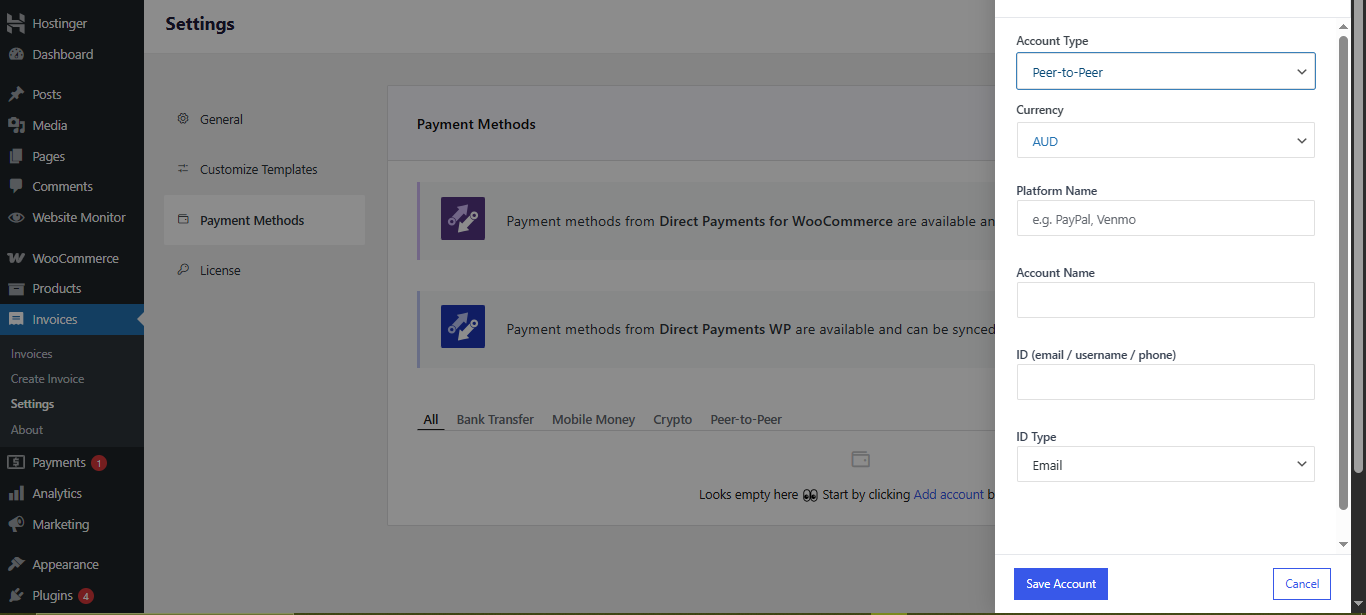
P2P is useful for platforms like PayPal, Binance P2P, or other direct transfer systems.
Steps:
- Click Add Account
- Select Peer-to-Peer (P2P)
- Enter the required details like Currency, Platform Name (e.g., Zelle, PayPal, etc.), and Account Name correctly
- ID (email, username, or phone number)
- ID Type
- Click Save Account
Best Practices
- Use a verified account ID
- Clearly specify the correct ID type
- Ensure consistency between the platform name and ID format
Final Thoughts
Configuring payment methods in Direct Invoices ensures your invoices are actionable, not just informational. A properly set up payment system reduces friction, improves customer experience, and helps you get paid faster.
Before sending invoices to customers, always test your setup by creating a sample invoice and confirming that payment details appear correctly.