How to Send an Invoice for Crypto Payments

Last modified: April 13, 2026

Introduction

Accepting Crypto Payments allows you to invoice customers globally without relying on traditional banking systems. It is particularly useful for cross-border transactions, faster settlements, and customers who prefer decentralized payment options.

With Direct Invoices, you can create and send invoices that include crypto payment instructions, such as wallet addresses and required payment details. This ensures customers know exactly how to complete the transaction while maintaining a clear and professional invoice structure.

In this guide, you’ll learn;

  • How to configure your payment method and provide accurate instructions to avoid payment errors.
  • How to send an invoice for Crypto Payments on your WordPress site.

Adding a Crypto Payment Method

Use this option to accept payments in digital currencies.

Steps:

  • Click Add Account
  • Select Crypto
  • Fill in the required details like Cryptocurrency (e.g., BTC, USDT), Network Name (e.g., ERC20, TRC20), and Wallet Address correctly
  • Click Save Account

Ensure the network matches the wallet type. Sending funds to the wrong network can result in permanent loss.

Creating an Invoice
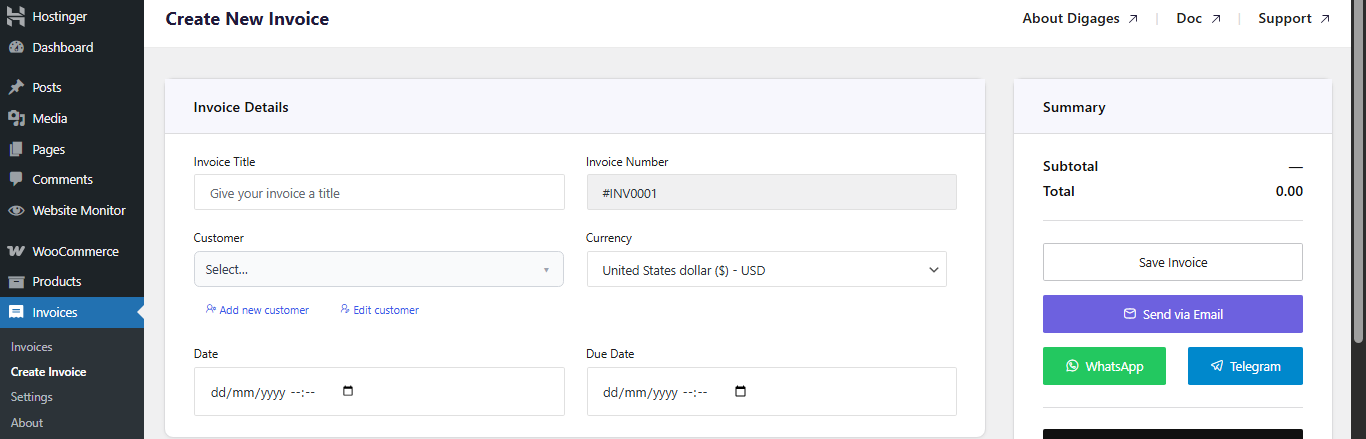
Add Invoice Details in WordPress

To do this;

  • Go to Invoice → Create Invoice → Invoice Details
  • Then enter: Invoice Title, click Add Customer to input customer details, Select Currency, Set Invoice Date, and Set Due Date

Direct Invoice Details

Always set a due date to enable automated reminders.

Add Invoice Items

  • Go to the Invoice Items section
  • Then add item: Custom service or WooCommerce product, Quantity, and Rate (Price)

Direct Invoices Invoice Items

Invoice items defines what the customer is being billed for.
Configure Invoice Options

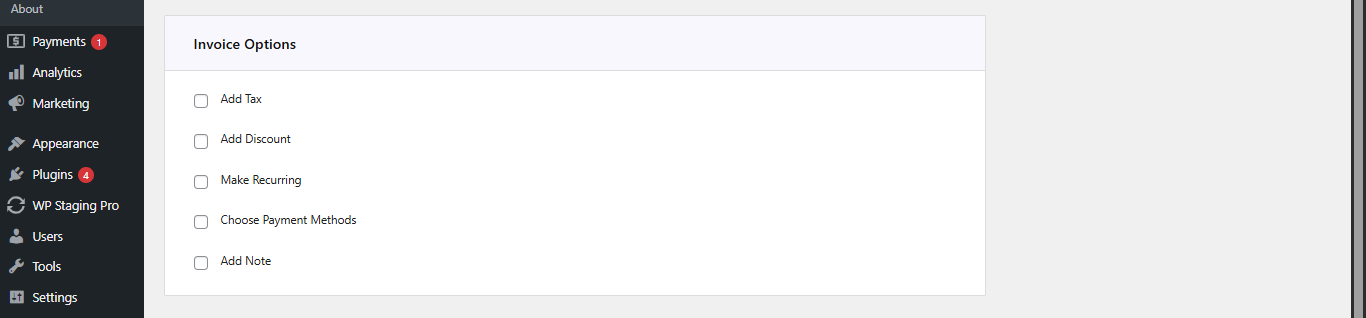
Go to Invoice Options, then configure (as needed):

  • Add Tax (percentage)
  • Add Discount (fixed or percentage)
  • Enable Recurring Invoice (if needed, set the end recurring date)
  • Select the preferred Crypto Payment Account
  • Add a Note(s) for the customer

Direct Invoice Invoice Options

Saving and Sending an Invoice

Invoice Summary

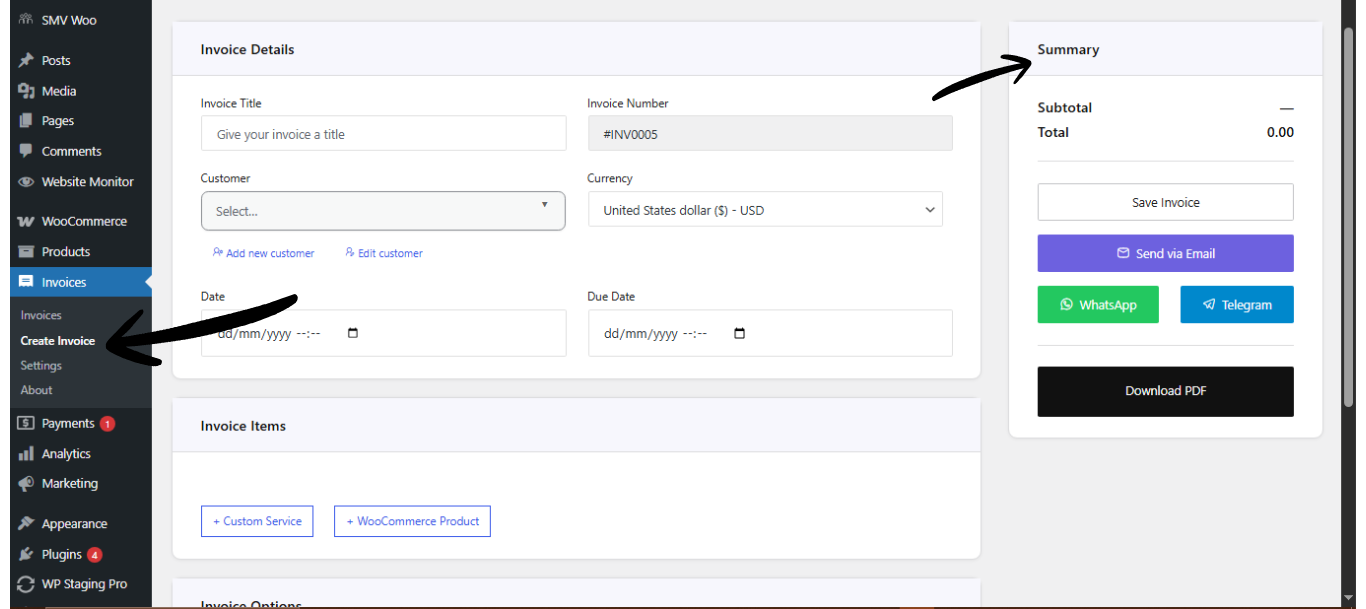
  • Go to Invoice Summary (top left area)
  • Click Save Invoice (this creates the invoice and allows you to send it)
  • After saving, choose how to send the invoice: via Email, WhatsApp, or Telegram
  • You can also download the invoice as a PDF.

Direct Invoices Invoice Summary

Tip:
Sending invoices via WhatsApp or Telegram often results in faster responses compared to email alone.

How Do You Send a Professional Invoice in WordPress?

To create a professional invoice in WordPress:

  • Install and activate the Direct Invoices WordPress plugin
  • Configure your business and invoice settings
  • Add customer and invoice details
  • Include items, pricing, and payment method
  • Save and send the invoice via email or messaging platforms

Final Thoughts

Sending invoices for crypto payments requires clarity and precision. Unlike traditional payment methods, crypto transactions are irreversible, so it is important that all payment details—such as wallet addresses and instructions—are correct and easy to follow.

With Direct Invoices, you can standardize how crypto payment information is presented, reducing confusion and improving the chances of successful transactions.

Before sending invoices to customers, always verify your wallet details, test your payment instructions, and ensure the invoice clearly communicates the exact amount and currency required. Taking these steps helps prevent errors and ensures a smoother payment experience for both you and your customers.

Plugin:
Was this article helpful?
No