How to Send an Invoice on WordPress
Introduction
Creating a professional invoice is essential for getting paid on time and maintaining a credible business image. A well-structured invoice does more than request payment—it clearly defines what the customer is paying for, how to pay, and when payment is due.
If you use WordPress, you can streamline this process with a dedicated invoice plugin. Direct Invoices allows you to create, manage, and send invoices directly from your dashboard without relying on third-party tools.
In this guide, you will learn how to:
- Configure Direct Invoices
- Create a professional invoice
- Send invoices via email, WhatsApp, or Telegram
In This Article
Configure Settings
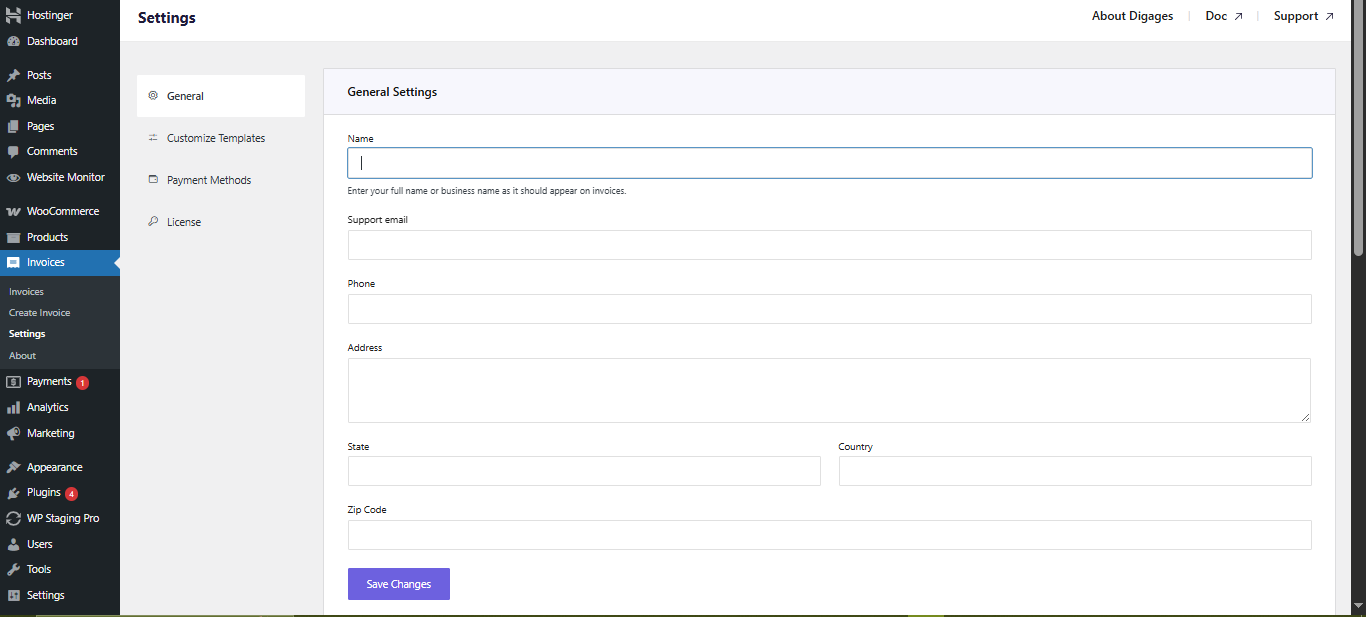
General Settings
These details appear on all invoices and customer communications:
- Business Name: Displayed on invoices and messages
- Support Email: Used for customer contact and invoice-related communication.
- Phone Number: Displayed on the invoice to provide a direct contact option for the customer.
- Address (Street, State, Country, Zip Code): Adds legitimacy and is important for compliance and professional presentation.
Save Changes
- Applies all updates made in the General Settings section.
- Changes will not take effect unless saved.
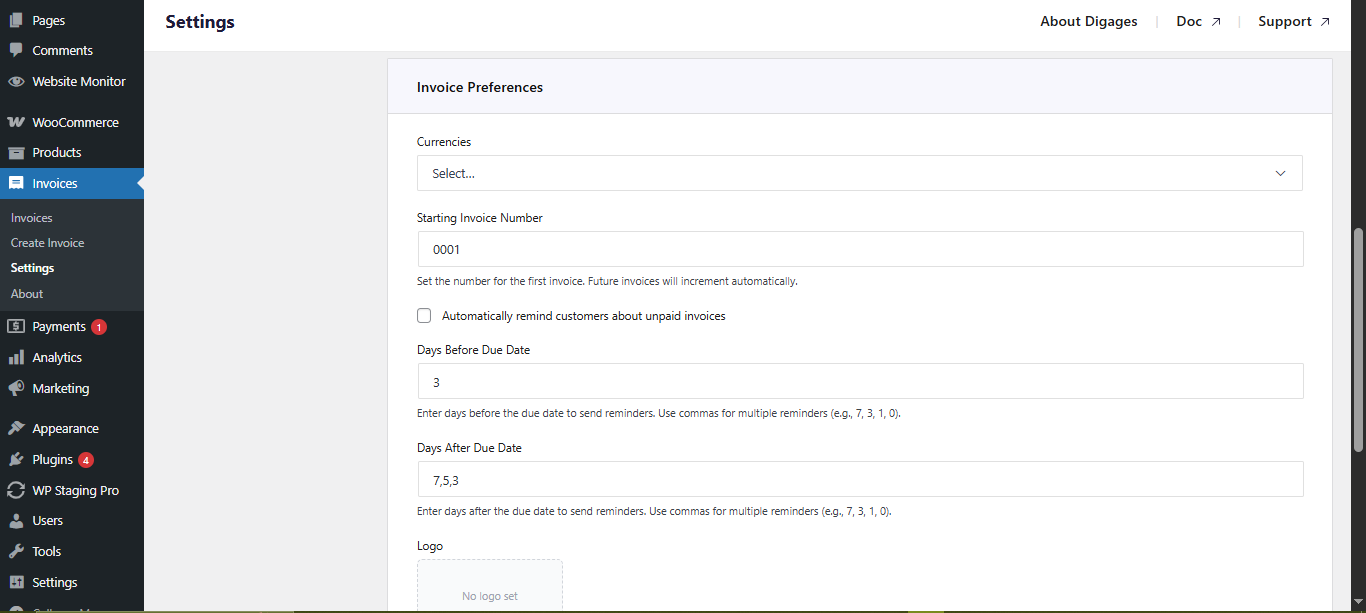
Invoice Preferences
Controls how invoices behave across your system:
- Currency: Sets the default currency(ies) (e.g., USD, NGN, EUR).
- Starting Invoice Number: Defines the number from which your invoices begin. Useful when migrating from another system to maintain continuity with existing records.
- Automatically remind customers about unpaid invoices (Toggle): Enables automatic payment reminders.
- Days Before Due Date: Sends reminders before the invoice deadline.
- Days After Due Date: Sends follow-up reminders for overdue invoices
These settings help reduce late payments without manual follow-up.
- Logo Upload: Adds your business logo to invoices for a more professional appearance.
- Send Receipts After Invoice is marked as “Completed”: Automatically sends a receipt when payment is confirmed
- Payment Instructions: A field you can use to display payment guidance to customers (e.g., bank details, crypto wallet, reference notes).
- Save Changes: Required to apply updates.
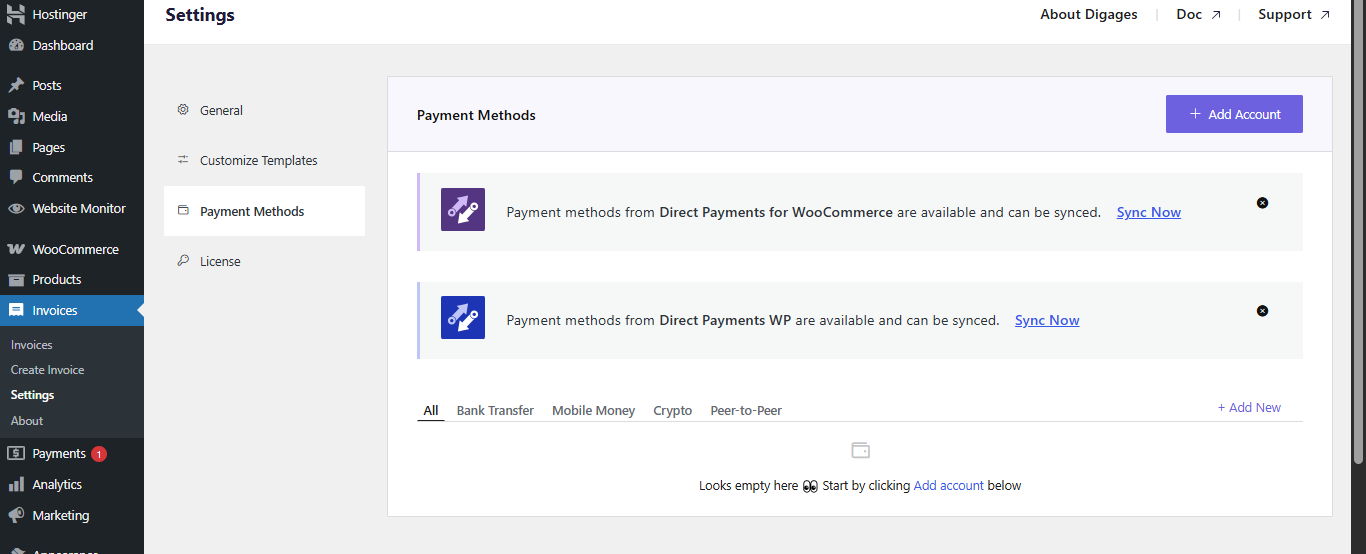
Payment Method
This section determines how customers complete payments.
Direct Invoices supports: Bank Transfer, Crypto Payments, Peer-to-Peer (P2P), and Mobile Money
Sync Payment Methods
If you already use Direct Payments for WooCommerce and/or Direct Payments WP
You can use the Sync option to automatically import your existing payment methods.
This ensures consistency across your payment systems and faster setup without manual reconfiguration
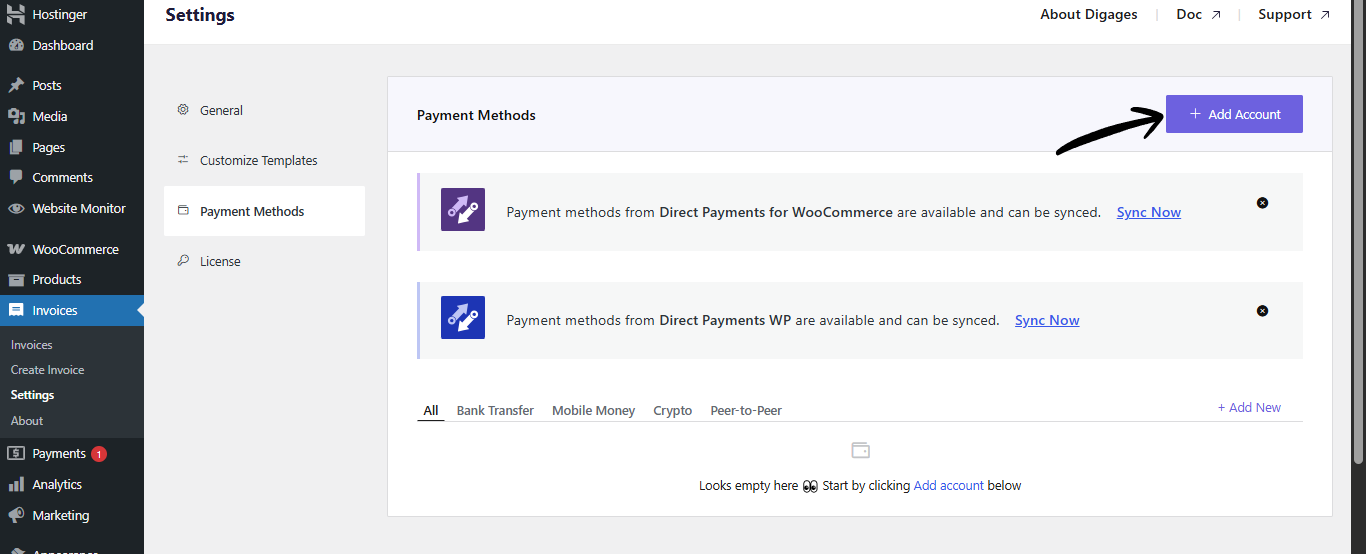
Add Account (Manual Setup)
If you do not have the Direct Payments plugins installed, you could:
- Click Add Account
- Manually configure your payment methods (Crypto, P2P, etc.)
This typically includes account details (bank, wallet, or platform) and any required identifier.
Creating an Invoice
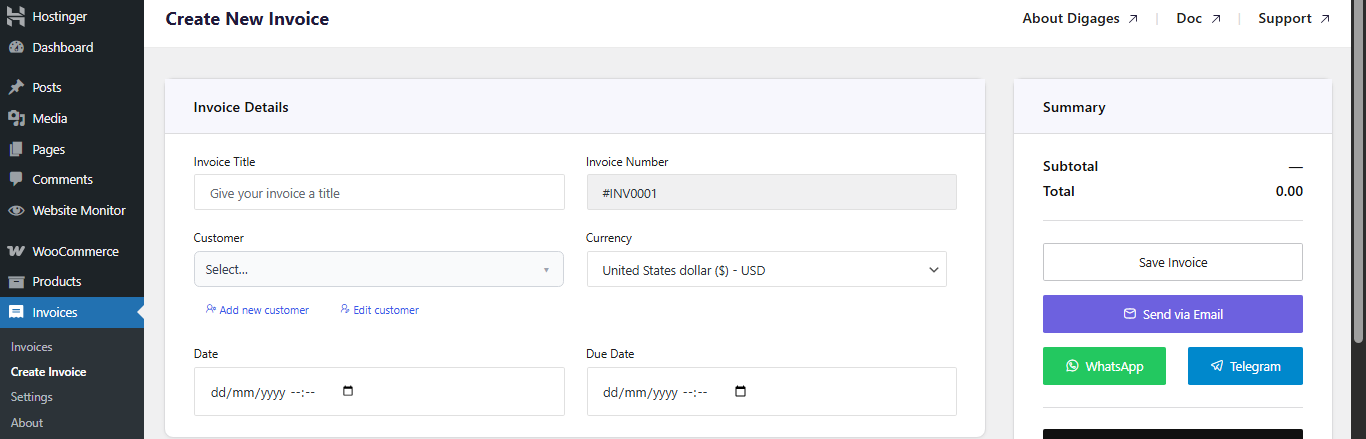
Add Invoice Details in WordPress
To do this;
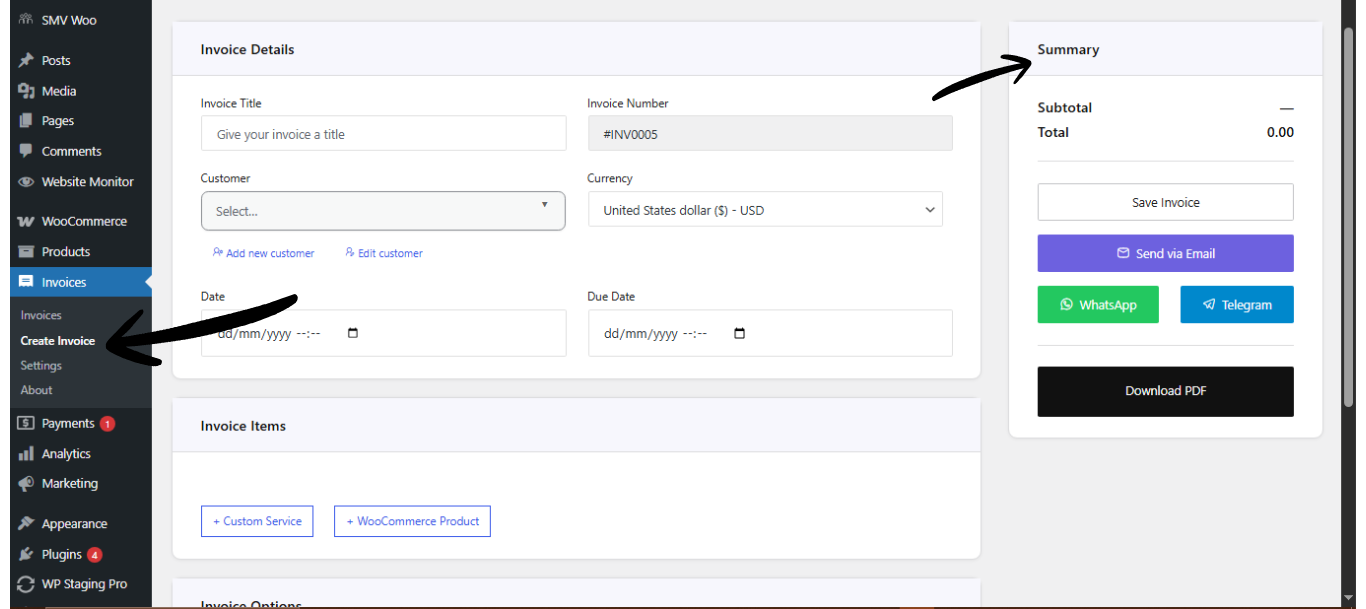
- Go to Invoice → Create Invoice → Invoice Details
- Then enter: Invoice Title, click Add Customer to input customer details, Select Currency, Set Invoice Date, and Set Due Date
Always set a due date to enable automated reminders.

Add Invoice Items
- Go to the Invoice Items section
- Then add item: Custom service or WooCommerce product, Quantity, and Rate (Price)
Invoice items defines what the customer is being billed for.
Configure Invoice Options
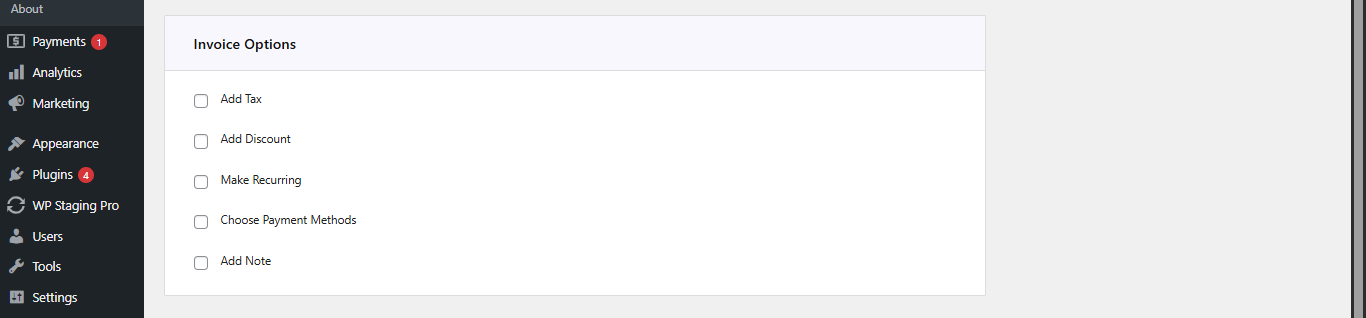
Go to Invoice Options, then configure (as needed):
- Add Tax (percentage)
- Add Discount (fixed or percentage)
- Enable Recurring Invoice (if needed, set the end recurring date)
- Select Payment Account (This is a very important step; if this step is omitted, the invoice will not carry a payment account)
- Add a Note(s) for the customer
Saving and Sending an Invoice
Invoice Summary
- Go to Invoice Summary (top left area)
- Click Save Invoice (this creates the invoice and allows you to send it)
- After saving, choose how to send the invoice: via Email, WhatsApp, or Telegram
- You can also download the invoice as a PDF.
Tip:
Sending invoices via WhatsApp or Telegram often results in faster responses compared to email alone.
How Do You Send a Professional Invoice in WordPress?
To create a professional invoice in WordPress:
- Install and activate the Direct Invoices WordPress plugin
- Configure your business and invoice settings
- Add customer and invoice details
- Include items, pricing, and payment method
- Save and send the invoice via email or messaging platforms
Get started now | Demo Direct Invoices | Free vs PRO | How to setup Direct Invoices | Documentation