How to Send an Invoice to WhatsApp on WordPress
Introduction
Sending invoices via WhatsApp allows you to reach customers instantly on a platform they check frequently. Compared to email, WhatsApp messages are more likely to be seen quickly, which can help reduce payment delays and improve response rates.
With Direct Invoices, you can send invoice notifications directly to a customer’s WhatsApp with a structured message that includes key details such as the invoice amount, due date, and a link to view the invoice.
In this guide, you’ll learn how to send an invoice to WhatsApp on your WordPress site.
In This Article
Creating an Invoice
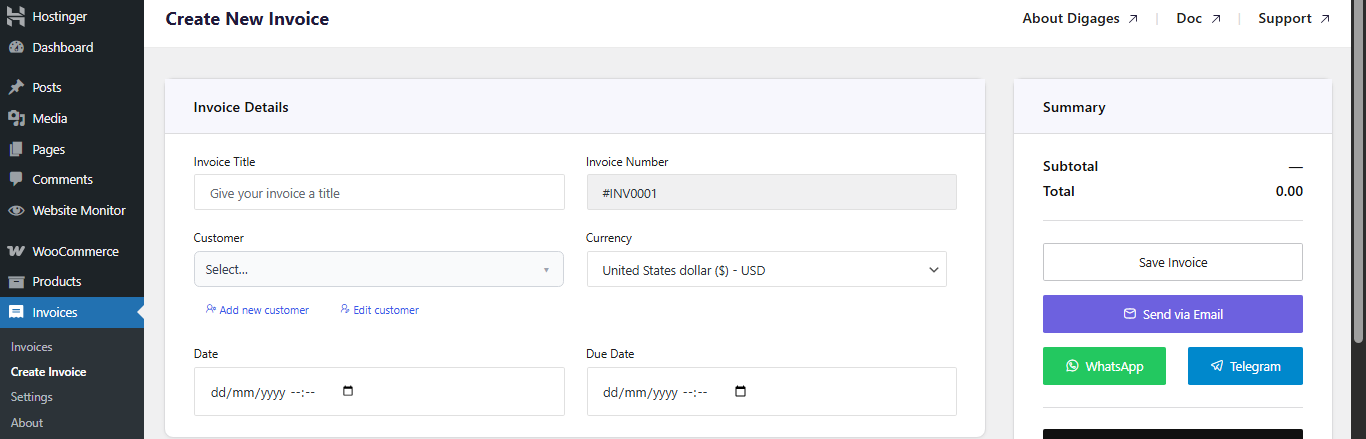
Add Invoice Details
To do this;
- Go to Invoice → Create Invoice → Invoice Details
- Then enter: Invoice Title, click Add Customer to input customer details, Select Currency, Set Invoice Date, and Set Due Date
Always set a due date to enable automated reminders.

Add Invoice Items
- Go to the Invoice Items section
- Then add item: Custom service or WooCommerce product, Quantity, and Rate (Price)
Invoice items defines what the customer is being billed for.
Configure Invoice Options
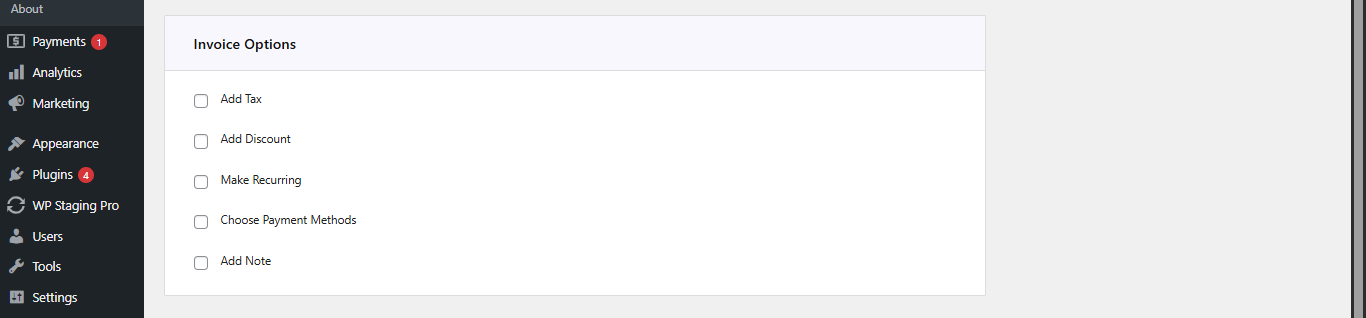
Go to Invoice Options, then configure (as needed):
- Add Tax (percentage)
- Add Discount (fixed or percentage)
- Enable Recurring Invoice (if needed, set the end recurring date)
- Select Payment Account (This is a very important step; if this step is omitted, the invoice will not carry any payment account)
- Add a Note(s) for the customer
Sending the Invoice
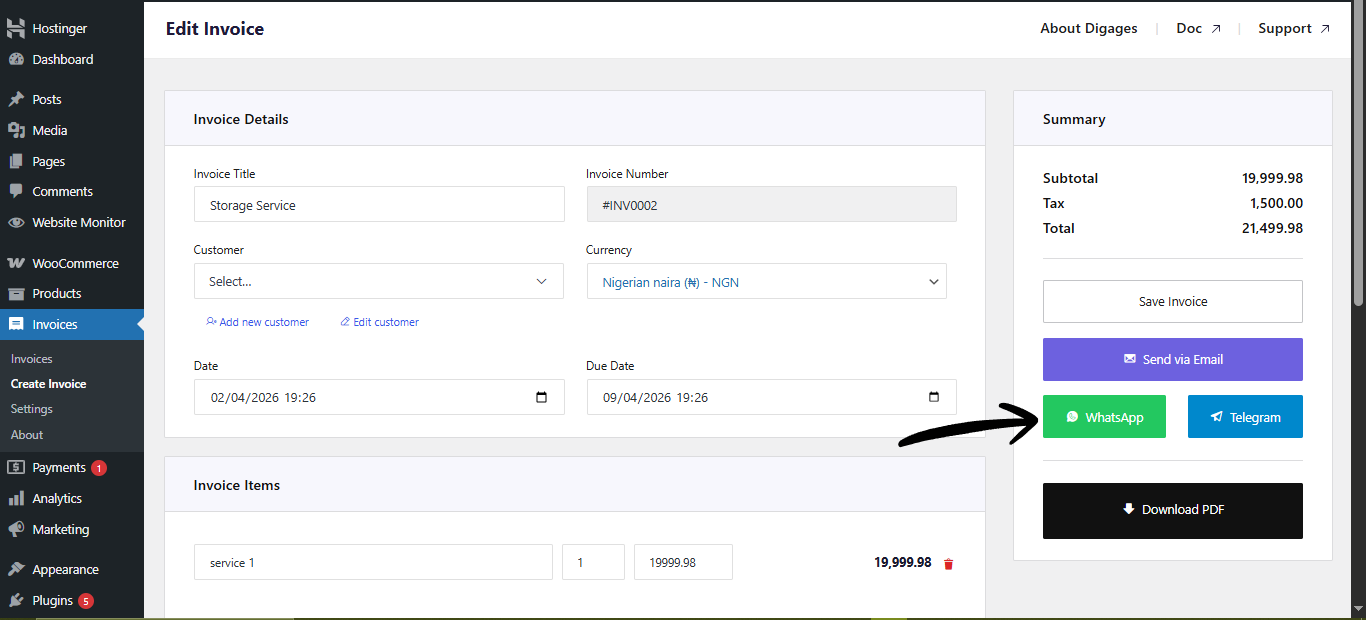
Save and Send the Invoice
- Go to Invoice Summary (top left area)
- Click Save Invoice (this creates the invoice and allows you to send it)
- After saving, click the WhatsApp button (you will be redirected to Telegram)
- Select the recipient contact
- Click enter to send
Conclusion
Sending invoices via WhatsApp provides a fast and reliable way to deliver billing information directly to your customers. By using a channel they already engage with regularly, you increase the chances of your invoices being seen and acted on quickly.
With Direct Invoices, the process is simple—once your WhatsApp template is properly configured, you can send clear, structured invoice messages that include all essential details.
Before using it in production, test your template to ensure shortcodes display correctly and invoice links work as expected. For best results, combine WhatsApp with other channels like email to improve delivery coverage and ensure no invoice is missed.