🎁 New: Build Customer Loyalty & Drive Repeat Purchases with WooCommerce. Learn more


Introduction
Direct Payments for WooCommerce sends customers an email with your payment details (bank account, crypto wallet, mobile money number, or peer-to-peer handle) once they check out. If your payment details change, you’ll want to update these email templates so customers always receive accurate instructions.
This guide walks you through updating customer payment emails for any payment method in a few simple steps.
Step 1: Update the Plugin
Before editing your email templates, make sure you’re running the latest version of Direct Payments for WooCommerce. Go to your WordPress admin dashboard, then Plugins, and update Direct Payments for WooCommerce if a new version is available. Alternatively, you can download the latest version directly from the Digages Website.
Download the latest version here.
Step 2: Open Direct Payments Settings
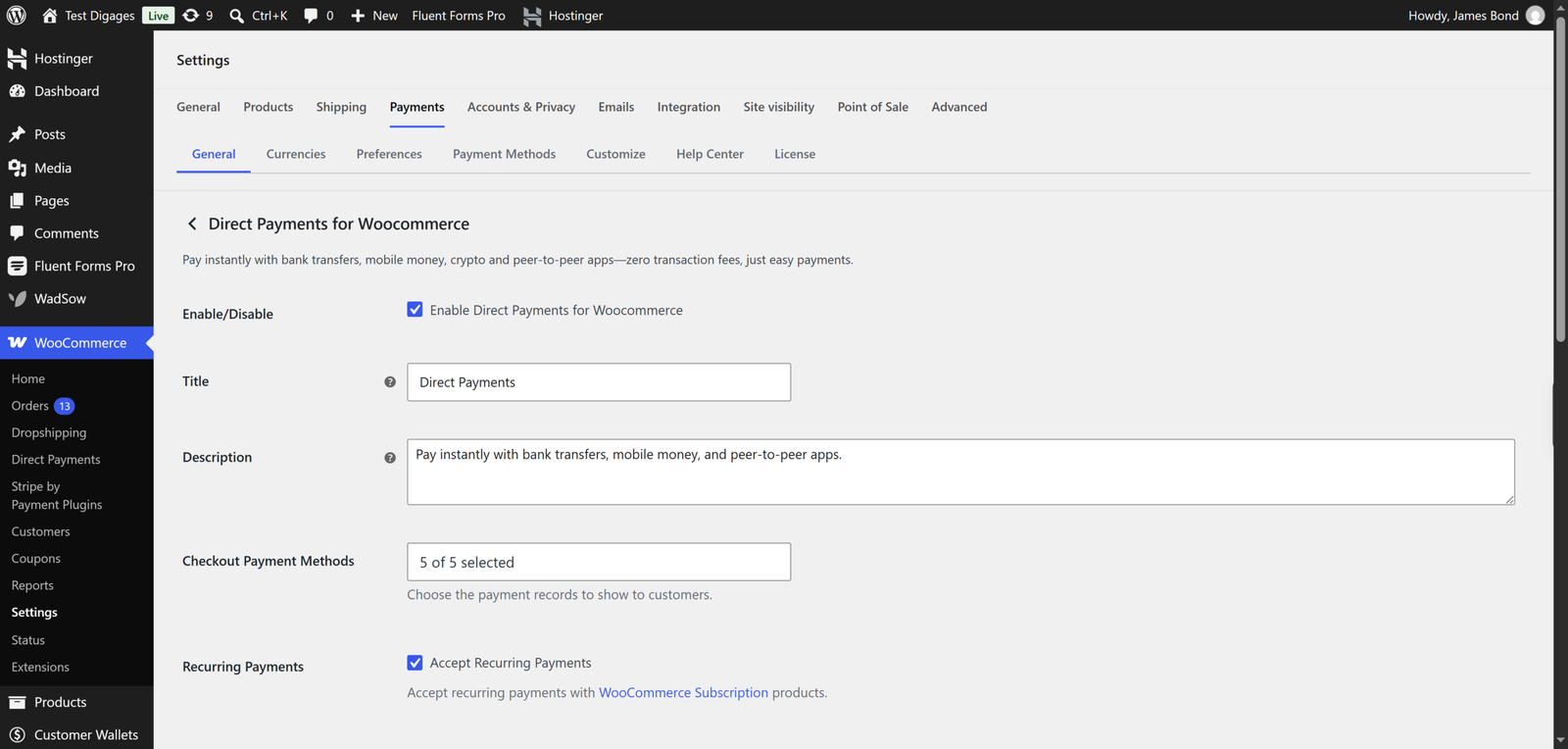
From your WordPress admin dashboard, navigate to WooCommerce > Direct Payments > Settings.
Step 3: Select a Payment Method
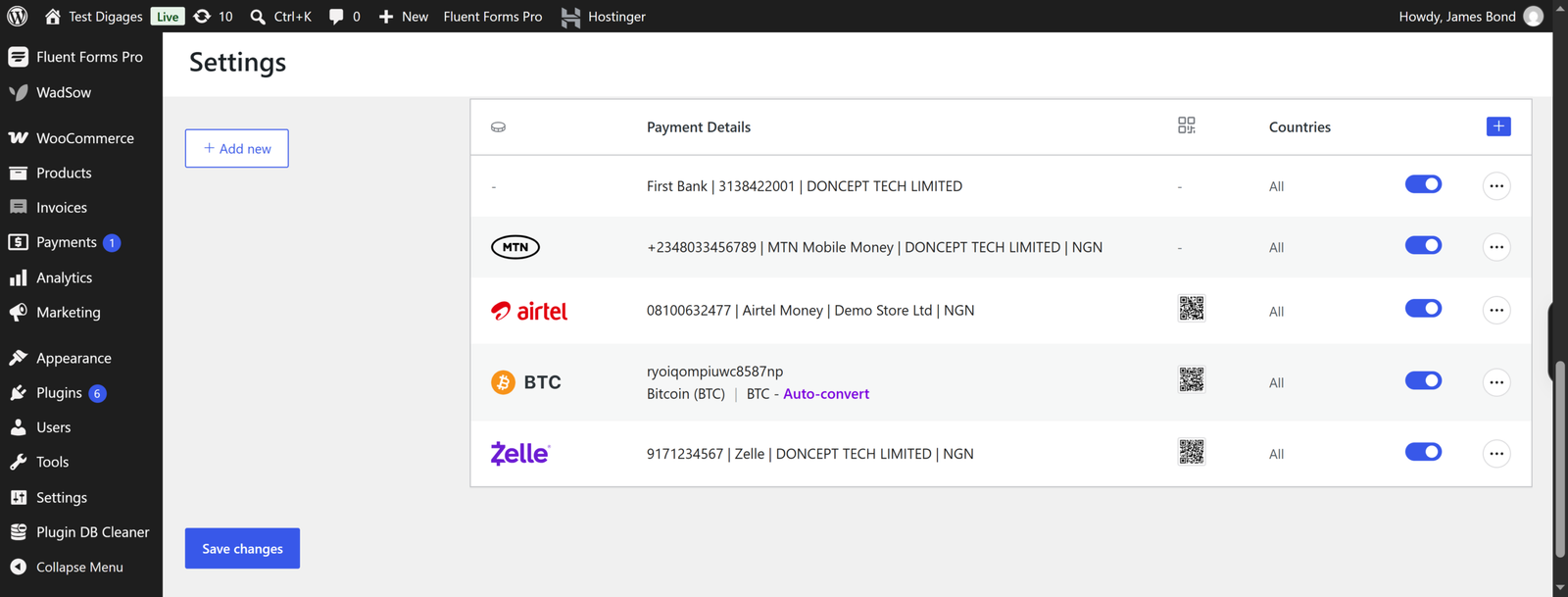
In the General settings screen, click the payment method tab; this is where you would select the method whose email you want to update:
- Bank Transfer
- Crypto
- Peer-to-Peer
- Mobile Money
Each payment method has its own email template, so repeat this guide for every method you want to update.
Step 4: Find Customer Email Details
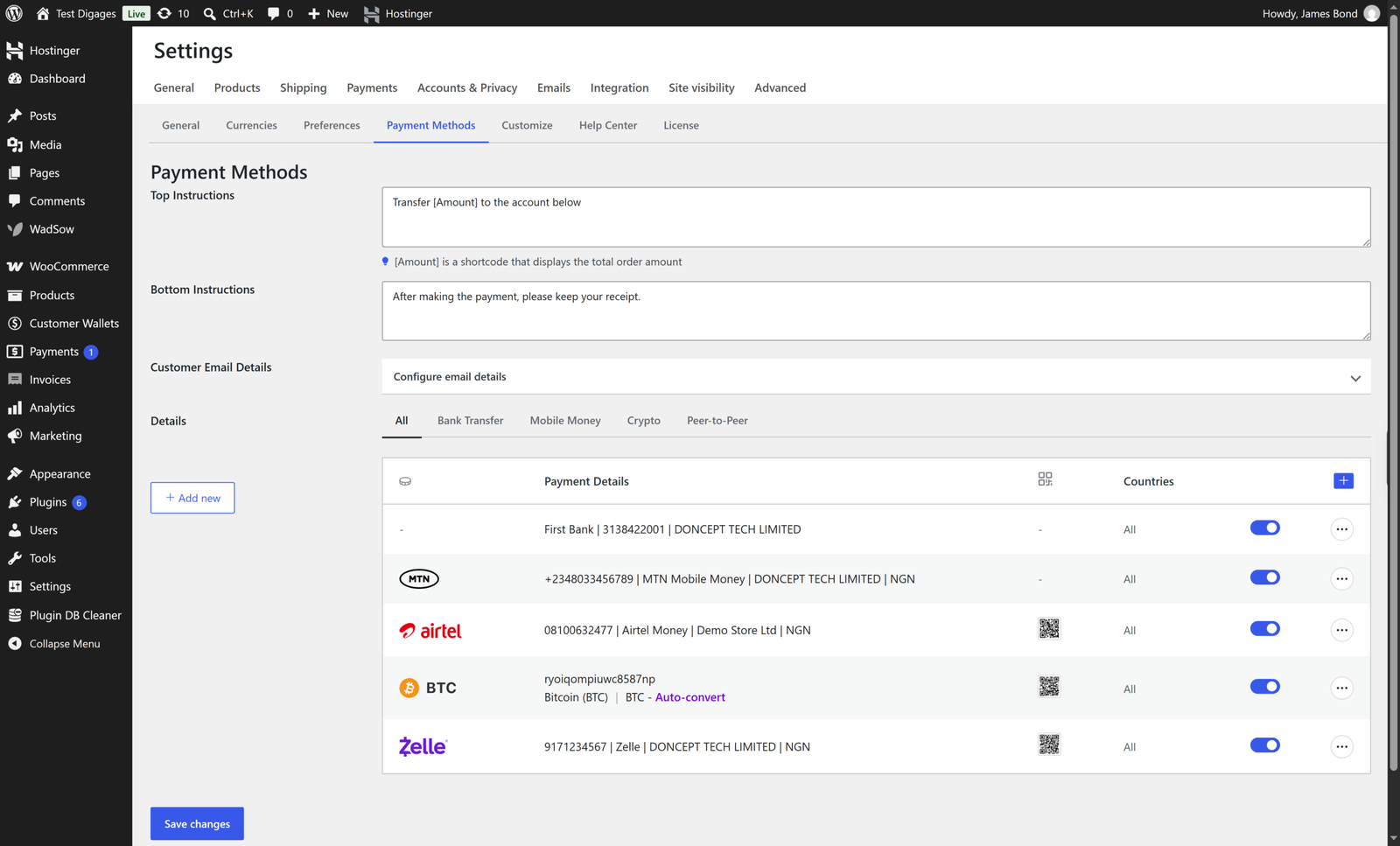
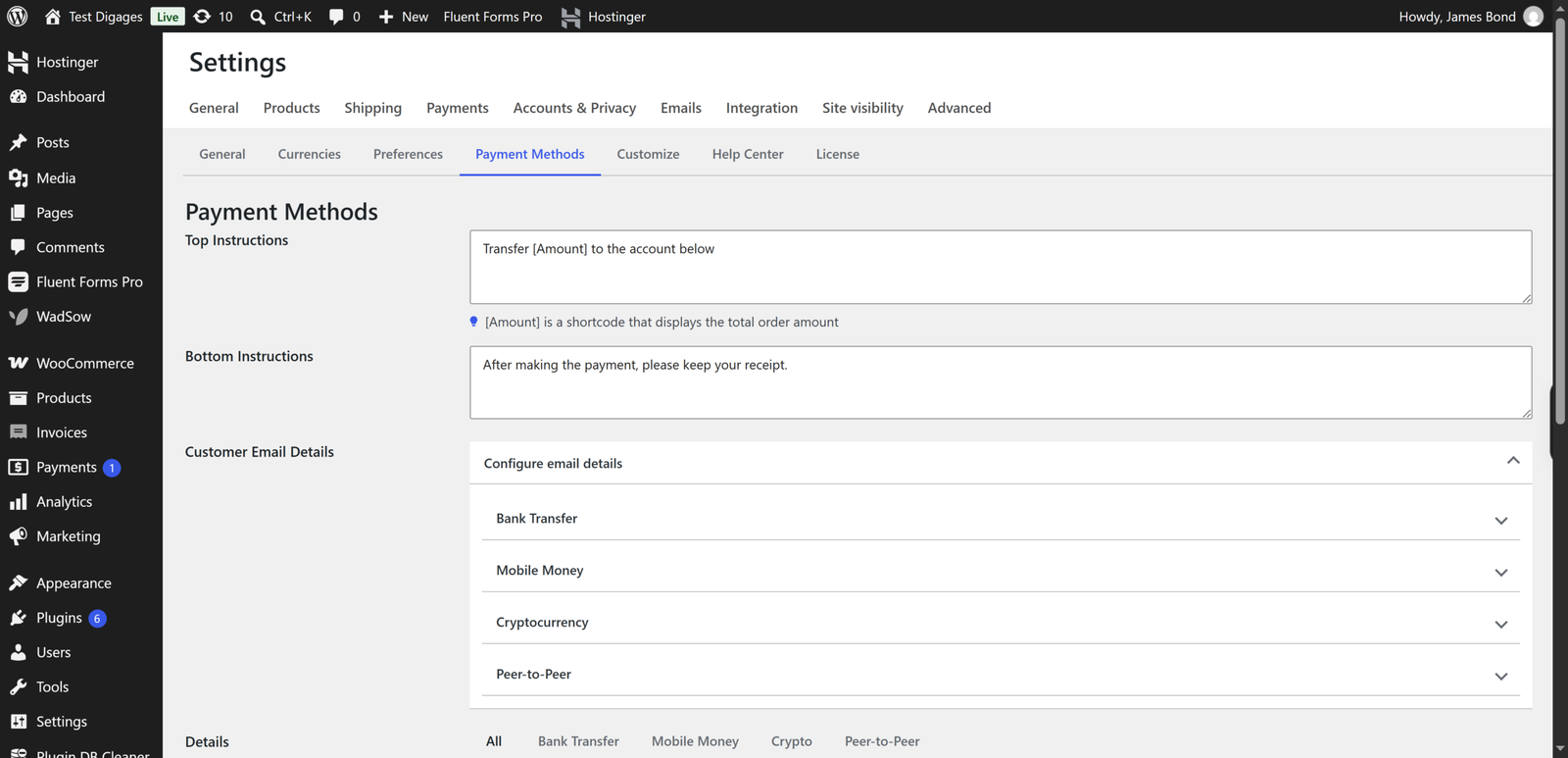
Within the selected payment method tab, scroll down to the Customer Email Details section. This is where the email content sent to customers for that payment method is configured.
Step 5: Edit the Email Template
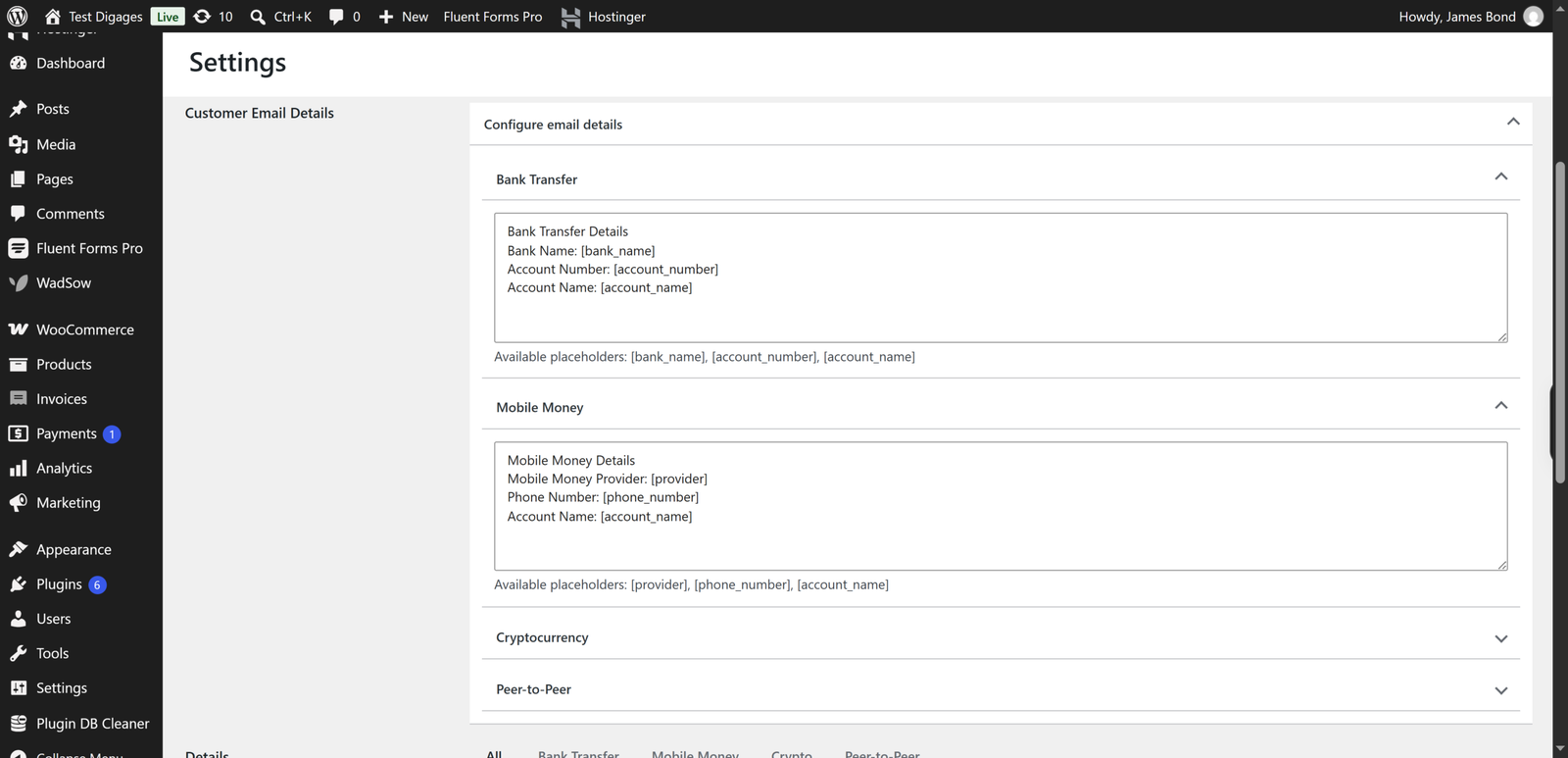
Update the email template with your current payment details and any other information you want customers to see. Double-check account numbers, wallet addresses, or handles carefully before saving.
Step 6: Save Your Changes
Scroll down to the bottom of the page and click Save to apply your changes. Your updated email will now be sent to customers who choose that payment method at checkout.
Place an order on a test/staging site after saving to confirm the email arrives with the correct, updated details before live customers start seeing it.